
Giriş
Thank you for choosing the Verilux Wireless Mouse M103. This manual provides detailed instructions for setting up, operating, and maintaining your new mouse. Please read this manual carefully before use to ensure optimal performance and longevity of your device.
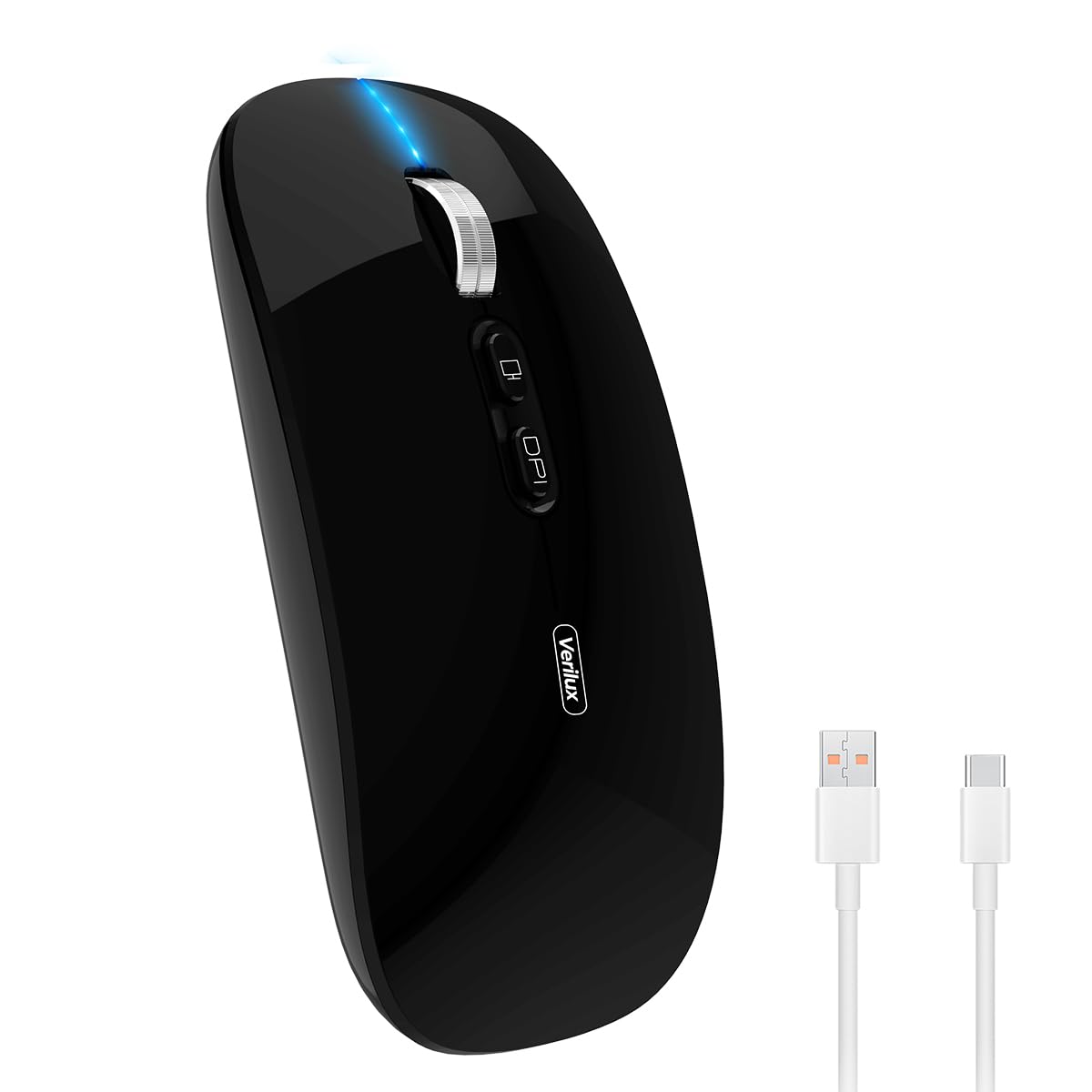
Image: Verilux Wireless Mouse M103 in black.
Məhsul Bitdiview
The Verilux M103 is a versatile wireless mouse offering dual-mode connectivity (2.4G USB and Bluetooth 5.1), a rechargeable battery, and an ergonomic, silent design. It is compatible with a wide range of devices and operating systems.

Image: The Verilux M103 mouse demonstrating its dual Bluetooth connectivity with a laptop and tablet.
Əsas Xüsusiyyətlər:
- İkili rejim bağlantısı: Seamlessly switch between 2.4G USB and Bluetooth 5.1.
- Yenidən doldurulan batareya: Built-in 500mAh battery with 4-level power indicator.
- Ergonomic & Silent Design: Comfortable grip with silent clicks for a quiet working environment.
- Universal Uyğunluq: Supports Android, Windows, MacOS, iOS 12 and above, PC, laptops, and tablets.
- Tənzimlənən DPI: Customize mouse sensitivity for precise control.
Quraşdırma
1. 2.4G Mode Setup:
- Locate the USB receiver stored in the mouse's bottom compartment.
- Plug the USB receiver into an available USB port on your device (laptop, PC).
- Turn on the mouse using the On/Off switch located on the bottom.
- Siçan avtomatik olaraq cihazınıza qoşulmalıdır.
Video: Demonstrates unboxing, identifying the USB receiver, and connecting the mouse via 2.4G USB to a laptop.
2. Bluetooth Mode Setup:
The mouse supports two Bluetooth channels: Bluetooth 3.0 and Bluetooth 5.1.
- Turn on the mouse using the On/Off switch on the bottom.
- Switch the mode selector on the bottom of the mouse to either BT3.0 (center blue light) or BT5.1 (right blue light).
- Activate Bluetooth on your device (laptop, PC, iPad, phone).
- axtarın available Bluetooth devices and select 'BT5.1 Mouse' to connect.
- If the indicator light blinks and the connection is unsuccessful, restart both your device and the mouse, then try again.
Əməliyyat Təlimatları
Siçan Düymələri:
- Sol Klik: Standart seçim.
- Sağ klikləyin: Kontekst menyusu.
- Scroll Wheel (Middle Button/Roller): Scroll up/down, click for middle-click functions.
- DPI düyməsi: Siçan həssaslığını (DPI) tənzimləyir.
- One-Click Desktop Button: Quickly minimizes all open windows to show the desktop.

Image: Close-up of the Verilux M103 mouse, highlighting the scroll wheel, DPI button, and one-click desktop button.
DPI Tənzimlənməsi:
Press the DPI button (located behind the scroll wheel) to cycle through different sensitivity levels (e.g., 800, 1200, 1600 DPI). Choose the setting that best suits your preference and task.
Doldurma və Batareya
The Verilux M103 mouse features a built-in 500mAh rechargeable battery. It is equipped with 4-level power indicator lights to show the remaining battery life.
Doldurma Təlimatları:
- Connect the mouse to a power source using the provided USB-C charging cable. The charging port is located at the front of the mouse.
- A flashing light on the mouse indicates normal charging.
- Charge the mouse using a 5V 1A, 5V 2A, or an adapter with no more than 10W of power. It can also be charged by connecting it to a computer's USB port.
- The mouse can be used while charging.
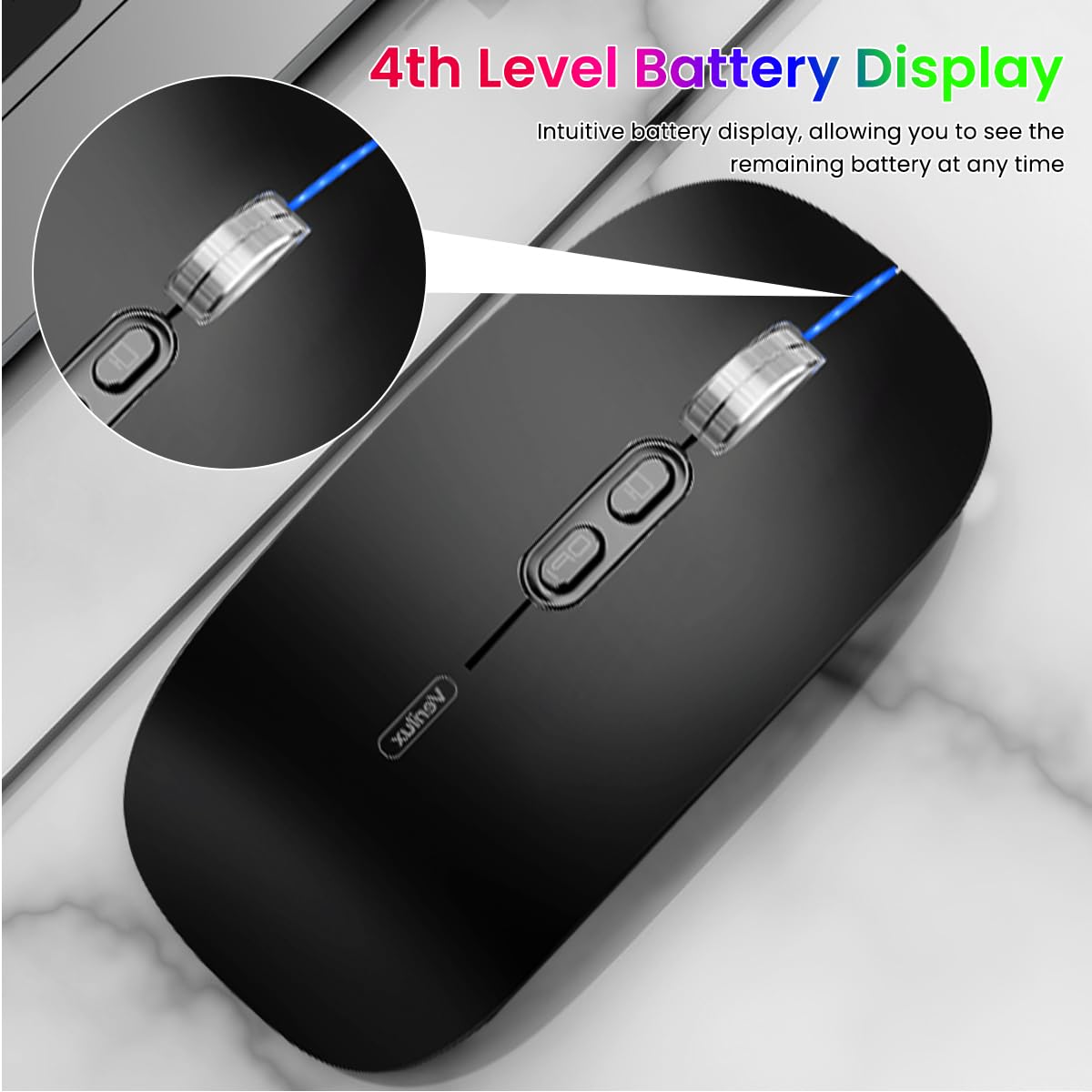
Image: The Verilux M103 mouse displaying its 4-level battery indicator lights.

Image: The Verilux M103 mouse connected to a laptop for charging via its USB-C port.
Uyğunluq
The Verilux M103 Wireless Mouse offers broad compatibility with various devices and operating systems:
- Əməliyyat Sistemləri: Android, Windows (7, XP, 8, 10), MacOS, iOS 12 and above, Linux.
- Cihazlar: Laptops, Personal Computers, Tablets, iPads, MacBooks.

Image: The Verilux M103 mouse shown with a laptop, desktop monitor, iPad, and smartphone, illustrating its wide compatibility.
Baxım
To ensure the longevity and optimal performance of your Verilux Wireless Mouse M103, follow these maintenance guidelines:
- Təmizləmə: Siçanı təmizləmək üçün yumşaq, quru parça istifadə edin. İnadkar kirlər üçün bir az dampParçanı su və ya yumşaq təmizləyici məhlul ilə yuyun. Sərt kimyəvi maddələrdən və ya aşındırıcı materiallardan çəkinin.
- Yaddaş: When not in use, especially during travel, store the USB receiver in its designated compartment at the bottom of the mouse to prevent loss.
- Batareyaya qulluq: Avoid fully discharging the battery frequently. Charge the mouse when the power indicator shows low battery. Do not expose the mouse to extreme temperatures.
- Ekoloji Şərtlər: Keep the mouse away from excessive dust, moisture, and direct sunlight.
Problemlərin aradan qaldırılması
If you encounter issues with your Verilux Wireless Mouse M103, please refer to the following common solutions:
| Problem | Həll |
|---|---|
| Mouse not connecting (2.4G Mode) |
|
| Mouse not connecting (Bluetooth Mode) |
|
| Mouse cursor lagging or erratic movement |
|
| Siçan doldurulmur |
|
Spesifikasiyalar
| Xüsusiyyət | Detal |
|---|---|
| Brend | Verilux |
| Model nömrəsi | M103 (AZEM4-0K5FZ5C) |
| Bağlantı texnologiyası | Bluetooth (3.0 & 5.1), 2.4G Wireless |
| Hərəkətin aşkarlanması texnologiyası | Optik |
| DPI parametrləri | 1600 DPI-yə qədər (Tənzimlənən) |
| Batareya | 500mAh Şarj oluna bilər |
| Güc mənbəyi | Batareya ilə işləyir (USB-C Doldurma) |
| Düymələr | 4 (Left, Right, Scroll Wheel/Middle, DPI, One-Click Desktop) |
| Əl istiqaməti | Hərtərəfli |
| Maddə Çəkisi | 119 qram |
| Element Ölçüləri (U x W) | 12L x 7W Santimetre |
| Rəng | Black (Standard Black variant) |
Zəmanət və Dəstək
For warranty information and customer support, please refer to the documentation included with your product packaging or visit the official Verilux websayt. Yardım üçün birbaşa satıcı ilə də əlaqə saxlaya bilərsiniz.
İstehsalçı: Verilux, Yiwu Kaiming Industrial Co., Ltd.
İdxalçı/Packer: Verilux
For further information, you can visit the Verilux Store on Amazon.