
1. Giriş
Aldığınız üçün təşəkkür edirikasing the CAMECHO CM-686 Double DIN Car Stereo. This unit features a 6.86-inch touchscreen, wireless CarPlay, Android Auto, Bluetooth, FM radio, Mirror Link, and supports various multimedia inputs. This manual provides detailed instructions for installation, operation, and troubleshooting to ensure optimal performance and user experience.
2. Təhlükəsizlik Məlumatı
Please read all instructions carefully before installation and operation. Failure to follow these instructions may result in injury or damage to the unit or vehicle.
- Always operate the unit safely and in accordance with traffic laws.
- Cihazı sökməyin və ya dəyişdirməyin. Bu, nasazlığa və ya elektrik şokuna səbəb ola bilər.
- Qısa qapanmaların və ya zədələnmələrin qarşısını almaq üçün naqillərin düzgün birləşməsini təmin edin.
- Səs səviyyəsini kənar nəqliyyat səslərini eşitməyə imkan verən səviyyədə saxlayın.
- Cihazı həddindən artıq temperatura, uzun müddət birbaşa günəş işığına və ya həddindən artıq nəmə məruz qoymaqdan çəkinin.
3. Paketin məzmunu
Bütün əşyaların paketdə olduğunu yoxlayın:
- CAMECHO Double DIN Car Stereo Unit
- Elektrik kabeli
- Buynuz Kabeli
- Antena
- Xarici Mikrofon
- Sükan Uzaqdan İdarəetmə
- Mounting Brackets (4 screws included)
- İstifadəçi təlimatı

Image: Main unit and accessories. This image displays the CAMECHO car stereo unit, a remote control, an external microphone, and a smartphone illustrating the CarPlay/Android Auto interface.
4. Məhsul bitdiview
The CAMECHO CM-686 features a responsive 6.86-inch HD touchscreen and intuitive physical buttons for essential functions.
4.1. Ekran Xüsusiyyətləri
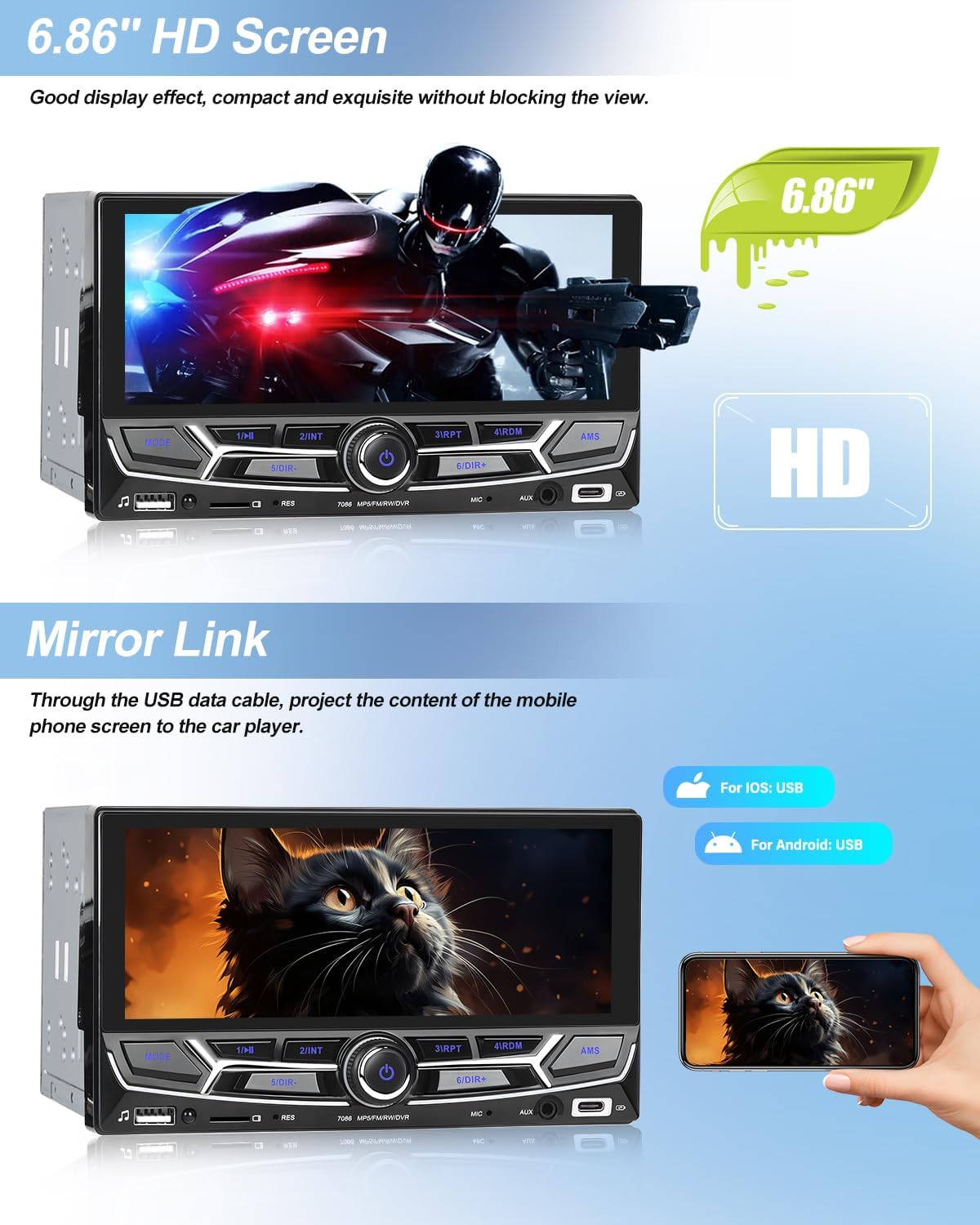
Image: 6.86-inch HD Screen. This image highlights the high-definition display of the car stereo, showing a vibrant image on its 6.86-inch screen.
4.2. Front Panel Layout and Dimensions
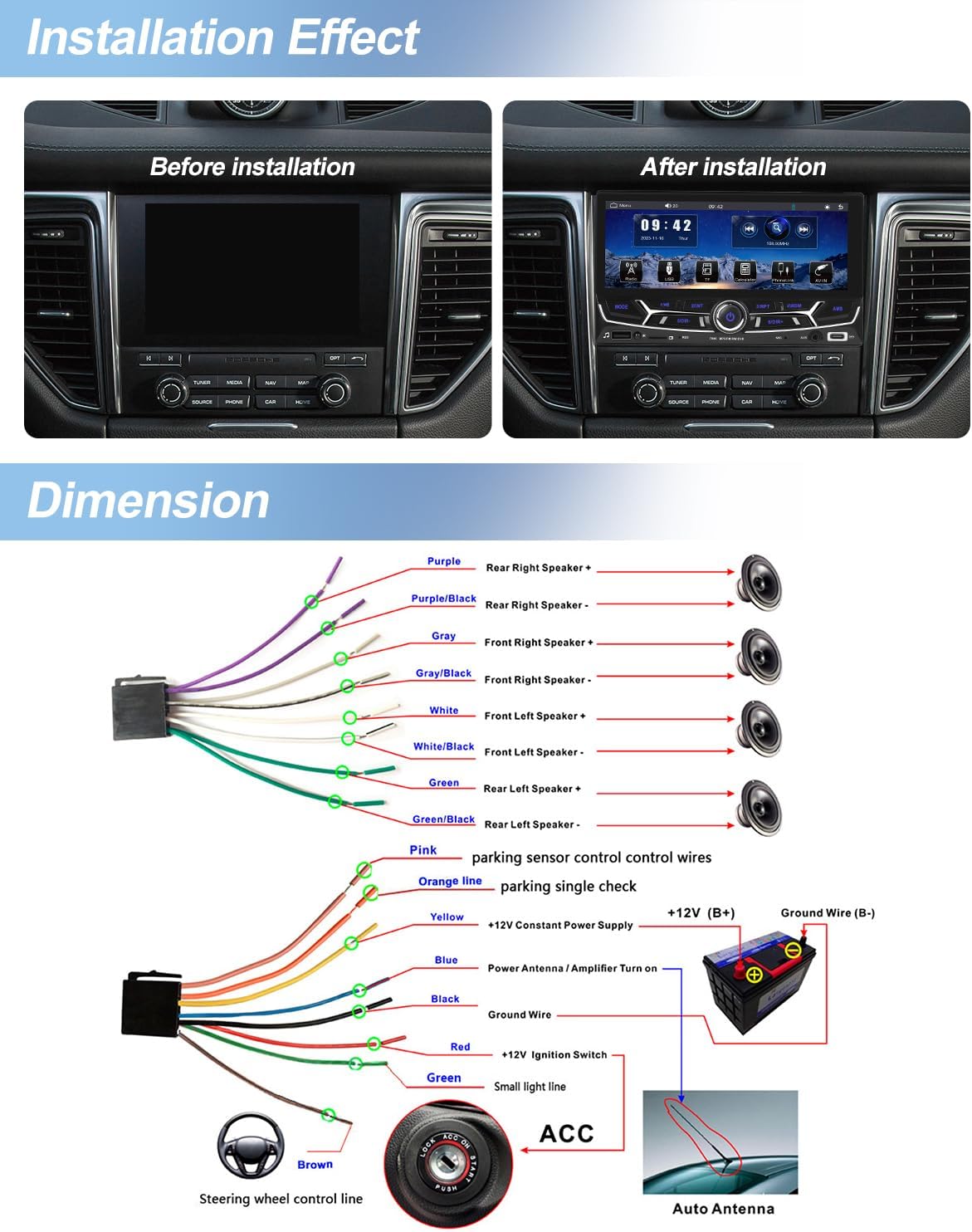
Image: Front Panel and Dimensions. This diagram illustrates the front panel of the car stereo, labeling ports such as USB, IR, Reset, TF Port, MIC, AUX, and Type-C Port, along with button functions. It also indicates the unit's dimensions: 180mm (7.09 inches) width and 104mm (4.09 inches) height.
Ön panelə daxildir:
- MODE düyməsi: Giriş mənbələri arasında keçid edir.
- Power Button/Rotary Knob: Press to power on/off, rotate for volume control.
- USB Port: For multimedia playback and charging.
- TF Kart Yuvası: For multimedia playback.
- AUX Girişi: 3.5 mm səs girişi.
- Tip-C Portu: Şarj etmək və məlumat ötürmək üçün.
- MIC Girişi: Xarici mikrofon bağlantısı üçün.
- Sıfırlama düyməsi: Small pinhole for factory reset.
- IR Alıcı: Uzaqdan idarəetmə üçün.
5. Quraşdırma
Proper installation is crucial for the unit's performance and vehicle safety. If you are unsure about any steps, consult a professional installer.
5.1. Elektrikli sxem
Image: Wiring Diagram. This diagram illustrates the various wiring connections for the car stereo, including speaker outputs (front/rear left/right), power (ACC, B+, Ground), parking sensor control, reverse input, and steering wheel control.
Açar Naqilləri Bağlantıları:
- Yellow (B+): Connect to constant +12V power supply.
- Qırmızı (ACC): Connect to +12V ignition switched power supply.
- Qara (Torpaq): Avtomobilin şassisinin yerə qoşulun.
- Orange (Parking Line): Connect to parking brake signal (if applicable for video playback safety).
- Brown (Steering Wheel Control): Connect to vehicle's steering wheel control wire.
- Reverse Input (CVBS): Connect to the reverse camera video signal.
- Dinamik telləri: Müvafiq avtomobil dinamiklərinə qoşulun (məsələn, Ön Sol üçün Ağ/Ağ-Qara, Ön Sağ üçün Boz/Boz-Qara, Arxa Sol üçün Yaşıl/Yaşıl-Qara, Arxa Sağ üçün Bənövşəyi/Bənövşəyi-Qara).
5.2. Qurğunun quraşdırılması
Use the provided mounting brackets and screws to secure the unit into your vehicle's double DIN slot. Ensure the unit is firmly in place to prevent movement during driving.
Image: Installation Effect. This image shows a 'Before' and 'After' comparison of the car stereo installation, demonstrating how the unit integrates into the vehicle's dashboard once installed.
6. Əməliyyat Təlimatları
6.1. Əsas əməliyyatlar
- Yandırma/Söndürmə: Press the power button (rotary knob) to turn the unit on or off.
- Səs səviyyəsinə nəzarət: Səsi artırmaq üçün düyməni saat əqrəbi istiqamətində, azaltmaq üçün isə saat yönünün əksinə çevirin.
- Mənbə seçimi: Press the 'MODE' button to cycle through available input sources (Radio, USB, TF, AUX, Bluetooth, CarPlay/Android Auto).
6.2. Simsiz Avtomobil Oyunu
Connect your iPhone wirelessly to access CarPlay features directly on the car stereo's display.
- iPhone-da Bluetooth və Wi-Fi-ın aktiv olduğundan əmin olun.
- On the car stereo, select the CarPlay icon.
- Follow the on-screen prompts to pair your iPhone.
- Once connected, you can use navigation, make calls, send messages, and listen to music via Siri voice control or the touchscreen.

Image: Wireless CarPlay. This image shows the car stereo display running Apple CarPlay, featuring app icons for phone, music, maps, messages, and other compatible applications.
6.3. Simsiz Android Auto
Connect your Android phone wirelessly to use Android Auto features on the car stereo.
- Android telefonunuzda Bluetooth və Wi-Fi-ın aktiv olduğundan əmin olun.
- On the car stereo, select the Android Auto icon.
- Follow the on-screen prompts to pair your Android phone.
- Access navigation, communication, and media apps through the car stereo.
- Qeyd: Samsung and Huawei phones may not be supported for wireless Android Auto.
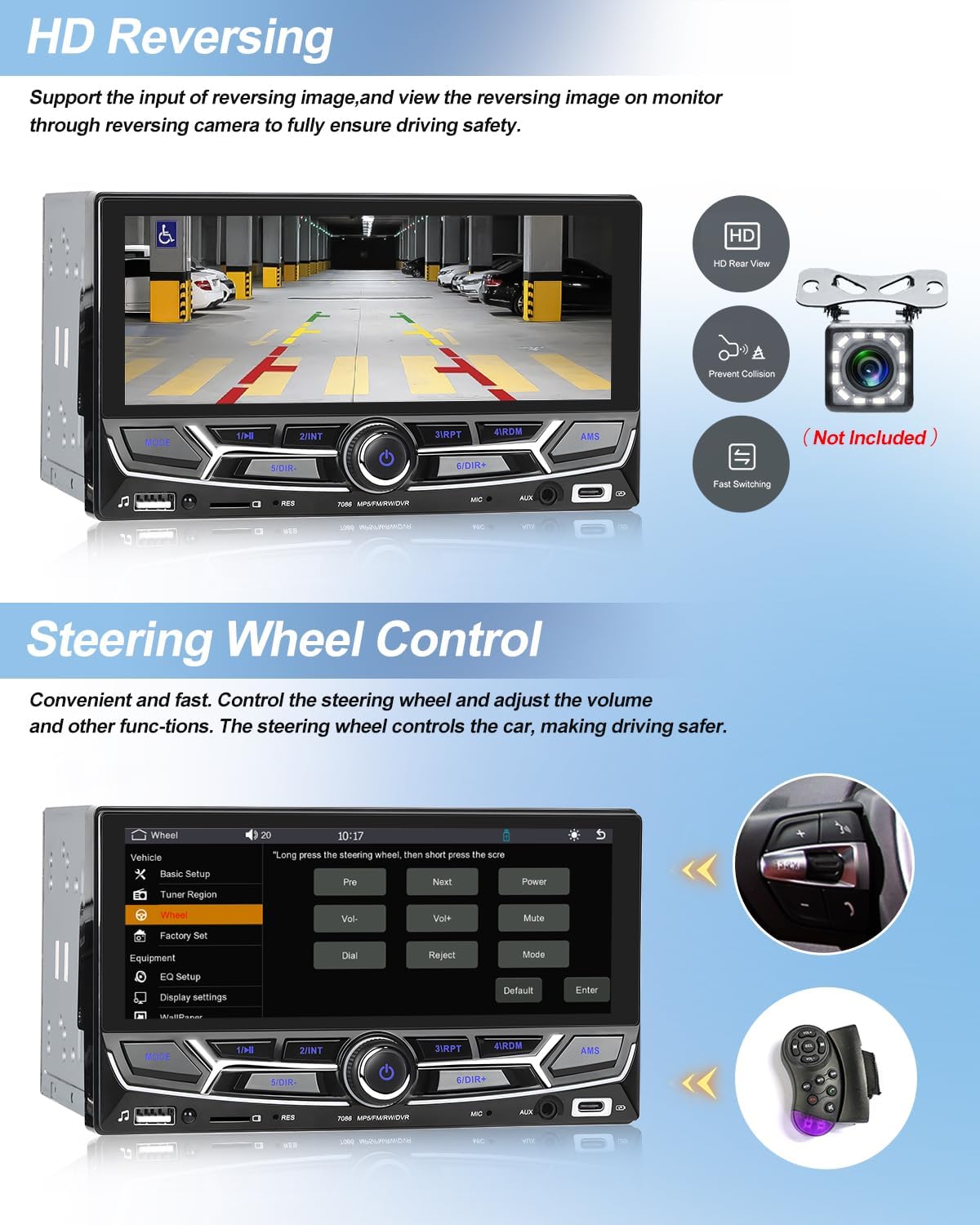
Image: Wireless Android Auto. This image displays the car stereo interface with Android Auto active, showing a layout of common applications for navigation, media, and communication.
6.4. Bluetooth Hands-free Calling
Səssiz zəng və audio axını üçün smartfonunuzu Bluetooth vasitəsilə cütləşdirin.
- Telefonunuzda və avtomobil stereosunda Bluetooth-u aktivləşdirin.
- axtarın the car stereo's Bluetooth name on your phone and pair.
- Once connected, you can make/receive calls and play music from your phone through the car speakers.
- The unit supports phonebook download for easy contact access.

Image: Bluetooth Hands-free Call. This image shows the car stereo's Bluetooth interface, displaying a dial pad for making calls and a screen for Bluetooth music playback, alongside a smartphone showing an incoming call.
6.5. Güzgü Linki
Project your smartphone screen onto the car stereo display via a USB data cable.
- Connect your smartphone to the car stereo's USB port using a data cable.
- Select the Mirror Link function on the car stereo.
- Follow any prompts on your phone to allow screen mirroring.
- This feature supports both Android and iPhone devices.

Image: Mirror Link. This image demonstrates the Mirror Link function, where the car stereo's screen displays the content of a connected smartphone, in this case, an image of a cat. Icons indicate USB connectivity for both iOS and Android devices.
6.6. FM Radio
Sevimli FM radio stansiyalarınızı dinləyin.
- FM Radio mənbəyini seçin.
- Use the search functions (automatic, semi-automatic, or precise tuning) to find stations.
- Tez giriş üçün üstünlük verilən stansiyaları əvvəlcədən ayarlara qeyd edin.
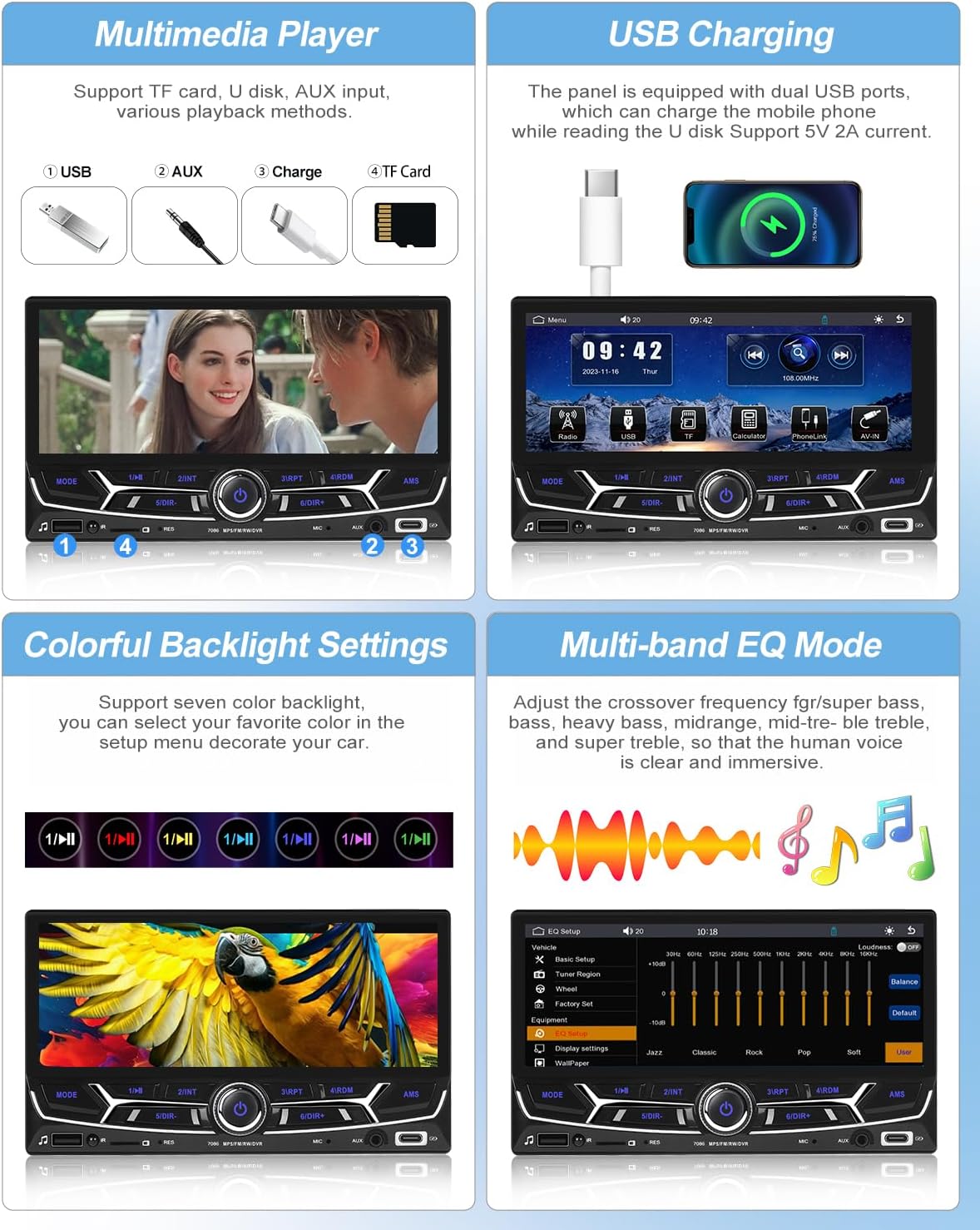
Image: FM Radio. This image shows the car stereo's FM radio interface, displaying the current frequency (108.00 MHz) and controls for tuning and station presets.
6.7. Multimedia Player (USB, TF Card, AUX)
Play audio, video, and image filemüxtəlif mənbələrdən.
- Insert a USB drive or TF card into the respective port.
- Connect an external audio device to the AUX-IN port.
- Select the corresponding source (USB, TF, AUX) from the main menu.
- Browse and select your desired media filesəsləndirmə üçün.
Image: Multimedia Player. This section of the image illustrates the various multimedia input options: USB, AUX, and TF Card. It also shows the car stereo playing a video, demonstrating its multimedia playback capabilities.
6.8. HD Reversing Camera Support
Connect an optional CVBS reversing camera for enhanced safety when backing up.
- Connect the reversing camera to the CVBS input on the unit.
- Ensure proper wiring for the reverse trigger signal.
- Avtomobil geriyə keçirildikdə, ekran avtomatik olaraq kameraya keçəcək view.
Image: HD Reversing. This image shows the car stereo display presenting a clear, high-definition view from a reversing camera, complete with parking guidelines, to assist with safe maneuvering.
6.9. Sükan İdarəetməsi (SWC)
Program your vehicle's steering wheel buttons to control the car stereo for convenience and safety.
- Access the Steering Wheel Control learning function in the unit's settings menu.
- Follow the on-screen instructions to assign functions (e.g., volume up/down, track skip, mode) to your steering wheel buttons.
Image: Steering Wheel Control. This image displays the car stereo's interface for learning steering wheel controls, alongside a visual of a steering wheel with integrated control buttons, and the included remote control.
6.10. Equalizer (EQ) Settings
Adjust audio output to your preference with the multi-band equalizer.
- Navigate to the EQ settings in the audio menu.
- Choose from preset EQ modes (e.g., Jazz, Classic, Rock, Pop) or customize individual frequency bands.
Image: Multi-band EQ Mode. This section of the image shows the car stereo's multi-band equalizer interface, allowing users to adjust frequency levels for bass, midrange, and treble, or select from various preset sound modes like Jazz, Classic, Rock, and Pop.
6.11. Colorful Backlight Settings
Customize the button backlight color to match your vehicle's interior or personal preference.
- Access the backlight settings in the system menu.
- Select from seven available colors or set it to automatically cycle through colors.
Image: Colorful Backlight Settings. This section of the image illustrates the car stereo's interface for customizing the button backlight colors, offering a selection of seven colors or an automatic color-changing mode.
6.12. USB şarj
The unit provides USB ports for charging mobile devices.
- Connect your device to the USB or Type-C port using a compatible cable.
- The unit supports 5V 2A output for charging.
Image: USB Charging. This section of the image shows a smartphone connected to the car stereo's USB port, indicating that the unit can charge mobile devices.
7. Giderme
Problemlərlə qarşılaşsanız, aşağıdakı ümumi problemlərə və həll yollarına müraciət edin:
| Problem | Mümkün Səbəb | Həll |
|---|---|---|
| Cihaz işə düşmür. | Incorrect wiring (B+, ACC, Ground). Blown fuse. | Check power connections. Verify fuse integrity. |
| Səs yoxdur. | Speaker wires disconnected. Volume too low. Mute function active. | Dinamik bağlantılarını yoxlayın. Səsi artırın. Səssiz rejimi deaktiv edin. |
| Bluetooth bağlantısı problemləri. | Bluetooth not enabled. Pairing failed. | Ensure Bluetooth is on for both devices. Re-attempt pairing. Clear previous pairings. |
| CarPlay/Android Auto simsiz qoşulmur. | Wi-Fi/Bluetooth off. Incompatible phone model (e.g., some Samsung/Huawei for Android Auto). | Ensure Wi-Fi and Bluetooth are active. Check phone compatibility. Try a wired connection if wireless fails. |
| Toxunma ekranı cavab vermir. | Müvəqqəti proqram xətası. | Press the Reset button with a thin object. |
8. Spesifikasiyalar
| Xüsusiyyət | Spesifikasiya |
|---|---|
| Model nömrəsi | 3a210879-aa34-4433-934b-e947e6122da7 |
| Ekran Ölçüsü | 6.86 düym |
| Ekran həlli | 480 x 1280 |
| CPU Chip | F133 |
| Çıxış Gücü | 45W x 4 |
| Bluetooth versiyası | 5.0 |
| Radio Frequency | 87.5-108 MHz |
| Əməliyyat Voltage | DC 12V |
| İşləmə temperaturu | -10 ~ 60 ℃ |
| Dəstəklənən Audio Formatlar | MP3 / WMA / WAV / APE / FLAC |
| Dəstəklənən Video Formatları | RM/RMVB/AVI/MP4/MKV/3GP |
| Dəstəklənən şəkil formatları | JPG / BMP / PNG |
| Bağlantı | USB, Type-C, AUX, Bluetooth |
| Xüsusi Xüsusiyyətlər | Wireless CarPlay, Android Auto, Built-in Bluetooth, FM Tuner, Mirror Link, SWC |
9. Baxım
Avtomobil stereo cihazınızın uzunömürlülüyünü və optimal işləməsini təmin etmək üçün bu texniki xidmət qaydalarına əməl edin:
- Ekranın təmizlənməsi: Toxunma ekranını yumşaq bir şəkildə silmək üçün yumşaq, tüysüz parçadan istifadə edin. İnadkar ləkələr üçün, bir az dampparçanı su və ya ekran təmizləyicisi ilə örtün. Sərt kimyəvi maddələrdən və ya aşındırıcı materiallardan çəkinin.
- Cihazın təmizlənməsi: Cihazın xarici hissəsini quru və yumşaq bir parça ilə silin. Maye təmizləyiciləri birbaşa cihazın üzərində istifadə etməyin.
- Ekstremal şərtlərdən qaçın: Protect the unit from direct sunlight for extended periods, extreme heat, or cold, as these can affect performance and lifespan.
- Proqram təminatı yeniləmələri: İstehsalçı yoxlayın website periodically for any available firmware updates to improve functionality and fix bugs.
10. Zəmanət və Dəstək
This product comes with a standard manufacturer's warranty. Please refer to the warranty card included in your package for specific terms and conditions. For technical support, troubleshooting assistance, or warranty claims, please contact CAMECHO customer service through your purchase platform or the official CAMECHO websayt.
Zəmanət məqsədləri üçün satınalma sübutunuzu özünüzdə saxlayın.