
Giriş
This manual provides detailed instructions for the setup, operation, and maintenance of your Prechen 10.1 inch Portable Touchscreen Monitor, Model HD-101. Please read this manual thoroughly before using the device to ensure proper functionality and to prevent damage.
Məhsul Xüsusiyyətləri
- Portable Touchscreen: This 10.1-inch monitor is compact and lightweight, designed for portability. The touchscreen functionality allows for intuitive navigation and interaction, enhancing productivity on the go.
- High-Resolution IPS Display: Features a 1920x1200 resolution with a 16:10 aspect ratio, delivering clear and vibrant visuals. IPS technology provides wide viewing angles and accurate color reproduction, suitable for various applications.
- Çox yönlü əlaqə: Equipped with HDMI and USB-C ports, offering flexible connection options. It can be easily connected to Windows PCs, laptops, and gaming consoles like Xbox. Note: USB-C is for touch functionality and power.
- İnteqrasiya edilmiş Dinamiklər: Built-in speakers provide clear and dynamic audio, eliminating the need for external speakers during media consumption, gaming, or virtual meetings.
- VESA montajına uyğundur: The monitor supports VESA mounting standards, allowing for attachment to compatible stands or arms for customized workspace setups and comfortable viewbucaqlar.
Quraşdırma
Paketin məzmunu
Bütün əşyaların paketdə olduğunu yoxlayın:
- Prechen 10.1 inch Portable Touchscreen Monitor
- HDMI Kabel
- USB-C-dən USB-C kabelinə
- USB-A to USB-C Cable (for power/touch)
- Güc adapteri
- İstifadəçi Təlimatı (bu sənəd)
Monitorun qoşulması
- Enerji bağlantısı: Connect the provided power adapter to the DC Power Port on the monitor and plug it into a power outlet. Alternatively, if your device supports power delivery, connect a USB-C to USB-C cable to the USB-C (Power & Touch) port for both power and signal.
- Video bağlantısı:
- HDMI: Connect one end of the HDMI cable to the HDMI port on the monitor and the other end to the HDMI output of your computer or device.
- USB-C (DisplayPort Alternate Mode): If your device supports DisplayPort Alternate Mode over USB-C, connect a USB-C to USB-C cable to the USB-C (Power & Touch) port on the monitor and your device. This single cable can provide video, power, and touch functionality.
- Toxunma funksiyası: For touch functionality, ensure the USB-C (Power & Touch) port is connected to your device. If using HDMI for video, you will also need to connect a USB-A to USB-C cable from your device's USB-A port to the monitor's USB-C (Power & Touch) port.
- Audio Çıxış: If you wish to use external headphones or speakers, connect them to the 3.5mm Audio Port on the monitor.
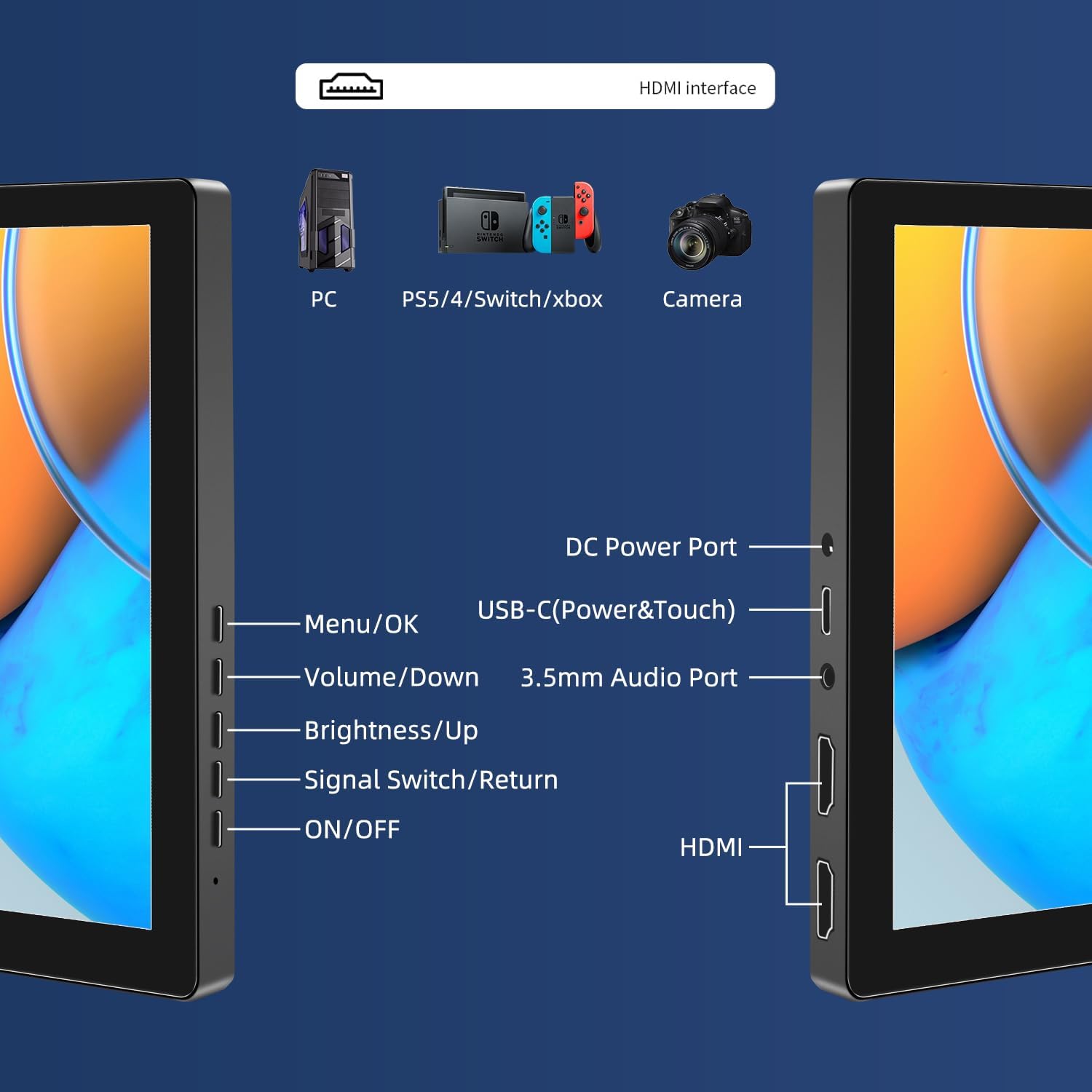
Şəkil: Bitdiview of the monitor's ports including DC Power, USB-C (Power & Touch), 3.5mm Audio, HDMI, and control buttons.
Əməliyyat Təlimatları
Yandırılır/Söndürülür
- To power on the monitor, press the ON/OFF düyməsi.
- Söndürmək üçün düyməsini basıb saxlayın ON/OFF button for a few seconds until the screen turns off.
Ekrandakı Ekran (OSD) Menyusundan istifadə
OSD menyusu müxtəlif ekran parametrlərini tənzimləməyə imkan verir.
- düyməsini basın Menyu / Tamam OSD menyusunu açmaq üçün düyməni basın.
- istifadə edin Səs/Aşağı və Parlaqlıq/Yuxarı menyu seçimlərində naviqasiya etmək üçün düymələr.
- basın Menyu / Tamam seçim etmək və ya parametri təsdiqləmək üçün.
- düyməsini basın Signal Switch/Return Əvvəlki menyuya qayıtmaq və ya OSD-dən çıxmaq üçün düyməni basın.
Adjusting Display Modes
The monitor supports multiple display modes when connected to a computer:
- Dublikat rejimi: Displays the same content on both your primary screen and the portable monitor.
- Genişləndirmə rejimi: Masaüstünüzü hər iki ekranda genişləndirir və daha çox iş sahəsi təmin edir.
- İkinci Ekran Rejimi: Ekran kimi yalnız portativ monitordan istifadə edir.
These modes are typically configured through your operating system's display settings (e.g., Windows Display Settings, macOS System Preferences).
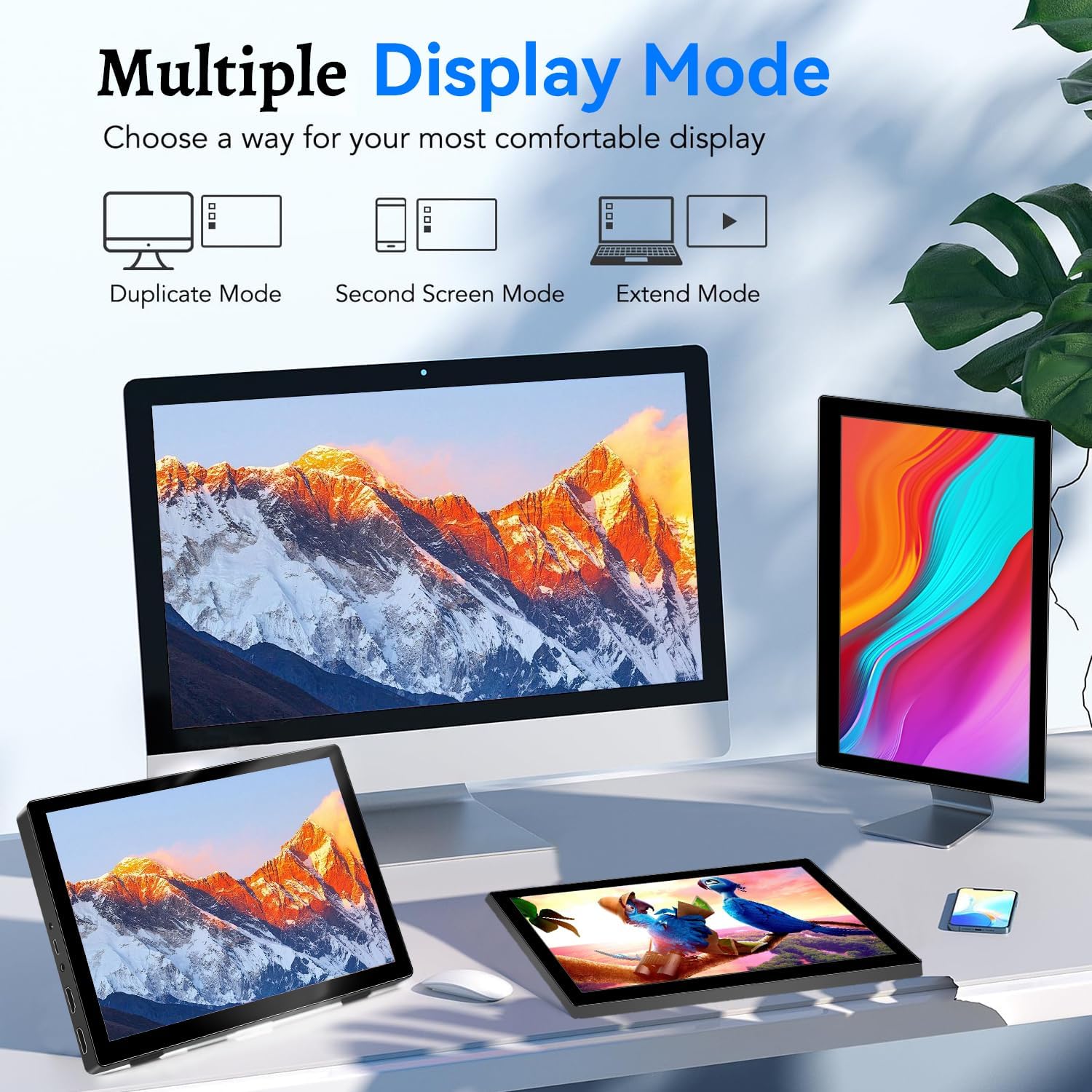
Image: Visual representation of Duplicate, Second Screen, and Extend display modes.
Using Touchscreen Functionality
The monitor supports 10-point touchscreen technology. Ensure the USB-C (Power & Touch) port is correctly connected to your device for touch input to function.

Şəkil: Məsamples of 10-point touchscreen gestures for interaction.
Baxım
- Ekranın təmizlənməsi: Bir az yumşaq, tüysüz parça istifadə edin dampened with water or a non-abrasive screen cleaner. Do not spray cleaner directly onto the screen.
- C-nin təmizlənməsiasing: Monitoru silin casing yumşaq, quru parça ilə. Güclü yuyucu vasitələrdən və ya həlledicilərdən istifadə etməyin.
- Yaddaş: İstifadə edilmədikdə, monitoru sərin və quru yerdə, birbaşa günəş işığından və həddindən artıq temperaturdan uzaq saxlayın.
- İdarəetmə: Avoid dropping or subjecting the monitor to strong impacts. Do not place heavy objects on top of the monitor.
Problemlərin aradan qaldırılması
| Problem | Mümkün Səbəb | Həll |
|---|---|---|
| Ekran yoxdur/Qara ekran |
|
|
| Sensorlu ekran cavab vermir |
|
|
| Dinamiklərdən səs yoxdur |
|
|
| Image quality issues (blurry, distorted) |
|
|
Spesifikasiyalar
| Xüsusiyyət | Detal |
|---|---|
| Brend | Prechen |
| Model nömrəsi | HD-101 |
| Ekran Ölçüsü | 10.1 düym |
| Qətnamə | 1920 x 1200 (UXGA Wide) |
| Aspekt nisbəti | 16:10 |
| Panel növü | IPS |
| Yeniləmə dərəcəsi | 60 Hz |
| Cavab vaxtı | 1 ms |
| Bağlantı | 1x HDMI, 1x USB-C (Power & Touch), 1x 3.5mm Audio Jack, 1x DC Power Port |
| Ölçülər (U x G x Y) | 21.8 x 15.8 x 1.4 sm |
| Çəki | 990 qram |
| İstehsalçı | Shenzhen Kenowa Electronics Co., LTD |
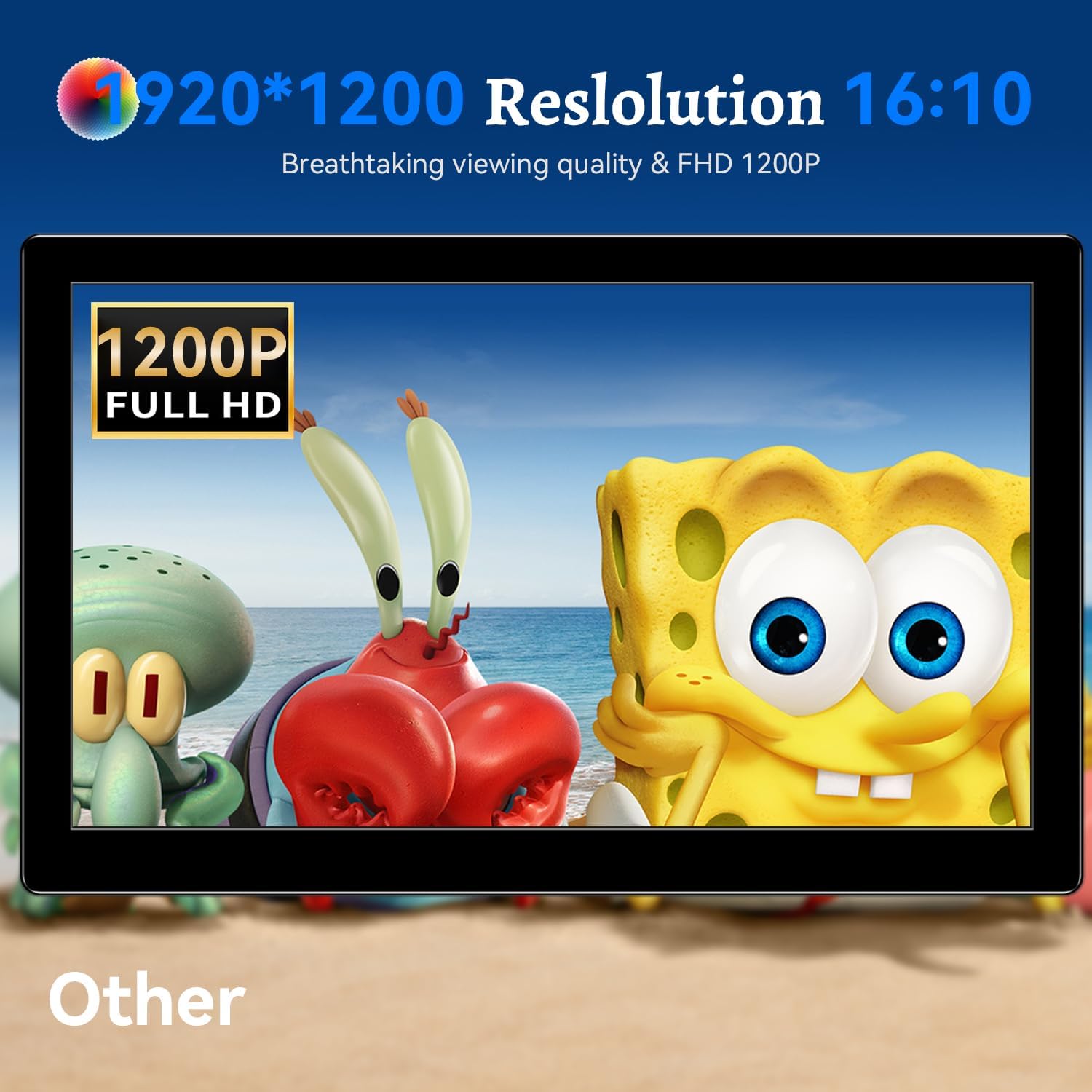
Şəkil: Monitor nümayişiasing its 1920x1200 Full HD resolution.

Image: The monitor's IPS panel offering wide viewing angles and rich colors.
Zəmanət və Dəstək
For warranty information and technical support, please refer to the warranty card included with your product or contact Prechen customer service through their official website. Please have your model number (HD-101) and purchase details ready when contacting support.