
Qardaş DCP-T730DW
Brother DCP-T730DW Multifunction Printer User Manual
Model: DCP-T730DW
1. Giriş
This manual provides essential information for the safe and efficient use of your Brother DCP-T730DW Ink Tank Multifunction Printer. This device is designed for printing, scanning, and copying, featuring Wi-Fi connectivity, automatic duplex printing, and an Automatic Document Feeder (ADF).

Şəkil 1: Brother DCP-T730DW Ink Tank Printer with included ink bottles. This image shows the Brother DCP-T730DW printer from the front, alongside the various color ink bottles (black, cyan, magenta, yellow) that come with the device. The printer features a compact design with a front-loading paper tray.
2. Təhlükəsizlik Məlumatı
Please read these safety instructions carefully before using the machine to prevent injury and damage to the machine or other property. Keep this manual in an easily accessible place for quick reference.
- Always place the printer on a flat, stable surface.
- Heç bir ventilyasiya açılışını bağlamayın.
- Yalnız printerlə birlikdə verilən elektrik kabelindən istifadə edin.
- Printeri sudan və nəmdən uzaq tutun.
- Printeri özünüz təmir etməyə çalışmayın. Bütün təmir işlərini ixtisaslı xidmət personalına həvalə edin.
3. Paketin məzmunu
Qutuda bütün əşyaların olduğunu yoxlayın:
- Brother DCP-T730DW Çoxfunksiyalı Printer
- Mürəkkəb Şüşələri Dəsti (Qara, Firuzəyi, Magenta, Sarı)
- Elektrik kabeli
- USB kabel
- Installation CD-ROM (Drivers & Software)
- Tez Quraşdırma Kılavuzu
4. Quraşdırma
4.1 Printerin İlkin Qurulması
- Unpack the printer and remove all protective tapes and packing materials.
- Printeri sabit, düz bir səthə qoyun.
- Elektrik kabelini printerə, sonra isə elektrik rozetkasına qoşun. Hələ printeri yandırmayın.
4.2 Mürəkkəb Çənlərinin Doldurulması
The DCP-T730DW features an integrated ink tank system for easy refilling.
- Open the ink tank cover located on the front right side of the printer.
- Carefully open the cap for each color ink tank (Black, Cyan, Magenta, Yellow).
- Uncap the corresponding ink bottle and gently insert the nozzle into the tank's filling port. The ink will flow automatically.
- Çən dolduqdan sonra şüşəni çıxarın və çənin qapağını möhkəm bağlayın. Bütün rənglər üçün təkrarlayın.
- Mürəkkəb çəninin qapağını bağlayın.
4.3 Proqram təminatının quraşdırılması
For full functionality, install the printer drivers and software on your computer.
- Insert the installation CD-ROM into your computer's CD/DVD drive. If you don't have a CD drive, download the latest drivers from the official Brother support websayt.
- Quraşdırmanı başa çatdırmaq üçün ekrandakı təlimatları izləyin.
- During installation, you will be prompted to connect the printer via USB or set up a wireless connection.
5. Printerin işlədilməsi
5.1 Kağız Yükləmə
Load paper into the front paper tray. The printer supports a 150-page paper tray capacity.
5.2 Çap
The DCP-T730DW offers high-speed printing with up to 16 ppm for monochrome and 15.5 ppm for color, and a maximum print resolution of 1200 x 6000 dpi.
- Standart Çap: From your computer, select 'Print' from your application, choose the Brother DCP-T730DW, and adjust settings as needed.
- Sərhədsiz Çap: This feature allows printing photos and documents without white margins. Select the borderless option in your printer settings for compatible paper sizes.
- Automatic Duplex (2-sided) Printing: To save paper, enable the auto-duplex option in your printer's settings before printing.

Şəkil 2: Brother DCP-T730DW printer with auto duplex feature. The printer is shown performing automatic two-sided printing, highlighting its efficiency for double-sided documents.
5.3 Tarama
Sənədləri planşet skanerindən və ya Avtomatik Sənəd Ötürücüsündən (ADF) istifadə edərək skan edə bilərsiniz.
- Düz platformadan istifadə: Place a single document face-down on the scanner glass.
- ADF-dən istifadə: Load multiple pages face-up into the ADF tray. The ADF supports efficient scanning of multi-page documents.
- Scan to E-Mail: This feature allows you to directly scan a document and attach it to an email. Refer to the software manual for detailed setup.

Şəkil 3: Brother DCP-T730DW printer with Automatic Document Feeder (ADF). An illustration of the Automatic Document Feeder (ADF) in action, showing multiple pages being fed into the printer for scanning or copying.
5.4 Kopyalama
Place your document on the scanner glass or in the ADF. Use the control panel buttons to select copy options (e.g., number of copies, color/mono, quality) and press Start.
5.5 Simsiz Bağlantı (Wi-Fi)
The DCP-T730DW supports Wi-Fi connectivity for printing from various devices without a direct cable connection. It also supports Apple AirPrint for seamless printing from Apple devices.
- Wi-Fi Quraşdırma: Follow the instructions in the Quick Setup Guide or the on-screen prompts on the printer's LCD display to connect to your wireless network.
- Mobil Çap: Download the Brother iPrint&Scan app for printing and scanning from your smartphone or tablet.
6. Baxım
6.1 Mürəkkəb Doldurma
When an ink tank runs low, refill it using genuine Brother ink bottles. The printer's design makes refilling clean and straightforward.
- Check the ink levels regularly using the transparent ink tanks.
- Purchase the correct color replacement ink bottle (BTD60BK for Black, BT5000C/M/Y for Cyan/Magenta/Yellow).
- Follow the steps outlined in Section 4.2 for filling the ink tanks.
6.2 Printerin təmizlənməsi
Mütəmadi təmizləmə çap keyfiyyətini qorumağa və printerinizin ömrünü uzatmağa kömək edir.
- Xarici: Wipe the exterior with a soft, lint-free cloth. Do not use abrasive cleaners.
- Skaner Şüşəsi: Clean the scanner glass with a soft, dry cloth. For stubborn marks, use a small amount of glass cleaner applied to the cloth, not directly to the glass.
- Çap Başlığı: If print quality deteriorates (e.g., streaks, missing colors), perform a print head cleaning from the printer's maintenance menu or through the printer driver software on your computer.
6.3 Kağız tıxanıqlığının təmizlənməsi
If a paper jam occurs, the printer's LCD will display an error message. Follow these general steps:
- Printeri söndürün və elektrik kabelini ayırın.
- Open the paper output tray and the scanner cover.
- Carefully remove any jammed paper, pulling it slowly to avoid tearing.
- Check all paper paths, including the rear access cover if available.
- Bütün qapaqları bağlayın, elektrik kabelini qoşun və printeri yandırın.
7. Giderme
This section addresses common issues you might encounter. For more detailed troubleshooting, refer to the full online manual or Brother's support websayt.
| Problem | Mümkün səbəb/həlli |
|---|---|
| Printer açılmır | Ensure power cord is securely connected to both printer and power outlet. Test the outlet with another device. |
| Çap çıxışı yoxdur | Check paper tray, ink levels, and printer connection (USB/Wi-Fi). Ensure printer is selected as default. |
| Zəif çap keyfiyyəti (zolaqlar, solğun rənglər) | Perform print head cleaning and nozzle check from printer's maintenance menu. Ensure ink tanks are adequately filled. |
| Wi-Fi bağlantısı problemləri | Restart printer and router. Re-enter Wi-Fi password. Ensure printer is within router range. |
| Kağız tıxanması xətası | Refer to Section 6.3 for clearing paper jams. |
8. Spesifikasiyalar
Key technical specifications for the Brother DCP-T730DW printer:
- Brend: Qardaş
- Model Adı: DCP-T730DW
- Bağlantı texnologiyası: USB, Wi-Fi
- Çap texnologiyası: Inkjet
- Xüsusi Xüsusiyyətlər: Auto Document Feeder (ADF), Auto-Duplex (2-sided printing), Borderless Printing, Refillable Ink Tank, Scan To E-Mail
- Printer çıxışı: Rəng
- Maksimum Çap Sürəti (Rəng): 15.5 ppm
- Maksimum Çap Sürəti (Monoxrom): 16 ppm
- Maksimum Çap Çözünürlüğü: 1200 x 6000 dpi -ə qədər
- Maddə çəkisi: 8.6 kiloqram
- Yaddaş: 128 MB
- Kağız Tablasının Tutumu: 150 Səhifə
- Ekran: 1 sətirli LCD displey
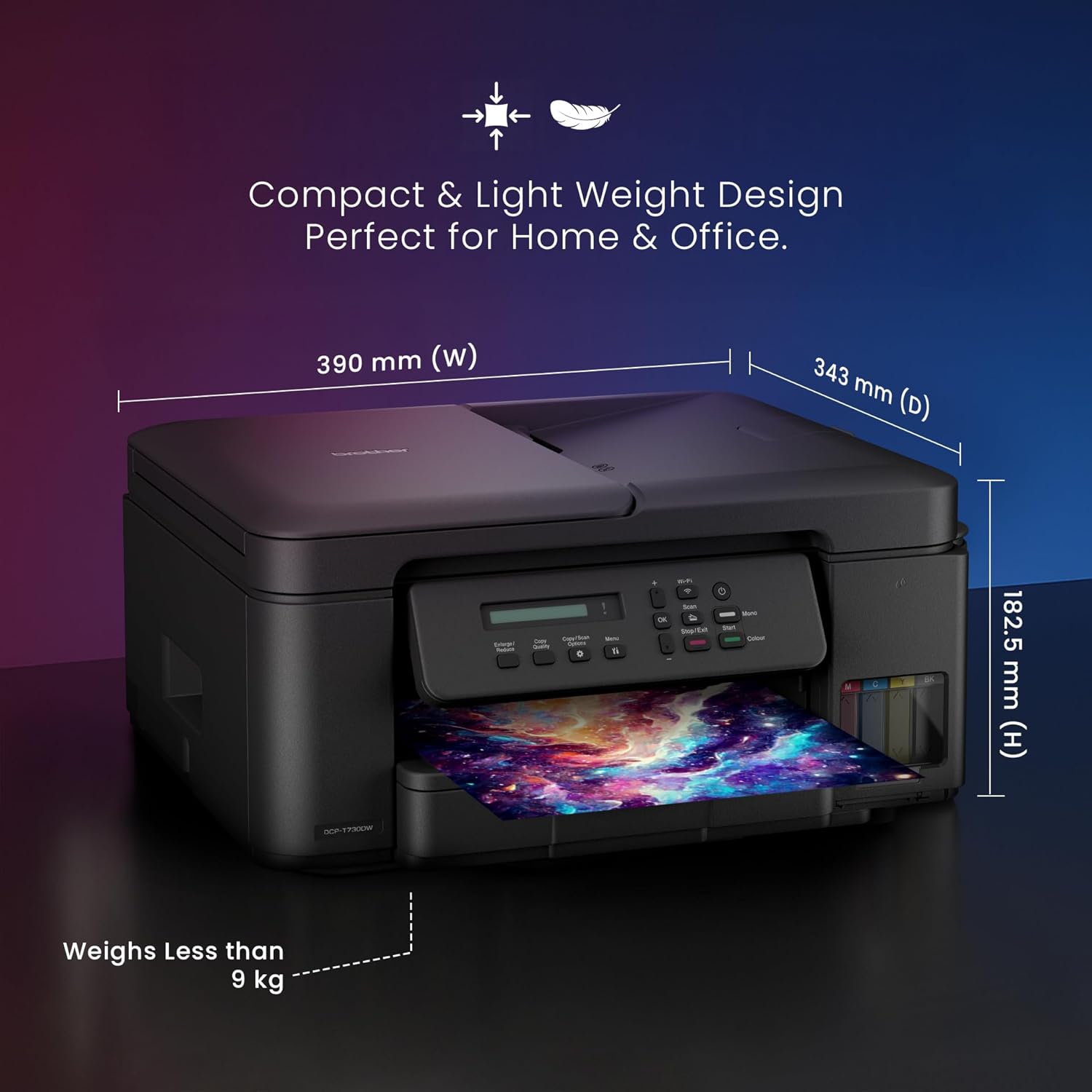
Şəkil 4: Brother DCP-T730DW printer dimensions. A diagram showing the compact dimensions (width, depth, height) and weight of the Brother DCP-T730DW printer, emphasizing its suitability for home and office.
9. Zəmanət və Dəstək
For information regarding your product's warranty, please refer to the warranty card included in your product packaging or visit the official Brother website. Brother provides customer support for technical assistance and service inquiries.
For further assistance, visit the official Brother support page: Brother Official Store