
1. Giriş
The Cudy AX1500 WiFi 6 Mesh Wi-Fi System (M1500) is designed to provide seamless, high-speed wireless internet coverage throughout your home or office. This system utilizes Wi-Fi 6 technology to deliver fast and reliable connections, effectively eliminating Wi-Fi dead zones. The M1500 system replaces traditional routers and extenders, creating a unified network under a single name for optimal performance and convenience.
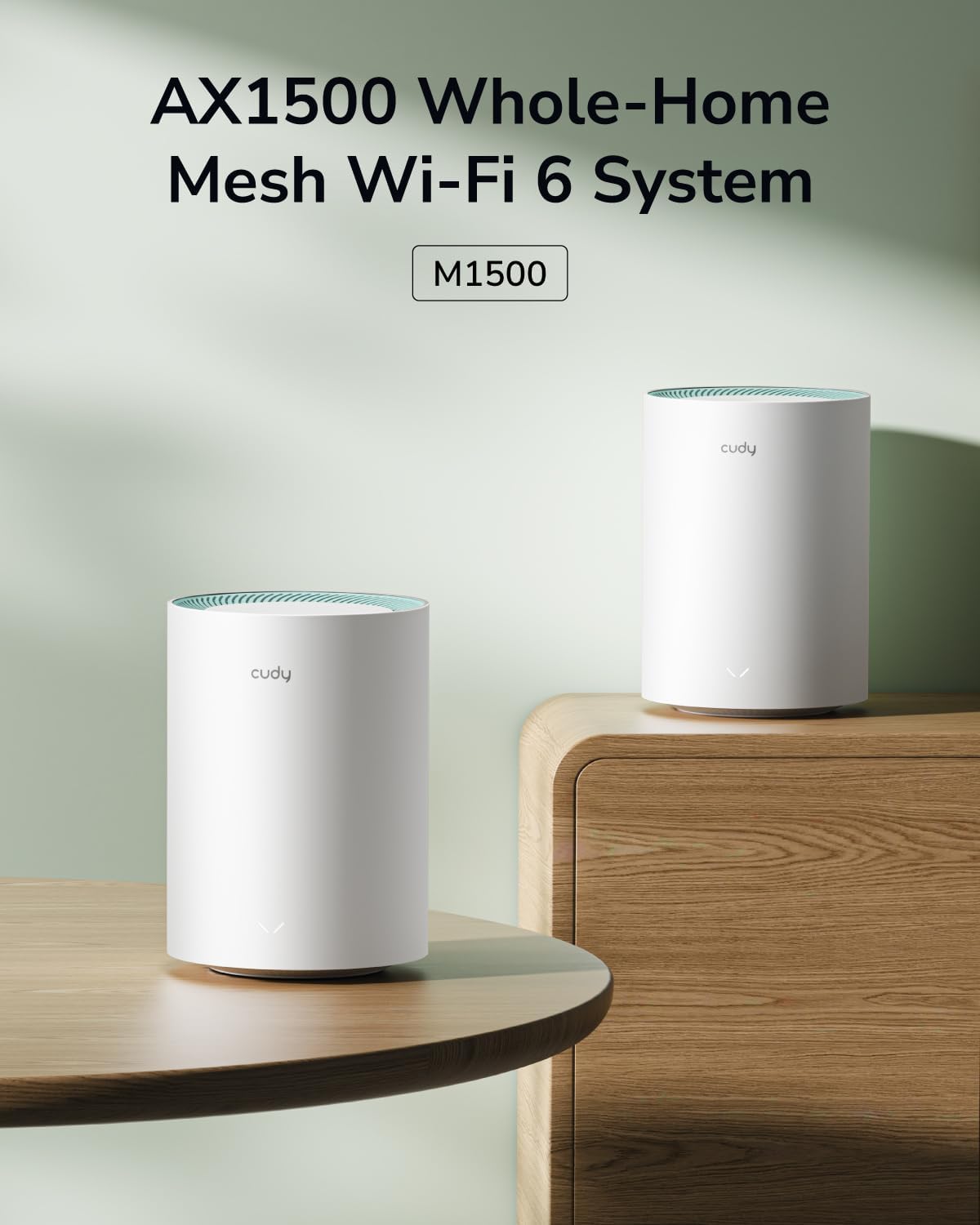
Figure 1: Cudy AX1500 WiFi 6 Mesh System M1500 Units
2. Paketin məzmunu
Paketinizdə aşağıdakı elementlərin olduğunu yoxlayın:
- Cudy M1500 Mesh Wi-Fi Units (2-Pack)
- Power Adapters (one for each unit)
- Ethernet kabeli
- Sürətli Quraşdırma Bələdçisi
If any item is missing or damaged, please contact Cudy support.
3. Quraşdırma Təlimatları
Follow these steps to set up your Cudy AX1500 Mesh Wi-Fi System:
3.1 Initial Unit Placement
Place the first M1500 unit (main unit) near your modem or internet service provider's connection point. For optimal coverage, Cudy recommends placing the main unit at a central location in your home, minimizing obstructions like thick walls between units.
3.2 Connect the Main Unit
- Söndürmək: Disconnect power from your modem.
- Ethernet-i qoşun: Use the provided Ethernet cable to connect one of the Gigabit ports on the M1500 unit to your modem's LAN port. Any of the three Gigabit ports on the M1500 can function as a WAN port during initial setup.
- Modemi yandırın: Reconnect power to your modem and wait for it to fully boot up.
- Power On M1500: Connect the power adapter to the M1500 unit and plug it into a power outlet. The LED indicator on the unit will light up.

Figure 2: M1500 Unit Ports (LAN/WAN, Power)
3.3 Configure via Cudy App
The Cudy App provides a guided setup process:
- Tətbiqi yükləyin: Download the Cudy App from your mobile device's app store (iOS or Android).
- Wi-Fi-a qoşulun: Connect your mobile device to the default Wi-Fi network broadcast by the main M1500 unit. The default Wi-Fi name (SSID) and password are typically found on a label on the bottom of the unit.
- Proqramı işə salın: Open the Cudy App and follow the on-screen instructions to configure your mesh network, including setting a new Wi-Fi name and password.
3.4 Add Satellite Units
After setting up the main unit, you can add the second M1500 unit to expand your Wi-Fi coverage:
- Yerləşdirmə: Place the satellite unit in an area that requires extended Wi-Fi coverage, ensuring it is within range of the main unit or another satellite unit. Avoid placing it behind large metal objects or in enclosed spaces.
- Güc Aktivdir: Connect the power adapter to the satellite M1500 unit and plug it into a power outlet. Wait for the LED indicator to stabilize.
- Cütləşmə: The units should automatically connect and form a mesh network. If automatic pairing does not occur, use the Cudy App to add the new unit, or press the "Pair (WPS)" button on both the main unit and the satellite unit within two minutes.
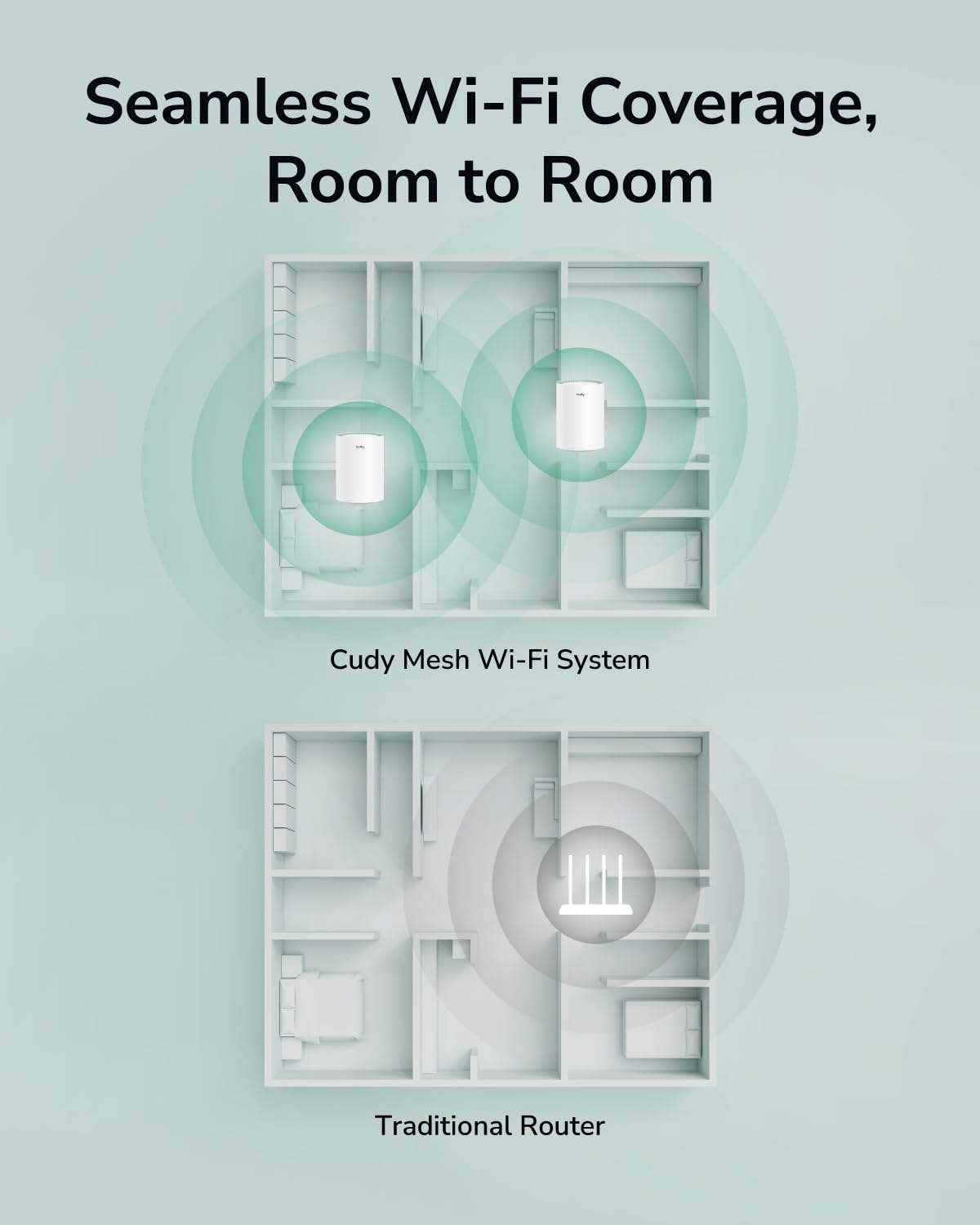
Figure 3: Seamless Wi-Fi Coverage with Cudy Mesh System
4. Əməliyyat Təlimatları
Once your Cudy M1500 Mesh Wi-Fi System is set up, it provides a unified and high-performance wireless network.
4.1 Wi-Fi bağlantısı
- Single Network Name: All M1500 units operate under a single Wi-Fi network name (SSID), allowing your devices to seamlessly roam and connect to the strongest signal as you move around your home.
- Dual-Band AX1500: The system supports Wi-Fi 6 (802.11ax) with dual-band capabilities, offering speeds up to 1201 Mbps on the 5 GHz band and 300 Mbps on the 2.4 GHz band.
- Cihazın tutumu: Designed to connect over 90 devices simultaneously, ensuring stable performance for all your smart home devices, streaming, and gaming needs.

Figure 4: AX1500 Wi-Fi 6 Speed Capabilities
4.2 Simli Bağlantılar
Each M1500 unit is equipped with three Gigabit Ethernet ports. These ports can be used for:
- Ethernet Geri Xidməti: Connect mesh units to each other via Ethernet for a more stable and faster backhaul connection, improving overall network performance.
- Simli Cihazlar: Connect devices such as smart TVs, gaming consoles, or desktop computers directly to any M1500 unit for a stable wired connection.
4.3 Cudy App Control
The Cudy App allows for comprehensive management of your mesh network:
- Şəbəkə Monitorinqi: View connected devices, network status, and internet speed.
- Valideyn Nəzarəti: Manage internet access for specific devices, set time limits, and block websaytlar.
- Qonaq Şəbəkəsi: Create a separate Wi-Fi network for guests to enhance security.
- Firmware Güncellemeleri: Easily update your M1500 units to the latest firmware for improved performance and security.

Figure 5: Cudy App Interface for Network Management
4.4 VPN Client Support
The M1500 supports multiple VPN client protocols, including PPTP, L2TP, and WireGuard. This feature allows for secure remote access and encrypted data transmission across your network.

Figure 6: VPN Client for Secure Remote Access
5. Baxım
Regular maintenance ensures optimal performance and longevity of your Cudy M1500 Mesh Wi-Fi System:
- Firmware Güncellemeleri: Periodically check for and install firmware updates via the Cudy App or web interfeys. Yeniləmələrə tez-tez performans təkmilləşdirmələri, təhlükəsizlik yamaları və yeni funksiyalar daxildir.
- Optimal yerləşdirmə: Ensure units are placed in central locations, away from large metal objects, thick walls (more than two wooden/brick or one concrete wall), and interference sources like microwaves or cordless phones.
- Dövri yenidən yükləmə: Rebooting your mesh units every few weeks can help clear temporary issues and maintain network stability. Simply unplug the power adapter for 10 seconds and then plug it back in.
- Təmizləmə: Keep the units clean and free from dust accumulation, especially around ventilation areas, to prevent overheating. Use a soft, dry cloth.
6. Giderme
If you encounter issues with your Cudy M1500 Mesh Wi-Fi System, refer to the following common solutions:
6.1 İnternet bağlantısı yoxdur
- Modemi yoxlayın: Modeminizin qoşulu və aktiv internet bağlantısı olduğundan əmin olun.
- Kabel Bağlantıları: Verify that the Ethernet cable connecting the main M1500 unit to your modem is securely plugged in.
- Sistemi yenidən başladın: Power cycle both your modem and the main M1500 unit. Wait for each device to fully boot before checking the connection.
- İnternet provayderinin statusu: Heç bir xidmətin olmadığını təsdiqləmək üçün İnternet Xidmət Provayderinizlə (ISP) əlaqə saxlayıntagərazinizdə.
6.2 Weak or Intermittent Wi-Fi Signal
- Vahidin yerləşdirilməsi: Adjust the placement of your satellite M1500 units to ensure they are within optimal range of each other and the main unit. Avoid excessive physical obstructions.
- Müdaxilə: Move units away from potential sources of interference such as microwaves, cordless phones, or large electronic appliances.
- Mikroproqram: Ensure all M1500 units are running the latest firmware version.
6.3 Difficulty Adding Satellite Unit
Some users may experience difficulty pairing additional units. If a satellite unit does not connect automatically:
- Yaxınlıq: Temporarily move the satellite unit closer to the main unit during the pairing process.
- Cüt düyməsi: Press the "Pair (WPS)" button on both the main unit and the satellite unit within two minutes.
- Zavod Sıfırlama: If pairing repeatedly fails, perform a factory reset on the satellite unit. This typically involves pressing and holding a reset button (often recessed) for several seconds until the LED behavior changes. Refer to the Quick Installation Guide for specific reset instructions. After resetting, attempt the pairing process again.
- Cudy App: Utilize the Cudy App's guided process for adding new mesh units, which can often simplify the procedure.
6.4 Device Cannot Connect to Wi-Fi
- Düzgün parol: Düzgün Wi-Fi parolunu daxil etdiyinizi yoxlayın.
- Şəbəkə Görünüşü: Ensure the Wi-Fi network (SSID) is visible. If you have hidden the SSID, manually connect your device.
- Cihaz Uyğunluğu: Confirm your device supports Wi-Fi 6 (802.11ax) or earlier standards (802.11ac/n/g/b/a).
- Cihazı yenidən başladın: Reboot the device attempting to connect.
7. Spesifikasiyalar
| Brend | Cudy |
| Model Adı | M1500 2-Pack |
| Wi-Fi Nəsil | Wi-Fi 6 (802.11ax) |
| Tezlik Bandı Sinfi | Dual-Band (2.4 GHz & 5 GHz) |
| Məlumat ötürmə dərəcəsi | 1500 Mbps-ə qədər (5 GHz-də 1201 Mbps, 2.4 GHz-də 300 Mbps) |
| Əhatə | Up to 1800 sq.ft. (for 2-Pack) |
| Number of Gigabit Ports | Vahid başına 3 |
| Təhlükəsizlik Protokolu | WPA3 |
| RAM Yaddaşı Quraşdırılıb | 128 MB |
| Nəzarət metodu | Cudy App, Web İnterfeys |
| Xüsusi Xüsusiyyətlər | Access Point Mode, LED Indicator, Parental Control, QoS, Remote Access, Multi-VPN Support (PPTP/L2TP/WireGuard) |
| Ölçülər (U x G x Y) | 4.33"U x 4.33"W x 6.08"H |
| Maddə Çəkisi | 400 qram |
8. Zəmanət və Dəstək
8.1 Məhsul Zəmanəti
The Cudy AX1500 WiFi 6 Mesh System M1500 comes with a 2 il Zəmanət from the date of purchase. This warranty covers manufacturing defects and malfunctions under normal use. For warranty claims, please retain your proof of purchase.
8.2 Texniki Dəstək
For technical assistance, troubleshooting, or further inquiries, please visit the official Cudy website or contact their customer support. You can often find FAQs, updated manuals, and support contact information on their websayt.
Cudy Websayt: www.cudy.com