
Giriş
This manual provides detailed instructions for the setup, operation, and maintenance of your ProtoArc Wired USB Trackpad T1. Designed for enhanced productivity and comfort, this trackpad offers high-precision multi-gesture support for Windows 10 and 11 systems.
Uyğunluq
The ProtoArc T1 Wired Trackpad is compatible with Windows 11, Windows 10, PCs, laptops, and desktop computers. Please note that it is not compatible with Mac, Chrome OS, or Linux operating systems. Use on unsupported systems may result in missing gestures or functions.

Paketin məzmunu
Qutudan çıxarılarkən bütün əşyaların mövcud olduğundan əmin olun:
- ProtoArc Wired USB Trackpad T1
- USB-C to USB-A Connection Cable
- İstifadəçi təlimatı
- Zəmanət kartı
Məhsul Xüsusiyyətləri
- Extra Large Metal Touchpad: Features a spacious 6.4 x 4.8 inch touch surface with an ultra-slim design (0.19in-0.39in thickness), providing ample room for comfortable navigation.
- High Precision & Sensitive Response: Engineered for fast and sensitive response, ensuring smooth and accurate cursor control and gesture recognition.
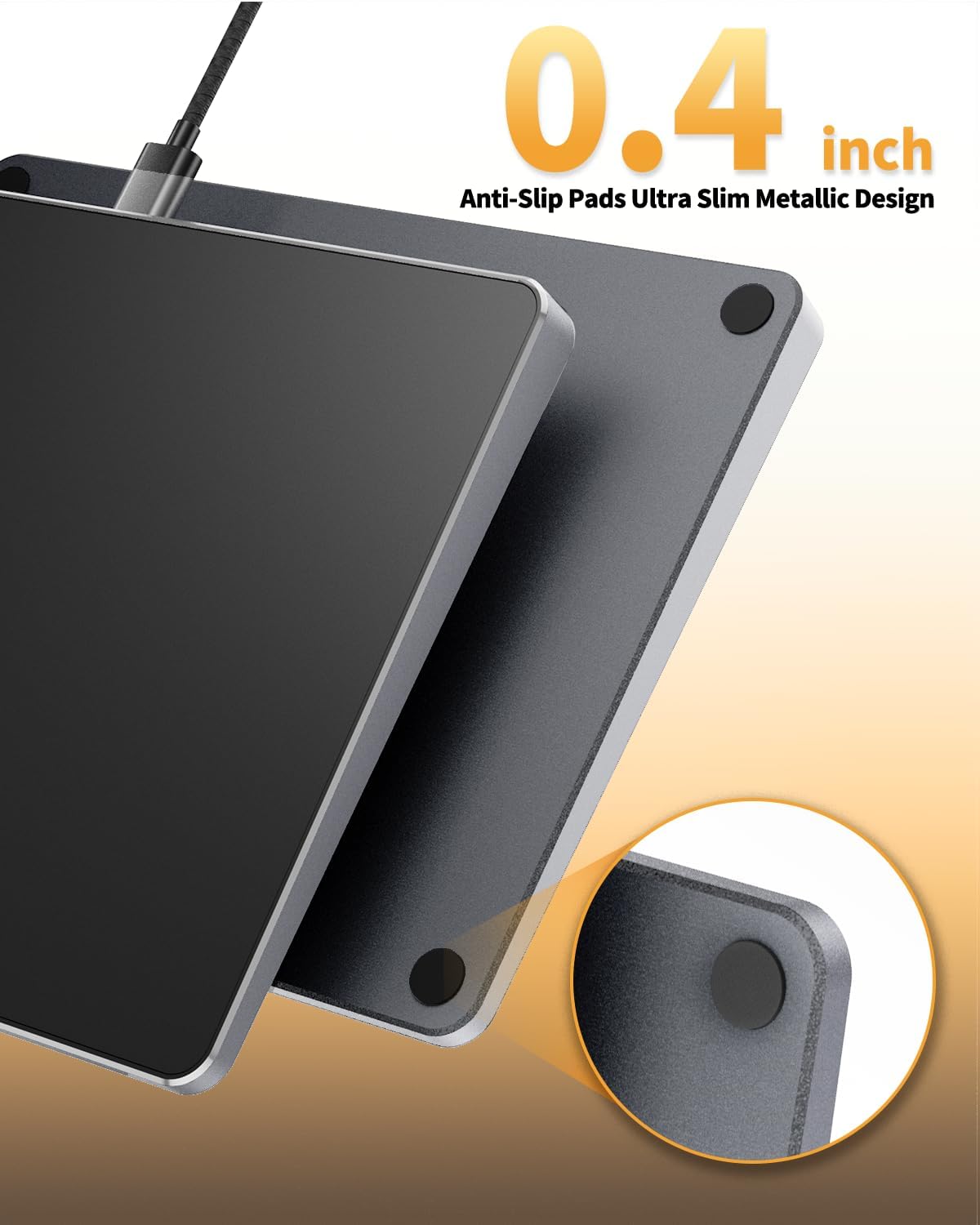
- Ultra Slim Metallic Design: Constructed with durable aluminum, giving it a sleek and modern aesthetic. Includes anti-slip pads on the bottom for stability.


Quraşdırma
The ProtoArc T1 Trackpad is designed for plug-and-play functionality, requiring no additional drivers for most Windows 10/11 systems.
- Locate an available USB port on your computer (PC, laptop, or desktop).
- Connect the USB-C end of the provided cable to the USB-C port on the trackpad.
- Connect the USB-A end of the cable to your computer's USB port.
- The trackpad should be automatically recognized by your Windows 10/11 system and ready for use. A small red indicator light on the trackpad will illuminate when connected and active.

Əməliyyat Təlimatları
The ProtoArc T1 Trackpad supports various multi-touch gestures for intuitive navigation and control.
Basic Clicks
- Sol Klik: Single-tap anywhere on the trackpad surface, or use the physical left button at the bottom.
- Sağ klikləyin: Two-finger single-tap on the trackpad surface, or use the physical right button at the bottom.

Multi-Gesture Support
The trackpad supports up to four-finger operations, offering smoother navigation than many laptop touchpads. Functions include:
- Sürüşdürmə: Use two fingers to scroll up or down pages.
- Zoom: Pinch with two fingers to zoom in or out of photos and documents.
- Çəkilir Files/Selecting Text: Double-click with one finger and hold/slide to drag files or select text.
- Three-Finger Tap: Axtarış funksiyası.
- Three-Finger Swipe Up: Tapşırığı açın View.
- Three-Finger Swipe Down: Return to Desktop.
- Three-Finger Slide Left/Right: Switch between active windows.

Adjusting Cursor Speed
To customize your trackpad experience, you can adjust the cursor speed:
- Open "Windows Settings".
- Navigate to "Bluetooth & other devices".
- Select "Touchpad".
- Adjust the "Cursor Speed" slider to your preferred setting (slower ← → faster).
Baxım
To ensure the longevity and optimal performance of your ProtoArc T1 Trackpad, follow these simple maintenance guidelines:
- Keep the trackpad surface clean and free from dust and debris. Use a soft, lint-free cloth for cleaning.
- Avoid exposing the trackpad to extreme temperatures or direct sunlight.
- Do not spill liquids on the device. If liquid contact occurs, disconnect immediately and allow to dry completely before re-connecting.
- Handle the device with care to prevent drops or impacts.
Problemlərin aradan qaldırılması
If you encounter issues with your ProtoArc T1 Trackpad, consider the following solutions:
- Trackpad Not Responding: Ensure the USB-C cable is securely connected to both the trackpad and your computer's USB port. Check if the red indicator light on the trackpad is illuminated.
- Laptop's Built-in Touchpad Disabled: If you have disabled your laptop's built-in touchpad, any external wired or wireless touchpad may also be disabled. Re-enable your laptop's touchpad settings if necessary.
- Windows 11 Touchpad Settings: For Windows 11 users, verify that the touchpad settings are enabled. Go to "Windows Settings" → "Bluetooth & other devices" → "Touchpad" and ensure the touchpad is turned 'on'.
- Fasiləli Bağlantı: Try connecting the trackpad to a different USB port on your computer. Ensure you are using the original USB-C cable provided, as some generic cables may lack data transfer capabilities.
- Gesture Issues: Confirm your operating system is Windows 10 or 11. Some touchpad gestures or functions may not work on other systems.
Spesifikasiyalar
| Brend | ProtoArc |
| Model | T1 |
| Rəng | Qara |
| Bağlantı texnologiyası | USB (simli) |
| Hərəkətin aşkarlanması texnologiyası | Optik |
| Xüsusi Xüsusiyyət | Portable, Multi-Gesture Support |
| Uyğun Cihazlar | Laptop, Personal Computer, Tablet (Windows only) |
| Əməliyyat sistemi | Windows 10/11 |
| Güc mənbəyi | Simli |
| Qoruyucu material | Alüminium |
| Maddə Çəkisi | 10.8 unsiya |
| Ölçülər | 6.4 x 4.8 x 0.19-0.39 inches |
Zəmanət və Dəstək
The ProtoArc T1 Wired USB Trackpad comes with a 2 il zəmanət from the date of purchase. For technical support, troubleshooting assistance, or warranty claims, please contact ProtoArc customer service through their official websayt və ya zəmanət kartınızda göstərilən əlaqə məlumatı.
Əlavə resurslar və məhsul haqqında məlumat üçün rəsmi müraciət edin ProtoArc Store.