
1. Giriş
This user manual provides detailed instructions for the Bemi Cognita Tab 6+ E-Reader. Please read this manual carefully before using your device to ensure proper operation and to maximize your reading experience. Keep this manual for future reference.
1.1 Paketin məzmunu
- Bemi Cognita Tab 6+ E-Reader
- USB şarj kabeli
Qutunu açarkən bütün əşyaların mövcud olduğundan və yaxşı vəziyyətdə olduğundan əmin olun.
2. Cihaz bitdiview
Familiarize yourself with the physical components of your Bemi Cognita Tab 6+ E-Reader.

Şəkil 2.1: Ön view of the Bemi Cognita Tab 6+ E-Reader. The device features a 6-inch E-Ink display with the Bemi logo and model name visible. The screen is designed to mimic paper for a comfortable reading experience.

Şəkil 2.2: Ön və arxa view of the Bemi Cognita Tab 6+ E-Reader. This image highlights the device's thin design and the textured back cover, which provides a secure grip.

Şəkil 2.3: Yan view of the Bemi Cognita Tab 6+ E-Reader, illustrating the location of the power button and a small LED indicator. This button is used for turning the device on/off and waking it from sleep.
2.1 Key Components:
- 6-inch E-Ink Touchscreen: Glare-free display for comfortable reading.
- Güc düyməsi: Cihazı yandırmaq/söndürmək və yuxu/oyanmaq üçün yan tərəfdə yerləşir.
- USB-C portu: Şarj etmək və məlumat ötürmək üçün.
- MicroSD Kart Yuvası: 256 GB-a qədər genişləndirilə bilən yaddaş.
- Side Control Buttons: For page turning and navigation.
- SMARTlight: Adjustable front light for reading in various conditions.
3. Quraşdırma
3.1 İlkin Doldurma
Before first use, fully charge your Bemi Cognita Tab 6+ E-Reader. Connect the provided USB cable to the device's USB-C port and the other end to a compatible USB power adapter (not included) or a computer's USB port.
- Tam şarj adətən təxminən 2-3 saat çəkir.
- Doldurma göstərici işığı şarj vəziyyətini göstərəcək.
3.2 Yandırma/Söndürmə
- Yandırmaq üçün: Press and hold the Power button (refer to Figure 2.3) for a few seconds until the screen activates.
- Söndürmək üçün: Söndürmə menyusu görünənə qədər Güc düyməsini basıb saxlayın, sonra "Söndür" seçin.
- Yatmaq/Oyanmaq üçün: Cihazı yuxu rejiminə keçirmək və ya oyatmaq üçün Güc düyməsini qısaca basın.
3.3 Wi-Fi bağlantısı
Connecting to Wi-Fi allows you to download books, transfer files, and access online services.
- Əsas ekrandan vurun Parametrlər ikona.
- seçin Wi-Fi.
- Wi-Fi düyməsini aşağıdakı kimi dəyişin On.
- The device will scan for available networks. Select your desired network from the list.
- Tələb olunduqda parolu daxil edin, sonra vurun Qoşun.
3.4 İlkin Konfiqurasiya
Upon first power-on, you may be guided through initial setup steps, including language selection and time zone settings. Follow the on-screen prompts.
4. Əməliyyat Təlimatları
4.1 İnterfeysdə naviqasiya
The Bemi Cognita Tab 6+ features a touch-sensitive E-Ink screen and physical side buttons for navigation.
- Toxunma Jestləri: Tap to select, swipe to scroll, pinch to zoom (where supported).
- Yan Düymələr: Use the physical buttons on the side to turn pages forward or backward during reading.
- G-sensor: The device automatically rotates the screen orientation based on how you hold it, accommodating both right and left-handed users.
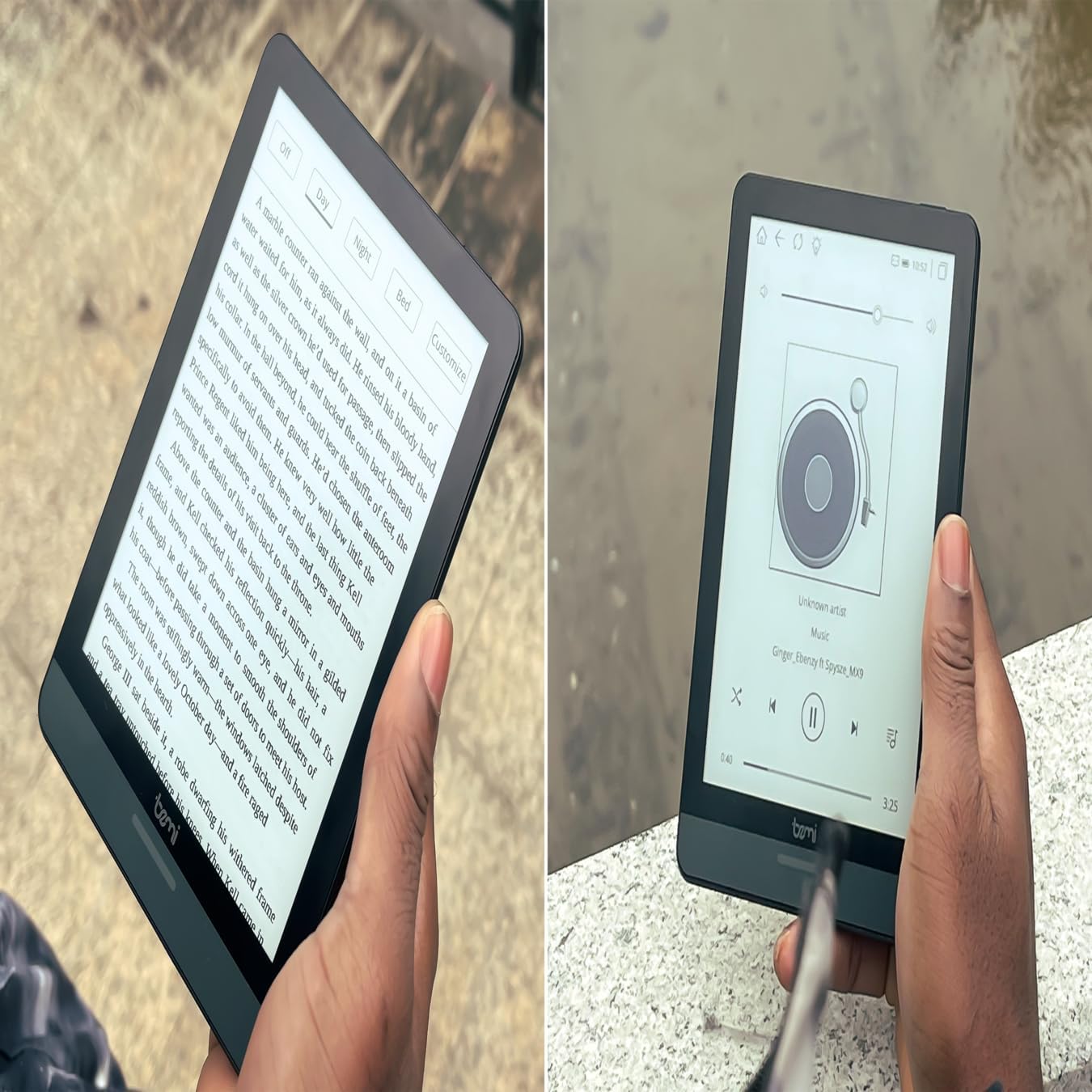
Şəkil 4.1: User holding the Bemi Cognita Tab 6+ E-Reader while reading. The image shows the clear text display on the E-Ink screen, highlighting the device's readability.
4.2 Kitab oxumaq
To open and read a book:
- From the home screen, tap on the Kitabxana or kitablar ikona.
- Browse your collection or use the search function to find a book.
- Tap on the book cover to open it.
- Use the touch screen or side buttons to turn pages.
4.3 Adjusting SMARTlight
The SMARTlight feature allows you to adjust both the brightness and color temperature of the screen's front light.
- During reading, tap the center of the screen to bring up the reading menu.
- axtarın İşıq or SMARTlight ikona.
- Adjust the sliders for brightness (intensity) and color temperature (warm to cool) to your preference.
4.4 Köçürmə Files
You can transfer e-books and other supported files to your device via Wi-Fi or USB cable.
- Wi-Fi vasitəsilə: If your device supports cloud services or direct Wi-Fi transfer, follow the specific application instructions.
- USB kabel vasitəsilə:
- Connect your E-Reader to a computer using the provided USB cable.
- The device will appear as a removable storage drive on your computer.
- Drag and drop your desired files (e.g., EPUB, PDF, MOBI) into the appropriate folders on the E-Reader (e.g., "Books" folder).
- Kabeli ayırmadan əvvəl cihazı kompüterinizdən təhlükəsiz şəkildə çıxarın.
4.5 Using MicroSD Card
To expand storage, insert a microSD card (up to 256GB) into the designated slot.
- Gently insert the microSD card with the gold contacts facing down until it clicks into place.
- To remove, gently push the card inward until it springs out.
- Files on the microSD card will be accessible through the device's file manager or library.
5. Baxım
5.1 Cihazın təmizlənməsi
- Cihazın ekranını və gövdəsini yumşaq, tüksüz bir parça ilə yumşaq bir şəkildə silin.
- İnadkar ləkələr üçün, bir az dampsu və ya elektronika üçün xüsusi olaraq hazırlanmış ekran təmizləyicisi ilə parça.
- Sərt kimyəvi maddələrdən, aşındırıcı materiallardan və ya həddindən artıq nəmdən istifadə etməkdən çəkinin.
5.2 Batareya Baxımı
- Batareyanın ömrünü uzatmaq üçün tez-tez batareyanı tam boşaltmaqdan çəkinin.
- Uzun müddət istifadə edilmədikdə cihazı sərin, quru yerdə saxlayın.
- Charge the device regularly, even if not used, to prevent deep discharge.
5.3 Saxlama
When not in use, store your E-Reader in a protective case to prevent scratches and damage to the screen.
6. Giderme
If you encounter issues with your Bemi Cognita Tab 6+, refer to the following common solutions:
| Problem | Həll |
|---|---|
| Cihaz açılmır. | Ensure the battery is charged. Connect the device to a power source for at least 30 minutes. If it still doesn't turn on, try a hard reset by holding the power button for 10-15 seconds. |
| Ekran donub və ya cavab vermir. | Perform a soft reset by holding the power button for 5-7 seconds until the device restarts. If the issue persists, try a hard reset. |
| Wi-Fi-a qoşulmaq mümkün deyil. | Check if Wi-Fi is enabled in settings. Verify the Wi-Fi password. Restart your E-Reader and your Wi-Fi router. Ensure you are within range of the Wi-Fi signal. |
| Books are not appearing in the library. | təmin etmək files are in a supported format (e.g., EPUB, PDF). If transferred via USB, ensure they are in the correct folder. Try refreshing the library or restarting the device. |
| Batareya tez tükənir. | Reduce screen brightness. Turn off Wi-Fi and Bluetooth when not in use. Close background applications. Ensure the device is not constantly searching for networks. |
7. Spesifikasiyalar
| Xüsusiyyət | Detal |
|---|---|
| Model Adı | Bemi Cognita Tab 6+ |
| Ekran Ölçüsü | 6 Inches (E-Ink Carta, 1024x758, 212 ppi) |
| Daxili Yaddaş | 32 GB |
| Genişləndirilə bilən yaddaş | MicroSD card slot, up to 256 GB |
| Bağlantı | Wi-Fi, Bluetooth |
| Əməliyyat sistemi | Android 8.1 |
| İnsan İnterfeysi Girişi | Touchscreen, Side Control Buttons |
| Xüsusi Xüsusiyyətlər | Adjustable SMARTlight, G-Sensor for auto-rotation, Glare-Free & Eye-Friendly E-Ink Display |
| Ölçülər (təxminən) | qalınlığı 7 mm |
| Daxil olan komponentlər | USB kabel |
8. Zəmanət və Dəstək
8.1 Zəmanət Məlumatı
Your Bemi Cognita Tab 6+ E-Reader comes with a standard manufacturer's warranty. Please refer to the warranty card included in your product packaging or visit the official Bemi webzəmanətin əhatə dairəsi və müddəti ilə bağlı ətraflı şərtlər və şərtlər üçün sayt.
Genişləndirilmiş əhatə dairəsi üçün əlavə qorunma planları mövcud ola bilər. Ətraflı məlumat üçün zəhmət olmasa, pərakəndə satış şirkətinizlə əlaqə saxlayın.
8.2 Müştəri dəstəyi
For technical assistance, troubleshooting beyond this manual, or warranty claims, please contact Bemi customer support:
- Websayt: www.bemi-electronics.com
- E-poçt: Refer to the Bemi webəlaqə e-poçtu üçün sayt.
- Telefon: Refer to the Bemi website for contact phone numbers.
When contacting support, please have your device model (Cognita Tab 6+) and purchase information ready.