
1. Giriş
This manual provides essential information for the proper setup, operation, and maintenance of your Pisichen 24-inch 2K QHD 2560x1440 IPS Touchscreen Monitor. Please read this manual thoroughly before using the product to ensure optimal performance and safety.
The Pisichen 24-inch monitor features a 2K QHD (2560x1440) resolution IPS panel, a 100Hz refresh rate, and 10-point multi-touch functionality, designed for both productivity and entertainment.
2. Paketin məzmunu
Verify that all items listed below are present in your product package. If any items are missing or damaged, please contact customer support.
- Pisichen 24-inch 2K QHD Touchscreen Monitor
- Monitor Stend (Baza və Boyun)
- DP kabeli
- HDMI Kabel
- USB B Touch Cable
- USB CC kabeli
- DC Güc Adapteri
- İstifadəçi Təlimatı (bu sənəd)

Şəkil 2.1: Included accessories with the Pisichen 24-inch monitor.
3. Quraşdırma Təlimatları
3.1. Monitor Stendinin yığılması
- Monitor və dayaq komponentlərini qablaşdırmadan ehtiyatla çıxarın.
- Stend boynunu monitor panelinə bərkidin. Onun yerində möhkəm oturduğundan və ya verilən vintlərlə bərkidildiyindən əmin olun.
- Attach the stand base to the stand neck. Tighten the thumb screw at the bottom of the base to secure it.
- Yığılmış monitoru sabit, düz bir səthə qoyun.
3.2. Cihaza qoşulma
The monitor offers multiple connectivity options. Choose the appropriate cable for your device.
- HDMI Bağlantısı: Connect one end of the HDMI cable to the HDMI port on your computer or device and the other end to the HDMI port on the monitor.
- USB-C Bağlantısı: Connect one end of the USB-C cable to a compatible USB-C port on your computer or device (which supports video output) and the other end to the USB-C port on the monitor. This connection can also provide power and data.
- DisplayPort (DP) Bağlantısı: Connect one end of the DP cable to the DisplayPort on your computer or device and the other end to the DP port on the monitor.
- USB B for Touch Function: For touch functionality with a PC, connect the included USB B Touch Cable from the USB-B port on the monitor to a standard USB-A port on your computer. This is essential for enabling touch input.

Şəkil 3.1: Universal connectivity options for the monitor.
3.3. Yandırılır
- Connect the DC Power Adapter to the power input port on the monitor.
- Elektrik adapterini rozetkaya qoşun.
- Press the power button on the monitor (location may vary, typically on the back or bottom right) to turn it on.
4. Əməliyyat Təlimatları
4.1. Əsas əməliyyat
- Yandırma/Söndürmə: Monitoru yandırmaq və ya söndürmək üçün güc düyməsini basın.
- Daxiletmə mənbəyi seçimi: Use the monitor's OSD (On-Screen Display) menu buttons to select the desired input source (HDMI, USB-C, DP).
- OSD Menyu Naviqasiyası: The monitor features physical buttons (usually on the back or bottom) to access and navigate the OSD menu. These buttons typically include Menu, Up, Down, and Exit/Select.
4.2. Toxunuş Funksionallığı
The Pisichen monitor supports 10-point multi-touch input, allowing for intuitive interaction with your content. To enable touch functionality:
- Ensure the USB B Touch Cable is connected from the monitor's USB-B port to your computer's USB-A port.
- Your operating system should automatically detect the touch input device. No additional drivers are typically required for Windows.

Şəkil 4.1: Direct touch control on the monitor.
Touch Compatibility
The touch function is widely compatible with various devices. Refer to the compatibility chart below for optimal performance.

Şəkil 4.2: Touch compatibility for various devices.
Qeyd: Some devices, including certain gaming consoles (PS3/4/5, Xbox, Steam Deck) and mobile devices (iPhone, iPad, Switch, Fire TV), do not support the touch functionality of this monitor due to platform-specific restrictions.
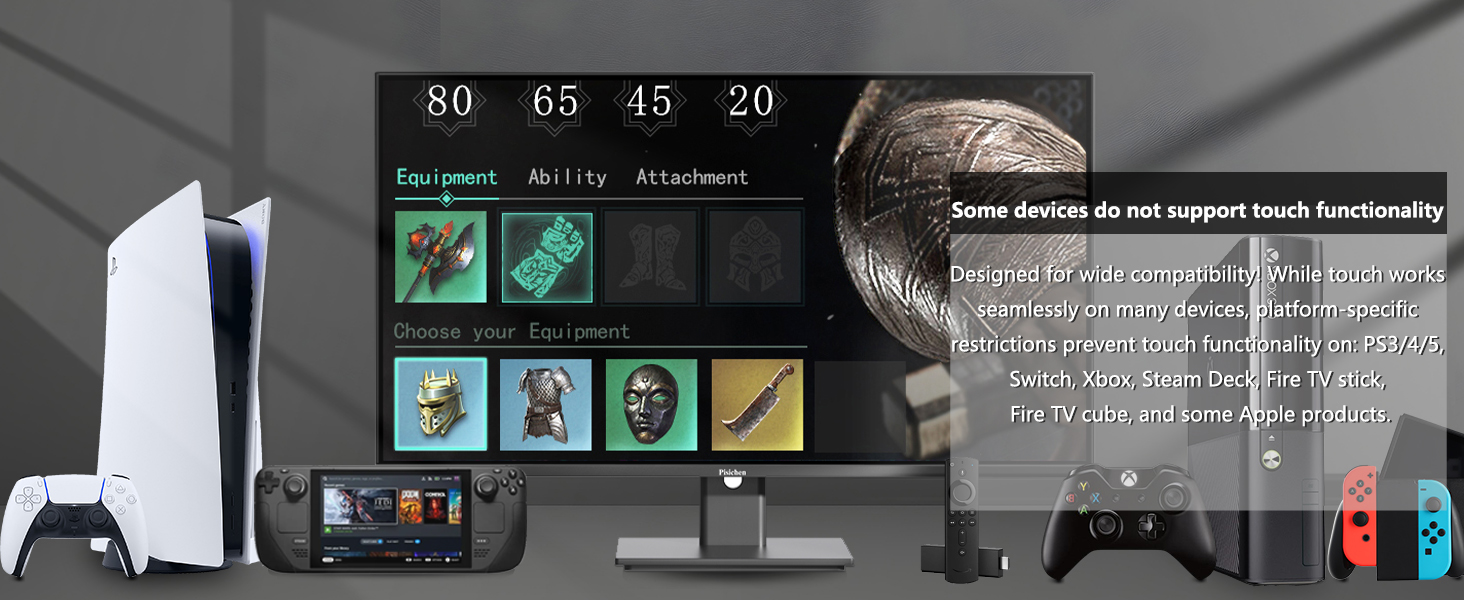
Şəkil 4.3: Devices where touch functionality is not supported.
5. Ekran Parametrləri
Access the OSD menu to adjust various display settings for optimal viewing.
- Qətnamə: The monitor supports a native resolution of 2560x1440 (2K QHD). Ensure your device's display settings are configured to this resolution for the sharpest image.
- Yeniləmə dərəcəsi: The monitor operates at a 100Hz refresh rate, providing smoother visuals compared to standard 60Hz monitors.
- Parlaqlıq və Kontrast: Adjust these settings to suit your environment and personal preference. The monitor features 400 cd/m² brightness and a 1500:1 contrast ratio.
- Rəng Parametrləri: Fine-tune color temperature, gamma, and other color parameters. The IPS panel ensures wide viewbucaqları və dəqiq rəng reproduksiyası.
- Göz rahatlığı xüsusiyyətləri: The monitor includes Flicker-Free technology and Low Bluelight modes to reduce eye strain during extended use.

Şəkil 5.1: Visual comparison of 2K QHD vs. Full HD resolution.

Şəkil 5.2: IPS panel benefits: True Color, True Vision from Any Angle.

Şəkil 5.3: Advanced Eye-Comfort features.
6. Baxım
6.1. Monitorun təmizlənməsi
- Təmizləməzdən əvvəl həmişə monitoru söndürün və elektrik kabelini ayırın.
- Bir az yumşaq, tüysüz parça istifadə edin dampsu və ya yumşaq, aşındırıcı olmayan ekran təmizləyicisi ilə tamamlanır.
- Ekranı və xarici səthləri ehtiyatla silin. Həddindən artıq təzyiq tətbiq etməkdən çəkinin.
- Spirt, ammonyak əsaslı təmizləyicilər və ya aşındırıcı materiallardan istifadə etməyin, çünki bunlar ekran səthinə zərər verə bilər.
6.2. Saxlama
If storing the monitor for an extended period, ensure it is powered off, unplugged, and stored in a cool, dry place away from direct sunlight and extreme temperatures. Use the original packaging if available for best protection.
7. Giderme
Monitorunuzla bağlı problemlərlə qarşılaşsanız, aşağıdakı ümumi problemlərin aradan qaldırılması addımlarına baxın:
- Güc yoxdur: Ensure the power adapter is securely connected to both the monitor and a working power outlet. Check if the power indicator light on the monitor is on.
- Siqnal yoxdur: Verify that the video cable (HDMI, USB-C, or DP) is securely connected to both the monitor and your source device. Ensure the correct input source is selected via the OSD menu.
- Toxunma funksiyası yoxdur: Confirm that the USB B Touch Cable is properly connected from the monitor to your computer. Check your computer's device manager to see if the touch device is recognized.
- Sönən Ekran: Check the video cable connection. Try a different cable or input port. Ensure your graphics card drivers are up to date.
- Şəklin Təhrifi/Yanlış Rənglər: Reset the monitor to factory settings via the OSD menu. Adjust brightness, contrast, and color settings.
Bu addımlarla həll olunmayan davamlı problemlər üçün müştəri dəstəyi ilə əlaqə saxlayın.
8. Spesifikasiyalar
| Xüsusiyyət | Spesifikasiya |
|---|---|
| Model nömrəsi | QHD-2k100hz-24INTS |
| Ekran Ölçüsü | 24 düym |
| Qətnamə | 2560 x 1440 Piksel (QHD Geniş 1440p) |
| Aspekt nisbəti | 16:9 |
| Yeniləmə dərəcəsi | 100Hz |
| Cavab vaxtı | 3ms |
| Panel növü | IPS |
| Touch funksiyası | 10 Nöqtəli Çox Toxunma |
| Şəklin Parlaqlığı | 400 Candela (cd/m²) |
| Kontrast nisbəti | 1500:1 |
| Ekran Səthinin Təsviri | Parlaq |
| Bağlantı | HDMI, USB-C, USB A, USB B (for Touch Function) |
| Ümumi USB Portları | 2 (USB-C, USB-B) |
| Məhsul Ölçüləri | 1.97 x 21.26 x 12.6 düym |
| Maddə Çəkisi | 10.08 funt sterlinq |
| İstehsalçı | Shenzhen Konowa Electronics Co., LTD |
9. Zəmanət və Dəstək
For warranty information, please refer to the warranty card included in your product packaging or visit the official Pisichen website. If you require technical assistance, troubleshooting, or have questions about your product, please contact Pisichen customer support through their official channels.
Zəmanət iddiaları üçün satınalma sübutunuzu özündə saxlayın.