
Transpeed 8K 16GB
Transpeed Android TV Box 12.0 (Model: 8K 16GB) User Manual
Brand: Transpeed | Model: 8K 16GB
1. Giriş
This manual provides detailed instructions for setting up, operating, and maintaining your Transpeed Android TV Box 12.0. Please read this manual thoroughly before using the device to ensure optimal performance and safety.
2. Paketin məzmunu
Aşağıda sadalanan bütün elementlərin paketinizə daxil olduğunu yoxlayın:
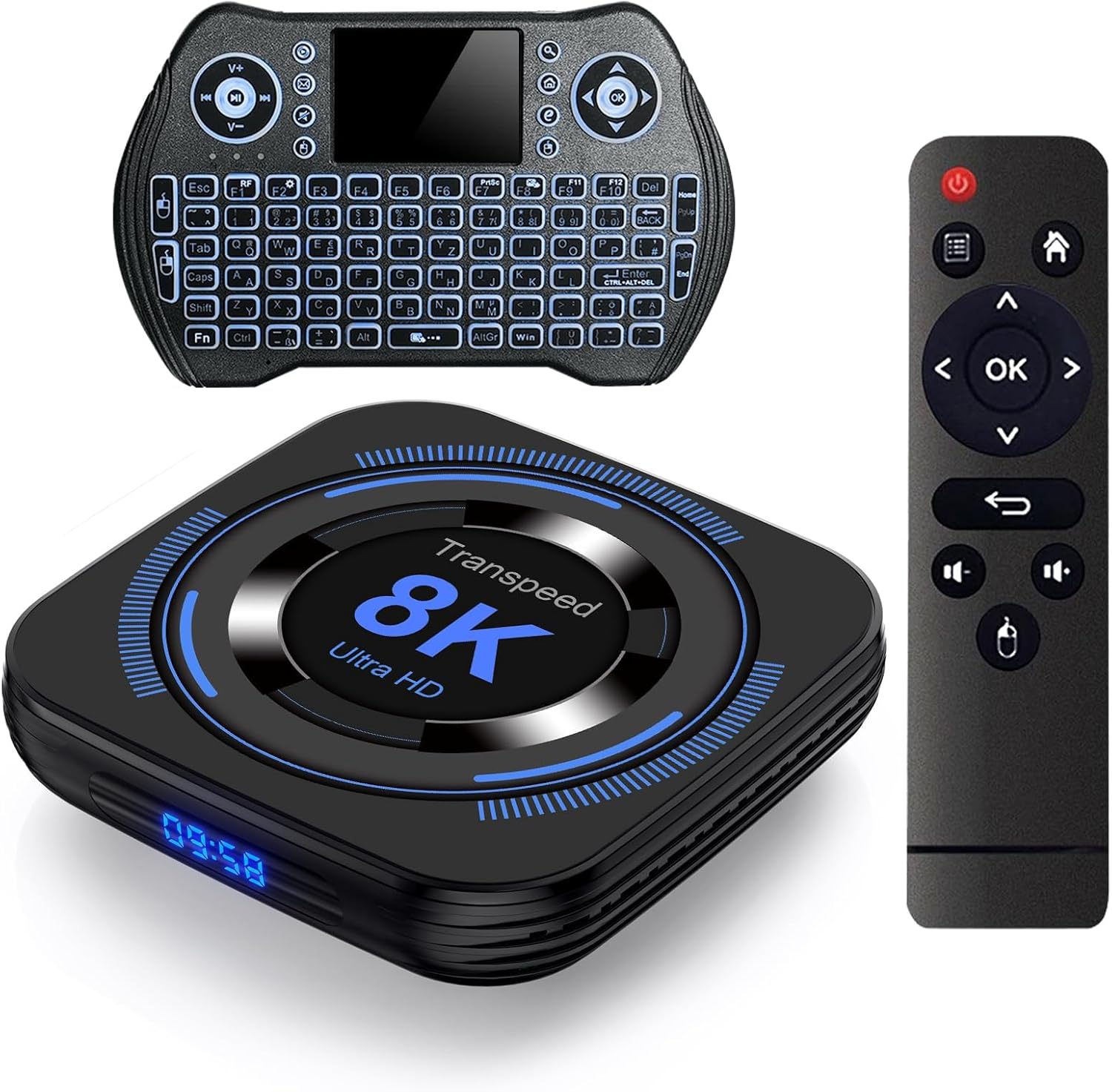
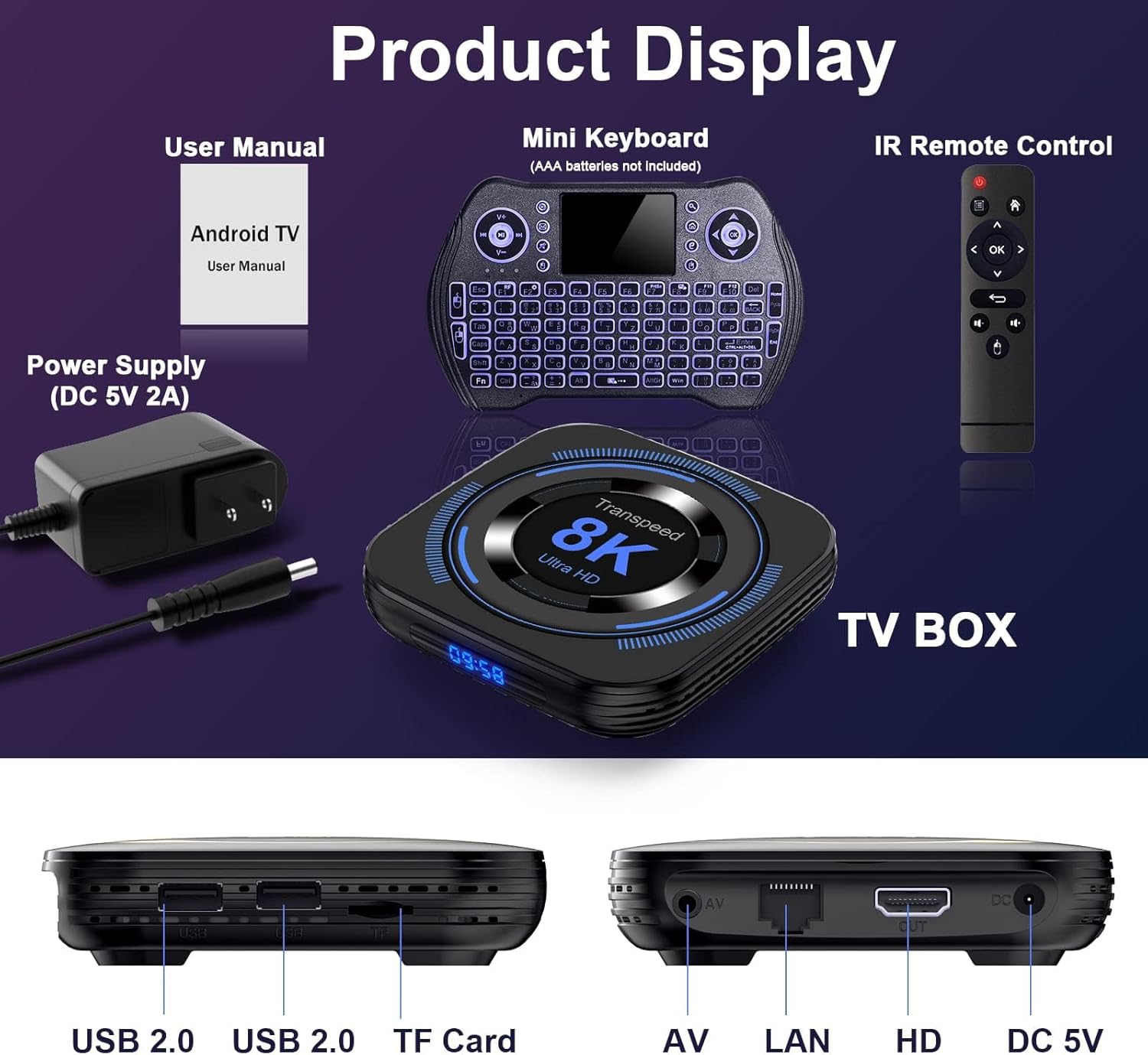
- Transpeed Android TV Box
- IR Uzaqdan İdarəetmə
- Mini Backlit Keyboard
- HD Kabel (HDMI Kabel)
- US Power Adapter (DC 5V 2A)
- İstifadəçi təlimatı
Note: AAA batteries for the remote control are not included.
3. Məhsul bitdiview
3.1 Əsas Xüsusiyyətlər
- Əməliyyat sistemi: Android 12.0
- Prosessor: H618 CPU
- Qrafik: Mali G31 GPU
- Yaddaş: 2GB RAM, 16GB ROM (expandable up to 128GB via TF card)
- Video Çıxışı: Supports up to 8K resolution, 3D function, H.265, HDR10
- Bağlantı: Dual-band Wi-Fi (2.4G & 5.8G), Bluetooth 5.0, Ethernet (100M), USB 2.0 ports
- Xüsusi Xüsusiyyətlər: OTA (Over-The-Air) updates, Airscreen, Miracast, Wi-Fi Display
3.2 Device Ports and Connections
Familiarize yourself with the available ports on your TV box:
- USB 2.0 Portları: For connecting external storage devices, USB peripherals, or the mini keyboard dongle.
- TF Kart Yuvası: For expanding storage with a TF (MicroSD) card.
- AV portu: For connecting to older televisions using an AV cable (not included).
- LAN Portu (Ethernet): Simli internet bağlantısı üçün.
- HD Port (HDMI): For connecting to your TV or display.
- DC 5V Port: Güc adapterini birləşdirmək üçün.
4. Quraşdırma Bələdçisi
- TV-yə qoşulun: Connect one end of the included HD cable to the HD port on the TV box and the other end to an HDMI input on your television.
- Güc bağlayın: Plug the US power adapter into the DC 5V port on the TV box, then plug the adapter into a wall outlet. The device should power on automatically, or you may need to press the power button on the remote.
- Daxiletmə seçin: Turn on your TV and select the correct HDMI input source using your TV's remote control.
- Insert Batteries (Remote): İnfraqırmızı pultun batareya bölməsini açın və düzgün qütblüyü təmin edərək iki AAA batareya (daxil deyil) daxil edin.
- Connect Mini Keyboard: Locate the USB dongle for the mini backlit keyboard, usually found in the keyboard's battery compartment. Insert this dongle into one of the USB 2.0 ports on the TV box. The keyboard should automatically pair.
- İlkin Quraşdırma: Follow the on-screen prompts to complete the initial setup, which typically includes language selection, network connection, and Google account login.
5. Əməliyyat Təlimatları
5.1 Naviqasiya
- Use the directional buttons on the IR remote or the mini keyboard's touchpad/directional keys to navigate the Android interface.
- Press the "OK" button on the remote or the enter key on the keyboard to select items.
- The "Back" button on the remote or "Esc" on the keyboard returns to the previous screen.
- The "Home" button on the remote takes you to the main Android home screen.
5.2 Şəbəkə Bağlantısı
To access online content, connect your TV box to the internet.
Wi-Fi Bağlantısı:
- gedin Parametrlər > Şəbəkə və İnternet.
- Yandırın Wi-Fi.
- Siyahıdan istədiyiniz Wi-Fi şəbəkəsini seçin.
- Enter the password if prompted and select Qoşun.
Ethernet Bağlantısı:
- Connect an Ethernet cable from your router to the LAN port on the TV box.
- Cihaz avtomatik olaraq simli şəbəkəni aşkarlamalı və ona qoşulmalıdır.

5.3 Proqramların quraşdırılması
You can download and install applications from the Google Play Store or other compatible sources.
- From the home screen, navigate to the Google Play Store ikona.
- Sign in with your Google account if you haven't already.
- axtarın desired applications and select Quraşdırın.
5.4 Bluetooth Cihazının Qoşulmaması
Connect Bluetooth devices such as headphones, speakers, or game controllers.
- gedin Parametrlər > Qoşulmuş Cihazlar > Yeni cihazı qoşun.
- Bluetooth cihazınızın cütləşmə rejimində olduğundan əmin olun.
- Cütləşdirmək üçün siyahıdan cihazınızı seçin.
6. Qabaqcıl Xüsusiyyətlər
6.1 8K, 3D, and HDR10 Support
The TV box supports advanced video technologies for an enhanced viewtəcrübə:
- 8K Çözünürlük: Enjoy content with exceptional clarity and detail, provided your display supports 8K.
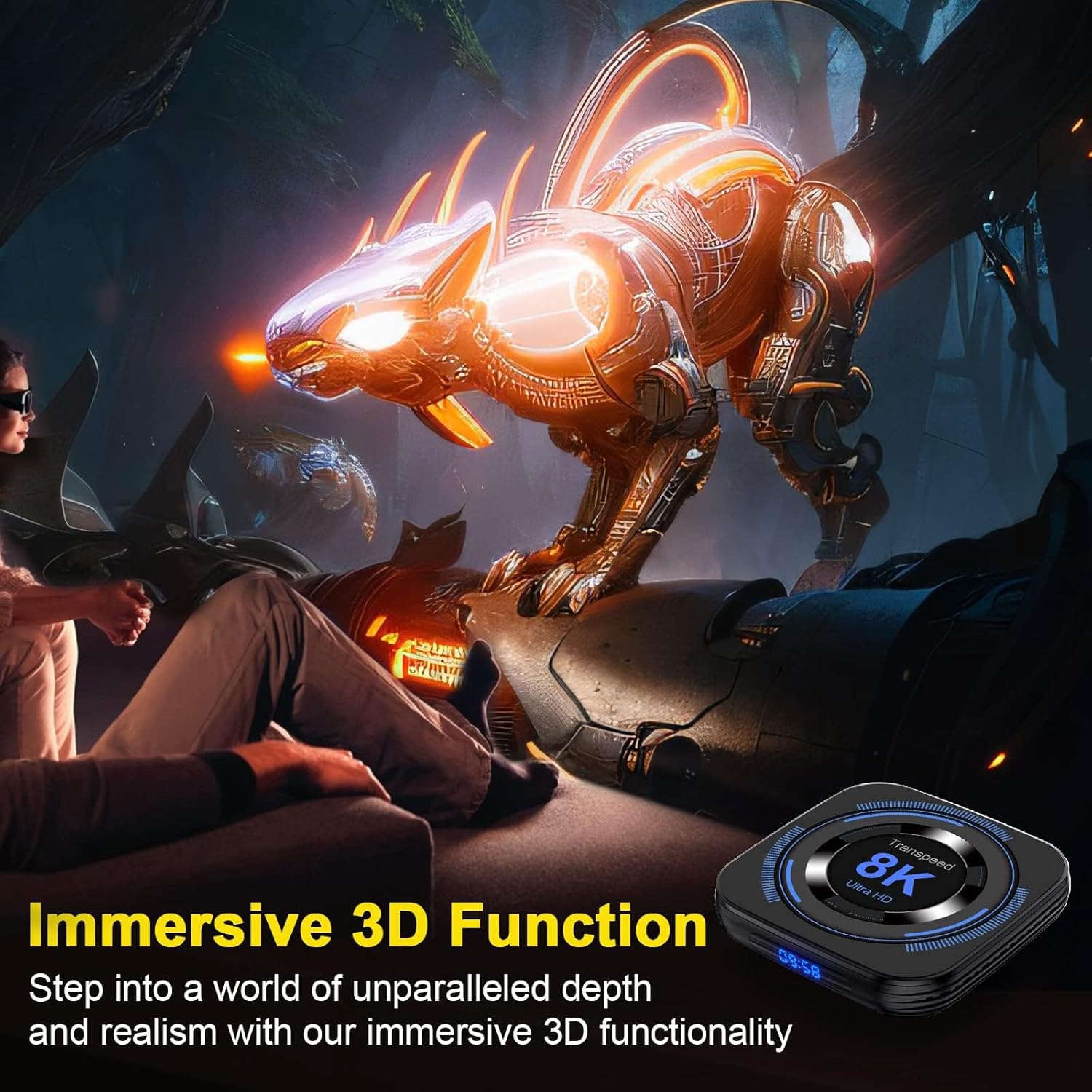
- 3D funksiyası: Experience immersive 3D content. Requires a 3D-compatible TV and 3D content.
- HDR10: High Dynamic Range 10 provides vibrant colors, deeper contrasts, and realistic visuals with compatible content and displays.


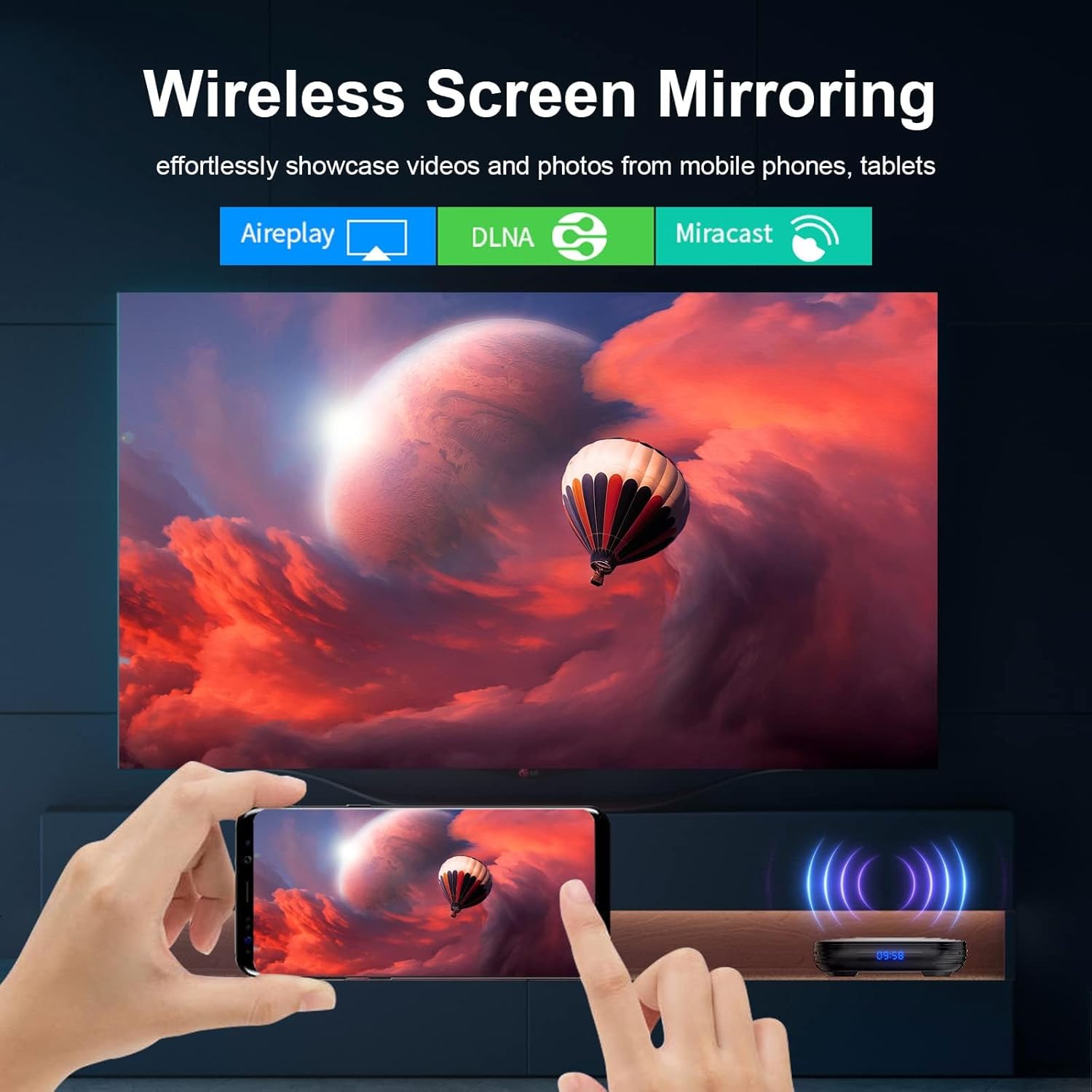
6.2 Wireless Screen Mirroring (Airscreen, Miracast, Wi-Fi Display)
Mirror content from your mobile phone or tablet to your TV screen.
- Ensure your mobile device and the TV box are connected to the same Wi-Fi network.
- On the TV box, open the Airscreen, Miracast, or Wi-Fi Display application.
- On your mobile device, activate the screen mirroring feature (e.g., "Smart View"Samsung-da, Android-də "Screen Cast", iOS-da "AirPlay".
- Select the TV box from the list of available devices.
6.3 OTA Online Updates
The TV box supports Over-The-Air (OTA) updates to ensure your system always has the latest features and security enhancements.
- Ensure the TV box is connected to the internet.
- gedin Parametrlər > Haqqında > Sistem Yeniləmə.
- The system will check for available updates. If an update is found, follow the on-screen instructions to download and install it.
7. Giderme
| Problem | Mümkün Səbəb | Həll |
|---|---|---|
| Enerji yoxdur/Cihaz açılmır | Enerji adapteri qoşulmayıb və ya nasazdır; elektrik çıxışı problemi. | Ensure the power adapter is securely connected to the TV box and a working power outlet. Try a different outlet. |
| Televiziyada siqnal yoxdur | Yanlış HDMI girişi seçilib; boş HDMI kabeli. | Verify the TV is on the correct HDMI input. Check that the HDMI cable is securely connected at both ends. Try a different HDMI port or cable. |
| Wi-Fi bağlantısı problemləri | Yanlış parol; marşrutlaşdırıcı çox uzaqdır; müdaxilə. | Double-check the Wi-Fi password. Move the TV box closer to the router. Restart your router and the TV box. |
| Pult işləmir | Batteries dead or incorrectly inserted; IR sensor blocked. | Replace batteries with new AAA batteries, ensuring correct polarity. Ensure no obstructions between the remote and the TV box's IR sensor. |
| Slow performance/Lag | Too many apps running; low storage; outdated firmware. | Close unused applications. Clear cache for apps. Check for and install OTA updates. Consider expanding storage with a TF card. |
8. Spesifikasiyalar
| Xüsusiyyət | Detal |
|---|---|
| Brend | Transpeed |
| Model nömrəsi | 8K 16GB |
| Əməliyyat sistemi | Android 12.0 |
| Prosessor | H618 CPU |
| GPU | Mali G31 |
| RAM | 2 GB |
| ROM | 16GB (Expandable up to 128GB via TF card) |
| Qətnamə Dəstəyi | 8K, 3D, HDR10, H.265 |
| Wi-Fi | Dual-band (2.4G & 5.8G) |
| Bluetooth | BT 5.0 |
| Ethernet | 100M LAN |
| USB Portları | USB 2.0 |
| Xüsusi Xüsusiyyətlər | Airscreen, Miracast, OTA, Wi-Fi Display |
| Məhsul Ölçüləri | 4.17"U x 4.17"W x 1.1"H |
| Maddə Çəkisi | 14.4 unsiya |
9. Baxım
- Təmizləmə: Cihazı təmizləmək üçün yumşaq, quru parça istifadə edin. Maye təmizləyicilərdən və ya aşındırıcı materiallardan istifadə etməyin.
- Havalandırma: Ensure the TV box is placed in a well-ventilated area to prevent overheating. Do not block ventilation openings.
- Proqram təminatı yeniləmələri: Regularly check for and install OTA updates to keep your system optimized and secure.
- Saxlama İdarəetmə: Periodically clear cache for applications and uninstall unused apps to free up storage space and improve performance.
10. Zəmanət və Dəstək
For any questions, technical assistance, or warranty inquiries, please contact Transpeed's dedicated after-sales team. Refer to the contact information provided with your purchase or visit the official Transpeed webdəstək detalları üçün sayt.
Transpeed offers quick customer support within 24 hours and professional technical team assistance.