Giriş
This manual provides instructions for the setup, operation, maintenance, and troubleshooting of your Microsoft Wireless Optical Mouse Blue, Model K80-00004. Please read this manual thoroughly before using your device.
Qutuda nə var
Bütün əşyaların paketdə olduğunu yoxlayın:
- Microsoft Wireless Optical Mouse
- Simsiz qəbuledici
- 2 AA batareya (əvvəlcədən quraşdırılmış və ya ayrıca daxil edilir)
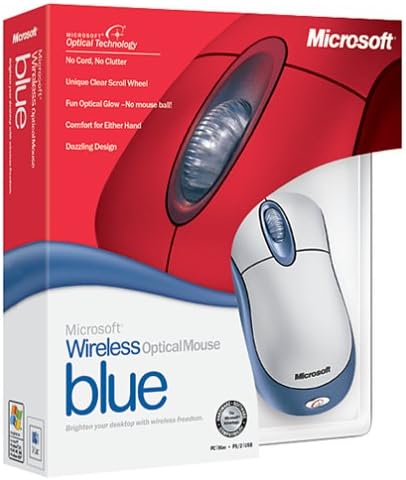
Image: Retail packaging of the Microsoft Wireless Optical Mouse Blue, showing the mouse and receiver.
Quraşdırma
1. Batareyaları quraşdırın
- Siçanın altındakı batareya bölməsini tapın.
- Batareya bölməsinin qapağını açın.
- Düzgün polariteyi (+/-) təmin edərək iki AA batareyasını daxil edin.
- Batareya bölməsinin qapağını bağlayın.

Şəkil: Ön view of the Microsoft Wireless Optical Mouse Blue, showing the top buttons and scroll wheel. The battery compartment is on the underside.
2. Connect the Wireless Receiver
- USB simsiz qəbuledicini kompüterinizdə mövcud USB portuna qoşun.
- Allow your operating system to detect and install the necessary drivers. This process is usually automatic.
- For optimal performance, ensure the receiver is placed at least 12 inches away from other wireless devices or large metal objects.
3. Optional Software Installation (IntelliPoint)
- While not required for basic functionality, installing Microsoft IntelliPoint software provides advanced customization options for your mouse buttons and scroll wheel.
- Refer to the Microsoft support website for the latest IntelliPoint software compatible with your operating system.
4. Set Orientation (Calibration)
- After initial setup, it is recommended to perform an "Orientation Set" or calibration if available through the IntelliPoint software or your operating system's mouse settings. This helps optimize tracking performance.
Əməliyyat Təlimatları
The Microsoft Wireless Optical Mouse Blue is designed for comfortable and precise navigation.
Əsas funksiyalar
- Sol Klik: Elementləri seçmək və açmaq üçün əsas düymə files və proqram təminatı ilə qarşılıqlı əlaqə.
- Sağ klikləyin: Kontekst menyularına və əlavə seçimlərə daxil olmaq üçün ikinci dərəcəli düymə.
- Sürüşmə çarxı: Sənədləri vərəqləmək üçün çarxı yuxarı və ya aşağı çevirin web pages. The scroll wheel may also function as a clickable button for additional commands, depending on software configuration.
Simsiz əməliyyat
- The mouse operates wirelessly up to 6 feet (approximately 1.8 meters) from its receiver.
- Optical technology scans the desktop surface for precise cursor movement without the need for a mouse pad on most surfaces.
- The mouse is designed for comfortable use with either the right or left hand.

Şəkil: Bucaqlı view of the Microsoft Wireless Optical Mouse Blue, highlighting its ergonomic shape and blue/silver design.
Baxım
Batareyanın dəyişdirilməsi
- The mouse requires two AA batteries.
- When battery power is low, your computer may display a notification (if IntelliPoint software is installed) or mouse performance may degrade.
- Replace batteries as described in the "Install Batteries" section under Setup.
- Always use fresh, high-quality batteries for optimal performance.
Təmizləmə
- To clean the mouse, gently wipe the surface with a soft, damp parça.
- Sərt kimyəvi maddələrdən və ya aşındırıcı təmizləyicilərdən istifadə etməkdən çəkinin, çünki bunlar örtüyə zərər verə bilər.
- Siçanın daxili hissələrinə mayenin girməməsinə əmin olun.
Travel Considerations
- The Microsoft Wireless Optical Mouse is a transmitting device. When traveling by air, it is recommended to remove the batteries from the mouse before boarding to comply with airline regulations regarding electronic devices.
Problemlərin aradan qaldırılması
Mouse Not Responding or Lagging
- Batareyaları yoxlayın: Batareyaların düzgün quraşdırıldığından və kifayət qədər yükləndiyindən əmin olun. Lazım gələrsə, dəyişdirin.
- Check Receiver Connection: Ensure the wireless receiver is securely plugged into a functioning USB port. Try a different USB port.
- Yaxınlıq: Ensure the mouse is within 6 feet of the receiver. Reduce obstacles between the mouse and receiver.
- Müdaxilə: Other wireless devices (e.g., Wi-Fi routers, cordless phones) can cause interference. Move the receiver away from such devices.
- Səth: Ensure the mouse is used on a suitable surface. Highly reflective or transparent surfaces may affect optical tracking.
- Yenidən sinxronizasiya: Some wireless mice have a re-sync button on both the mouse and receiver. Consult the full product manual or Microsoft support for specific re-sync procedures for this model if issues persist.
Clicking Issues
- If clicks are not registering or require multiple presses, check for physical obstructions or debris around the buttons.
- Siçanın qoşulduğundan və işlədiyindən əmin olun.
Proqram Uyğunluğu
- The IntelliPoint software may have specific operating system requirements. For example, older versions may not be compatible with newer operating systems like Windows Vista or later.
- Always download the latest software from the official Microsoft support webəməliyyat sisteminiz üçün xüsusi sayt.
Spesifikasiyalar
| Xüsusiyyət | Detal |
|---|---|
| Model nömrəsi | K80-00004 |
| Brend | Microsoft |
| Bağlantı texnologiyası | Simsiz |
| Hərəkat aşkarlanması | Optik |
| Rəng | Blue / Silver |
| Batareyalar | 2 AA batareya (daxildir) |
| Maddə Çəkisi | 13.6 unsiya (təxminən 385.5 qram) |
| Məhsul Ölçüləri | 9.3 x 8.9 x 2.1 düym (təxminən 23.6 x 22.6 x 5.3 sm) |
| İlk Mövcud Tarix | 1 avqust 2002-cü il |
Zəmanət Məlumatı
According to the legal disclaimer, this product is sold without a warranty. Please refer to your point of purchase for any return or exchange policies.
Dəstək
For further assistance, driver downloads, or updated information regarding your Microsoft Wireless Optical Mouse Blue, please visit the official Microsoft support websayt.
You can typically find support resources by searching for "Microsoft support" and your product model number (K80-00004).


