Giriş
This manual provides comprehensive instructions for the IOGEAR 4-Port 4K HDMI Switch, Model GHDSW4K4. This device allows you to connect up to four HDMI source devices to a single HDMI display, supporting resolutions up to 4K at 60Hz. It is designed for seamless integration into your home theater or workstation, offering convenient switching between various multimedia devices.
The switch features one HDMI port on the front panel for easy access with portable devices, and three additional HDMI ports on the back for permanent connections. Switching between inputs can be performed using the front panel pushbuttons or the included IR remote control. Front panel LED indicators provide clear status of the active input.
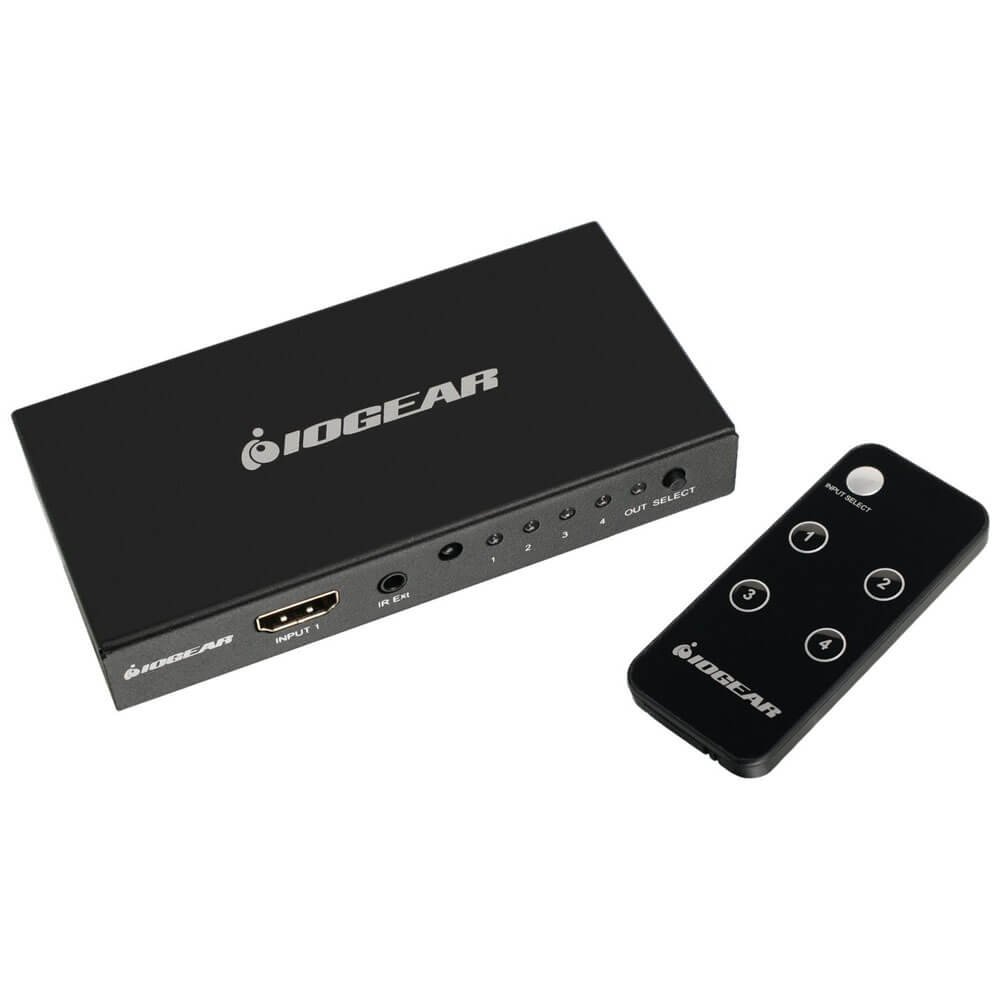
Şəkil: Ön view of the IOGEAR 4-Port 4K HDMI Switch, showing its compact design.
Paketin məzmunu
Bütün əşyaların paketinizdə olduğunu yoxlayın:
- 1 x IOGEAR 4-Port 4K HDMI Switch (Model GHDSW4K4)
- 1 x IR Uzaqdan İdarəetmə
Məhsul Xüsusiyyətləri
- Supports resolutions up to 4K (2160p) at 60Hz, including 480p, 720p, 1080i, and 1080p.
- HDCP 2.2 compliant for seamless compatibility with various devices.
- Supports Dolby True HD and DTS-HD for uncompressed 7.1 digital surround sound.
- Full 3D passthrough and Consumer Electronics Control (CEC) support.
- Effortless switching via front panel button or IR remote control.
- Supports IR extension using a receiver extension cable (not included) for discreet placement.
- Compatible with most standard HDMI devices including game consoles, Blu-ray players, and streaming devices.
- Powered by connected HDMI sources, eliminating the need for an external power adapter in most cases. A micro USB power port is available for additional power delivery if required.
Quraşdırma Təlimatları
Follow these steps to set up your IOGEAR 4-Port 4K HDMI Switch:
- Cihazları söndürün: Ensure all HDMI source devices (e.g., Blu-ray player, game console) and your display (TV, monitor) are powered off before making connections.
- HDMI mənbələrini birləşdirin: Connect your HDMI source devices to the HDMI input ports on the switch. The front panel has one input, and the rear panel has three inputs (Input 2, Input 3, Input 4).
- Ekrana qoşulun: Connect an HDMI cable from the 'OUTPUT' port on the switch to the HDMI input on your display.
- Könüllü Elektrik Bağlantısı: The switch is typically powered by the connected HDMI sources. If additional power is needed (e.g., for longer HDMI cables or certain devices), connect a micro USB cable (not included) from the 5V/1A micro USB port on the switch to a USB power source.
- Uzaqdan Batareyanı daxil edin: Open the battery compartment of the IR remote control and insert the required battery (1 Lithium Ion battery, typically CR2025, not always included). Ensure any plastic pull-tabs are removed.
- Cihazları yandırın: Power on your display first, then power on your HDMI source devices.
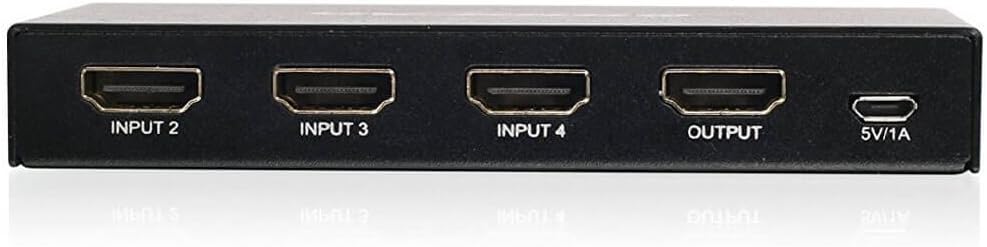
Şəkil: arxa view of the IOGEAR 4-Port 4K HDMI Switch, illustrating the HDMI input ports (Input 2, Input 3, Input 4), the HDMI output port, and the 5V/1A micro USB power input.

Image: The IOGEAR 4-Port 4K HDMI Switch shown in a typical desk environment, connecting a laptop, tablet, and external monitor.
Əməliyyat Təlimatları
The IOGEAR 4-Port 4K HDMI Switch offers two methods for switching between connected devices:
- Front Panel Pushbutton: Press the 'Select' button on the front of the switch to cycle through the connected HDMI input sources. The corresponding LED indicator will illuminate to show the active input.
- IR Uzaqdan İdarəetmə: Use the included IR remote control to directly select an input (if numbered buttons are present) or to cycle through inputs. Point the remote towards the IR receiver on the front of the switch.
- Avtomatik keçid: The switch may automatically switch to a newly activated HDMI source. This feature can be convenient but may cause unintended switching if devices periodically send signals.
Baxım
To ensure optimal performance and longevity of your HDMI switch, follow these maintenance guidelines:
- Təmizləmə: Use a soft, dry cloth to clean the exterior of the switch. Avoid using liquid cleaners or aerosols, which may damage the device.
- Havalandırma: Ensure the switch is placed in a well-ventilated area to prevent overheating. Do not block any ventilation openings.
- Kabel İdarəetmə: Keep HDMI cables neatly organized to prevent strain on the ports and accidental disconnections.
- Yaddaş: When not in use for extended periods, store the switch in a cool, dry place away from direct sunlight and extreme temperatures.
Problemlərin aradan qaldırılması
If you encounter issues with your IOGEAR 4-Port 4K HDMI Switch, refer to the following common solutions:
- Video/Audio Çıxışı yoxdur:
- Bütün HDMI kabellərinin həm mənbə cihazlarına, həm də kommutatora və displeyə etibarlı şəkildə qoşulduğundan əmin olun.
- Verify that the correct input on the HDMI switch is selected.
- Confirm that your display is set to the correct HDMI input channel.
- If using a micro USB power cable, ensure it is connected to a reliable power source.
- Try bypassing the switch by connecting a source directly to the display to confirm the source and display are functioning correctly.
- Uzaqdan İdarəetmə İşləmir:
- Check if the battery in the remote control is correctly inserted and has sufficient charge. Replace if necessary.
- Ensure there are no obstructions between the remote control and the IR receiver on the switch.
- Remove any plastic pull-tabs from the remote's battery compartment.
- 4K Resolution Issues:
- Ensure all connected HDMI cables are rated for 4K (High-Speed HDMI cables).
- Verify that your source device and display both support 4K resolution at the desired refresh rate (e.g., 60Hz).
- Some devices may require specific settings to output 4K through an HDMI switch. Consult your device's manual.
- Unintended Automatic Switching:
- This behavior is often due to the CEC (Consumer Electronics Control) feature or active signal detection. If it becomes disruptive, manually select inputs using the remote or front panel button.
Spesifikasiyalar
| Xüsusiyyət | Detal |
|---|---|
| Model nömrəsi | GHDSW4K4 |
| Məhsul Ölçüləri | 4.75 x 2.4 x 0.75 düym |
| Maddə Çəkisi | 7.2 unsiya |
| Dəstəklənən Qətnamələr | 480p, 720p, 1080i, 1080p, 2160p (up to 4K@60Hz) |
| HDMI Uyğunluğu | HDMI 2.0, HDCP 2.2 (also backwards compatible with HDCP 1.2) |
| Rəng Dərinliyi | 12-bit Dərin Rəng |
| 3D dəstək | Full 3D pass-through |
| Audio dəstəyi | DTS / Dolby / DTS-HD / Dolby True HD / LPCM 7.1 / AC3 |
| Nəzarət üsulları | Front-panel pushbutton, IR remote control |
| Güc mənbəyi | HDMI bus-powered (optional Micro USB 5V/1A for additional power) |
| Uyğun Cihazlar | PC, laptop, Roku, PS4, Xbox, Apple TV, Blu-ray player, DVI devices (with adapter) |
Zəmanət Məlumatı
IOGEAR products are designed for reliability and performance. For specific warranty details regarding your GHDSW4K4 HDMI Switch, please refer to the warranty card included with your product or visit the official IOGEAR website. Typically, IOGEAR offers a limited warranty covering defects in materials and workmanship under normal use.
Zəmanət iddiaları üçün satınalma sübutunuzu özündə saxlayın.
Dəstək
For technical assistance, product registration, or further information, please contact IOGEAR customer support:
- Websayt: Visit the official IOGEAR webTez-tez verilən suallar, drayver yükləmələri və dəstək resursları üçün sayt.
- Əlaqə: Refer to the contact section on the IOGEAR website for phone numbers or email support options.
When contacting support, please have your product model number (GHDSW4K4) and a detailed description of your issue ready.


