Giriş
This manual provides essential information for setting up, operating, maintaining, and troubleshooting your Microsoft Surface Pro 3. The Surface Pro 3 is a versatile device designed to function as both a tablet and a laptop, powered by the Windows 10 operating system.
It features a 12-inch high-resolution screen, ample internal storage, dual HD cameras, and robust connectivity options, including a full-size USB 3.0 port. Its integrated kickstand allows for comfortable viewing in various positions, and the magnesium frame ensures a lightweight and durable design.
Təhlükəsizlik Məlumatı
- Cihazı həddindən artıq temperatura, birbaşa günəş işığına və ya yüksək rütubətə məruz qoymayın.
- Cihazı yerə atmaqdan və ya güclü təsirə məruz qoymaqdan çəkinin.
- Use only Microsoft-approved power adapters and accessories.
- Keep the device away from liquids. In case of liquid contact, power off immediately and seek professional assistance.
- Do not attempt to disassemble or repair the device yourself. This may void the warranty and cause damage.
- Ensure proper ventilation when using the device to prevent overheating.
Quraşdırma
1. Qutudan Çıxarma və İlkin Yoxlama
Carefully remove the Surface Pro 3 and all accessories from the packaging. Inspect the device for any visible damage. Retain the packaging for future transport or service needs.
2. Yandırma və İlkin Quraşdırma
- Connect the power supply to the Surface Pro 3 and a power outlet.
- Cihazın yuxarı kənarında yerləşən güc düyməsini basın.
- Follow the on-screen prompts to complete the Windows 10 initial setup, including language selection, network connection, and user account creation.
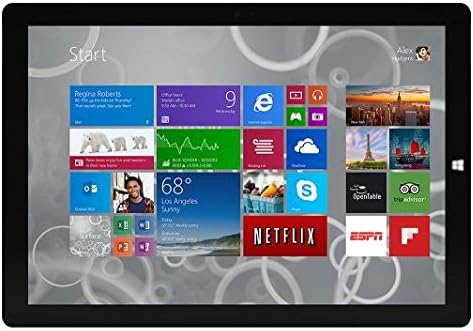
Figure 1: Windows 10 Start Screen during initial setup.
This image shows the Microsoft Surface Pro 3 screen displaying the Windows 10 Start menu, characterized by a grid of live tiles representing various applications and services. This is typically seen during the initial setup or when navigating the operating system.
3. Attaching Accessories (Sold Separately)
The Surface Pro 3 is compatible with various accessories, such as the Surface Type Cover keyboard and the Surface Pen, which are sold separately.
- Surface Type Cover: Align the magnetic connector of the Type Cover with the bottom edge of the Surface Pro 3 until it clicks into place.
- Səth Qələmi: The Surface Pen can be magnetically attached to the side of the Surface Pro 3 for storage. For initial pairing, follow the instructions provided with the pen.
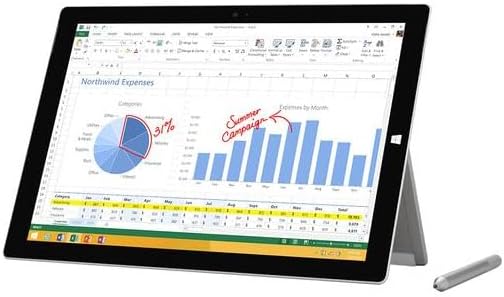
Figure 2: Surface Pro 3 with optional Surface Pen.
This image illustrates the Microsoft Surface Pro 3 in use, displaying an Excel spreadsheet on its screen. A Surface Pen is positioned next to the device, highlighting its compatibility for precise input and navigation.
4. Expanding Storage with a MicroSD Card
You can expand the internal storage of your Surface Pro 3 using a microSD card (sold separately).
- Locate the microSD card slot on the side of the Surface Pro 3, typically behind the kickstand.
- microSD kartı yerinə oturana qədər yuvaya daxil edin.
- The device will automatically detect the card. You may need to format it if it's a new card or if prompted by the system.

Figure 3: MicroSD card slot.
This close-up image shows the microSD card slot on the side of the Microsoft Surface Pro 3, with a microSD card partially inserted, demonstrating how to expand the device's storage.
Əməliyyat Təlimatları
1. Navigating Windows 10
- Başlat Menyu: Click the Windows icon in the bottom-left corner to access applications, settings, and power options.
- Sensorlu ekran: Use gestures for navigation, zooming, and scrolling.
- Kənar Brauzer: Utilize the pre-installed Edge browser for web browsing, which includes features for marking up web səhifələr.

Figure 4: Using the Surface Pro 3 for productivity.
This image depicts the Microsoft Surface Pro 3 in an active use scenario, showcasing a note-taking application open on its screen. The display features handwritten notes, diagrams, and sketches, illustrating the device's capability for creative and productive tasks.
2. Using the Integrated Kickstand
The multi-position kickstand allows you to adjust the viewing angle for optimal comfort, whether you are typing, watching videos, or drawing.
- Gently pull the kickstand out from the back of the device.
- Adjust it to your desired angle. The kickstand offers a wide range of positions for versatility.
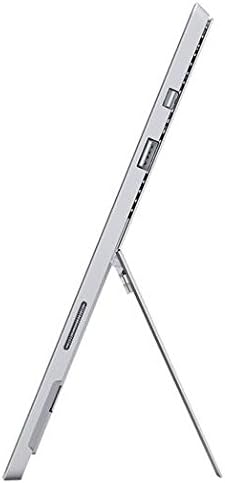
Figure 5: Adjustable kickstand.
Bu şəkil bir tərəf təmin edir view of the Microsoft Surface Pro 3, clearly showing its integrated kickstand extended to support the device at an angle, demonstrating its versatile viewimkanları.
3. Kamera Funksionallığı
The Surface Pro 3 is equipped with 5.0MP front and rear cameras.
- Open the Camera application from the Start Menu.
- Switch between front and rear cameras as needed for photos or video calls.

Figure 6: Front camera.
This close-up image focuses on the front-facing camera and associated sensors located at the top edge of the Microsoft Surface Pro 3 screen.
4. Bağlantı
The full-size USB 3.0 port allows for connecting various peripherals and transferring data.
- Insert USB devices (e.g., flash drives, external hard drives, printers) into the USB 3.0 port.
- The device also supports Wi-Fi (802.11a/b/g/n/ac) for wireless internet connectivity.
Baxım
1. Cleaning Your Surface Pro 3
- Yumşaq, tüysüz parça istifadə edin dampsu və ya elektronika üçün xüsusi olaraq hazırlanmış ekran təmizləyicisi ilə təmizləyin.
- Sərt kimyəvi maddələrdən, aşındırıcı təmizləyicilərdən və ya aerozol spreylərindən istifadə etməyin.
- Ekranı və xarici səthləri yumşaq bir şəkildə silin.
2. Proqram təminatı yeniləmələri
Cihazınızın ən son təhlükəsizlik yamalarına və performans təkmilləşdirmələrinə sahib olduğundan əmin olmaq üçün Windows yeniləmələrini mütəmadi olaraq yoxlayın və quraşdırın.
- gedin Parametrlər > Yeniləmə və Təhlükəsizlik > Windows Yeniləmə.
- Click "Check for updates" and install any available updates.
3. Saxlamanın İdarə Edilməsi
To maintain optimal performance, manage your device's storage space.
- Müntəzəm olaraq lazımsız silin files və tətbiqlər.
- Utilize cloud storage services or external drives for large files.
- Consider using the Disk Cleanup tool in Windows to remove temporary files.
Problemlərin aradan qaldırılması
Bu bölmədə Surface Pro 3 ilə qarşılaşa biləcəyiniz ümumi problemlərə toxunulur.
Cihaz Yandırılmır
- Ensure the power supply is securely connected to both the device and a working power outlet.
- Fərqli elektrik rozetkasını sınayın.
- Press and hold the power button for 10-15 seconds to perform a forced shutdown, then press it again to restart.
Wi-Fi Bağlantı Problemləri
- Windows parametrlərində Wi-Fi-ın aktiv olub olmadığını yoxlayın.
- Wi-Fi routerinizi yenidən başladın.
- Şəbəkəni unudun və parolu yenidən daxil edərək yenidən qoşulun.
- Windows Şəbəkə Problemləri Həlləyicisini işə salın.
Yavaş Performans
- Arxa fonda işləyən lazımsız proqramları bağlayın.
- Gözlənilən Windows yeniləmələrini yoxlayın və quraşdırın.
- Kifayət qədər boş saxlama yeriniz olduğundan əmin olun.
- Virus taramasını işə salın.
For more detailed troubleshooting or issues not covered here, please refer to the official Microsoft Support websayt və ya müştəri xidməti ilə əlaqə saxlayın.
Spesifikasiyalar
| Xüsusiyyət | Detal |
|---|---|
| Model | Microsoft Surface 1631 Pro 3 |
| Əməliyyat sistemi | Windows 10 |
| Ekran Ölçüsü | 12 düym |
| Ekran həlli | 2160 x 1440 |
| Prosessor | Intel Core i3 1.5 GHz |
| RAM | 4 GB |
| Daxili yaddaş | 128 GB Flash Storage |
| Qrafik koprosessor | Intel HD Qrafika |
| Kameralar | 5.0MP Front and Rear |
| Simsiz Tip | 802.11b, 802.11a, 802.11g |
| Limanlar | Full-size USB 3.0 |
| Maddə Çəkisi | 1.8 funt sterlinq |
| Məhsul Ölçüləri | 11.5 x 0.36 x 7.93 düym |
| Rəng | Gümüş |
Zəmanət və Dəstək
Your Microsoft Surface Pro 3 comes with a standard manufacturer's warranty. For detailed warranty terms and conditions, please refer to the documentation included with your purchase or visit the official Microsoft support websayt.
For technical assistance, troubleshooting guides, driver downloads, and service requests, please visit the Microsoft Səth Dəstəyi səhifə.


