1. artıqview
The MoKo Bluetooth Wireless Keyboard is designed to enhance your Microsoft Surface Pro experience, offering a comfortable typing solution with advanced features. This keyboard provides a seamless wireless connection, a practical trackpad, and customizable 7-color backlighting, making it suitable for various environments and tasks.

Image: MoKo Bluetooth Wireless Keyboard attached to a Microsoft Surface Pro tablet, showcasing its sleek design and integration.
2. Paketin məzmunu
Zəhmət olmasa paketi aşağıdakı maddələr üçün yoxlayın:
- MoKo Bluetooth Wireless Keyboard
- USB şarj kabeli
- İstifadəçi Təlimatı (bu sənəd)

Image: A USB Type-C charging cable, included for recharging the keyboard's internal battery.
3. Uyğunluq
This keyboard is designed for specific Microsoft Surface Pro models. Please verify your device model before use.
- Microsoft Surface Pro 7 Plus (2021)
- Microsoft Surface Pro 7 (2019)
- Microsoft Surface Pro 6
- Microsoft Surface Pro 5 (Pro 2017)
- Microsoft Surface Pro 4
- Microsoft Surface Pro 3
Note: This keyboard is NOT compatible with Surface Go (2018) or Surface Go 2.
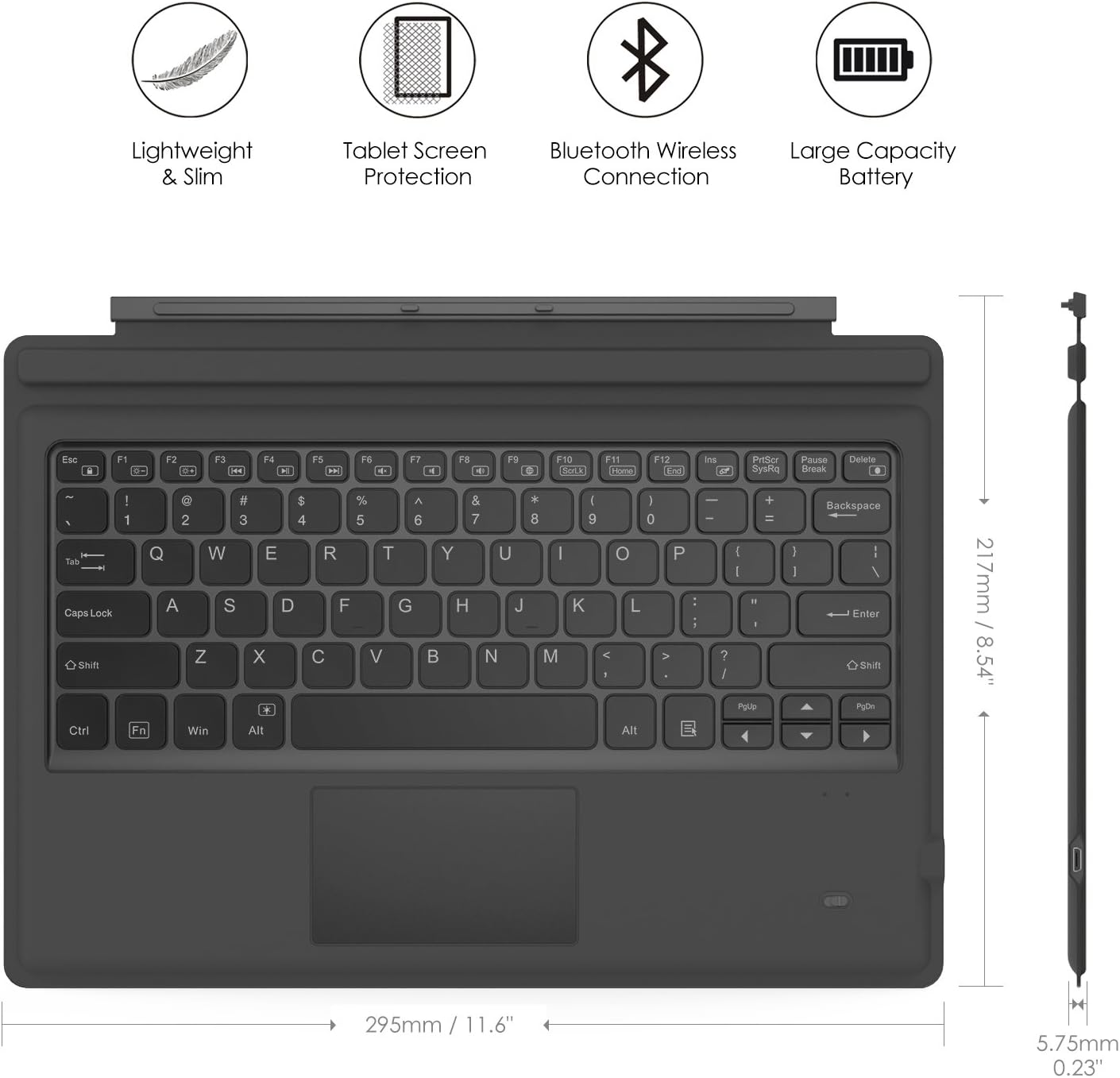
Image: A visual guide indicating compatible Microsoft Surface Pro models (Pro 7 Plus, Pro 7, Pro 6, Pro 5, Pro 4, Pro 3, Pro LTE) and incompatible models (Surface Go, Surface Go 2).
4. Quraşdırma
4.1. Klaviaturanın doldurulması
Before initial use, fully charge the keyboard. Connect the provided USB charging cable to the keyboard's charging port and a USB power source. The charging indicator light will show the charging status.
- Battery Capacity: 750mAh (rechargeable lithium battery)
- Şarj müddəti: Təxminən 2-3 saat
- Working Time (backlight off): Up to 180 hours
- Working Time (backlight on): Up to 5 hours
- Gözləmə müddəti: 180 günə qədər

Image: An illustration depicting the keyboard's battery and charging specifications, including charge time and standby duration.
4.2. Bluetooth Cütləşdirmə
Follow these steps to pair your keyboard with your Microsoft Surface Pro:
- Güc düyməsini "ON" vəziyyətinə sürüşdürərək klaviaturanı yandırın. Göstərici işığı yanıb-sönəcək.
- düyməsini basın Fn + C keys simultaneously to activate Bluetooth pairing mode. The Bluetooth indicator light will start blinking rapidly.
- On your Microsoft Surface Pro, go to Parametrlər > Cihazlar > Bluetooth və digər cihazlar.
- Ensure Bluetooth is enabled and select Bluetooth və ya digər cihaz əlavə edin.
- seçin Bluetooth variantlardan.
- Select the keyboard (usually named "Bluetooth Keyboard" or similar) from the list of available devices.
- Follow any on-screen prompts to complete the pairing process. Once paired, the Bluetooth indicator light on the keyboard will stop blinking.

Image: A diagram illustrating the Bluetooth wireless connection process, showing the keyboard both attached and detached from the tablet, with a note on connection distance.
5. Əməliyyat Təlimatları
5.1. Arka İşıq Nəzarəti
The keyboard features a 7-color LED backlight with adjustable brightness levels.
- To turn the backlight ON/OFF: Press the İşıq lampası açar.
- Arxa fon rəngini dəyişdirmək üçün: düyməsini basın Alt + Light Bulb key. Cycle through 7 different colors.
- Arxa işığın parlaqlığını tənzimləmək üçün: basın fn+alt keys. This will cycle through different brightness modes.

Image: Instructions on how to change the backlight color by pressing Alt + Light Bulb key.

Image: Instructions on how to adjust backlight brightness by pressing Fn + Alt keys.
5.2. Using the Trackpad
The integrated trackpad provides precise cursor control, similar to a mouse. It supports multi-touch gestures for enhanced navigation.
- To activate/deactivate the trackpad: Press Fn + Trackpad icon açar.
- Left Click: Press the left side of the trackpad or tap once.
- Right Click: Press the right side of the trackpad or tap with two fingers.
- Scrolling: Use two fingers to scroll up or down.

Image: An illustration highlighting the responsive trackpad with left and right click areas, and the scissor switch mechanism of the keys for comfortable typing.
5.3. Dual-Angle Adjustment
The keyboard features a magnetic attachment stripe that allows for two different typing angles, providing ergonomic comfort for various uses.
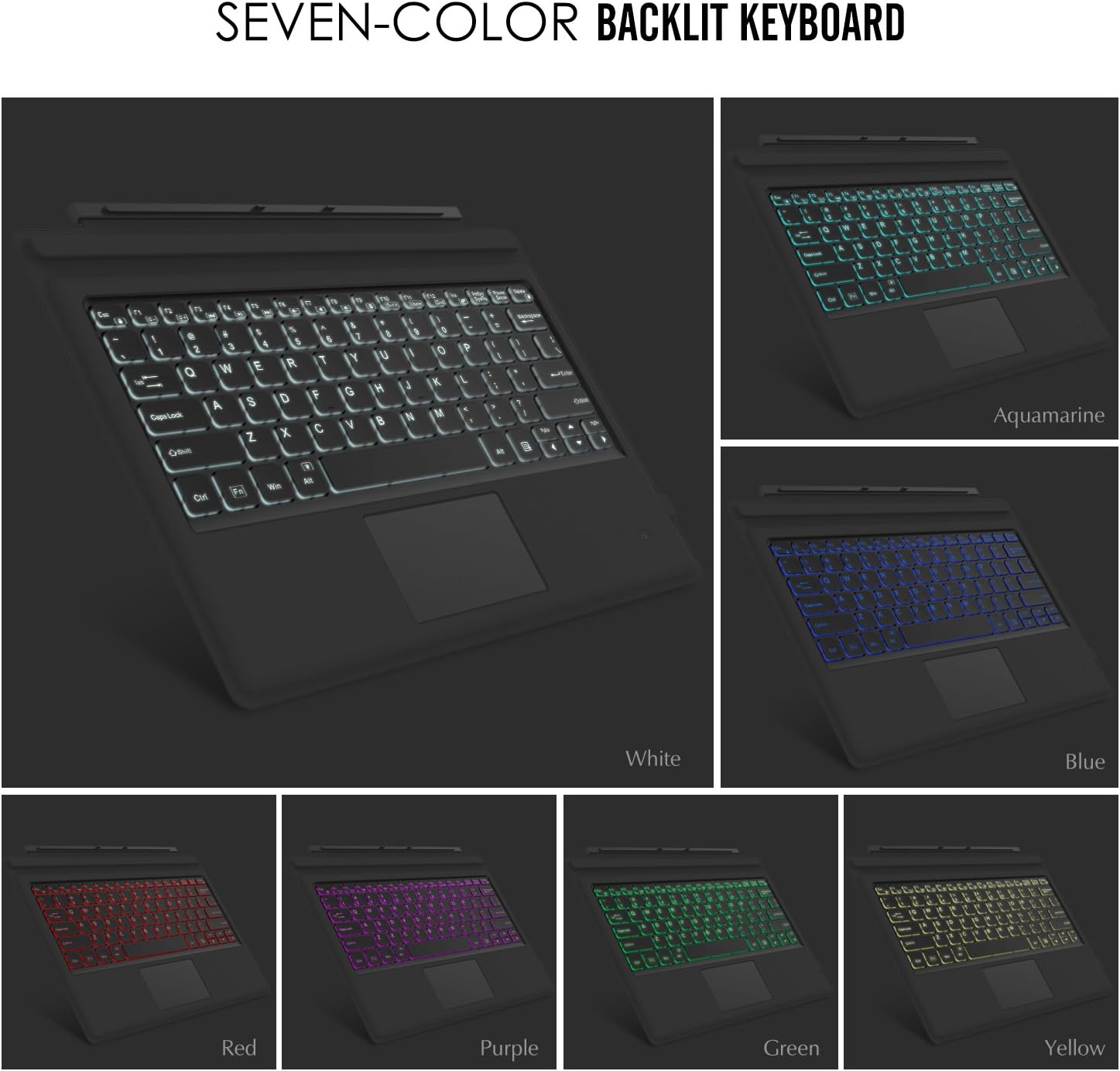
Image: A visual representation of the keyboard's dual-angle adjustment, showing two distinct positions for typing comfort.
6. Baxım
- Keep the keyboard away from liquids and extreme temperatures.
- Clean the keyboard with a soft, damp parça. Sərt kimyəvi maddələrdən çəkinin.
- Do not attempt to disassemble the keyboard, as this may void the warranty.
- Uzun müddət istifadə edilmədikdə quru yerdə saxlayın.
7. Giderme
7.1. Keyboard Not Connecting via Bluetooth
- Klaviaturanın tam doldurulduğundan əmin olun.
- Make sure the keyboard's power switch is ON.
- Verify that Bluetooth is enabled on your Surface Pro.
- Re-enter pairing mode on the keyboard (Fn + C) and attempt to pair again from your Surface Pro's Bluetooth settings.
- If previously paired, try 'forgetting' the device on your Surface Pro and then re-pairing.
7.2. Arxa İşıq İşləmir
- Klaviaturanın kifayət qədər doldurulduğundan əmin olun.
- Press the Light Bulb key to toggle the backlight.
- Adjust brightness using Fn + Alt keys.
7.3. Trackpad Not Responding
- Ensure the trackpad is activated by pressing Fn + Trackpad icon key.
- Hər hansı bir kir və ya zibil təmizləmək üçün trackpad səthini təmizləyin.
- Restart the keyboard and your Surface Pro.
8. Spesifikasiyalar
| Xüsusiyyət | Detal |
|---|---|
| Brend | MoKo |
| Model nömrəsi | LYSB01AJOX7LU-ELECTRNCS |
| Rəng | Boz |
| Bağlantı texnologiyası | Bluetooth |
| Klaviatura Təsviri | Ergonomic, QWERTY US International |
| Xüsusi Xüsusiyyətlər | Wireless, Magnetic, Backlit (7 Colors), Trackpad |
| Güc mənbəyi | Battery (Rechargeable Lithium) |
| Batareya Tutumu | 750 mAh |
| Batareya həcmitage | 3 volt |
| Məhsul Ölçüləri | 29.49 x 21.69 x 0.58 sm (11.6 x 8.54 x 0.23 düym) |
| Məhsul Çəkisi | 500 q |
| Uyğun Cihazlar | Microsoft Surface Pro 7 Plus (2021) / Pro 7 (2019) / Pro 6 / Surface Pro 5 (Pro 2017) / Pro 4 / Pro 3 |
| Əməliyyat sistemi | Windows |

Image: A diagram illustrating the precise dimensions of the MoKo Bluetooth Wireless Keyboard.
9. Zəmanət və Dəstək
For warranty information and technical support, please refer to the product packaging or contact MoKo customer service directly. Keep your purchase receipt for warranty claims.


