1. Giriş
This manual provides essential information for the installation, configuration, operation, and maintenance of the MOXA AWK-1137C-US-T 802.11n Wireless AP Client. This device is designed for industrial wireless applications, offering reliable 802.11n connectivity in challenging environments with a wide operating temperature range.
2. Təhlükəsizlik Məlumatı
- Always disconnect power before cleaning or servicing the device.
- Elektrik təhlükələrinin qarşısını almaq üçün düzgün torpaqlama təmin edin.
- Cihazı müəyyən edilmiş temperatur və rütubət aralığında işlədin.
- Cihazı rütubətə və ya həddindən artıq temperatura məruz qoymayın.
- Yalnız ixtisaslı işçilər quraşdırma və texniki xidmət göstərməlidir.
3. Paketin məzmunu
Paketinizdə aşağıdakı elementlərin olduğunu yoxlayın:
- MOXA AWK-1137C-US-T Wireless AP Client unit
- Sürətli Quraşdırma Bələdçisi
- Documentation CD (or link to online resources)
- Mounting kit (if applicable)
- Power adapter or terminal block (if applicable)
Hər hansı bir əşya itkin düşərsə və ya zədələnərsə, dərhal satıcı ilə əlaqə saxlayın.
4. Avadanlıq bitdiview
The AWK-1137C-US-T features robust industrial design. Key components typically include:
- Ethernet Portları: Simli şəbəkə əlaqələri üçün.
- Anten Bağlayıcıları: For external antennas to optimize wireless signal.
- Güc Girişi: Terminal block for DC power input.
- LED göstəriciləri: Provide status information for power, WLAN, and Ethernet activity.
- Sıfırlama düyməsi: For restoring factory default settings.
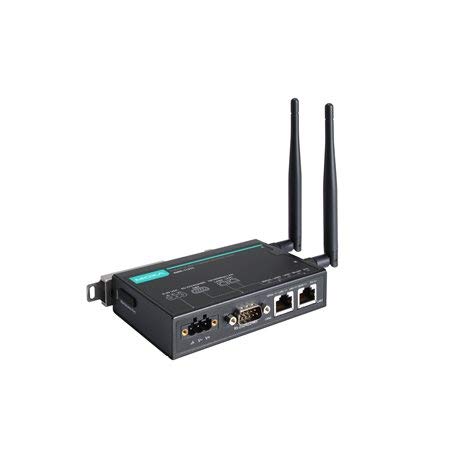
Figure 1: MOXA AWK-1137C-US-T Wireless AP Client. This image shows the compact industrial design of the device, typically featuring antenna ports, Ethernet connections, and power input.
5. Quraşdırma
5.1 Quraşdırma
The AWK-1137C-US-T supports DIN-rail mounting. Attach the DIN-rail kit to the device and snap it onto a standard DIN-rail. Ensure the device is securely fastened to prevent vibration or accidental dislodgement.
5.2 Enerji Bağlantısı
- Connect a suitable DC power source (e.g., 12-48 VDC) to the device's power input terminal block.
- Ensure correct polarity (+ and -) as indicated on the device.
- Tighten the screws on the terminal block to secure the power wires.
5.3 Şəbəkə Bağlantısı
- Connect an Ethernet cable from your network switch or router to the Ethernet port on the AWK-1137C-US-T.
- Attach appropriate antennas to the antenna connectors. Ensure they are securely tightened.
5.4 İlkin Konfiqurasiya
To access the device's webəsaslı idarəetmə interfeysi:
- Connect a computer directly to the device's Ethernet port or ensure it is on the same network segment.
- Configure your computer's IP address to be in the same subnet as the device's default IP address (refer to the Quick Installation Guide for the default IP).
- Açıq a web browser and enter the device's default IP address.
- Log in using the default username and password (refer to the Quick Installation Guide).
- Change the default password immediately for security.
6. işlək
6.1 İş rejimləri
The AWK-1137C-US-T can operate in various modes, including Access Point (AP) and Client mode. Select the appropriate mode based on your network requirements.
- Giriş nöqtəsi (AP) rejimi: The device acts as a central hub for wireless clients to connect.
- Müştəri rejimi: The device connects to an existing Access Point, extending wired network connectivity wirelessly.
6.2 Simsiz Parametrlər
Configure the following wireless parameters via the web interfeys:
- SSID: The name of your wireless network.
- Kanal: Select an appropriate wireless channel to avoid interference.
- Qrup: Configure for 2.4 GHz or 5 GHz operation, depending on the model and environment.
- Ötürmə Gücü: Adjust the output power for optimal coverage and compliance.
6.3 Təhlükəsizlik Parametrləri
Implement strong wireless security to protect your network:
- Şifrələmə: Use WPA2/WPA3-PSK or Enterprise for robust security.
- Password/Passphrase: Choose a strong, unique password.
- MAC Ünvan Filtrləmə: Optionally restrict access to specific devices.
7. Baxım
7.1 Mikroproqram yeniləmələri
MOXA-nı müntəzəm olaraq yoxlayın website for the latest firmware updates. Firmware updates can provide new features, performance improvements, and security patches. Follow the instructions provided with the firmware package for a safe update process.
7.2 Təmizləmə
Clean the device periodically with a soft, dry cloth. Do not use liquid or aerosol cleaners. Ensure the device is powered off before cleaning.
7.3 Ətraf Mühit Mülahizələri
Ensure the operating environment remains within the specified temperature and humidity limits (-40 to 75°C). Avoid placing the device near heat sources or in direct sunlight.
8. Giderme
8.1 Güc yoxdur
- Check the power cable connection and ensure the power source is active.
- Enerji təchizatı həcmini yoxlayıntage is within the device's specified range.
- Inspect the power input terminal block for loose connections.
8.2 Şəbəkə Bağlantısı Yoxdur
- Check Ethernet cable connections and ensure they are properly seated.
- Verify that the network switch or router is functioning correctly.
- For wireless connections, ensure the SSID, security settings, and channel match the connected AP/client.
- Check the LED indicators for network activity.
8.3 Slow Wireless Speed
- Ensure antennas are properly connected and positioned for optimal signal.
- Check for sources of interference (e.g., other wireless devices, microwave ovens).
- Adjust the wireless channel to a less congested one.
- Verify that the device is operating in 802.11n mode and not a slower standard.
8.4 Zavod parametrlərinə sıfırlama
If configuration issues persist, you may need to reset the device to its factory default settings. Locate the reset button (often recessed) and press and hold it for approximately 5-10 seconds while the device is powered on. The device will reboot with default settings.
9. Spesifikasiyalar
| Xüsusiyyət | Spesifikasiya |
|---|---|
| Model nömrəsi | AWK-1137C-US-T |
| Simsiz standart | 802.11n |
| Əməliyyat bandı | US Band |
| İşləmə temperaturu | -40 ilə 75°C arasında |
| Paket Ölçüləri | 7.87 x 6.57 x 1.97 düym |
| Maddə Çəkisi | 1.15 funt sterlinq |
| İstehsalçı | MOXA |
| İlk Əlçatan Tarix | 30 aprel 2018-ci il |
10. Zəmanət və Dəstək
10.1 Zəmanət Məlumatı
MOXA products typically come with a standard warranty. For detailed warranty terms and conditions, please refer to the official MOXA websayt və ya məhsulunuza daxil olan zəmanət kartı. Zəmanət iddiaları üçün satınalma sübutunuzu saxlayın.
10.2 Texniki Dəstək
For technical assistance, product documentation, or driver downloads, please visit the official MOXA support website. You can also contact MOXA's customer support team directly through the contact information provided on their websayt.


