Giriş
This manual provides essential instructions for setting up, operating, maintaining, and troubleshooting your Microsoft Surface Pro 2017. The Surface Pro 2017 is a versatile 2-in-1 device designed to function as both a powerful laptop and a portable tablet, offering a seamless computing experience.
Please read this manual thoroughly to ensure proper use and to maximize the lifespan of your device. Keep this manual for future reference.
Qutuda nə var
Upon unboxing your Microsoft Surface Pro 2017, verify that all components are present:
- Microsoft Surface Pro 2017 device
- AC Güc Adapteri
Note: Additional accessories such as the Surface Pen, Type Cover, or Surface Dial are sold separately and may not be included with your device.
Quraşdırma
1. İlkin Yandırma və Şarj
- Güc adapterini qoşun: Plug the AC power adapter into a wall outlet and then connect the magnetic charging connector to the charging port on your Surface Pro. The LED indicator on the connector will illuminate when charging.
- Güc Aktivdir: Press and hold the power button located on the top edge of the device for a few seconds until the Microsoft logo appears on the screen.
2. Windows Quraşdırma
Follow the on-screen prompts to complete the initial Windows setup. This process typically includes:
- Bölgənizi və dilinizi seçmək.
- Wi-Fi şəbəkəsinə qoşulur.
- Lisenziya müqaviləsinin qəbul edilməsi.
- Creating or signing in with a Microsoft account.
- Setting up security features like Windows Hello (facial recognition) or a PIN.
3. Wi-Fi şəbəkəsinə qoşulma
- During Windows setup, you will be prompted to connect to a network. Select your desired Wi-Fi network from the list and enter the password if required.
- If you need to connect later, go to Başlayın > Parametrlər > Şəbəkə və İnternet > Wi-Fi. Turn Wi-Fi on, select your network, and click Qoşun.
Əməliyyat Təlimatları
Basic Device Orientation and Controls
The Surface Pro 2017 features a 12.3-inch PixelSense display with multi-touch support. Key physical controls include:
- Güc düyməsi: Located on the top edge, used to turn the device on/off, sleep, or wake.
- Səs Düymələri: Located on the side, used to adjust audio volume.
- Kickstand: Integrated on the back, allows for multiple viewbucaqlar.
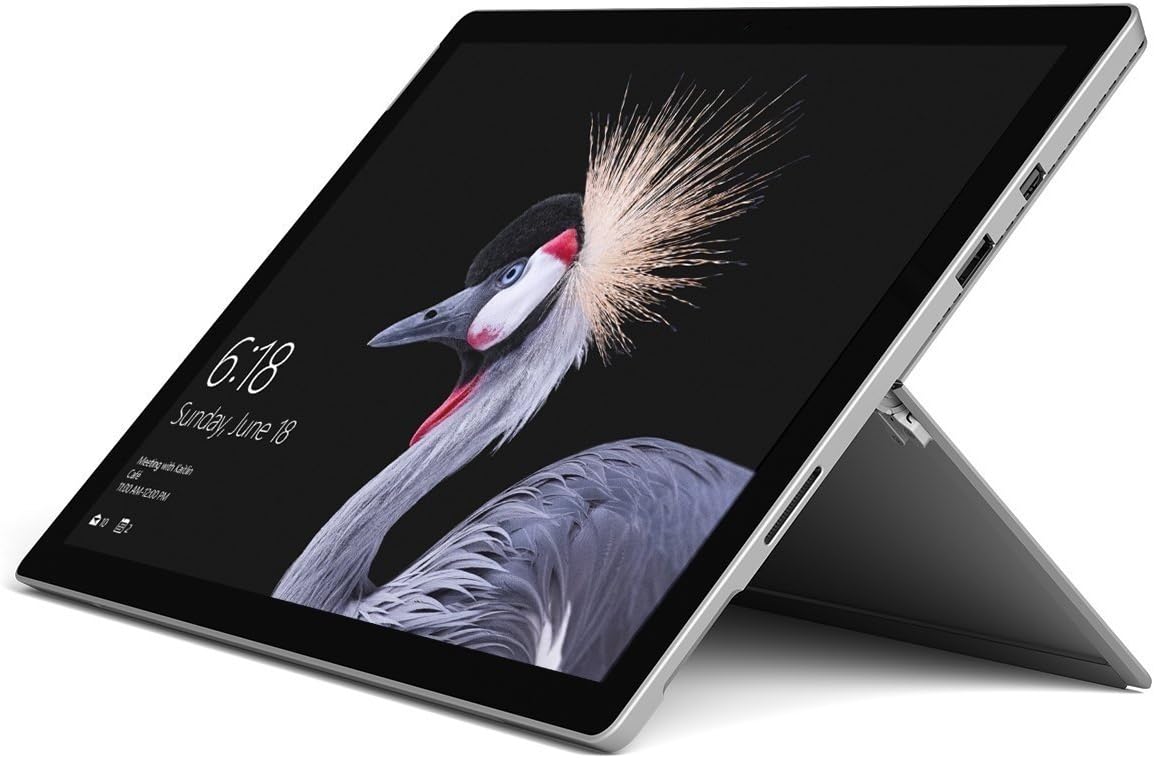
Image: Microsoft Surface Pro 2017 in laptop mode with its kickstand extended, showcasing the device's display.
Kickstand istifadə
The integrated kickstand allows you to position your Surface Pro at various angles for comfortable viewing, typing, or drawing. Gently pull the kickstand out from the back of the device until it reaches your desired angle.
Güc İdarəetmə
- Yuxu rejimi: Briefly press the power button to put the Surface Pro into sleep mode. Press it again to wake the device.
- Bağlayın: gedin Başlayın > Güc > Bağlayın.
- Yenidən başladın: gedin Başlayın > Güc > Yenidən başladın.
Periferik qurğuların qoşulması
The Surface Pro 2017 includes various ports for connecting external devices:
- USB 3.0 portu: For connecting USB drives, keyboards, mice, and other compatible accessories.
- Mini DisplayPort: Xarici monitorlara və ya proyektorlara qoşulmaq üçün.
- microSD kart oxuyucusu: Yaddaşın genişləndirilməsi və ya ötürülməsi üçün files yaddaş kartlarından.
- Səthi Bağlantı Portu: For power and connecting to Surface Dock accessories.
- 3.5 mm qulaqlıq girişi: Audio çıxış üçün.
Bluetooth: To connect Bluetooth devices (e.g., headphones, mice), go to Başlayın > Parametrlər > Cihazlar > Bluetooth və digər cihazlar. Ensure Bluetooth is turned on, then select "Add Bluetooth or other device" and follow the pairing instructions.

Şəkil: Side profile of the Microsoft Surface Pro 2017, highlighting the various ports available for connectivity.
Baxım
Cleaning Your Surface Pro
- Ekran: Bir az yumşaq, tüysüz parça istifadə edin dampened with water or an approved screen cleaner. Avoid harsh chemicals or abrasive materials.
- Bədən: Wipe the exterior with a soft, dry cloth. Do not allow liquids to enter openings.
- Limanlar: Keep ports free of dust and debris. Use compressed air carefully if needed, holding the can upright.
Batareyaya qulluq
- Həddindən artıq temperaturdan çəkinin, çünki onlar batareyanın ömrünü azalda bilər.
- For optimal battery health, avoid consistently discharging the battery completely or keeping it at 100% charge for extended periods.
- Use only the official Microsoft AC power adapter or a compatible charger.
Proqram təminatı yeniləmələri
Regularly update your Windows operating system and device drivers to ensure optimal performance, security, and compatibility. Go to Başlayın > Parametrlər > Yeniləmə və Təhlükəsizlik > Windows Yeniləmə yeniləmələri yoxlamaq və quraşdırmaq üçün.
Problemlərin aradan qaldırılması
Bu bölmədə Surface Pro 2017 ilə qarşılaşa biləcəyiniz ümumi problemlərə toxunulur.
Device Will Not Turn On
- Ensure the device is charged. Connect the power adapter and wait a few minutes before attempting to power on.
- Perform a two-button shutdown: Press and hold the volume-up button and the power button simultaneously for at least 15 seconds, then release both. Wait 10 seconds, then press the power button again to turn on the Surface.
Screen Not Responding to Touch
- Cihazı yenidən başladın.
- Ekranın təmiz və zibil olmadığından əmin olun.
- Check for available Windows updates, as driver updates can resolve touch issues.
Wi-Fi Bağlantı Problemləri
- Wi-Fi-ın aktiv olduğundan əmin olun Parametrlər > Şəbəkə və İnternet > Wi-Fi.
- Restart your Surface Pro and your Wi-Fi router.
- Şəbəkəni unudun və yenidən qoşulun: Gedin Parametrlər > Şəbəkə və İnternet > Wi-Fi, click on your network, then Unut. Reconnect and enter the password.
Spesifikasiyalar
| Xüsusiyyət | Spesifikasiya |
|---|---|
| Model Adı | Surface Pro 2017 |
| Element Model nömrəsi | 7Y30 |
| Ekran Ölçüsü | 12.3 düym |
| Ekran həlli | 2736 x 1824 piksel |
| Prosessor | Intel Core m3-7Y30 (1 GHz Intel_Mobile_CPU) |
| RAM | 4 GB DDR4 SDRAM |
| Saxlama | 128 GB SSD |
| Qrafik Kart | Integrated (Intel) |
| Əməliyyat sistemi | Windows |
| Simsiz Tip | 802.11abg |
| Maddə Çəkisi | 1.89 funt sterlinq |
| Məhsul Ölçüləri | 11.5 x 7.9 x 0.3 düym |
| Rəng | Gümüş |
Zəmanət və Dəstək
For detailed warranty information, please refer to the warranty card included with your purchase or visit the official Microsoft support websayt. Zəmanət şərtləri və şərtləri regiona və satıcıya görə dəyişə bilər.
For technical support, driver downloads, and additional resources, please visit the official Microsoft Support websayt: support.microsoft.com/surface


