1. Giriş
Bu təlimat cihazınızın qurulması, istismarı və texniki xidməti üçün vacib məlumatlar təqdim edir ViewSonic VX2776-SH 27-inch Full HD IPS monitor. Please read these instructions carefully before using the product.
The ViewSonic VX2776-SH monitor features a 27-inch (68.58 cm) Full HD (1920x1080) IPS display, offering vibrant colors and wide viewing angles. It includes SuperClear IPS Technology, a sleek frameless design, and a 75Hz refresh rate for smooth visuals. Eye-care technologies such as Flicker-Free and a Blue Light Filter are integrated to reduce eye strain. Connectivity options include HDMI and VGA inputs.

Şəkil 1: ViewSonic VX2776-SH Monitor Overview Əsas Xüsusiyyətləri ilə
2. Paketin məzmunu
Bütün əşyaların paketdə olduğunu yoxlayın:
- ViewSonic VX2776-SH Monitor x1
- 3-pin Power Plug (IEC C13 / CEE22) x1
- HDMI Kabel (v1.4; Kişi-Kişi) x1
3. Quraşdırma Təlimatları
3.1. Stendin yığılması
Monitor dayağını yığmaq üçün:
- Cızıqların qarşısını almaq üçün monitoru yumşaq və təmiz bir səthə diqqətlə üzü aşağı qoyun.
- Align the triangular base with the stand neck.
- Secure the base to the neck using the provided screw.
- Attach the assembled stand to the back of the monitor by aligning the mounting points and securing it firmly.
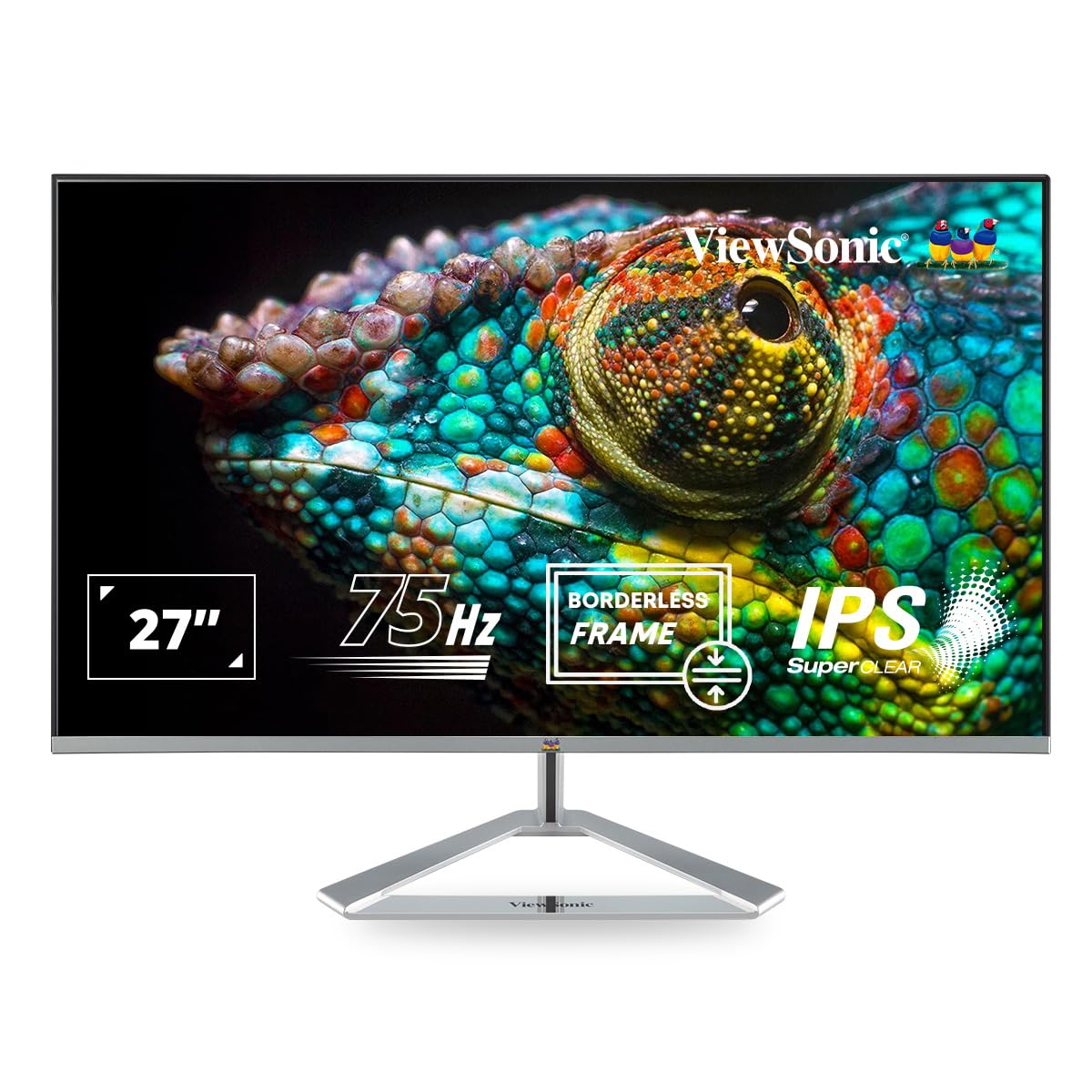
Figure 2: Monitor with Assembled Triangular Stand
3.2. Monitorun qoşulması
Hər hansı bir əlaqə qurmadan əvvəl monitorunuzun və kompüterinizin söndürüldüyünə əmin olun.
- Enerji bağlantısı: Elektrik kabelini monitorun enerji girişinə və sonra elektrik rozetkasına qoşun.
- Video bağlantısı: Connect one end of the HDMI cable (or VGA cable) to the corresponding port on your computer's graphics card and the other end to an HDMI or VGA input port on the monitor. The monitor supports dual HDMI inputs.
- Audio Çıxış (Könüllü): If you are using external speakers or headphones, connect them to the monitor's audio out port.

Figure 3: Monitor Connectivity Ports (HDMI, VGA)
3.3. VESA Wall Mount (Optional)
The monitor is VESA mount compatible (100x100mm). To mount the monitor on a wall or monitor arm, remove the stand and attach the VESA-compatible bracket (not included) to the mounting holes on the back of the monitor.

Figure 4: VESA Mounting Area on Monitor Back
4. Əməliyyat Təlimatları
4.1. Gücü yandırın/söndürün
Onu yandırmaq və ya söndürmək üçün monitorun aşağı sağ tərəfində yerləşən güc düyməsini sıxın. Monitor yandıqda güc göstərici işığı yanacaq.
4.2. Ekran Ekranı (OSD) Menyu
The OSD menu allows you to adjust various display settings. Use the buttons located on the bottom right of the monitor to navigate the menu:
- Press a button to activate the OSD menu.
- Use the navigation buttons to move through options.
- Press the select button to confirm a selection.
- OSD menyusunu bağlamaq üçün çıxış düyməsini basın.
4.3. ViewRejim Parametrləri
ViewMode provides optimized presets for different screen applications. These presets adjust gamma curve, color temperature, contrast, and brightness to enhance your viewtəcrübə.
- Oyun: Optimized for gaming visuals.
- Film: Enhanced for video playback.
- Web: Suitable for general web gəzən.
- Mətn: Ideal for reading documents, reducing eye strain.
- Mono: Məzmunu boz rəngdə göstərir.

Şəkil 5: ViewMode Optimized Settings
4.4. Göz Baxımı Texnologiyası
The monitor incorporates eye-care features to promote comfortable viewing during extended use:
- Flicker-Free: Eliminates screen flickering, which can cause eye strain and fatigue.
- Mavi İşıq Filtri: Reduces harmful blue light emissions, helping to protect your eyes.

Figure 6: Flicker-Free Technology

Figure 7: Blue Light Filter
4.5. Eko rejimi
Eco Mode helps reduce power consumption and prolong the monitor's lifespan. You can enable or disable this feature through the OSD menu.

Figure 8: Eco Mode Functionality
5. Baxım
To ensure optimal performance and longevity of your monitor:
- Ekranın təmizlənməsi: Ekranı yumşaq, tüysüz bir parça ilə yumşaq bir şəkildə silin. İnadkar izlər üçün dampParçanı yumşaq, aşındırıcı olmayan ekran təmizləyicisi ilə silin. Təmizləyicini birbaşa ekrana püskürtməyin.
- C-nin təmizlənməsiasing: Monitoru təmizləmək üçün yumşaq, quru bir parça istifadə edin.asing. Güclü yuyucu vasitələrdən və ya aşındırıcı təmizləyicilərdən istifadə etməkdən çəkinin.
- Havalandırma: Həddindən artıq istiləşmənin qarşısını almaq üçün monitordakı havalandırma deliklərinin bağlanmadığından əmin olun.
- Söndürmək: Uzun müddət istifadə edilmədikdə həmişə monitoru söndürün.
6. Giderme
Monitorunuzla bağlı problemlərlə qarşılaşsanız, aşağıdakı ümumi həll yollarına müraciət edin:
| Problem | Mümkün Həll |
|---|---|
| Ekranda şəkil yoxdur |
|
| Şəkil bulanıq və ya təhrif olunub |
|
| No sound from external speakers/headphones |
|
| Monitor power LED is off |
|
7. Spesifikasiyalar
| Xüsusiyyət | Detal |
|---|---|
| Model nömrəsi | VX2776-SH |
| Ekran Ölçüsü | 27 düym (68.58 sm) |
| Panel növü | IPS |
| Doğma Qətnamə | 1920 x 1080 (Full HD) |
| Yeniləmə dərəcəsi | 75Hz |
| Aspekt nisbəti | 16:9 |
| Bağlantı | 2x HDMI (v1.4), 1x VGA |
| Gözə Qulluq Xüsusiyyətləri | Titrəmədən, Mavi İşıq Filtri |
| VESA montajına uyğundur | 100x100 mm |
| Məhsul Ölçüləri (UxGxY) | 61.4 x 18.4 x 44.3 sm |
| Maddə Çəkisi | 4 kq |
8. Zəmanət və Dəstək
For warranty information and technical support, please refer to the warranty card included with your product or visit the official ViewSonic webSayt. Siz də əlaqə saxlaya bilərsiniz ViewSonic customer service for assistance with product registration, troubleshooting, and service inquiries.


