1. Giriş
Thank you for choosing the Glorious Model O- (Minus) Gaming Mouse. This manual provides essential information for setting up, operating, and maintaining your new gaming mouse. The Model O- (Minus) is engineered for competitive e-sports, featuring an ultralight design, a flexible Ascended Cord, and customizable RGB lighting to enhance your gaming experience.
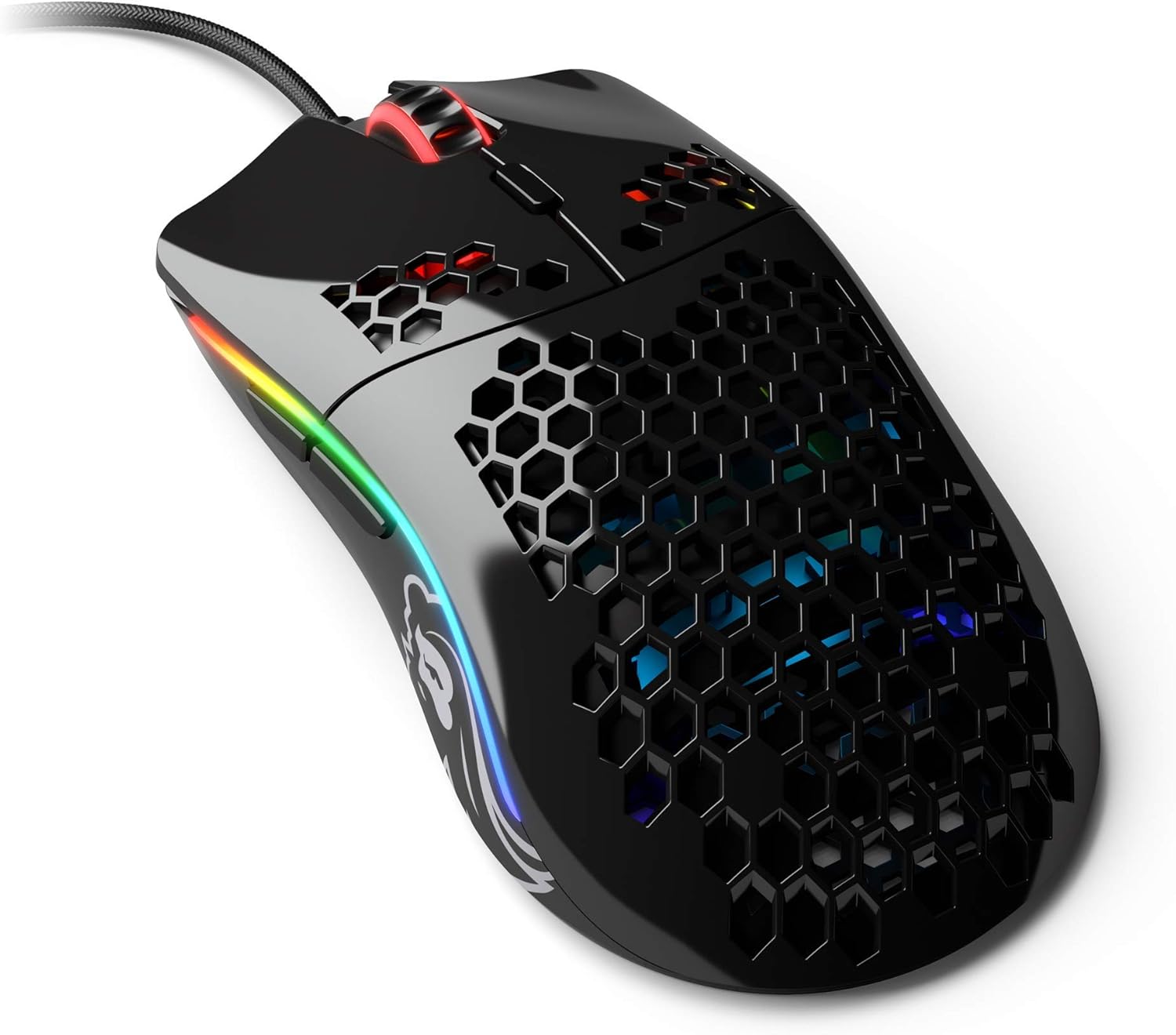
Image: The Glorious Model O- (Minus) Gaming Mouse in Glossy Black, showcasing its honeycomb shell design and RGB lighting.
2. Quraşdırma
2.1 Paketin məzmunu
Before proceeding, please ensure all components are present:
- Glorious Model O- (Minus) Gaming Mouse
- Ascended Cord (attached)
- Tez Başlanğıc Bələdçisi (bu sənəd)
2.2 Siçanın qoşulması
- Kompüterinizdə mövcud USB portunu tapın.
- Plug the USB connector of the Glorious Model O- (Minus) into the USB port.
- The mouse is plug-and-play and should be recognized automatically by your operating system.

Image: The Glorious Ascended Cord, a lightweight and flexible USB cable designed to minimize drag.
2.3 Software Installation (Glorious Core)
For advanced customization of DPI settings, button assignments, and RGB lighting, download the Glorious Core software from the official Glorious webSayt (www.gloriousgaming.com/pages/glorious-core). Quraşdırma üçün ekrandakı təlimatları izləyin.

Image: Screenshot of the Glorious Core software interface, demonstrating options for lighting and key binding customization for the mouse.
3. Əməliyyat Təlimatları
3.1 Əsas Siçan Funksiyaları
- Sol Klik: Əsas fəaliyyət düyməsi.
- Sağ klikləyin: Adətən kontekst menyuları üçün ikinci dərəcəli fəaliyyət düyməsi.
- Sürüşmə çarxı: Scrolls content up/down. Can also be clicked for middle-click functionality.
- Yan Düymələr: Programmable buttons, typically for forward/back navigation in browsers or in-game actions.
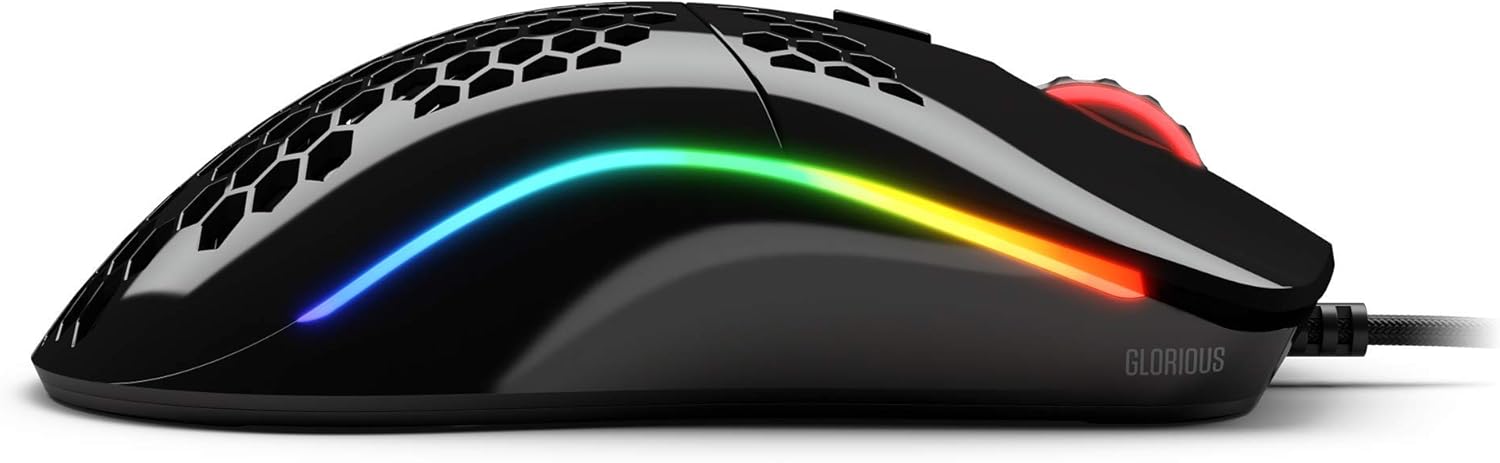
Şəkil: Yan view of the Glorious Model O- (Minus) mouse, highlighting the two programmable side buttons and the vibrant RGB lighting strip.
3.2 DPI Tənzimlənməsi
The Model O- (Minus) features a dedicated DPI button on the underside of the mouse. Press this button to cycle through pre-set DPI stages. The default DPI stages can be customized using the Glorious Core software.
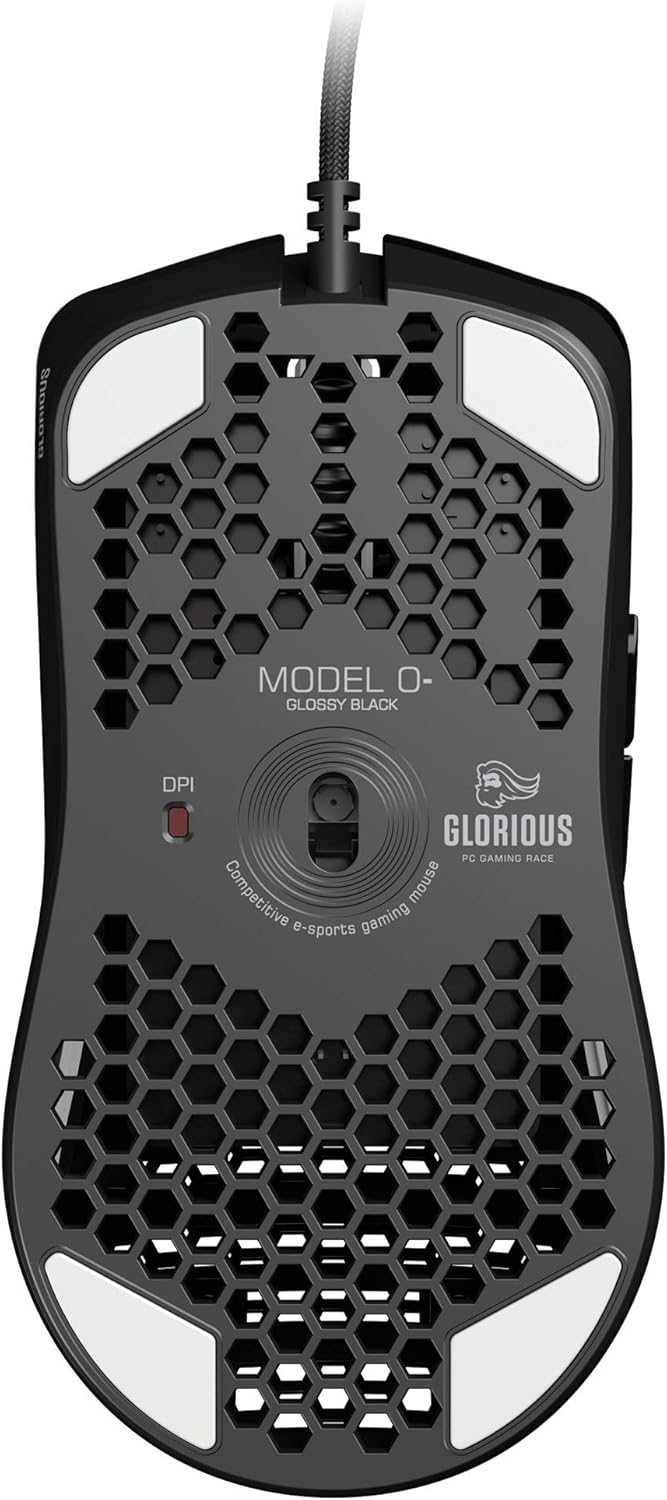
Image: The underside of the Glorious Model O- (Minus) mouse, clearly showing the DPI switch button and the optical sensor.
3.3 RGB İşıqlandırmanın Fərdiləşdirməsi
The RGB lighting on your Glorious Model O- (Minus) can be fully customized using the Glorious Core software. You can select from various effects, colors, and brightness levels to match your setup or mood.
4. Baxım
4.1 Siçanın təmizlənməsi
- Ensure the mouse is disconnected from your computer before cleaning.
- Yumşaq, tüysüz parçadan yüngülcə istifadə edin dampSiçanın səthini silmək üçün su və ya yumşaq təmizləyici məhlul ilə silin.
- Optik sensor üçün pambıq çubuqdan yüngülcə istifadə edin dampened with isopropyl alcohol to gently clean the lens. Avoid excessive moisture.
- Do not use harsh chemicals or abrasive materials, as these can damage the mouse's finish or internal components.
4.2 Kabel Baxımı
The Ascended Cord is designed to be lightweight and flexible. Avoid sharp bends or excessive pulling on the cable to prevent damage. Use a cable tie or management system to keep the cable tidy and prevent tangles.
5. Giderme
5.1 Siçan Cavab Vermir
- USB kabelin kompüterinizdə işləyən USB portuna etibarlı şəkildə qoşulduğundan əmin olun.
- Siçanı başqa bir USB portuna qoşmağa çalışın.
- Kompüterinizi yenidən başladın.
- Problemin siçanda və ya sisteminizdə olub olmadığını müəyyən etmək üçün siçanı başqa bir kompüterdə sınayın.
5.2 Inconsistent Tracking or Cursor Movement
- Optik sensoru Təmir bölməsində təsvir edildiyi kimi təmizləyin.
- Ensure you are using the mouse on a clean, uniform surface (e.g., a mouse pad). Avoid highly reflective or transparent surfaces.
- Check DPI settings using the DPI button or Glorious Core software.
- Update your mouse drivers or Glorious Core software to the latest version.
5.3 RGB Lighting Not Working Correctly
- Ensure Glorious Core software is installed and up to date.
- Check the lighting settings within Glorious Core to ensure RGB is enabled and configured as desired.
- Kompüterinizi yenidən başladın.
6. Spesifikasiyalar
| Xüsusiyyət | Detal |
|---|---|
| Məhsul Ölçüləri | 4.72 x 2.48 x 1.42 düym |
| Maddə Çəkisi | 2.08 unsiya |
| Bağlantı texnologiyası | USB (simli) |
| Hərəkətin aşkarlanması texnologiyası | Optik |
| Rəng | Parlaq Qara |
| Xüsusi Xüsusiyyət | Ambidextrous dizayn |
| İstehsalçı | Glorious PC Gaming Race |
7. Zəmanət və dəstək
7.1 Zəmanət Məlumatı
The Glorious Model O- (Minus) Gaming Mouse comes with a 2 il Zəmanət. This warranty covers manufacturing defects and ensures hassle-free return and replacement on all Glorious electronic devices. Please retain your proof of purchase for warranty claims.
7.2 Müştəri dəstəyi
If you encounter any issues not covered in this manual or require further assistance, please contact Glorious customer support through their official websayt:
- Websayt: www.gloriousgaming.com/pages/support
- Our dedicated support team is available to assist with any questions or concerns you may have.


