Giriş
The Renkforce USB-C RF-DKS-650 is a versatile universal docking station designed to expand the connectivity of your laptop, convertible, or tablet equipped with a USB-C port. It enables multitasking by supporting up to four monitors simultaneously and offers a wide array of ports for various peripherals. The docking station is powered by the included AC/DC power adapter, ensuring stable performance for all connected devices.
To optimize cable management and maintain a tidy workspace, the 15 available ports are thoughtfully distributed across the front and rear panels. Thicker cables for monitors and power are typically connected to the rear, while frequently accessed devices like headsets, USB drives, or smartphones can be conveniently plugged into the front.
This docking station also includes a practical charging function for smartphones and other small devices. Please note that for charging your laptop via USB-C, a separate power supply with sufficient wattage (not included) is required.
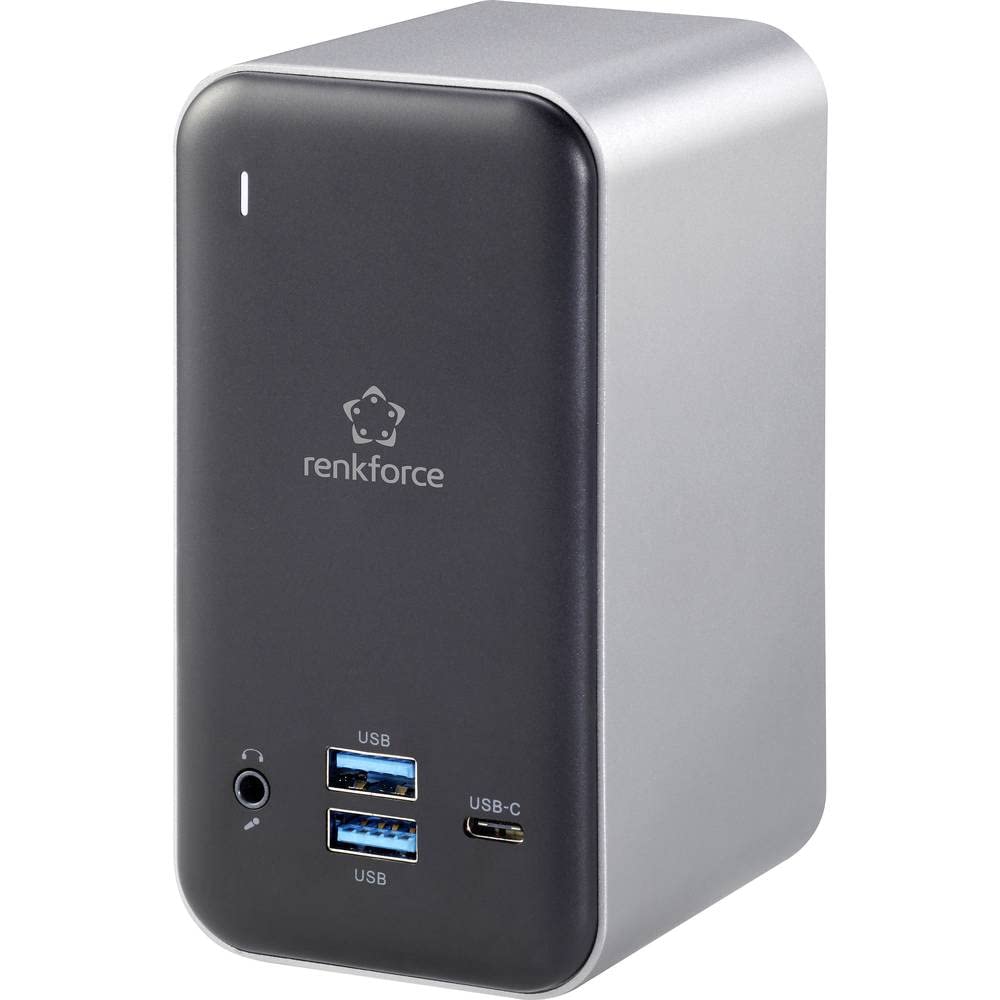
Figure 1: Renkforce USB-C RF-DKS-650 Universal Laptop Docking Station - Overall View
Quraşdırma Təlimatları
Follow these steps to set up your Renkforce RF-DKS-650 docking station:
- Güc bağlayın: Plug the supplied AC/DC power adapter (12V 3A @36W) into the 'POWER' port on the rear of the docking station and then into a wall outlet.
- Host Cihazına qoşulun: Use a USB-C cable to connect your laptop, convertible, or tablet to the 'HOST' USB-C port on the docking station.
- Monitorları birləşdirin: Connect your monitors to the available HDMI (3 ports) and/or VGA (1 port) outputs on the docking station. The rear panel is ideal for these connections.
- Periferiyaları birləşdirin: Connect your USB devices (e.g., keyboard, mouse, external drives) to the USB-A (USB 3.0) ports or additional USB-C ports. For audio, connect your headset or speakers to the 3.5mm microphone/audio jack.
- Şəbəkəyə Qoşulun (İstəyə bağlı): For a wired network connection, plug an Ethernet cable into the LAN port on the docking station.
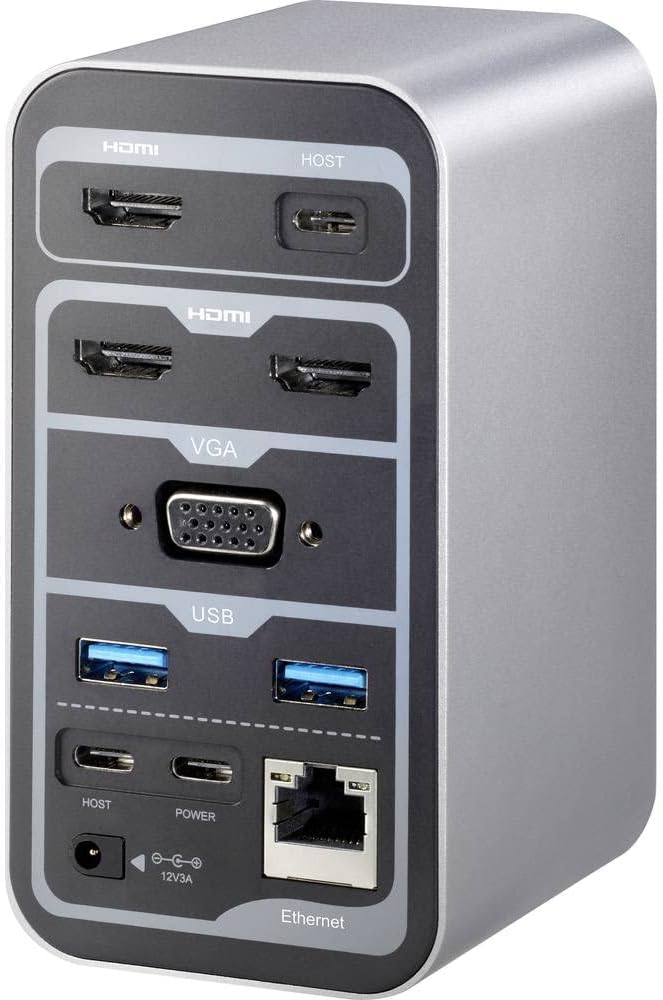
Figure 2: Rear Panel Connections (HDMI, VGA, USB, Ethernet, Power Input)

Figure 3: Front Panel Connections (USB, USB-C, Audio Jack)
Əməliyyat Təlimatları
Multi-Monitor Display
The RF-DKS-650 supports various multi-monitor configurations depending on your operating system:
- Windows 8 və ya daha yüksək: Supports 1 or 3 simultaneous display outputs. Mirroring and extension modes are supported.
- MAC OS 10.12 or higher: Supports up to 4 simultaneous display outputs. Mirroring and extension modes are supported. For Intel and M1 chips, specific configurations like HDMI1 or HDMI2+HDMI3+VGA are possible.
- iPad OS 13 or higher: Supports 1 or 3 simultaneous display outputs. Mirroring is supported, but extension mode is not.
- Android ƏS: Supports 1 or 3 simultaneous display outputs. Mirroring is supported, but extension mode is not.
Adjust display settings (resolution, arrangement, mirroring/extension) through your operating system's display settings menu.
Cihazın doldurulması
The docking station provides a convenient charging function for smartphones and other small USB-powered devices through its USB ports. Simply connect your device to an available USB-A or USB-C port.
Vacib Qeyd: While the docking station can charge small devices, it does not provide sufficient power to charge your laptop via its USB-C connection. For laptop charging, you must use your laptop's original power adapter or a separate, sufficiently powerful USB-C PD (Power Delivery) charger (not included).
Baxım
To ensure the longevity and optimal performance of your Renkforce RF-DKS-650 docking station, follow these simple maintenance guidelines:
- Təmizləmə: Disconnect the docking station from power and all devices before cleaning. Use a soft, dry, lint-free cloth to wipe the exterior. Avoid using liquid cleaners, aerosols, or solvents, as these can damage the finish or internal components.
- Kabel İdarəetmə: Utilize the strategic port placement to keep cables organized. Regularly check cable connections to ensure they are secure and free from kinks or damage.
- Havalandırma: Ensure the docking station is placed in a well-ventilated area to prevent overheating. Do not block any ventilation openings.
- Yaddaş: Uzun müddət istifadə edilmədikdə, dok stansiyasını sərin, quru yerdə, birbaşa günəş işığından və həddindən artıq temperaturdan uzaq saxlayın.
Problemlərin aradan qaldırılması
If you encounter issues with your Renkforce RF-DKS-650 docking station, refer to the following common problems and solutions:
- Monitorda ekran yoxdur:
- Dok stansiyasının işə salındığından və enerji adapterinin etibarlı şəkildə qoşulduğundan əmin olun.
- Verify that the USB-C cable connecting the docking station to your host device is properly seated.
- Check that the HDMI/VGA cables are securely connected to both the docking station and the monitors.
- Confirm that your monitor is set to the correct input source (e.g., HDMI 1, VGA).
- Əsas cihazınızı yenidən başlatmağa çalışın.
- Əsas cihazınızdakı qrafik drayverlərinizi yeniləyin.
- USB Cihazları Tanınmır:
- Ensure the docking station is properly connected to your host device via USB-C.
- USB cihazını dok stansiyasındakı fərqli bir porta qoşmağa çalışın.
- İşlək vəziyyətdə olduğundan əmin olmaq üçün USB cihazını birbaşa ana cihazınıza qoşun.
- Əsas cihazınızı yenidən başladın.
- Şəbəkə Bağlantısı Problemləri:
- Ethernet kabelinin həm dok stansiyasına, həm də router/modeminizə etibarlı şəkildə qoşulduğunu yoxlayın.
- Əsas cihazınızdakı şəbəkə parametrlərinizi yoxlayın.
- Try connecting your host device directly to the router/modem to isolate the issue.
- Charging Function Not Working for Laptop:
- As noted, the docking station does not provide power to charge your laptop. Use your laptop's dedicated power adapter or a separate USB-C PD charger.
Texniki Spesifikasiyalar
| Brend | Renkforce |
| Element Model nömrəsi | RF-4499452 |
| ASIN | B08DJ112NF |
| Rəng | Müxtəlif |
| Connectivity / Interface Types | HDMI, USB |
| Uyğun Cihazlar | Laptops, Convertibles, Tablets with USB-C, iPad |
| Number of Display Outputs | 4 |
| HDMI Portlarının sayı | 3 |
| VGA Portlarının Sayı | 1 |
| Maksimum Çözünürlük | 3840 x 2160 piksel |
| Güc Girişi | AC/DC 12V 3A (36W) |
| Əməliyyat Sistemi Uyğunluğu | Windows 8 or higher, MAC OS 10.12 or higher, iPad OS 13 or higher, Android OS |
| İlk Tarix Amazon.com.be saytında mövcuddur | 18 may 2022-ci il |
Zəmanət və Dəstək
The Renkforce RF-DKS-650 Universal Laptop Docking Station comes with a 1-year spare parts availability guarantee from the manufacturer.
For technical support, warranty claims, or further assistance, please contact Renkforce customer service or refer to the official Renkforce webəlaqə məlumatı üçün sayt.


