1. Giriş
The Rapoo MT550 is a versatile multi-device wireless mouse designed for enhanced productivity and comfort. This manual provides detailed instructions for setting up, operating, and maintaining your MT550 mouse, ensuring optimal performance across various devices.
Əsas xüsusiyyətlərə aşağıdakılar daxildir:
- Multi-device connectivity (Bluetooth 3.0, Bluetooth 4.0, and 2.4G wireless)
- Adjustable DPI settings (600/1000/1300/1600)
- Rahat istifadə üçün erqonomik dizayn
- Long battery life of up to 12 months
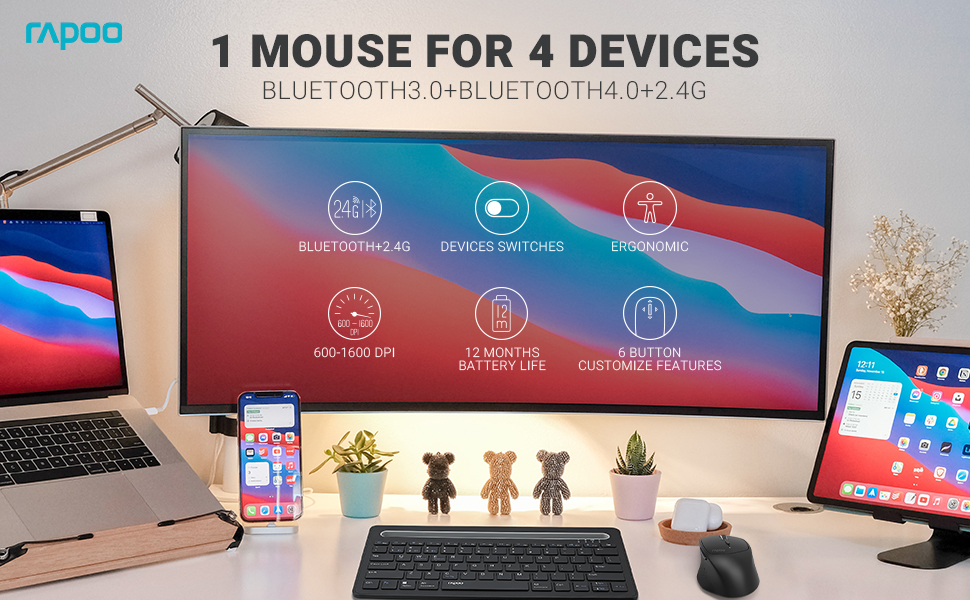
Image: The Rapoo MT550 mouse, highlighting its design for endurance, versatility, and comfort.
2. Quraşdırma
2.1. Batareyanın quraşdırılması
The Rapoo MT550 mouse requires two AA batteries (included). To install:
- Batareya bölməsinin qapağını siçanın alt tərəfində tapın.
- Qapağı sürüşdürərək açın.
- Düzgün qütblüyü (+/-) təmin edərək iki AA batareyası taxın.
- Batareya bölməsinin qapağını bağlayın.
2.2. Connecting via 2.4G Wireless (USB Receiver)
For a 2.4G wireless connection:
- Alt tərəfdəki AÇIQ/SÖNDÜRÜCÜ düyməsindən istifadə edərək siçanı yandırın.
- Locate the USB receiver stored in the battery compartment.
- USB qəbuledicisini kompüterinizdə mövcud olan USB portuna daxil edin.
- The mouse should automatically connect. If not, press the device switch button until the indicator for channel 4 (usually indicated by a specific light pattern or number) is active.
2.3. Bluetooth vasitəsilə qoşulma
The Rapoo MT550 supports up to three Bluetooth connections. To connect:
- AÇIQ/SÖNDÜRÜCÜ düyməsindən istifadə edərək siçanı yandırın.
- Short press the device switch button to select a Bluetooth channel (1, 2, or 3). The corresponding indicator light will illuminate.
- Press and hold the Bluetooth pairing button (often located near the device switch button) for approximately 3 seconds until the indicator light for the selected channel starts flashing rapidly. This indicates the mouse is in pairing mode.
- On your device (computer, laptop, tablet, phone), enable Bluetooth and search for new devices.
- Select "Rapoo MT550" from the list of available devices to complete the pairing process.
- Repeat these steps to pair with up to two additional Bluetooth devices on channels 2 and 3.

Image: Labeled diagram of the Rapoo MT550 mouse, indicating the location of the ON/OFF switch, Bluetooth button, device switch button, battery slot, USB receiver, DPI button, scroller, and other buttons.
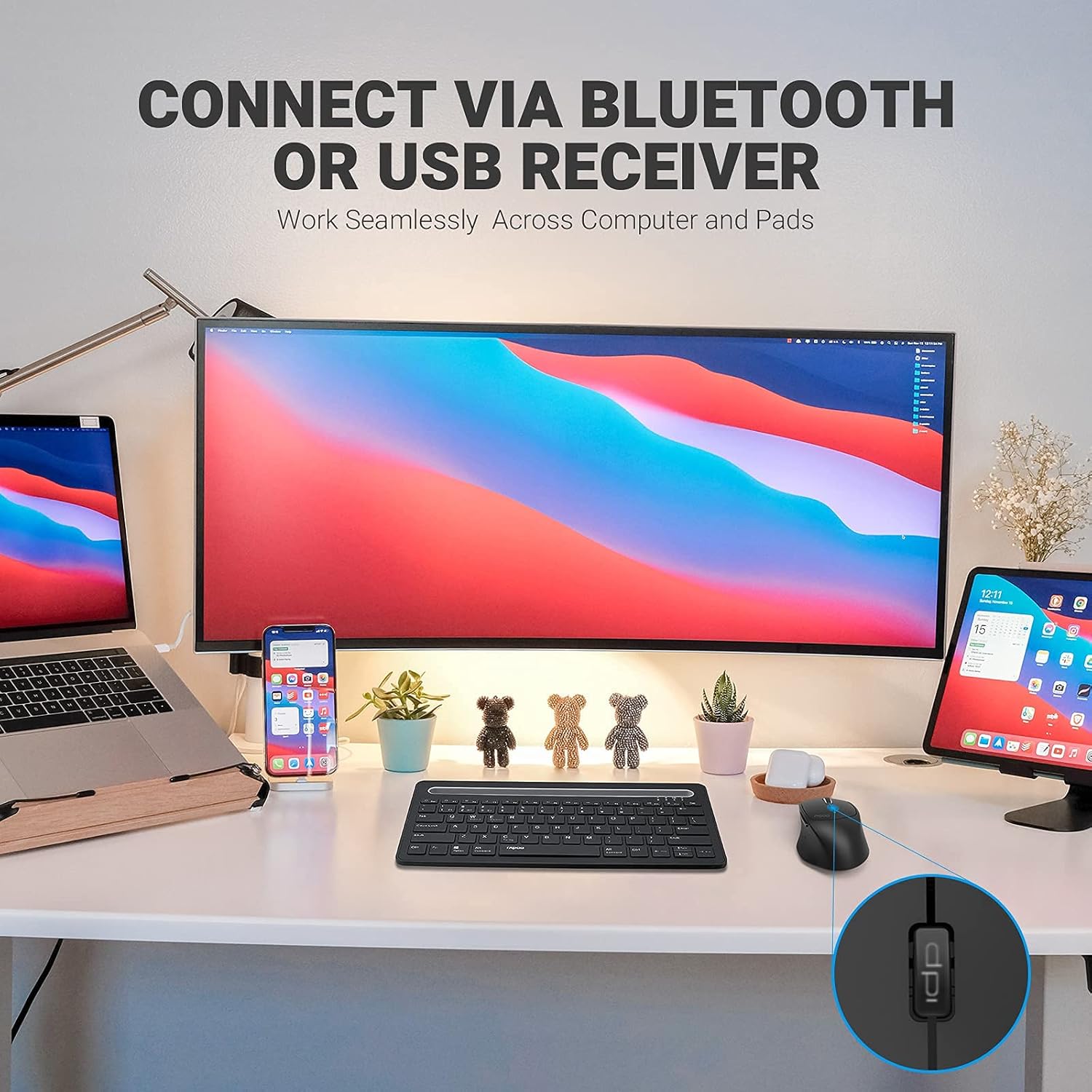
Image: A workstation demonstrating the Rapoo MT550 mouse connecting to multiple devices via Bluetooth or USB receiver.
3. Əməliyyat Təlimatları
3.1. Cihazlar arasında keçid
To switch between your connected devices:
- Short press the device switch button located on the underside of the mouse.
- Each press will cycle through the connected channels (1, 2, 3 for Bluetooth, 4 for 2.4G USB receiver). The corresponding indicator light will show the active channel.
3.2. DPI-nin tənzimlənməsi (Həssaslıq)
The MT550 mouse features four adjustable DPI settings for precise control:
- Press the DPI button, located behind the scroll wheel, to cycle through the available settings: 600, 1000, 1300, and 1600 DPI.
- The indicator light will briefly change to reflect the selected DPI level.

Şəkil: Yaxından view of the DPI button on the Rapoo MT550 mouse, with the indicator light showing the current DPI setting.
3.3. Using Forward/Back Buttons
The two thumb buttons on the side of the mouse provide quick navigation:
- The forward button advances to the next page or folder.
- The back button returns to the previous page or folder.
4. Baxım
4.1. Təmizləmə
To maintain the appearance and functionality of your mouse:
- Siçanın səthini silmək üçün yumşaq, quru bir parça istifadə edin.
- Avoid using harsh chemicals, abrasive cleaners, or solvents, as these can damage the finish.
4.2. Batareyanın dəyişdirilməsi
When the low battery indicator appears or the mouse becomes unresponsive, it's time to replace the batteries:
- Batareyanın quraşdırılması üçün 2.1-ci bölmədə göstərilən addımları izləyin.
- Ensure you use two fresh AA batteries and insert them with the correct polarity.
4.3. Saxlama
Siçanı uzun müddət istifadə etmədikdə, quru, sərin yerdə, birbaşa günəş işığından və həddindən artıq temperaturdan uzaq saxlayın.
5. Giderme
If you encounter issues with your Rapoo MT550 mouse, refer to the following troubleshooting steps:
5.1. Siçan cavab vermir
- Gücü yoxlayın: Ensure the mouse is turned on using the ON/OFF switch.
- Batareyaları yoxlayın: Batareyaların düzgün quraşdırıldığını və kifayət qədər yükləndiyini yoxlayın. Lazım gələrsə, onları dəyişdirin.
- 2.4G Qəbuledici: For 2.4G connection, ensure the USB receiver is securely plugged into a working USB port on your computer. Try a different USB port.
- Bluetooth bağlantısı: For Bluetooth, ensure Bluetooth is enabled on your device and the mouse is paired to the correct channel. Try re-pairing the mouse if the connection is lost.
5.2. Intermittent Connection or Lag
- Yaxınlıq: Move the mouse closer to your computer or device to ensure a strong signal.
- Müdaxilə: Avoid using the mouse near other wireless devices (e.g., Wi-Fi routers, cordless phones) that might cause interference.
- Səth: Ensure you are using the mouse on a suitable surface. While the MT550 is designed for various surfaces, extreme textures or reflective surfaces can affect tracking.
5.3. DPI Dəyişmir
- Ensure you are pressing the dedicated DPI button, not another button.
- If the issue persists, try turning the mouse off and on again.
6. Spesifikasiyalar
| Məhsul Ölçüləri | 3.93 x 2.55 x 1.57 düym |
| Maddə Çəkisi | 5.3 unsiya |
| Batareyalar | 2 AA batareya (daxildir) |
| Bağlantı texnologiyası | Bluetooth (3.0/4.0) and 2.4G Wireless |
| Hərəkətin aşkarlanması texnologiyası | Optik |
| Tənzimlənən DPI | 600/1000/1300/1600 |
| Düymələrin sayı | 6 (Left, Right, Scroll, DPI, Forward, Back) |
| Batareya Ömrü | 12 aya qədər (normal şəraitdə) |
7. Zəmanət və Dəstək
Rapoo provides the following coverage for your MT550 Multi-Device Wireless Mouse:
- Zəmanət: 3-year worry-free warranty.
- Qaytarma Siyasəti: 180 günlük pul geri zəmanəti.
For further assistance, technical support, or warranty claims, please visit the official Rapoo websaytına daxil olun və ya müştəri xidməti şöbəsi ilə əlaqə saxlayın.