1. Giriş
The Broadlink RM4 Pro is a universal remote designed to integrate and control various infrared (IR) and radio frequency (RF) devices within your smart home ecosystem. It supports a wide range of appliances, enabling smart automation and voice control through compatible platforms like Amazon Alexa and Google Home. This manual provides detailed instructions for setting up, operating, and maintaining your RM4 Pro device.
2. Təhlükəsizlik Məlumatı
- Ensure the device is powered by a 5V 1A adapter. Using an incorrect power adapter may damage the device or cause malfunction.
- Cihazı suya, nəmə və ya həddindən artıq temperatura məruz qoymayın.
- Cihazı birbaşa günəş işığı altında və ya istilik mənbələrinin yaxınlığında yerləşdirməyin.
- Cihazı uşaqların əli çatmayan yerdə saxlayın.
- Cihazı özünüz sökməyə və ya təmir etməyə çalışmayın. Yardım üçün müştəri dəstəyi ilə əlaqə saxlayın.
- For optimal IR signal transmission, ensure there are no obstacles between the RM4 Pro and the IR-controlled appliance.
3. Paketin məzmunu
Bütün əşyaların paketdə olduğunu yoxlayın:
- 1x Broadlink RM4 Pro Universal Remote
- 1x USB Charger Cable (Note: Power adapter not included)
- 1x Montaj lövhəsi
- 1x İstifadəçi Təlimatı (bu sənəd)

Image: Broadlink RM4 Pro device and its packaging.
4. Məhsul bitdiview
The Broadlink RM4 Pro is a compact, black device with a sleek design. It features an indicator light on the front that provides status feedback. The device acts as a central hub for controlling your IR and RF appliances.

Şəkil: Ön view of the Broadlink RM4 Pro, showing its compact design and blue indicator light.
5. Quraşdırma
5.1 Cihazı işə salmaq
Connect the provided USB charger cable to the RM4 Pro and plug the other end into a 5V 1A USB power adapter (not included). The indicator light will illuminate, indicating the device is powered on.
5.2 Proqramın yüklənməsi və quraşdırılması
Download the BroadLink App from the App Store (for iOS) or Google Play Store (for Android). axtarın "BroadLink" and install the official application.
5.3 Wi-Fi konfiqurasiyası
The RM4 Pro supports 2.4 GHz Wi-Fi networks only. It does not support 5 GHz Wi-Fi or mesh router configurations. Ensure your Wi-Fi password contains no more than 32 characters and avoids special characters not available on a standard keyboard layout.
- Open the BroadLink App and create an account or sign in.
- Follow the in-app instructions to add a new device. The app will guide you through connecting the RM4 Pro to your Wi-Fi network.
- For the first FastCon device, add it as usual. Subsequent FastCon devices will be automatically discovered when powered on.

Image: Visual representation of the three-step setup process: Sign Up, Add Device, Add Appliances.
6. Əməliyyat Təlimatları
6.1 Adding and Controlling Appliances
The RM4 Pro supports over 50,000 IR 38KHz controlled devices (TVs, STBs, Air conditioners, Fans) and RF 433/315MHz fixed code controlled devices (curtain/shades motors, projectors). It does not support Bluetooth or RF Rolling Code control.

Image: The Broadlink RM4 Pro shown with a smartphone displaying the app interface for selecting appliances to add, such as TV, Air Conditioner, Set-top Box, Fan, and Projector.
Cihaz əlavə etmək üçün:
- In the BroadLink App, select the type of appliance you wish to add.
- Follow the on-screen prompts to either select from the cloud-based device library or use the learning function to program your device's remote control signals.
- For RF devices, ensure they are fixed code. If your remote requires pairing for first use, it is likely a rolling code and not supported.

Image: Diagram illustrating the learning mode feature, where the Broadlink device can learn signals from existing remote controls and connect to a global cloud service for device compatibility.

Image: A comprehensive diagram demonstrating the full integration of IR and RF appliances with the Broadlink RM4 Pro, including TVs, STBs, air conditioners, fans, audio equipment, electric curtains, roller blinds, light switches, and lights, all controllable via mobile phone, Amazon Alexa, and Google Home.
6.2 Səslə İdarəetmə İnteqrasiyası
The RM4 Pro is compatible with Amazon Alexa and Google Home for voice control of your TV, STB, Air Conditioner, and Fans. Ensure your devices can be remotely controlled from external networks.
- In the Amazon Alexa App or Google Home App, enable the skill/service named "BroadLink".
- Link your BroadLink account and discover devices.
- You can now use voice commands such as "Alexa, turn on TV" or "Hey Google, set AC to AUTO mode."

Image: The Broadlink RM4 Pro positioned to illustrate its compatibility with Amazon Alexa and Google Home for voice control of various devices.

Image: A user interacting with a smart speaker to control a TV via voice commands, demonstrating the Broadlink RM4 Pro's integration with voice assistants.
6.3 IFTTT inteqrasiyası
The RM4 Pro supports IFTTT (If This Then That) for advanced automation scenarios. Enable the BroadLink service in the IFTTT App to create custom applets.

Şəkil: keçmişample of IFTTT integration, showing a scenario where entering a location triggers the TV to turn on.
6.4 Temperature and Humidity Sensor (Optional)
An external Temperature and Humidity Sensor USB Cable (purchased separately) can be connected to the RM4 Pro. Once connected, the BroadLink App will display the room's temperature and humidity, allowing for more precise environmental control.
6.5 Scheduling and Scenes
Utilize the BroadLink App to create schedules and scenes for your devices. For example, you can set your air conditioner to adjust temperature at specific times or create a "Good Night" scene that turns off lights and adjusts the bedroom air conditioner.

Image: A smartphone screen displaying options to preset air conditioner modes and timing, such as adjusting temperature or turning off at specific hours.
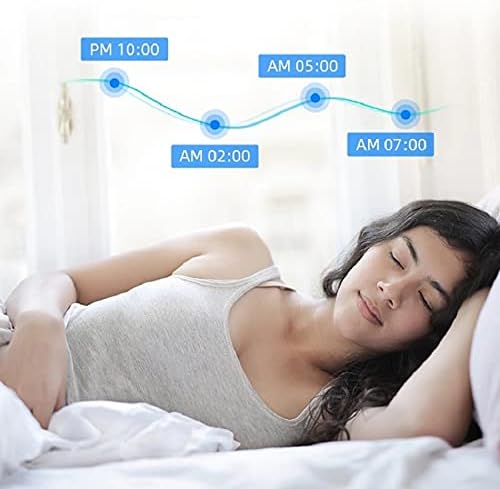
Image: A visual representation of automated temperature adjustments throughout the night, illustrating the scheduling capabilities for comfort during sleep.

Image: A smartphone app displaying a 'Sleep' scene, detailing automated actions for bedroom devices like turning on the air conditioner, powering off the TV, turning off lights, and closing curtains.
7. Baxım
- Keep the device clean by wiping it with a soft, dry cloth. Do not use liquid cleaners or aerosols.
- Ensure the device is placed in a location with good ventilation to prevent overheating.
- Regularly check for BroadLink App updates to ensure optimal performance and access to new features.
8. Giderme
8.1 Device Not Connecting to Wi-Fi
- Ensure your Wi-Fi network is 2.4 GHz. The RM4 Pro does not support 5 GHz networks.
- Check your Wi-Fi password for special characters or length exceeding 32 characters.
- Verify that your router is not a mesh router, as these are not supported for configuration.
- Move the RM4 Pro closer to your Wi-Fi router during the setup process.
- Restart your router and the RM4 Pro.
8.2 Remote Control Signals Not Learning/Working
- For IR devices, ensure there are no physical obstacles between the RM4 Pro and the appliance.
- Confirm that the remote control you are trying to learn is not an RF Rolling Code. The RM4 Pro only supports fixed code RF devices.
- Ensure the remote control is pointed directly at the RM4 Pro during the learning process.
- Try learning the signal multiple times.
8.3 Səslə idarəetmə cavab vermir
- Verify that the BroadLink skill/service is enabled and linked in your Alexa or Google Home app.
- Ensure the devices are discovered by your voice assistant. Try rediscovering devices.
- İnternet bağlantınızı yoxlayın.
- Confirm that the device can be controlled remotely via the BroadLink App (outside your home network).
9. Spesifikasiyalar
| Məhsul Ölçüləri | 3.94 x 3.54 x 1.18 düym |
| Maddə Çəkisi | 5.3 unsiya |
| Bağlantı texnologiyası | Infrared, RF 433/315MHz (No encryption, fixed code), Wi-Fi 802.11b/g/n (2.4GHz) |
| Dəstəklənən Cihazların Maks. Sayı | 18 |
| Uyğun Cihazlar | Air Conditioner, Fan, Set Top Box, Television, Projector |
| Güc Girişi | 5V 1A (USB) |
10. Zəmanət və Dəstək
For warranty information and technical support, please refer to the official Broadlink website or contact their customer service. Details can typically be found on the product packaging or the Broadlink official websayt.
No official product videos with 'Seller' creator type were found in the provided data to embed in this manual.