Məhsul Bitdiview
The Intel NUC 11 Extreme Kit (NUC11BTMi9) is a high-performance barebone mini PC designed for gaming and demanding applications. It offers uncompromised performance within a compact form factor, allowing users to customize it with their preferred RAM, storage, and operating system.

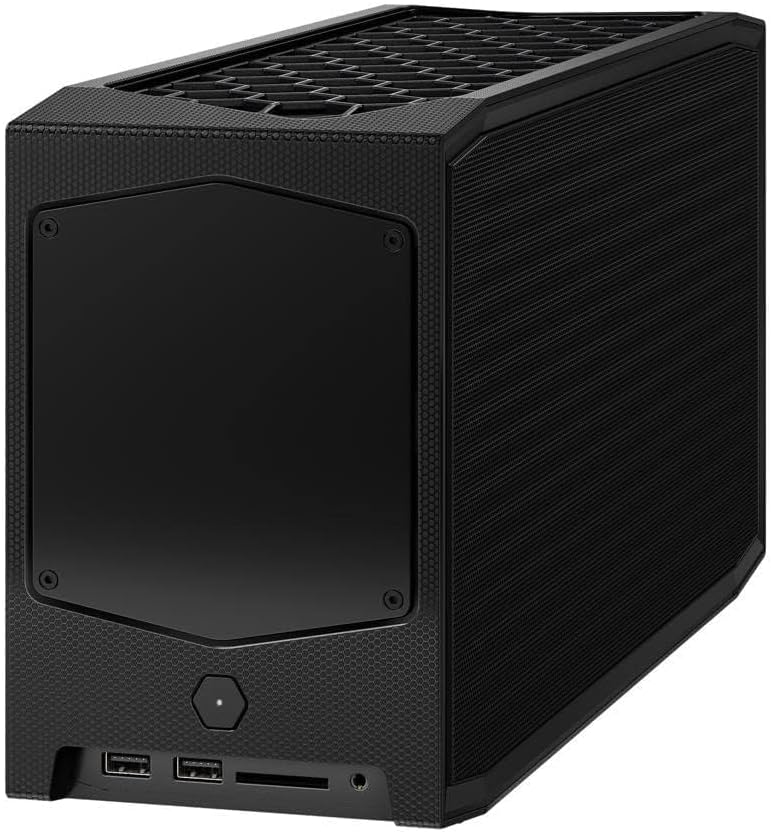
Şəkil 1: Ön bucaqlı view of the Intel NUC 11 Extreme Kit, showcasing its compact design and the illuminated skull logo.
Paketin məzmunu
Quraşdırmaya davam etməzdən əvvəl bütün əşyaların paketdə olduğundan əmin olun:
- Intel NUC 11 Extreme Kit (NUC11BTMi9) Barebone System
- ABŞ Elektrik kabeli
- Sənədləşdirmə (Tez Başlanğıc Bələdçisi, Təhlükəsizlik Məlumatı)
Note: Additional components such as RAM, storage drives, and operating system are sold separately and are required for full system functionality.
Quraşdırma Bələdçisi
This section outlines the steps required to set up your Intel NUC 11 Extreme Kit. As a barebone system, it requires the installation of memory (RAM) and storage (SSD) before initial use.
1. Yaddaşın (RAM) quraşdırılması
- Unscrew and remove the top cover of the NUC chassis.
- Locate the DDR4 SO-DIMM slots on the motherboard.
- Align the notch on the SO-DIMM module with the notch in the slot.
- Insert the module at a 45-degree angle and press down firmly until the retaining clips snap into place.
- Repeat for additional memory modules if applicable.
2. Installing Storage (SSD)
The NUC 11 Extreme Kit supports M.2 NVMe SSDs.
- Anakartda M.2 yuvalarını tapın.
- M.2 SSD-ni bucaq altında yuvaya daxil edin.
- SSD-ni yumşaq bir şəkildə aşağı itələyin və təmin edilmiş vida ilə bərkidin.
- The system also supports Serial ATA/600 interface for additional storage options.
3. Periferik cihazların birləşdirilməsi
Connect your monitor, keyboard, mouse, and other peripherals to the appropriate ports. The system features 12 USB ports for extensive connectivity.
Şəkil 2: Arxa view of the Intel NUC 11 Extreme Kit, highlighting the array of input/output ports for connecting external devices.
- Ekran: Connect your monitor using HDMI or DisplayPort.
- USB Cihazları: Use the available USB ports for keyboard, mouse, external drives, etc.
- Şəbəkə: Connect an Ethernet cable for wired network access, or use the integrated Wi-Fi.
- Audio: Dinamikləri və ya qulaqlıqları audio jaklara qoşun.
4. Güc Bağlantısı
Connect the provided power cord to the NUC and then to a power outlet.
5. Əməliyyat sisteminin quraşdırılması
Once RAM and storage are installed, you will need to install an operating system (e.g., Windows 10, Linux) from a bootable USB drive or disc.
Əməliyyat Təlimatları
This section provides basic instructions for operating your Intel NUC 11 Extreme Kit.
Yandırılır/Söndürülür
- Güc Aktivdir: Press the power button located on the front of the unit. The power indicator light will illuminate.
- Söndürmək:
- Standart Söndürmə: Use the operating system's shutdown function.
- Məcburi söndürmə: Press and hold the power button for 5-10 seconds until the unit powers off. Use this only as a last resort.
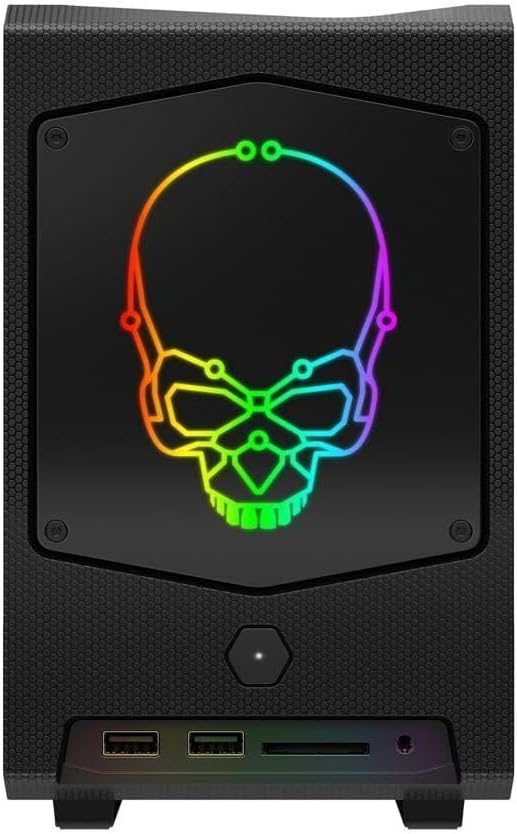
Şəkil 3: Ön view of the Intel NUC 11 Extreme Kit, showing the power button and front panel connectivity options.
USB Cihazlarının Qoşulması
The NUC 11 Extreme Kit offers numerous USB ports (up to 12) for connecting various peripherals. Devices can be connected or disconnected without needing to shut down the system.
BIOS/UEFI Girişi
To access the BIOS/UEFI settings, power on the system and repeatedly press the F2 key during startup. This allows configuration of boot order, system settings, and hardware diagnostics.
Baxım
Proper maintenance ensures the longevity and optimal performance of your Intel NUC 11 Extreme Kit.
- Təmizləmə: Regularly clean the exterior with a soft, dry cloth. Use compressed air to clear dust from vents and fan areas to ensure proper airflow and prevent overheating. Ensure the system is powered off and unplugged before cleaning.
- Proqram təminatı yeniləmələri: Keep your operating system, drivers, and BIOS/UEFI firmware updated to the latest versions. Visit the official Intel support website for driver downloads specific to the NUC11BTMi9 model.
- Havalandırma: Ensure the NUC is placed in a well-ventilated area, away from direct sunlight or heat sources. Do not block the ventilation openings.
- Məlumatların Yedəklənməsi: Məlumat itkisinin qarşısını almaq üçün vacib məlumatların müntəzəm olaraq xarici diskə və ya bulud yaddaşına ehtiyat nüsxəsini çıxarın.
Problemlərin aradan qaldırılması
This section provides solutions to common issues you might encounter with your Intel NUC 11 Extreme Kit.
Enerji yoxdur / Sistem açılmır
- Ensure the power cord is securely connected to both the NUC and a working power outlet.
- Elektrik rozetkasının işlək olduğunu başqa bir cihaza qoşaraq yoxlayın.
- If using a power strip or surge protector, ensure it is switched on.
Ekran Çıxışı Yoxdur
- Check that the monitor is powered on and the video cable (HDMI/DisplayPort) is securely connected to both the NUC and the monitor.
- Mümkünsə, fərqli bir video kabeli və ya monitor sınayın.
- Ensure RAM modules are properly seated in their slots. Reseat them if necessary.
System Freezes or Crashes
- Ensure the system has adequate ventilation and is not overheating.
- Update your operating system and device drivers to the latest versions.
- Run a memory diagnostic tool to check for RAM issues.
- Check the health of your storage drive.
Peripheral Not Detected
- Periferik cihazı fərqli bir USB portuna qoşmağa çalışın.
- Periferik cihazın drayverlərinin quraşdırıldığından və yeniləndiyindən əmin olun.
- Sistemi yenidən başladın.
Texniki Spesifikasiyalar
Below are the key technical specifications for the Intel NUC 11 Extreme Kit (NUC11BTMi9).

Şəkil 4: Yan view of the Intel NUC 11 Extreme Kit, illustrating its physical dimensions.
| Xüsusiyyət | Spesifikasiya |
|---|---|
| Model nömrəsi | NUC11BTMi9 |
| Prosessor | Intel Core i9-11900KB Octa-core (8 Core) @ 3.3 GHz |
| Memory (RAM) Type | DDR4 SDRAM (Barebone - user installable) |
| Saxlama interfeysi | M.2 (SSD), Serial ATA/600 |
| Qrafik koprosessor | Intel UHD Qrafikası |
| Qrafik Kart Ram Ölçüsü | 8 GB (Integrated) |
| Simsiz Bağlantı | Bluetooth, WiFi |
| USB Portları | 12 |
| Operating System (Pre-installed) | None (Supports Windows 10) |
| Maddə Çəkisi | 5 funt sterlinq |
| Paket Ölçüləri | 21.1 x 15 x 13.6 düym |
| Rəng | Qara |
| İlk Mövcud Tarix | 13 oktyabr 2021-ci il |
Zəmanət və Dəstək
Intel provides a limited warranty for its NUC products. For detailed warranty information, technical support, driver downloads, and troubleshooting resources, please visit the official Intel support websayt.
You can typically find support by searching for "Intel NUC support" or by visiting Intel's Official Support Page.
When contacting support, please have your product model number (NUC11BTMi9) and serial number ready.


