
Giriş
This manual provides comprehensive instructions for the setup, operation, maintenance, and troubleshooting of your Avision AD340G Compact High Speed Duplex Document Scanner. Please read this manual thoroughly before using the scanner to ensure proper and safe operation.
Təhlükəsizlik Məlumatı
Observe the following safety precautions to prevent injury and damage to the scanner:
- Yalnız skanerlə təchiz edilmiş güc adapterindən istifadə edin.
- Skaneri suya və ya həddindən artıq rütubətə məruz qoymayın.
- Place the scanner on a stable, level surface.
- Keep the scanner away from direct sunlight and heat sources.
- Unplug the scanner before cleaning or if it will not be used for an extended period.
Paketin məzmunu
Bütün əşyaların paketdə olduğunu yoxlayın:
- Avision AD340G Document Scanner
- Güc adapteri
- USB kabel
- Tez Başlanğıc Bələdçisi
- Proqram təminatı CD-si (və ya yükləmə təlimatları)
Məhsul Bitdiview
Familiarize yourself with the main components of the Avision AD340G scanner.
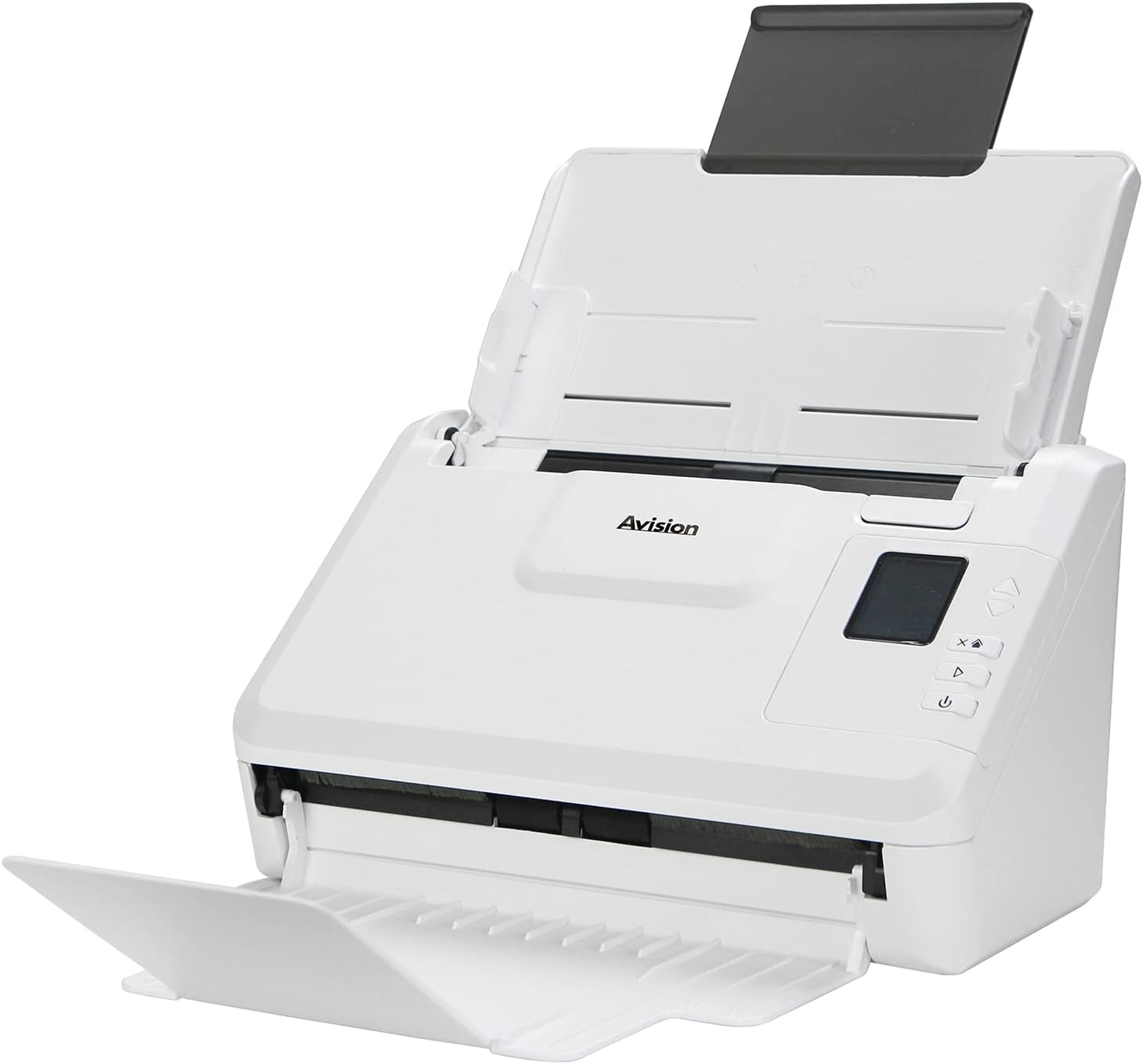
Şəkil: The Avision AD340G scanner shown with its input and output trays extended, ready for document feeding. This view highlights the compact design and accessible paper path.
- Document Feeder Tray: Where documents are loaded for scanning.
- Çıxış Tablosu: Where scanned documents are ejected.
- İdarəetmə Paneli: Buttons and display for scanner operation.
- USB Port: Kompüterə qoşulmaq üçün.
- Güc Portu: Güc adapterini birləşdirmək üçün.
Quraşdırma
1. Fiziki Quraşdırma
- Skaneri paketdən çıxarın: Skaneri və bütün aksesuarları qablaşdırmadan ehtiyatla çıxarın.
- Skaneri yerləşdirin: Position the scanner on a flat, stable surface with adequate space for the input and output trays.
- Güc bağlayın:
- Connect the power adapter to the scanner's power port.
- Güc adapterini elektrik rozetkasına qoşun.
- Kompüterə qoşulun:
- Connect one end of the USB cable to the scanner's USB port.
- USB kabelin digər ucunu kompüterinizdə mövcud olan USB portuna qoşun.
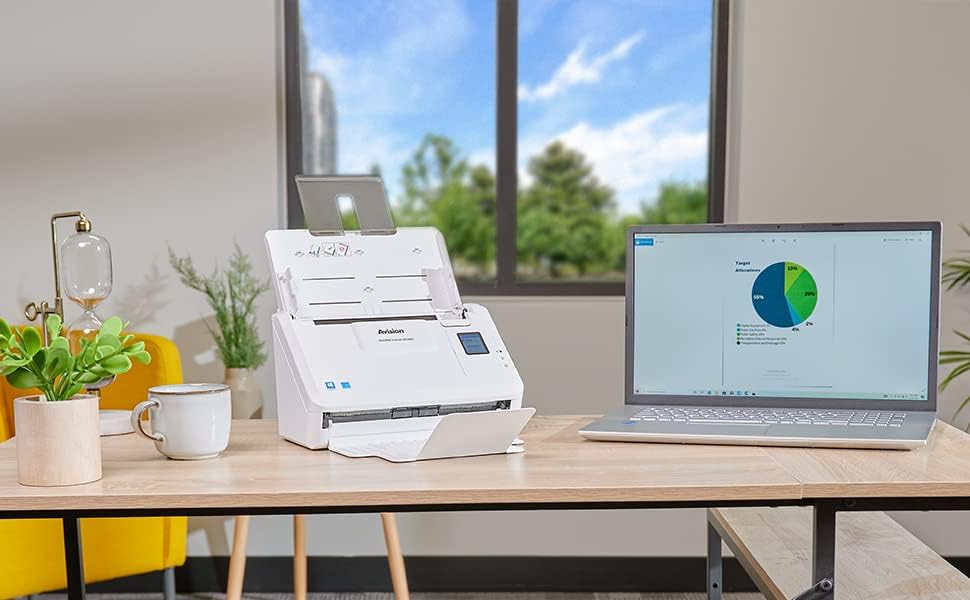
Şəkil: The Avision AD340G scanner set up on a desk next to a laptop, illustrating a typical connected environment. This shows the scanner's compact footprint when in use.
2. Proqram təminatının quraşdırılması
Install the necessary drivers and scanning software from the provided CD or by downloading them from the official Avision websayt.
- Insert the software CD into your computer's CD/DVD drive, or navigate to the Avision support website to download the latest drivers and utilities for the AD340G model.
- Follow the on-screen instructions to complete the installation. This typically includes installing the TWAIN/ISIS drivers and the Avision scanning utility software.
- Tələb olunarsa, kompüterinizi yenidən başladın.
Skanerin işlədilməsi
1. Sənədlərin yüklənməsi
- Open the document feeder tray and extend the output tray.
- Kağız bələdçilərini sənədlərinizin eninə uyğunlaşdırın.
- Place the documents face-down in the input tray, ensuring they are neatly stacked and aligned. The scanner supports up to 50 sheets.

Şəkil: A hand carefully placing a stack of documents into the input tray of the Avision AD340G scanner, demonstrating the correct loading procedure.
2. Scanning Procedure
- Güc düyməsini basaraq skaneri yandırın.
- Launch the Avision scanning software on your computer.
- İstədiyiniz skanlama mütəxəssisini seçinfile (e.g., color, grayscale, black & white, resolution). The AD340G supports duplex scanning (both sides simultaneously).
- Click the "Scan" button in the software or press the scan button on the scanner's control panel.
- The scanner will feed and process the documents. Once scanning is complete, the images will appear in the software.
- Review the scanned images, make any necessary adjustments (e.g., rotate, crop), and save them to your desired location and format (e.g., PDF, JPEG, TIFF).
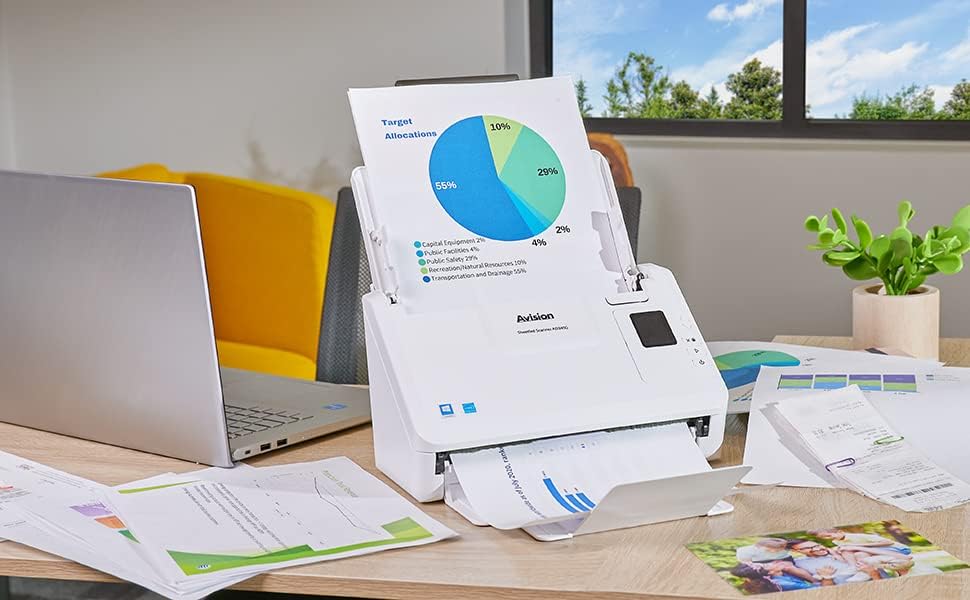
Şəkil: The Avision AD340G scanner in operation, feeding a document with a pie chart. This illustrates the scanner's ability to handle various document types efficiently.
Baxım
Skanerin Təmizlənməsi
Regular cleaning ensures optimal performance and extends the life of your scanner.
- Elektrik enerjisini söndürün və ayırın: Always turn off the scanner and disconnect the power adapter and USB cable before cleaning.
- Təmiz Xarici: Wipe the exterior of the scanner with a soft, lint-free cloth lightly dampsu və ya yumşaq, aşındırıcı olmayan təmizləyici ilə təmizləyin.
- Clean Interior (Rollers and Glass):
- Open the scanner cover to access the rollers and glass scanning surfaces.
- Gently wipe the feed rollers with a clean, lint-free cloth. If necessary, use a small amount of isopropyl alcohol on the cloth for stubborn residue.
- Clean the glass scanning strips with a soft cloth and glass cleaner (non-ammonia based).
- Qapağı bağlamadan və gücə yenidən qoşulmazdan əvvəl bütün komponentlərin tamamilə qurumasına icazə verin.
Problemlərin aradan qaldırılması
| Problem | Mümkün Səbəb | Həll |
|---|---|---|
| Skaner işə düşmür. | Elektrik kabeli qoşulmayıb; elektrik çıxışı problemi. | Elektrik kabelinin etibarlı şəkildə bağlandığından əmin olun. Fərqli elektrik rozetkasını sınayın. |
| Documents jam frequently. | Misaligned paper guides; worn rollers; dirty rollers. | Adjust paper guides. Clean the feed rollers. If problem persists, rollers may need replacement. |
| Skan edilmiş şəkillər bulanıq və ya xətlərə malikdir. | Dirty scanning glass; incorrect resolution settings. | Clean the scanning glass. Adjust scanning resolution in the software. |
| Skaner kompüter tərəfindən aşkarlanmadı. | USB kabeli kəsilib; sürücü quraşdırılmayıb və ya zədələnib. | Check USB cable connection. Reinstall scanner drivers. Try a different USB port. |
Spesifikasiyalar
Key technical specifications for the Avision AD340G Document Scanner:
- Model: AD340G
- Skaner növü: ADF Duplex Document Scanner
- Bağlantı: USB
- Qətnamə: 600 dpi (Optik)
- Sürət tarama: 40 ppm (pages per minute) / 80 ipm (images per minute)
- Rəng Dərinliyi: 48 bits input / 24 bits output
- Standart vərəq tutumu: 50 vərəq
- Optik Sensor Texnologiyası: CIS (Əlaqə Şəkil Sensoru)
- Məhsul Ölçüləri: 11 x 6.1 x 6.5 düym
- Maddə çəkisi: 8 funt sterlinq
- Minimum Sistem Tələbləri: Windows XP/7/8/10
Zəmanət və Dəstək
For warranty information, technical support, or service inquiries, please refer to the warranty card included with your product or visit the official Avision websayt. Müştəri dəstəyi üçün əlaqə məlumatlarını adətən istehsalçının saytında tapa bilərsiniz. websayt.
Avision Official Websayt: www.avision.com