1. Giriş
This manual provides detailed instructions for the setup, operation, and maintenance of your KTC 32-Inch 2K QHD IPS Monitor, model H32T13. Please read this manual thoroughly before using the monitor to ensure proper functionality and to prevent damage.
The KTC H32T13 monitor features a 32-inch IPS panel with 2K QHD (2560x1440) resolution, a 100Hz refresh rate, and support for FreeSync/G-Sync technologies. It is designed for both office productivity and gaming, offering vibrant colors, wide viewing angles, and eye-care features.
2. Qutuda nə var
Bütün komponentlərin paketdə olduğunu yoxlayın:
- KTC 32-Inch 2K QHD IPS Monitor (H32T13)
- Monitor Stend (Baza və Boyun)
- HDMI Kabel
- Elektrik kabeli
- Güc adapteri
- Tornavida
- İstifadəçi Təlimatı (bu sənəd)

Image: Contents of the KTC H32T13 monitor package.
3. Məhsul bitdiview
The KTC H32T13 monitor is designed for a superior visual experience. Key features include:
- 32-inch QHD (2560x1440) IPS Panel: Delivers crisp, detailed images with accurate colors and wide viewbucaqlar.
- 100Hz Yeniləmə dərəcəsi: Provides smoother motion for gaming and fast-paced content.
- FreeSync/G-Sync Compatibility: Reduces screen tearing and stuttering for a fluid gaming experience.
- HDR Dəstəyi: Enhances contrast and color for more realistic visuals.
- Gözə Qulluq Texnologiyası: Features Flicker-Free and Low Blue Light modes to reduce eye strain during prolonged use.
- Çox yönlü əlaqə: Equipped with multiple HDMI 2.0 and DisplayPort 1.4 inputs.
- Erqonomik Dizayn: Offers tilt adjustment and VESA mount compatibility for flexible positioning.
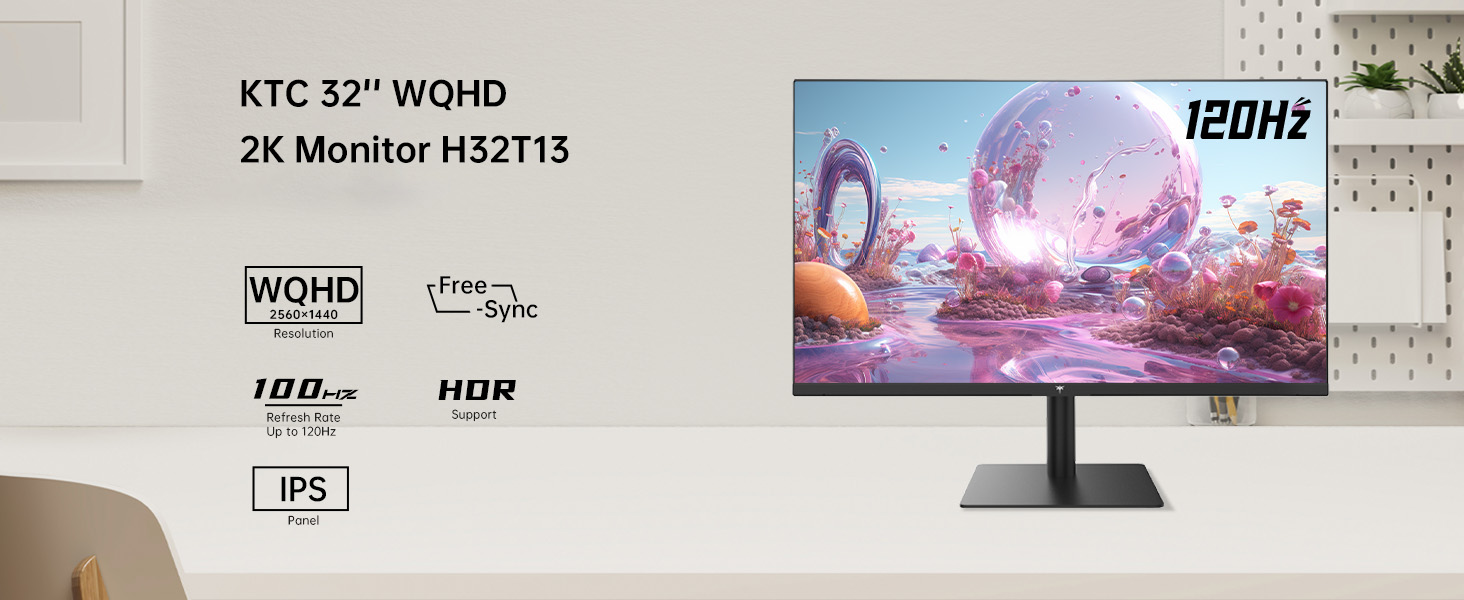
Image: KTC H32T13 monitor showcasing its key display technologies.

Image: The 32-inch screen size of the KTC H32T13 monitor.
4. Quraşdırma
4.1 Stendin yığılması
- Monitor və dayaq komponentlərini qablaşdırmadan ehtiyatla çıxarın.
- Attach the stand neck to the monitor panel using the provided screws and screwdriver.
- Secure the stand base to the stand neck.
- Yığılmış monitoru sabit, düz bir səthə qoyun.
4.2 VESA Montajı (İstəyə görə)
The monitor supports VESA 100mm x 100mm mounting. If you wish to use a VESA-compatible arm or wall mount (not included), remove the stand and attach the VESA mount according to its instructions.

Şəkil: arxa view of the monitor with VESA 100x100mm mounting points.
4.3 Kompüterə qoşulma
- Həm monitorun, həm də kompüterinizin söndürüldüyünə əmin olun.
- Connect one end of the provided HDMI cable to an HDMI port on your computer's graphics card.
- Connect the other end of the HDMI cable to one of the HDMI 2.0 ports on the monitor. Alternatively, use a DisplayPort cable to connect to a DP 1.4 port for higher refresh rates and FreeSync/G-Sync functionality.
- Connect the power adapter to the monitor's DC input and then plug the power cord into a power outlet.
- Kompüterinizi yandırın, sonra monitoru yandırın.

Image: Monitor connectivity ports (DC, HDMI 1, HDMI 2, DP 1).
5. Əməliyyat Təlimatları
5.1 Yandırma/Söndürmə
Onu yandırmaq və ya söndürmək üçün monitorda yerləşən güc düyməsini basın. Monitor yandıqda güc göstərici işığı yanacaq.
5.2 Daxiletmə Mənbəsinin Seçilməsi
Use the OSD (On-Screen Display) menu buttons to navigate and select your desired input source (HDMI 1, HDMI 2, or DisplayPort).
5.3 Adjusting Display Settings (OSD Menu)
The OSD menu allows you to customize various display settings. Typically, buttons are located on the back or bottom of the monitor. Refer to the quick start guide for specific button functions.
- Parlaqlıq/Kontrast: Ümumi parlaqlıq və kontrast nisbətini tənzimləyin.
- Rəng Parametrləri: Modify color temperature, gamma, and individual RGB levels. The monitor supports 1.07 billion colors and 103% sRGB.
- Şəkil rejimi: Select from preset modes optimized for different content (e.g., Standard, Game, Movie, Text).
- Yeniləmə dərəcəsi: The monitor supports up to 100Hz. Ensure your graphics card settings are configured to match.
- FreeSync/G-Sync: Enable this feature in the OSD menu and your graphics card control panel for adaptive synchronization.
- Eye Care Modes: Activate Flicker-Free and Low Blue Light modes to reduce eye strain.
- HDR: Enable HDR for compatible content and devices.

Image: Monitor displaying enhanced colors and brightness with HDR enabled.

Image: Visual comparison of FreeSync/G-Sync enabled and disabled, demonstrating smoother gameplay.

Image: IPS panel advantages in brightness and color over VA panels.
5.4 Fiziki Tənzimləmələr
Monitor stendi, optimallaşdırmaq üçün -5°-dən 15°-yə qədər əyilmə tənzimləməsinə imkan verir viewbucaq.

Image: Monitor tilt adjustment range and eye care features.
Video: Bitdiview of the KTC 2K IPS Office Monitor, highlighting its features and suitability for office use. This video demonstrates the monitor's visual quality and design.
6. Baxım
6.1 Monitorun təmizlənməsi
- Təmizləməzdən əvvəl həmişə monitoru söndürün və elektrik kabelini ayırın.
- Yumşaq, tüysüz parçadan yüngülcə istifadə edin dampsu və ya yumşaq, aşındırıcı olmayan ekran təmizləyicisi ilə tamamlanır.
- Wipe the screen gently to remove dust and smudges. Avoid applying direct pressure to the screen.
- Spirt, ammonyak əsaslı təmizləyicilər və ya aşındırıcı materiallardan istifadə etməyin, çünki bunlar ekran səthinə zərər verə bilər.
- Clean the monitor casing yumşaq, quru parça ilə.
6.2 Saxlama
If storing the monitor for an extended period, ensure it is powered off, unplugged, and stored in a cool, dry place away from direct sunlight and extreme temperatures. Use the original packaging if available for best protection.
7. Giderme
| Problem | Mümkün Səbəb | Həll |
|---|---|---|
| Ekranda şəkil yoxdur | Monitor not powered on; Incorrect input source; Loose video cable; Computer in sleep mode. | Ensure power is connected and monitor is on. Select correct input source. Check video cable connections. Wake up computer. |
| Şəkil bulanıq və ya təhrif olunub | Incorrect resolution; Faulty video cable; Graphics driver issues. | Set display resolution to 2560x1440. Try a different video cable. Update graphics drivers. |
| Ekranın titrəməsi və ya cırılması | Refresh rate mismatch; FreeSync/G-Sync not enabled or incompatible. | Ensure refresh rate is set to 100Hz. Enable FreeSync/G-Sync in monitor OSD and graphics card settings. Use DisplayPort for FreeSync/G-Sync. |
| Qulaqlıqdan səs gəlmir | Headphones not connected properly; Audio output not set to monitor. | Check headphone connection. Set monitor as default audio output in your computer's sound settings. |
| Düymələr cavab vermir | OSD lock enabled; Temporary software glitch. | Check if OSD lock is active (refer to quick start guide). Power cycle the monitor. |
8. Spesifikasiyalar
| Xüsusiyyət | Detal |
|---|---|
| Model nömrəsi | H32T13 |
| Ekran Ölçüsü | 32 düym |
| Panel növü | IPS |
| Qətnamə | 2560 x 1440 (QHD Geniş 1440p) |
| Aspekt nisbəti | 16:9 |
| Yeniləmə dərəcəsi | 100Hz |
| Parlaqlıq | 350 Candela (typ.) |
| Rəng Gamutu | 103% sRGB |
| Rəng Dərinliyi | 1.07 Milyar Rəng |
| HDR dəstəyi | Bəli |
| Adaptiv Sinxronizasiya | FreeSync/G-Sync ilə uyğundur |
| Bağlantı | 2x HDMI 2.0, 1x DisplayPort 1.4 |
| Tilt Tənzimlənməsi | -5° ilə 15° arasında |
| VESA dağı | 100mm x 100mm |
| Gözə Qulluq Xüsusiyyətləri | Flicker-Free, Eye Protection Mode (Low Blue Light) |
| Məhsul Ölçüləri | 5.31 x 32.48 x 21.2 düym |
| Maddə Çəkisi | 18.81 funt sterlinq |
9. Zəmanət və Dəstək
9.1 Zəmanət Məlumatı
KTC products are covered by a limited warranty. Please refer to the warranty card included in your product packaging or visit the official KTC webətraflı zəmanət şərtləri üçün sayt. Zəmanət iddiaları üçün satınalma sübutunuzu saxlayın.
9.2 Müştəri dəstəyi
For technical assistance, troubleshooting not covered in this manual, or warranty inquiries, please contact KTC customer support through the following channels:
- Onlayn dəstək: Visit the KTC official website for FAQs, driver downloads, and support contact forms.
- E-poçt Dəstəyi: Refer to your warranty card or the KTC webmüvafiq dəstək e-poçt ünvanı üçün sayt.
- Amazon Dəstəyi: If purchased via Amazon, you can contact the seller directly through your Amazon order history for assistance.
Image: Steps to contact KTC customer support via Amazon.