1. Giriş
This manual provides detailed instructions for the installation, operation, maintenance, and troubleshooting of your Biorunn Android Car Stereo. Please read this manual thoroughly before using the product to ensure proper function and safety. Keep this manual for future reference.
2. Məhsul bitdiview
The Biorunn Android Car Stereo is an advanced in-dash navigation and multimedia system designed for the Toyota Prius XW50 (2015-2020). It features a 9-inch IPS touchscreen display, an 8-core processor, 8GB RAM, and 256GB ROM, providing a responsive and powerful user experience. Key features include:
- Built-in Wireless Car-Play and Android Auto for seamless smartphone integration.
- Əlsiz zənglər və audio yayım üçün Bluetooth 5.0.
- Integrated GPS navigation with support for various map applications.
- Digital Sound Processor (DSP) for enhanced audio quality.
- FM/AM radio with RDS functionality.
- Support for split-screen multitasking.
- Built-in 4G LTE and 5G WiFi connectivity.
- Sükan İdarəetməsi (SWC) uyğunluğu.

Image: Comparison of the car's dashboard before and after the Biorunn Android Car Stereo installation. The top image shows the new 9-inch display integrated into the dashboard, while the bottom images show the original setup and the new display with a different interface.
3. Quraşdırma
3.1 Quraşdırma
Professional installation is highly recommended for this car stereo unit. Incorrect installation can lead to damage to the unit or the vehicle's electrical system. Ensure the vehicle's battery is disconnected before beginning installation.
3.2 İlkin işə salınma
- After installation, reconnect the vehicle's battery.
- Turn on the vehicle's ignition. The stereo unit should power on automatically.
- Follow the on-screen prompts for initial setup, including language selection and time zone.
3.3 Network Connection (Wi-Fi / 4G LTE)
To access online features, connect the unit to the internet.
- Wi-Fi: Go to Settings > Network & Internet > Wi-Fi. Select your desired network and enter the password.
- 4G LTE: Insert a compatible 4G SIM card into the designated slot on the unit (SIM card not included). The unit will automatically detect and connect to the cellular network.

Şəkil: ətraflı view of the car stereo's rear, highlighting the slot for a 4G SIM card, indicating its built-in 4G LTE capability.
4. Əməliyyat Təlimatları
4.1 Əsas əməliyyat
- Yandırma/Söndürmə: The unit typically powers on with the vehicle's ignition. A long press on the power button (if available) may turn the screen off or put the unit into standby.
- Səs səviyyəsinə nəzarət: Adjust volume using the physical knobs/buttons on the unit or steering wheel controls.
- Sensorlu ekran: Navigate the interface by tapping, swiping, and pinching on the 9-inch IPS display.
4.2 Wireless Car-Play / Android Auto
This unit supports wireless Car-Play (for iOS devices) and Android Auto (for Android devices).
- Smartfonunuzda və avtomobil stereosunda Bluetooth-un aktiv olduğundan əmin olun.
- On the car stereo, open the "Car Link" or similar application.
- Connect your phone to the car stereo via Bluetooth.
- Once connected, follow the on-screen prompts to initiate Car-Play or Android Auto.
- For wired connection, connect your phone via a USB cable.

Image: Visual guide showing how to connect an iPhone for Wireless Car-Play and an Android phone for Wireless Android Auto, detailing the Bluetooth and 'Car Link' steps.
4.3 GPS naviqasiyası
The unit features a built-in global positioning system. You can use pre-installed navigation apps or download others from the Google Play Store.
- Open your preferred navigation application from the main menu.
- Enter your destination and follow the voice and on-screen directions.
- The system supports real-time traffic conditions if connected to the internet.
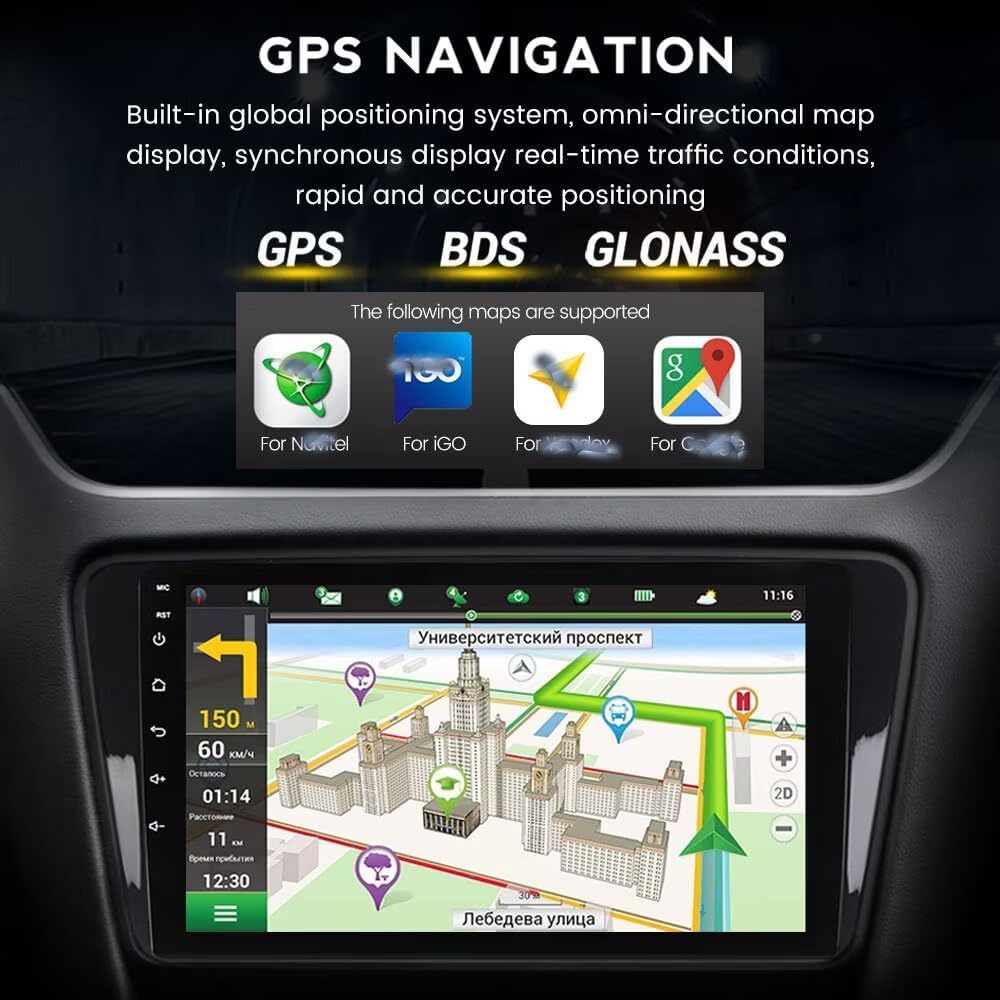
Image: The car stereo screen displaying a detailed GPS map, including speed, distance, and estimated arrival time, with icons for supported navigation systems like GPS, BDS, and GLONASS.
4.4 Audio Features (DSP, FM/AM Radio)
- DSP Processor: Access the DSP settings from the audio menu to customize sound effects, equalizer, and surround sound for an optimized listening experience.
- FM/AM Radiosu: Select the Radio application. Use the scan function to find available stations or manually tune to a frequency. You can save your favorite stations as presets.

Image: The car stereo interface displaying the DSP settings, including a graphic equalizer and options for sound field, surround, bass enhancement, and sound filter adjustments.
4.5 Bluetooth Funksionallığı
Bluetooth 5.0 allows for hands-free communication and wireless audio streaming.
- Cütləşmə: Go to Settings > Bluetooth. Enable Bluetooth and search for available devices. Select your phone from the list and confirm the pairing code.
- Əllər Sərbəst Zəng: Once paired, you can make and receive calls directly from the stereo unit. Your phonebook can be synchronized.
- Bluetooth Musiqisi: Stream audio from your paired device to the car stereo.

Image: A driver interacting with the car stereo to answer a phone call, demonstrating the hands-free Bluetooth function. Icons for Bluetooth music, contact synchronization, and call recording are also visible.
4.6 Sükan İdarəetməsi (SWC)
The unit supports original steering wheel controls for convenient operation without taking your hands off the wheel.
- Ensure SWC wires are correctly connected during installation.
- Access the SWC settings in the unit's menu to map functions (e.g., volume up/down, track skip, call answer/end) to your vehicle's steering wheel buttons.

Image: A hand pressing a button on a steering wheel, with the car stereo displaying a music player interface, illustrating the use of steering wheel controls for audio management.
4.7 Ekranın bölünməsi funksiyası
The split-screen feature allows two applications to run simultaneously on the display.
- To activate, open one application, then long-press the recent apps button or drag an app to one side of the screen.
- Select a second application to fill the other half of the screen.
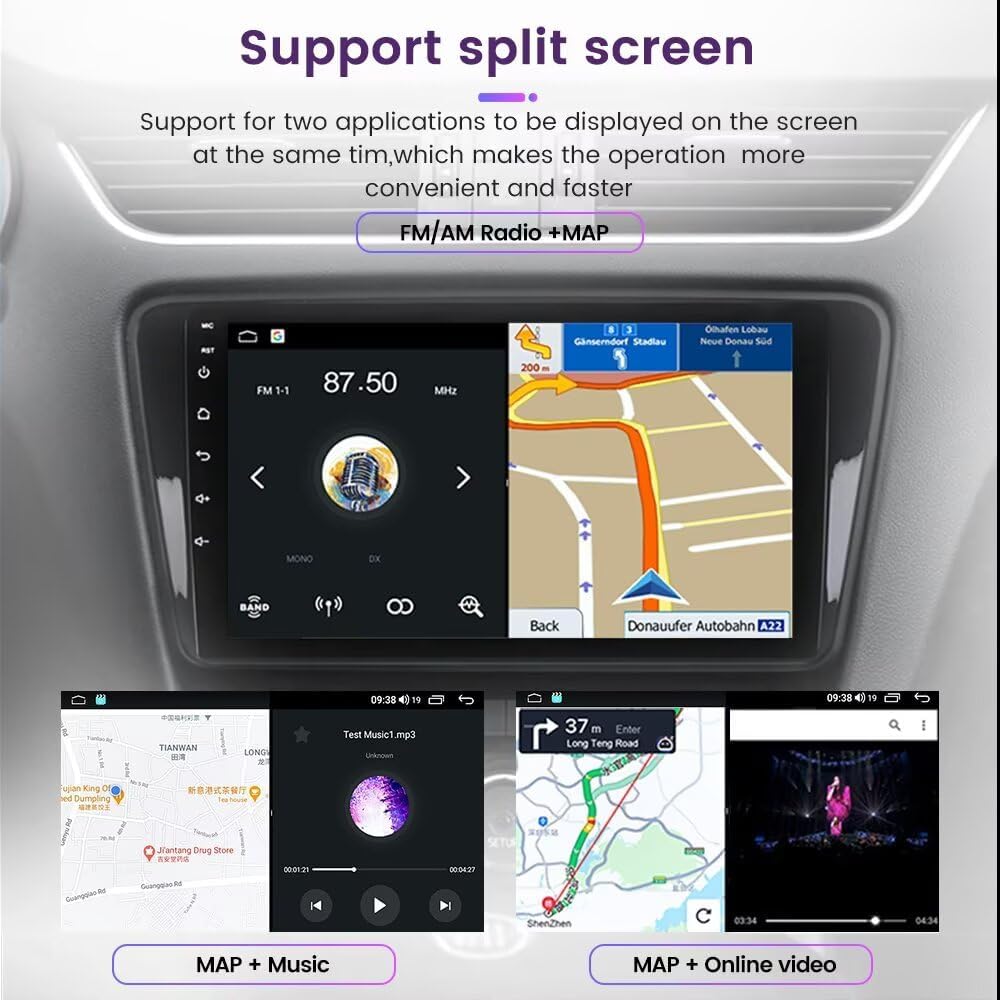
Image: The car stereo screen demonstrating the split-screen functionality, showing examples like a map alongside FM radio, music player, or an online video, enhancing multitasking capabilities.
5. Baxım
- Təmizləmə: Use a soft, dry cloth to clean the screen and unit exterior. For stubborn smudges, a slightly damp yumşaq, aşındırıcı olmayan təmizləyici ilə parça istifadə edilə bilər. Sərt kimyəvi maddələrdən çəkinin.
- Proqram təminatı yeniləmələri: Periodically check for software updates via the unit's settings menu (if available) to ensure optimal performance and access to new features. A stable internet connection is required for updates.
- Temperatur: Cihazı həddindən artıq temperaturlara məruz qoymaqdan çəkinin.
6. Giderme
| Problem | Mümkün Səbəb | Həll |
|---|---|---|
| Cihaz işə düşmür. | Yanlış naqillər, yanmış qoruyucu, avtomobilin akkumulyatoru problemi. | Check power connections and fuses. Ensure vehicle battery is charged. Consult a professional installer. |
| Səs yoxdur. | Volume too low, incorrect audio source, speaker wiring issue. | Increase volume. Verify correct audio source. Check speaker connections. |
| GPS siqnal almır. | GPS antenna not connected, poor satellite visibility. | Ensure GPS antenna is properly connected and positioned. Move to an open area for better signal reception. |
| Bluetooth bağlantısı problemləri. | Bluetooth off on device/unit, pairing error. | Hər iki cihazda Bluetooth-un aktiv olduğundan əmin olun. Əvvəlki cütləşmələri silin və yenidən cütləşdirin. |
| Toxunma ekranı cavab vermir. | Müvəqqəti proqram xətası. | Restart the unit (turn vehicle ignition off and on). If persistent, contact support. |
7. Spesifikasiyalar
- Sistem: Android
- Prosessor: 8 nüvəli
- RAM: 8 GB
- ROM: 256 GB
- Ekran Ölçüsü: 9 düym
- Ekran Çözünürlüğü: 1280x720 (IPS Screen)
- Bluetooth: Versiya 5.0
- Wi-Fi: 5Ghz Support
- Bağlantı: USB, 4G LTE (SIM card not included)
- Xüsusi Xüsusiyyətlər: Wireless Car-Play, Wireless Android Auto, DSP Processor, Split Screen, GPS Navigation, FM/AM Radio with RDS, Steering Wheel Control
- Səs Çıxış Rejimi: Stereo
- Montaj növü: Tablosuna Dəstək
- Dəstəklənən Audio Formatlar: MP3, WMA, AAC, RM, FALC, etc.
- Dəstəklənən Video Formatları: MPEG-1/2/4, H264, H263, VC1, RV, RMVB, DivX, Sorenson SparK, Spark, VP8, AVS Stream
- Dəstəklənən Foto Formatları: JPG/BMP/JEPG/GIF/PNG
8. Zəmanət və Dəstək
This Biorunn Android Car Stereo unit comes with a 1 il zəmanət istehsal qüsurlarını əhatə edən satın alınma tarixindən. Zəmanət iddiaları üçün satınalma sübutunuzu özündə saxlayın.
For technical assistance, troubleshooting beyond this manual, or warranty inquiries, please contact Biorunn customer support through the retailer where the product was purchased or visit the official Biorunn webəlaqə məlumatı üçün sayt.


