Giriş
This manual provides detailed instructions for the TECKNET Wireless Mouse (Model B0DP2DCC6N). It covers setup, operation, maintenance, and troubleshooting to ensure optimal performance and user experience. This mouse offers dual connectivity (2.4G USB A and Bluetooth 5.0/3.0) and adjustable DPI settings for versatile use across various devices and operating systems.

Figure 1: TECKNET Wireless Mouse (Pink)
Paketin məzmunu
- TECKNET Simsiz Siçan
- USB A Receiver (stored inside the mouse)
- İstifadəçi Təlimatı (bu sənəd)
Qeyd: 2 AAA batteries are not included and must be purchased separately.
Məhsul Xüsusiyyətləri
- Dual Device Connection: Bluetooth (5.0/3.0) and 2.4G USB A.
- 6 Adjustable DPI Levels: 800/1200/1600/2400/3200/4800.
- Silent Click Operation: Designed for quiet environments.
- Ergonomic Design: Shaped for comfortable use.
- Automatic Sleep Technology: Extends battery life.
- Wide Compatibility: Supports Windows, macOS, Chrome, Linux. (Side buttons are not compatible with macOS).

Figure 2: Dual Connection Modes (2.4G USB A and Bluetooth)

Figure 3: Adjustable DPI Settings for Precise Control
Quraşdırma Təlimatları
1. Batareyanın quraşdırılması
- Siçanın altındakı batareya bölməsini tapın.
- Batareyanın qapağını açın.
- Düzgün polariteyi (+/-) təmin edərək iki AAA batareyasını daxil edin.
- Batareyanın qapağını etibarlı şəkildə bağlayın.
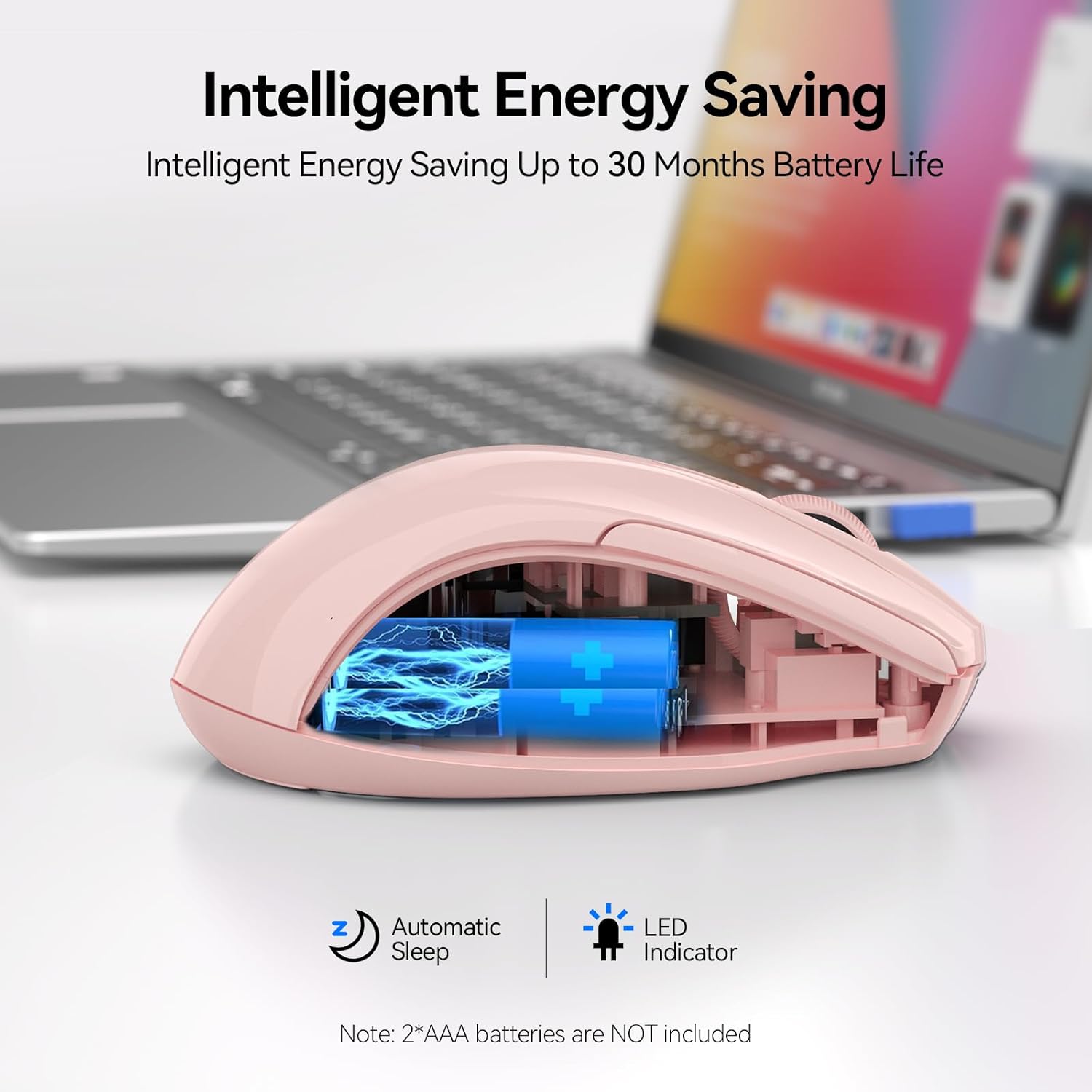
Figure 4: Battery Compartment (2 AAA batteries required)
2. Siçanın qoşulması
The TECKNET Wireless Mouse offers two connection methods: 2.4G USB A and Bluetooth.
2.1. 2.4G USB A Connection
- Locate the USB A receiver stored in the battery compartment of the mouse.
- Remove the USB A receiver.
- Plug the USB A receiver into an available USB port on your computer.
- Slide the power switch on the bottom of the mouse to the "2.4G" position.
- Siçan avtomatik olaraq qoşulmalıdır.
Figure 5: 2.4G USB A Connection
2.2. Bluetooth bağlantısı
- Slide the power switch on the bottom of the mouse to the "BT" position.
- Press and hold the Bluetooth pairing button (usually a small button near the power switch) until the LED indicator light starts blinking (blue).
- Kompüterinizdə və ya cihazınızda Bluetooth parametrlərini açın.
- axtarın new devices and select "TECKNET Mouse" (or similar) from the list.
- Cütləşdirmə prosesini başa çatdırmaq üçün ekrandakı istənilən göstərişlərə əməl edin.

Şəkil 6: Bluetooth bağlantısı
Video 1: Demonstration and setup of the Bluetooth wireless mouse.
Əməliyyat Təlimatları
1. DPI həssaslığının tənzimlənməsi
The mouse features a DPI switch button, typically located near the scroll wheel. Press this button to cycle through 6 adjustable DPI settings (800/1200/1600/2400/3200/4800) to match your preference for cursor speed and precision.
Figure 7: DPI Switch Button for Sensitivity Adjustment
2. Səssiz Klik Xüsusiyyəti
This mouse is designed with silent click buttons, providing a quiet user experience. This is particularly beneficial in environments where noise reduction is desired, such as libraries or shared offices.

Figure 8: Silent Click Operation
Video 2: Review highlighting the silent click feature and ease of pairing.
3. Enerjiyə qənaət rejimləri
The mouse incorporates automatic sleep technology to conserve battery life. After a period of inactivity, the mouse will enter a sleep mode. To reactivate, simply click any button.

Figure 9: Automatic Sleep Technology for Power Saving
Baxım
- Təmizləmə: Siçanı təmizləmək üçün yumşaq, quru parça istifadə edin. Sərt kimyəvi maddələrdən və ya aşındırıcı materiallardan çəkinin.
- Batareyanın dəyişdirilməsi: Replace batteries when the low battery indicator lights up or when performance degrades. Refer to the "Battery Installation" section for instructions.
- Yaddaş: When not in use for extended periods, turn off the mouse to further conserve battery life.
Problemlərin aradan qaldırılması
1. Siçan cavab vermir
- Siçanın işə salındığını yoxlayın.
- Batareyaların düzgün quraşdırıldığından və tükənmədiyinə əmin olun. Lazım gələrsə dəyişdirin.
- For 2.4G connection, ensure the USB A receiver is securely plugged into a working USB port.
- For Bluetooth connection, verify that Bluetooth is enabled on your device and the mouse is paired. Try re-pairing if connection is lost.
- Try connecting the mouse to a different USB port or another device to rule out port or device issues.
2. Cursor Movement is Erratic or Slow
- Siçanın altındakı optik sensoru təmizləyin.
- Ensure you are using the mouse on a suitable surface. Optical mice perform best on non-reflective, uniform surfaces.
- Adjust the DPI sensitivity using the DPI switch button on the mouse.
3. Side Buttons Not Working on macOS
- As noted in the product features, side buttons are not compatible with macOS. This is expected behavior.
Spesifikasiyalar
| Xüsusiyyət | Detal |
|---|---|
| Model | BM307 (Internal Model) / B0DP2DCC6N (ASIN) |
| Bağlantı texnologiyası | Bluetooth (5.0/3.0), 2.4G Wireless (USB A) |
| DPI səviyyələri | 800, 1200, 1600, 2400, 3200, 4800 |
| Hərəkətin aşkarlanması texnologiyası | Optik |
| Xüsusi Xüsusiyyətlər | Ergonomic Design, Silent Click, Automatic Sleep |
| Güc mənbəyi | 2 x AAA Batareya (daxil deyil) |
| Maddə Çəkisi | 3.52 unsiya |
| Paket Ölçüləri | 4.49 x 3.23 x 1.73 düym |
| Uyğunluq | Windows, macOS (side buttons not compatible), Chrome, Linux |
Zəmanət və Dəstək
TECKNET offers a 36 ay zəmanət for registered products. If you encounter any problems using the product, please contact our professional customer service team for assistance.
Əlaqə məlumatı: Refer to the product packaging or the official TECKNET webən son dəstək əlaqə məlumatları üçün sayt.


