Giriş
This manual provides essential information for the setup, operation, maintenance, and troubleshooting of your Onn 22 inch 1080P 100 Hz FHD LED Monitor. Please read this guide thoroughly before using the product to ensure optimal performance and safety.
The Onn 22 inch FHD LED Monitor is designed for a variety of applications, offering a vivid 1920x1080 resolution, a 100Hz refresh rate, and a 6.5ms response time for efficient performance. Its slim profile and T-shaped base are ideal for saving desk space.
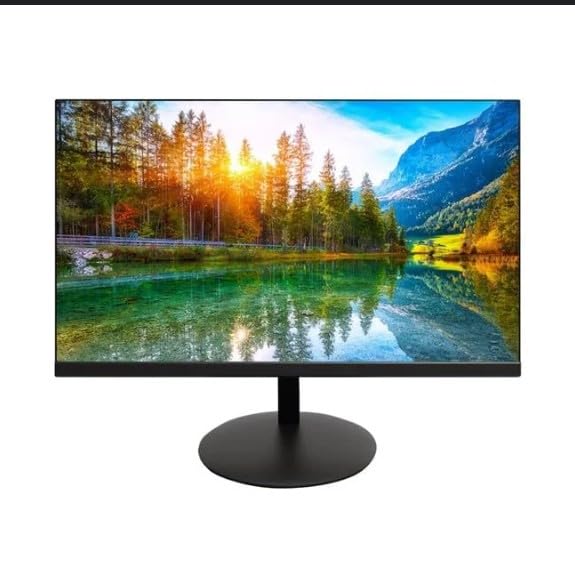
The image shows the Onn 22 inch FHD LED Monitor, highlighting its 100Hz refresh rate and 1080p resolution. The monitor features a slim design and a T-shaped base.
Quraşdırma Təlimatları
- Qablaşdırma: Carefully remove the monitor and all accessories from the packaging. Ensure all components are present: monitor, T-shaped base, HDMI cable, and power adapter.
- Stendin yığılması: Attach the T-shaped base to the monitor. The design is screw-less for easy assembly. Ensure it is securely fastened.
- Cihaza qoşulma:
The monitor supports both HDMI and VGA inputs. Connect the provided HDMI cable from your computer's HDMI output to the HDMI IN port on the monitor. Alternatively, use a VGA cable for VGA input.

This image displays the rear panel of the Onn monitor, illustrating the available input ports: HDMI IN, VGA IN, and the DC 12V power input. These ports are essential for connecting the monitor to a computer or other devices.
- Enerji bağlantısı: Connect the power adapter to the DC 12V input port on the monitor, then plug the adapter into a power outlet.
- Monitorun tənzimlənməsi: The monitor is capable of swivel, tilt, rotation, and height adjustment. Adjust the screen to your preferred viewerqonomik rahatlıq üçün bucaq.
- İkili Monitor Quraşdırma: This monitor is suitable for a fully functioning dual monitor setup. Connect a second monitor using the appropriate cables and configure your operating system's display settings.
Əməliyyat Təlimatları
- Yandırma/Söndürmə: Press the power button, usually located on the bottom or back of the monitor, to turn it on or off.
- Giriş seçimi: If the monitor does not automatically detect the input source, use the On-Screen Display (OSD) menu buttons to manually select between HDMI and VGA inputs.
- OSD Menyu Naviqasiyası: Use the physical buttons on the monitor (typically on the back or bottom edge) to navigate the OSD menu. This allows you to adjust settings such as brightness, contrast, color temperature, and input source.
- Qətnamə və Yeniləmə Tezliyi: The monitor supports a native resolution of 1920x1080 at a 100Hz refresh rate. Ensure your computer's display settings are configured to these specifications for the best visual experience.
- Adaptiv Sinxronizasiya: The monitor features Adaptive Sync for gaming, which helps to reduce screen tearing and stuttering. Ensure this feature is enabled in your graphics card settings if supported.
Baxım
- Ekranın təmizlənməsi: Ekranı yumşaq, tüysüz bir parça ilə yumşaq bir şəkildə silin. İnadkar izlər üçün yüngülcə dampen the cloth with water or a non-abrasive, monitor-specific cleaning solution. Avoid spraying liquids directly onto the screen.
- C-nin təmizlənməsiasing: Monitoru təmizləmək üçün yumşaq, quru bir parça istifadə edin.asing. Do not use strong detergents or solvents, as they may damage the finish.
- Havalandırma: Həddindən artıq istiləşmənin qarşısını almaq üçün monitorun havalandırma dəliklərinin bağlanmadığından əmin olun.
- Yaddaş: Monitoru uzun müddət istifadə etmədikdə, onu sərin və quru yerdə, birbaşa günəş işığından və həddindən artıq temperaturdan uzaq saxlayın.
Problemlərin aradan qaldırılması
- Güc yoxdur:
- Elektrik kabelinin həm monitora, həm də elektrik rozetkasına etibarlı şəkildə qoşulduğunu yoxlayın.
- Elektrik rozetkasının düzgün işlədiyini yoxlayın.
- Siqnal yoxdur:
- Ensure the video cable (HDMI or VGA) is firmly connected to both the monitor and the computer.
- Monitorun OSD menyusundan istifadə edərək düzgün giriş mənbəyini seçin.
- Kompüterinizin işə salındığını və yuxu rejimində olmadığını yoxlayın.
- Flickering Screen or Poor Image Quality:
- Video kabelində zədələnmə və ya boş əlaqə olub olmadığını yoxlayın.
- Adjust the resolution and refresh rate settings on your computer to match the monitor's specifications (1920x1080, 100Hz).
- OSD menyusu vasitəsilə monitor parametrlərini zavod parametrlərinə yenidən qurun.
- Cavab Verməyən Düymələr:
- Unplug the monitor from the power outlet, wait for 30 seconds, and then plug it back in.
If problems persist, please refer to the support information provided in the "Support and Warranty" section.
Spesifikasiyalar
| Brend | Onn |
| Model nömrəsi | 100140681 |
| Model Adı | OTTO |
| Ekran Ölçüsü | 21.5 düym |
| Ekran növü | LED, LCD |
| Qətnamə | 1920 x 1080 (FHD 1080p) |
| Yeniləmə dərəcəsi | 100 Hz |
| Cavab vaxtı | 6.5 Millisaniyə |
| Avadanlıq interfeysi | HDMI, VGA |
| Xüsusi Xüsusiyyətlər | Hündürlük tənzimlənməsi |
| Viewaçı | 160 dərəcə |
| Aspekt nisbəti | 16:9 |
| Məhsul Ölçüləri | 49.2 x 20 x 37.2 sm; 3.24 kq |
Dəstək və Zəmanət
For technical support, product inquiries, or warranty information, please visit the official Onn support websaytına daxil olun və ya müştəri xidmətləri ilə əlaqə saxlayın.
- Rəsmi Dəstək Websayt: onnsupport.ca
- Zəmanət: Specific warranty details may vary by region and purchase date. Please refer to the documentation included with your product or visit the support webən son zəmanət məlumatları üçün sayt.


