1. Giriş
This manual provides essential information for the safe and efficient operation of your Next YE-65GFSG8-QLED 65-inch UHD 4K Google QLED TV. Please read this manual thoroughly before using the television and retain it for future reference. Your new television combines QLED display technology with the Google TV operating system, offering a high-quality viewing experience and smart features.
2. Əhəmiyyətli Təhlükəsizlik Məlumatı
Always follow these basic safety precautions when operating your television:
- Güc mənbəyi: TV-nin müəyyən edilmiş həcm daxilində enerji təchizatına qoşulduğundan əmin oluntage aralığı.
- Havalandırma: Havalandırma deliklərini bağlamayın. Düzgün hava axını üçün televizorun ətrafında kifayət qədər boş yerə icazə verin.
- Su və nəm: Televizoru yağışa və ya nəmə məruz qoymayın. Vaza kimi maye ilə dolu əşyaları televizora qoymayın.
- Təmizləmə: Unplug the TV from the power outlet before cleaning. Use a soft, dry cloth. Do not use liquid cleaners or aerosol cleaners.
- Yerləşdirmə: Televizoru sabit, düz bir səthə qoyun. Onu birbaşa günəş işığı altında və ya istilik mənbələrinin yaxınlığında yerləşdirməyin.
- İldırım: During lightning storms or when unused for long periods, unplug the TV from the power outlet and disconnect the antenna.
- Xidmət: Bu məhsula özünüz xidmət göstərməyə çalışmayın. Bütün xidmətlər üçün ixtisaslı xidmət personalına müraciət edin.
3. Paketin məzmunu
Verify that all items are present in your TV package:
- Next YE-65GFSG8-QLED 65-inch UHD 4K Google QLED TV
- Uzaqdan İdarəetmə
- Elektrik kabeli
- Televizor altlığı (2 ədəd) və vintlər
- İstifadəçi Təlimatı (bu sənəd)
- Tez Başlanğıc Bələdçisi
4. Quraşdırma
4.1 Fiziki Quraşdırma
You can install your TV on a stand or mount it on a wall. Ensure the TV is placed on a stable surface or securely mounted.

Şəkil: TV Dimensions. This image illustrates the physical dimensions of the 65-inch television, including its width, height, and diagonal screen size of 164 cm (65 inches).
Stendin quraşdırılması:
- Ekranın zədələnməsinin qarşısını almaq üçün televizoru diqqətlə yumşaq, düz bir səthə üzü aşağı qoyun.
- Attach the two stand pieces to the designated slots on the bottom of the TV.
- Secure the stands with the provided screws.
- Televizoru ehtiyatla dik vəziyyətdə sabit bir səthə qaldırın.
Divar montajı:
For wall mounting, use a VESA-compatible wall mount kit (sold separately) that matches the TV's VESA pattern. Follow the instructions provided with your wall mount kit. It is recommended to have professional assistance for wall mounting.
4.2 Periferik qurğuların birləşdirilməsi
Connect your external devices to the appropriate ports on the back of your TV.
Şəkil: Rear Panel Connections. This image displays the various input and output ports located on the back of the television, including HDMI, USB, DVB-S, DVB-T, CI Module, Mini AV-IN, Optical Out, and Ethernet.
- HDMI (ARC): Connect Blu-ray players, game consoles, or other HDMI devices. HDMI 1 supports Audio Return Channel (ARC).
- USB (2x): Media oxutma üçün USB yaddaş cihazlarını birləşdirin.
- DVB-S / DVB-T: Connect satellite (DVB-S) or terrestrial (DVB-T) antenna cables.
- CI Module: Insert a Common Interface (CI) module for encrypted digital channels.
- Mini AV-IN: Connect older devices using an AV adapter cable.
- Optik Çıxış: Connect to an external audio system for digital audio output.
- Ethernet: Simli internet bağlantısı üçün Ethernet kabelini qoşun.
- Güc: Elektrik kabelini televizora, sonra isə divar rozetkasına qoşun.
4.3 İlkin işə salınma və ilk dəfə quraşdırma
- After connecting all cables, plug the power cord into an electrical outlet.
- Pultda və ya televizorda güc düyməsini basın.
- The TV will guide you through the initial setup process, which includes:
- Dil seçimi
- Wi-Fi və ya Ethernet şəbəkəsinə qoşulur
- Signing in with your Google Account (required for Google TV features)
- Şərtlər və qaydaların qəbul edilməsi
- Channel scanning (for DVB-S/T)
- Quraşdırmanı başa çatdırmaq üçün ekrandakı təlimatlara əməl edin.
5. Televizorunuzun işlənməsi
5.1 Uzaqdan İdarəetmə Funksiyaları
The remote control allows you to navigate the TV's features. Familiarize yourself with its buttons:
- Güc: Televizoru yandırır və ya söndürür.
- Google köməkçisi: Səs əmrlərini aktivləşdirir.
- Naviqasiya paneli (yuxarı/aşağı/sol/sağ/OK): Menyularda naviqasiya edir və seçimləri seçir.
- Geri: Əvvəlki ekrana qayıdır.
- Ev: Google TV ana ekranına daxil olur.
- Həcm +/-: Səs səviyyəsini tənzimləyir.
- Kanal +/-: Televiziya kanallarını dəyişir.
- Giriş: Giriş mənbələrini (HDMI, AV və s.) seçir.
- Tətbiq Düymələri: Məşhur axın proqramlarına birbaşa giriş.
5.2 Navigating Google TV Interface
Google TV organizes your entertainment with a personalized home screen. Content from your apps is brought together and organized for easy discovery.

Şəkil: Google TV Interface. This image shows the main Google TV home screen with various streaming app icons and content recommendations, demonstrating the user interface.
- Əsas Ekran: Fərdiləşdirilmiş tövsiyələri, quraşdırılmış tətbiqləri və məzmuna sürətli girişi göstərir.
- Sizin Üçün Nişanı: Provides tailored content suggestions based on your viewvərdişləri.
- Canlı Nişan: Accesses live TV channels from integrated services.
- Tətbiqlər Nişanı: Shows all installed applications. You can download more from the Google Play Store.
- Kitabxana Nişanı: Accesses your purchased or rented content from Google Play.
5.3 Şəkil və Səs Parametrləri
Şəkil və səs parametrlərini tənzimləmək üçün:
- düyməsini basın Parametrlər button (usually a gear icon) on your remote.
- -a keçin Ekran və Səs.
- Şəkil Parametrləri: Adjust brightness, contrast, color, sharpness, and select picture modes (e.g., Standard, Vivid, Movie, Game). Your QLED TV offers enhanced color saturation.
- Səs Parametrləri: Adjust bass, treble, balance, and select sound modes (e.g., Standard, Music, Movie, Speech).

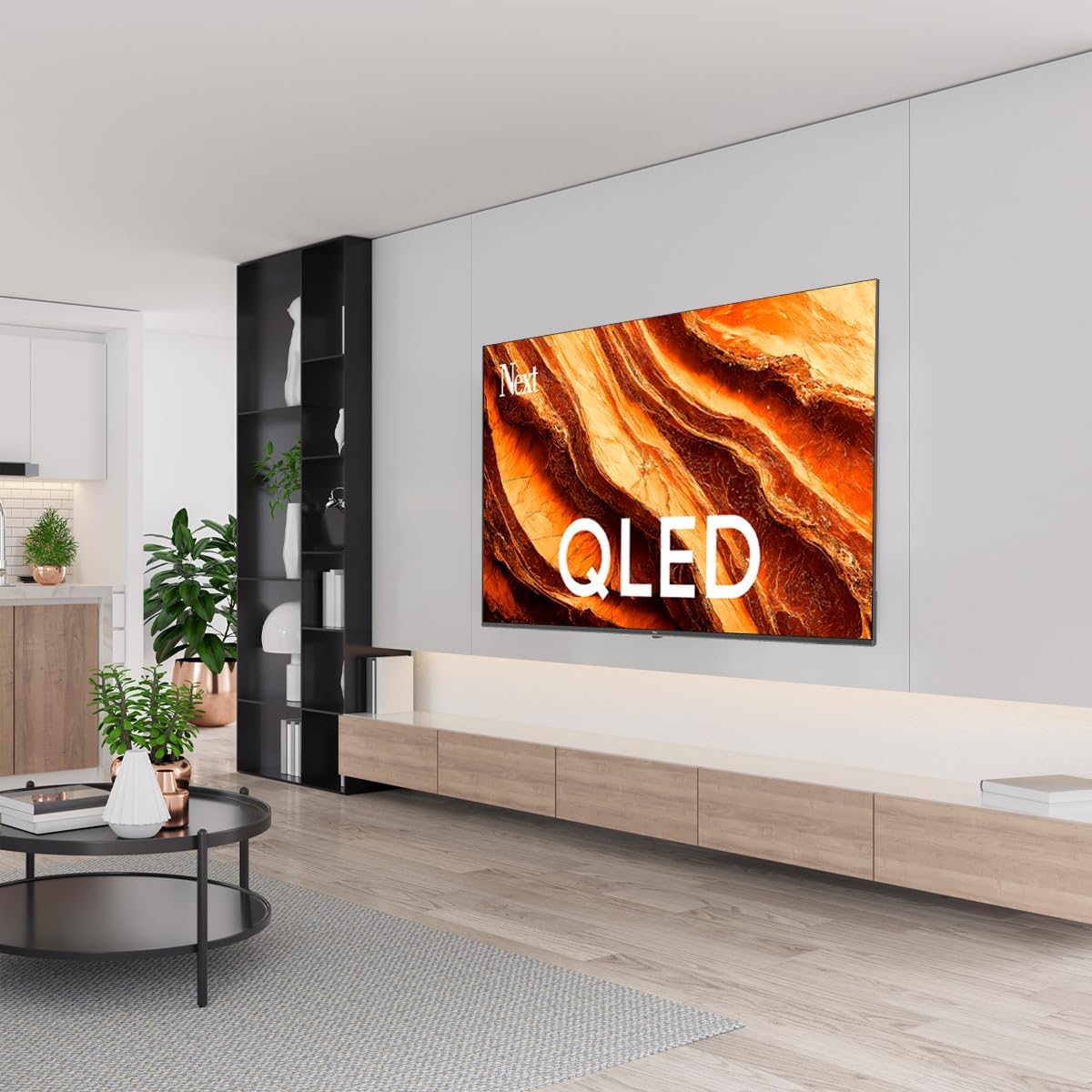
Şəkil: QLED Color Saturation. This image visually demonstrates the high color saturation achieved with QLED technology, showing a vibrant and rich color display.

Şəkil: HDR (High Dynamic Range). This image illustrates the visual impact of HDR, showcasing improved contrast and color detail in a scene when HDR is enabled versus when it is off.
5.4 Şəbəkə Parametrləri
To connect your TV to the internet:
- düyməsini basın Parametrlər pultunuzdakı düymə.
- -a keçin Şəbəkə və İnternet.
- seçin Wi-Fi to connect to a wireless network or ensure Ethernet is connected for a wired connection.
- For Wi-Fi, select your network from the list and enter the password.
6. Baxım
6.1 Televizorun təmizlənməsi
- Təmizləməzdən əvvəl həmişə televizoru şəbəkədən ayırın.
- Use a soft, dry, lint-free cloth to gently wipe the screen and TV body.
- İnadkar izlər üçün yüngülcə dampen the cloth with water or a specialized screen cleaner (ensure it's safe for TV screens). Never spray cleaner directly onto the screen.
- Aşındırıcı təmizləyicilərdən, mumlardan və ya həlledicilərdən istifadə etməyin.
6.2 Proqram Yeniləmələri
Your TV may receive software updates to improve performance and add new features. It is recommended to keep your TV's software updated.
- Televizorunuzun internetə qoşulduğundan əmin olun.
- düyməsini basın Parametrlər pultunuzdakı düymə.
- -a keçin Sistem > Haqqında > Sistem yeniləməsi.
- seçin Yeniləməni yoxlayın.
- Mövcud yeniləmələri yükləmək və quraşdırmaq üçün ekrandakı təlimatları izləyin.
7. Giderme
Televizorunuzla bağlı problemlərlə qarşılaşsanız, aşağıdakı ümumi problemlərə və həll yollarına müraciət edin:
| Problem | Mümkün səbəb/həlli |
|---|---|
| Güc yoxdur | Check if the power cord is securely plugged into the TV and the wall outlet. Ensure the outlet is working. |
| Şəkil yoxdur, amma səs var | Check the input source. Ensure the connected device is turned on and functioning correctly. |
| Səs yoxdur, amma şəkil var | Check the volume level and mute status. Verify audio cable connections for external devices. Check TV sound settings. |
| Pult işləmir | Batareyaları dəyişdirin. Pultla televizorun IR sensoru arasında heç bir maneə olmadığından əmin olun. |
| Wi-Fi-a qoşulmaq mümkün deyil | Ensure your Wi-Fi router is on and within range. Re-enter the Wi-Fi password carefully. Try restarting the TV and router. |
| Proqramlar yavaş və ya donur | Close unused apps. Clear app cache (Settings > Apps > See all apps > [App Name] > Clear cache). Ensure a stable internet connection. |
Bu həlləri sınadıqdan sonra problem davam edərsə, müştəri dəstəyi ilə əlaqə saxlayın.
8. Spesifikasiyalar
Technical specifications for the Next YE-65GFSG8-QLED 65-inch UHD 4K Google QLED TV:
- Brend: Sonrakı
- Model İli: 2025
- Qətnamə: 4K (3840x2160)
- Ekran Texnologiyası: QLED
- Ekran Ölçüsü: 65 düym (165 sm)
- Aspekt nisbəti: 16:9
- Yeniləmə dərəcəsi: 60 Hz
- Əsas Xüsusiyyətlər: Çərçivəsiz dizayn
- Bağlantı: Bluetooth, Ethernet, HDMI (ARC), USB (2x), Wi-Fi
- Məhsul Ölçüləri: 27.8D x 144.6W x 88.9H sm
- Çəki: 16.3 kiloqram
- Əməliyyat sistemi: Google TV
- Daxil olan komponentlər: Uzaqdan İdarəetmə
- Mənşə ölkəsi: Türkiyə
9. Zəmanət və Dəstək
Your Next YE-65GFSG8-QLED TV comes with a manufacturer's warranty. Please refer to the warranty card included in your package for specific terms and conditions, including the warranty period and coverage details.
For technical support, service requests, or further assistance, please contact Next customer service. Contact information can typically be found on the manufacturer's websaytda və ya zəmanət sənədlərində.
- Onlayn dəstək: Visit the official Next website for FAQs, troubleshooting guides, and support contact details.
- Xidmət mərkəzləri: For hardware issues, locate an authorized service center near you.


