1. Əhəmiyyətli Təhlükəsizlik Məlumatı
Please read this section carefully before using your Veidoo W40 tablet to ensure safe and proper operation. Keep this manual for future reference.
Ümumi ehtiyat tədbirləri
- Avoid exposing the tablet to extreme temperatures, direct sunlight, or high humidity.
- Do not drop, bend, or puncture the tablet.
- Keep the tablet away from water and other liquids. If it gets wet, power it off immediately and allow it to dry completely before use.
- Use only accessories approved by Veidoo. Unauthorized accessories may damage the tablet or pose safety risks.
- Do not attempt to disassemble, repair, or modify the tablet yourself. Contact customer support for assistance.
Batareyanın Təhlükəsizliyi
- The tablet contains a non-removable lithium-ion battery. Do not attempt to replace it yourself.
- Batareyanı yanğına və ya həddindən artıq istiyə məruz qoymayın.
- Planşeti və onun batareyasını yerli qaydalara uyğun olaraq məsuliyyətlə atın.
Doldurma Təhlükəsizliyi
- Charge the tablet using the provided USB-C cable and a compatible power adapter.
- Do not charge the tablet in damp şərtlər.
- Unplug the charger when the tablet is fully charged or not in use.
2. Məhsul bitdiview
The Veidoo W40 is an 11-inch Android tablet designed for versatile use, featuring an Octa-Core processor, ample storage, and modern connectivity options.
Əsas Xüsusiyyətlər
- Ekran: 11-inch In-Cell HD Touch Screen with 1280x800 resolution.
- Prosessor: 2.0 GHz Octa-Core processor for smooth performance.
- Yaddaş və Saxlama: 8GB RAM (4GB + 4GB expandable) and 128GB internal storage, expandable up to 1TB via MicroSD card.
- Əməliyyat sistemi: Android 14.
- Kameralar: 2MP front camera and 5MP rear camera.
- Bağlantı: WiFi 6 (802.11ax) and Bluetooth 5.0.
- Batareya: 5000 mAh tutum.

Image: Veidoo W40 Tablet configuration summary, highlighting key features like Android 14, 11-inch In-Cell display, 1280x800 resolution, Octa-Core processor, 8GB RAM, 128GB ROM, 5000mAh battery, WiFi 6, Bluetooth 5.0, and dual cameras.
3. Qutuda nə var
The standard package for your Veidoo W40 tablet typically includes the following items:
- Veidoo W40 11-inch Android Tablet
- USB-C şarj kabeli
- Güc adapteri
- İstifadəçi təlimatı
Note: Contents may vary slightly depending on region or retailer.
4. Başlama (Quraşdırma)
4.1 Planşetin doldurulması
- USB-C kabelini planşetin şarj portuna qoşun.
- USB-C kabelinin digər ucunu enerji adapterinə qoşun.
- Elektrik adapterini rozetkaya qoşun.
- İlk istifadədən əvvəl planşetin tam doldurulmasına icazə verin. Ekrandakı batareya göstəricisi doldurma vəziyyətini göstərəcək.
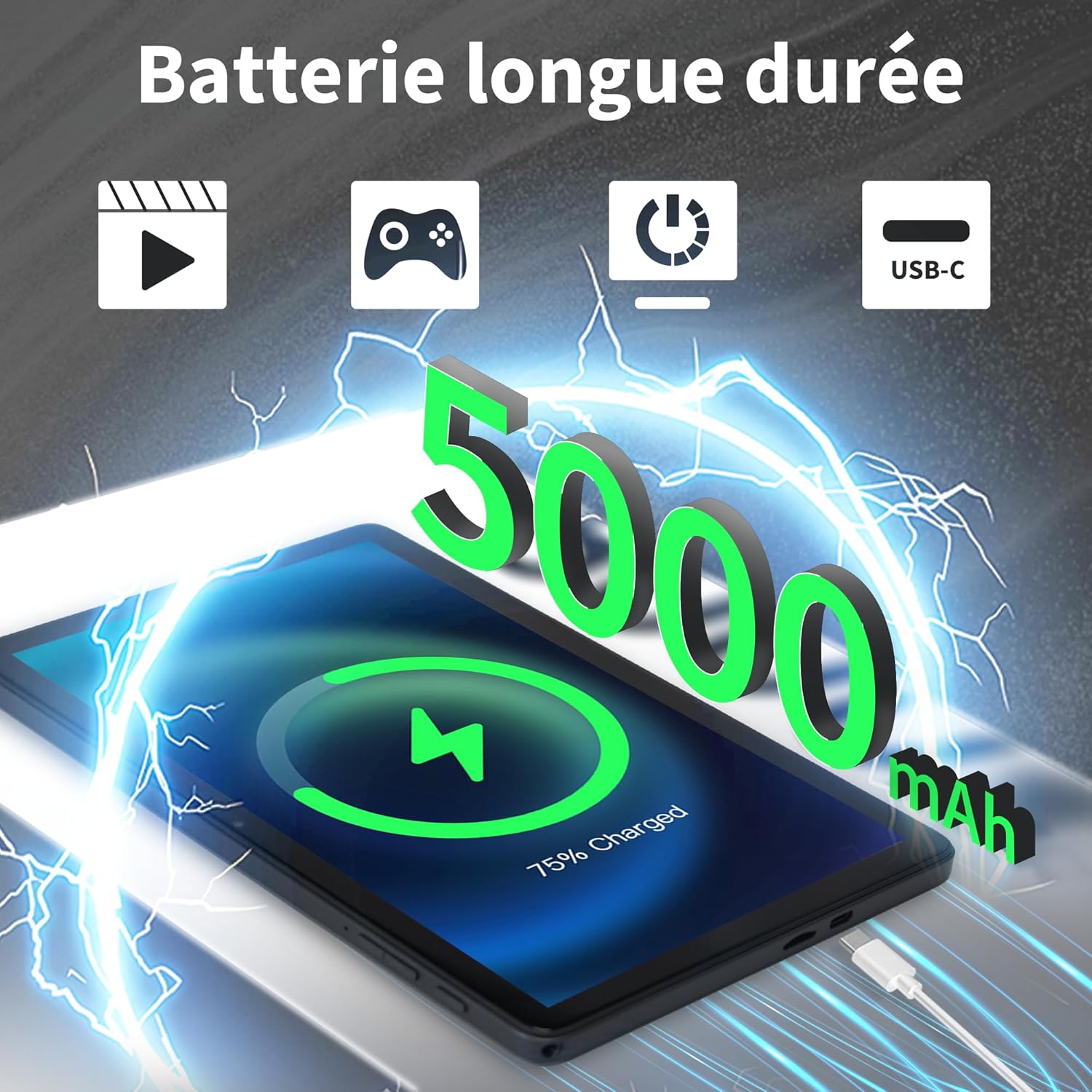
Image: Veidoo W40 Tablet connected to a USB-C charger, showing the battery icon and 5000mAh capacity.
4.2 Yandırma/Söndürmə
- Yandırmaq üçün: Press and hold the Power button until the Veidoo logo appears on the screen.
- Söndürmək üçün: Güc seçimləri menyusu görünənə qədər Güc düyməsini basıb saxlayın. "Söndür" seçin və təsdiqləyin.
- Yenidən Başlamaq üçün: Güc seçimləri menyusundan "Yenidən başla" seçin və təsdiqləyin.
4.3 İlkin Quraşdırma Sihirbazı
Planşet ilk dəfə işə salındıqda, ilkin quraşdırma prosesində sizə kömək edəcək:
- Tercih etdiyiniz dili seçin.
- Wi-Fi şəbəkəsinə qoşulun.
- Şərtləri qəbul edin.
- Sign in with your Google account or create a new one. This is necessary to download apps from the Google Play Store.
- Set up screen lock (PIN, pattern, or password) and other security features.
- Review və digər parametrləri istənildiyi kimi tənzimləyin.
4.4 MicroSD kartın daxil edilməsi
The tablet supports expandable storage up to 1TB using a MicroSD card.
- Planşetin yan tərəfində MicroSD kart yuvasını tapın.
- MicroSD kartı yerə oturana qədər qızıl kontaktları aşağı baxacaq şəkildə yumşaq bir şəkildə yuvaya daxil edin.
- The tablet will detect the card and may prompt you to format it for use as portable or internal storage. Follow the on-screen instructions.
5. Əsas əməliyyat
5.1 Toxunma Jestləri
- Klikləyin: Touch the screen once to select an item or open an app.
- Toxun və saxlayın: Kontekst menyularına daxil olmaq və ya elementləri sürükləmək üçün elementi basıb saxlayın.
- Çalmak: Səhifələr və ya siyahılar arasında hərəkət etmək üçün barmağınızı ekranda sürüşdürün.
- Çimdik: Fotoları böyütmək və ya kiçiltmək üçün iki barmağınızdan istifadə edin və web səhifələr.
5.2 Wi-Fi şəbəkəsinə qoşulma
- gedin Parametrlər > Şəbəkə və internet > Wi-Fi.
- Wi-Fi-ı dəyişin On.
- Siyahıdan istədiyiniz Wi-Fi şəbəkəsini seçin.
- Tələb olunduqda parolu daxil edin və vurun Qoşun.
5.3 Bluetooth Cihazlarına qoşulma
- gedin Parametrlər > Qoşulmuş cihazlar > Bağlantı üstünlükləri > Bluetooth.
- Bluetooth-u dəyişin On.
- Bluetooth cihazınızın cütləşmə rejimində olduğundan əmin olun.
- Mövcud cihazlar siyahısından cihazı seçin və cütləşdirməni başa çatdırmaq üçün ekrandakı istənilən göstərişlərə əməl edin.
5.4 Kameralardan istifadə
Planşetdə 2 meqapiksellik ön kamera və 5 meqapiksellik arxa kamera var.
- açın Kamera proqram.
- Ön və arxa kameralar arasında keçid etmək üçün kamera işarəsinə toxunun.
- Şəkil çəkmək və ya video yazmağa başlamaq/dayandırmaq üçün çekim düyməsini klikləyin.
- Access photos and videos in the Gallery app.

Image: Tablet cameras (2MP front, 5MP rear) with example photos, demonstrating its capability to capture moments.
5.5 Yaddaşın İdarə Edilməsi
The tablet comes with 128GB of internal storage and supports up to 1TB expandable storage.
- gedin Parametrlər > Saxlama üçün view saxlama istifadəsi.
- You can free up space by uninstalling unused apps, deleting old photos/videos, or moving files to a MicroSD card.

Image: Tablet storage illustration, showing how photos, videos, and music can be stored on the 128GB ROM and expanded with 8GB RAM.
5.6 Installing/Uninstalling Apps
- Proqramları quraşdırın: açın Google Play Store tətbiqini açın, istədiyiniz tətbiqi axtarın və toxunun Quraşdırın.
- Proqramları silin: Touch and hold the app icon on the home screen or app drawer, then drag it to "Uninstall" or select "App info" and tap "Uninstall". Alternatively, go to Parametrlər > Proqramlar > select the app > Silin.

Image: Tablet in use for various activities such as watching movies, playing games, working, and video calls, demonstrating its versatility.
6. Baxım və qulluq
6.1 Planşetin təmizlənməsi
- Planşetin ekranını və gövdəsini təmizləmək üçün yumşaq, tüksüz bir parça istifadə edin.
- İnadkar ləkələr üçün, bir az dampsu və ya elektronika üçün nəzərdə tutulmuş ekran təmizləyicisi ilə parça.
- Sərt kimyəvi maddələrdən, aşındırıcı təmizləyicilərdən və ya aerozol spreylərindən istifadə etməyin.
6.2 Batareya Optimallaşdırması
To maximize battery life (5000mAh):
- Ekran parlaqlığını azaldın.
- İstifadə etmədiyiniz zaman Wi-Fi və Bluetooth-u söndürün.
- Fon proqramlarını bağlayın.
- Enable battery saver mode in Settings.
- Doldurma və istifadə zamanı həddindən artıq temperaturdan çəkinin.
6.3 Proqram Yeniləmələri
Optimal performans və təhlükəsizliyi təmin etmək üçün proqram yeniləmələrini mütəmadi olaraq yoxlayın və quraşdırın.
- gedin Parametrlər > Sistem > Sistem yeniləməsi.
- Mövcud yeniləmələri yoxlamaq və quraşdırmaq üçün ekrandakı təlimatlara əməl edin.
6.4 Zavod parametrlərinə sıfırlama
A factory reset will erase all data from your tablet and restore it to its original factory settings. Back up important data before proceeding.
- gedin Parametrlər > Sistem > Seçimləri sıfırlayın.
- seçin Bütün məlumatları silin (zavod parametrlərinə sıfırlama).
- Qərarınızı təsdiqləyin və tələb olunduqda PIN/naxış/şifrənizi daxil edin.
7. Giderme
If you encounter issues with your Veidoo W40 tablet, try the following solutions:
Planşet açılmır
- Ensure the tablet is sufficiently charged. Connect it to a power source and wait a few minutes before attempting to power on.
- Yenidən başlamağa məcbur etmək üçün Güc düyməsini 10-15 saniyə basıb saxlayın.
Wi-Fi Bağlantı Problemləri
- Parametrlərdə Wi-Fi-ın aktiv olduğundan əmin olun.
- Wi-Fi routerinizi yenidən başladın.
- Planşet parametrlərində şəbəkəni unudun və yenidən qoşulun.
- Wi-Fi siqnalının əhatə dairəsində olduğunuzdan əmin olun.
Slow Performance or App Crashes
- İstifadə olunmamış fon tətbiqlərini bağlayın.
- Clear the cache of problematic apps (Settings > Apps > [App Name] > Storage & cache > Clear cache).
- Planşeti yenidən başladın.
- Kifayət qədər saxlama yerinin olduğundan əmin olun.
- Check for system and app updates.
Ekran Cavab Vermir
- Restart the tablet by holding the Power button.
- Ekranın təmiz və zibil olmadığından əmin olun.
8. Spesifikasiyalar
Below are the technical specifications for the Veidoo W40 11-inch Android Tablet:
| Xüsusiyyət | Spesifikasiya |
|---|---|
| Model | W40 |
| Ekran Ölçüsü | 11 düym |
| Ekran həlli | 1280 x 800 pixels (In-Cell HD Touch Screen) |
| Prosessor | 2.0 GHz Octa-Core (Allwinner) |
| RAM | 8GB (4GB + 4GB Expand) |
| Daxili Yaddaş (ROM) | 128 GB |
| Genişləndirilə bilən yaddaş | MicroSD kart vasitəsilə 1TB-a qədər |
| Əməliyyat sistemi | Android 14 |
| Ön kamera | 2 MP |
| Arxa Kamera | 5 MP |
| Wi-Fi | WiFi 6 (802.11ax) |
| Bluetooth | Bluetooth 5.0 |
| Batareya Tutumu | 5000 mAh |
| Ölçülər (UxGxY) | 9.57 x 6.34 x 0.31 düym |
| Çəki | 1.13 funt sterlinq |
| Rəng | Boz |

Image: Octa-Core processor illustration, highlighting the 2.0 GHz speed and performance benefits.
9. Zəmanət və Dəstək
Zəmanət Məlumatı
Your Veidoo W40 tablet is covered by a standard manufacturer's warranty. Please refer to the warranty card included in your package or visit the official Veidoo webzəmanət əhatə dairəsi, müddəti və iddia prosesi ilə bağlı ətraflı şərtlər və qaydalar üçün sayta daxil olun.
Müştəri dəstəyi
If you require technical assistance, have questions about your product, or need to report an issue, please contact Veidoo customer support. For inquiries, you may consult via email. Contact details are typically available on the official Veidoo websayt və ya alış platformanız vasitəsilə.


