1. Giriş
The TABWEE 10.1 Inch WiFi Digital Calendar, Model P10, is an interactive touchscreen display designed to streamline family organization. It integrates calendars, task management, meal planning, and digital photo frame capabilities into a single device. This manual provides detailed instructions to help you set up and utilize all features of your new digital calendar.

Şəkil 1.1: The TABWEE Digital Calendar in use, showcasing its calendar interface and mobile app synchronization.
2. Təhlükəsizlik Məlumatı
- Təsadüfən yıxılmaların qarşısını almaq üçün cihazın sabit və düz bir səthə qoyulduğundan əmin olun.
- Yalnız təchiz edilmiş güc adapterindən istifadə edin. İcazəsiz adapterlərdən istifadə cihazı zədələyə və zəmanəti ləğv edə bilər.
- Cihazı sudan, nəmdən və həddindən artıq temperaturdan uzaq tutun.
- Do not attempt to open or repair the device yourself. Refer to qualified service personnel for any maintenance or repair needs.
- Keep out of reach of small children to prevent accidental ingestion of small parts or damage to the device.
3. Paketin məzmunu
Bütün əşyaların paketdə olduğunu yoxlayın:
- TABWEE 10.1 Inch WiFi Digital Calendar (Model P10)
- Güc adapteri
- İstifadəçi Təlimatı (bu sənəd)
4. Məhsul bitdiview
Familiarize yourself with the physical components of your TABWEE Digital Calendar.

Şəkil 4.1: Technical details and component layout of the TABWEE Digital Calendar.
- Açma / Söndürmə Düyməsi: Located on the side for turning the device on or off.
- Səs artırma / aşağı düymələri: Cihazın audio çıxışını tənzimləyin.
- İşıq Sensoru: Automatically adjusts screen brightness based on ambient light.
- Dəstək stendi: Integrated stand for desk placement.
5. Quraşdırma
5.1 İlkin işə salınma
- Connect the provided power adapter to the device's power port.
- Plug the adapter into a standard electrical outlet. The device will automatically power on.
- Dilinizi və bölgənizi seçmək üçün ekrandakı göstərişlərə əməl edin.
5.2 Şəbəkə Bağlantısı
- İlkin quraşdırma ekranında siyahıdan Wi-Fi şəbəkənizi seçin.
- Enter your Wi-Fi password and tap 'Connect'.
- Ensure the device is connected to a stable internet connection for full functionality.
5.3 Proqramın quraşdırılması və hesabın yaradılması
To fully utilize the calendar's features, download and set up the companion 'eCalendar' app on your smartphone (iOS or Android).

Şəkil 5.1: Steps for downloading and creating an account on the eCalendar app.
- Scan the QR code displayed on the calendar screen or search for 'eCalendar' in your device's app store (Google Play Store for Android, Apple App Store for iOS).
- Proqramı yükləyin və quraşdırın.
- Open the eCalendar app and follow the prompts to create a new account or log in if you already have one.
- İstifadəçi Müqaviləsi və Məxfilik Siyasəti ilə razılaşın.
5.4 Device Linking
Link your TABWEE Digital Calendar to your eCalendar app account.

Şəkil 5.2: Linking the calendar device to the eCalendar app and setting up your unique calendar email.
- In the eCalendar app, select the option to 'Add Device' or 'Activate a new eCalendar Frame'.
- Follow the on-screen instructions to pair your device. This may involve scanning a QR code displayed on the calendar or entering a pairing code.
- Once linked, you can set up your unique calendar email address within the app.
6. Əməliyyat
6.1 Əsas naviqasiya
The TABWEE Digital Calendar features a responsive touchscreen. Navigate through menus and features by tapping, swiping, and pinching as you would on a tablet device.
6.2 Təqvim İdarəetməsi
The core function of your device is calendar management, allowing for seamless synchronization and event organization.
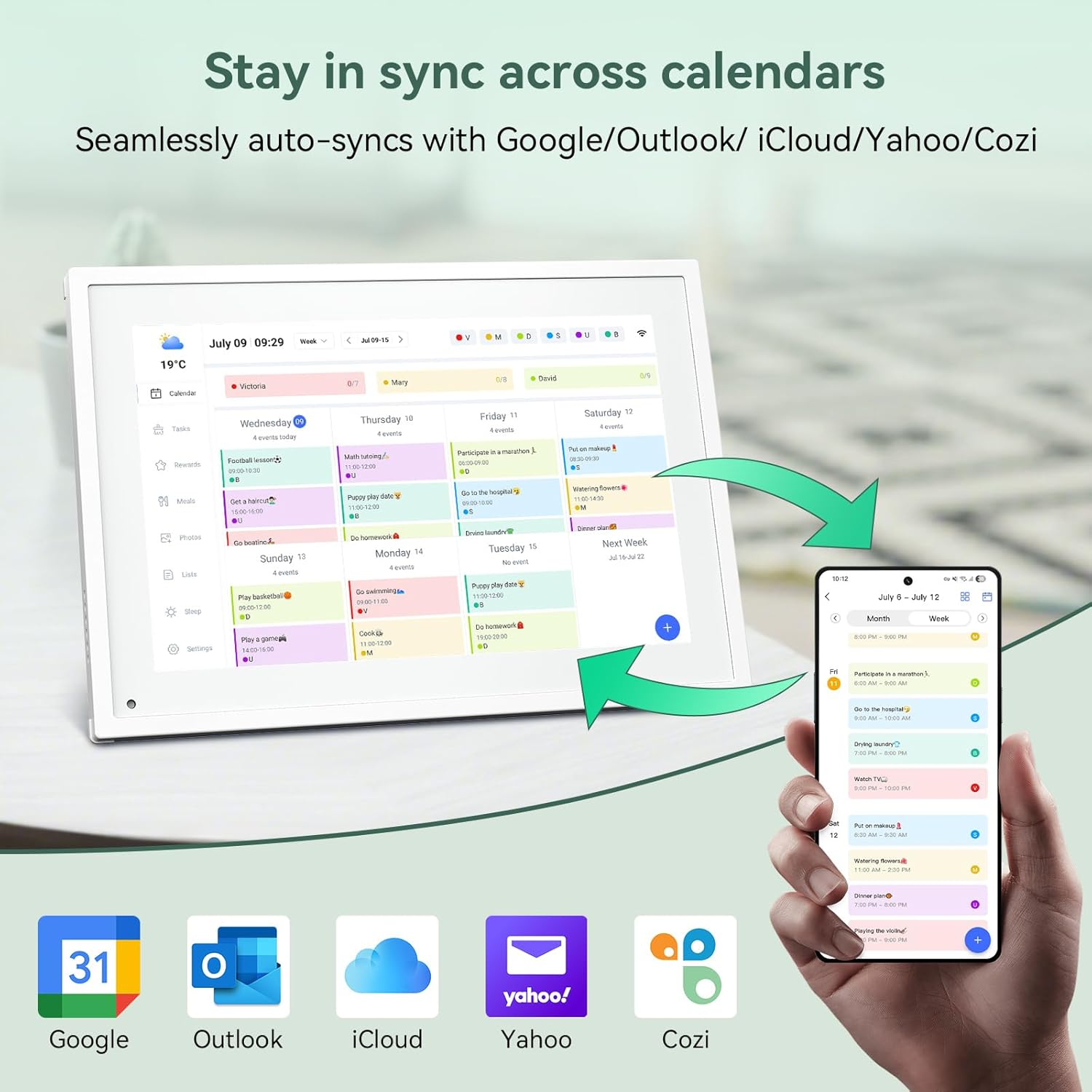
Şəkil 6.1: Seamless synchronization of the digital calendar with various external calendar services.
- Syncing External Calendars: Within the eCalendar app settings, you can link your Google, Apple, Outlook, Yahoo, or Cozi calendars. Events from these linked accounts will automatically appear on your TABWEE Digital Calendar.
- Hadisələrin Əlavə Edilməsi/Redaktə Edilməsi: Tap on a date or time slot on the calendar display or use the eCalendar app to add new events. You can specify event details, set reminders, and assign participants.
- Xüsusi hazırlanmış Views: Switch between day, week, or month views directly on the device or through the app.
6.3 Task Management (Chore Chart)
Organize tasks and chores for family members with a built-in reward system.
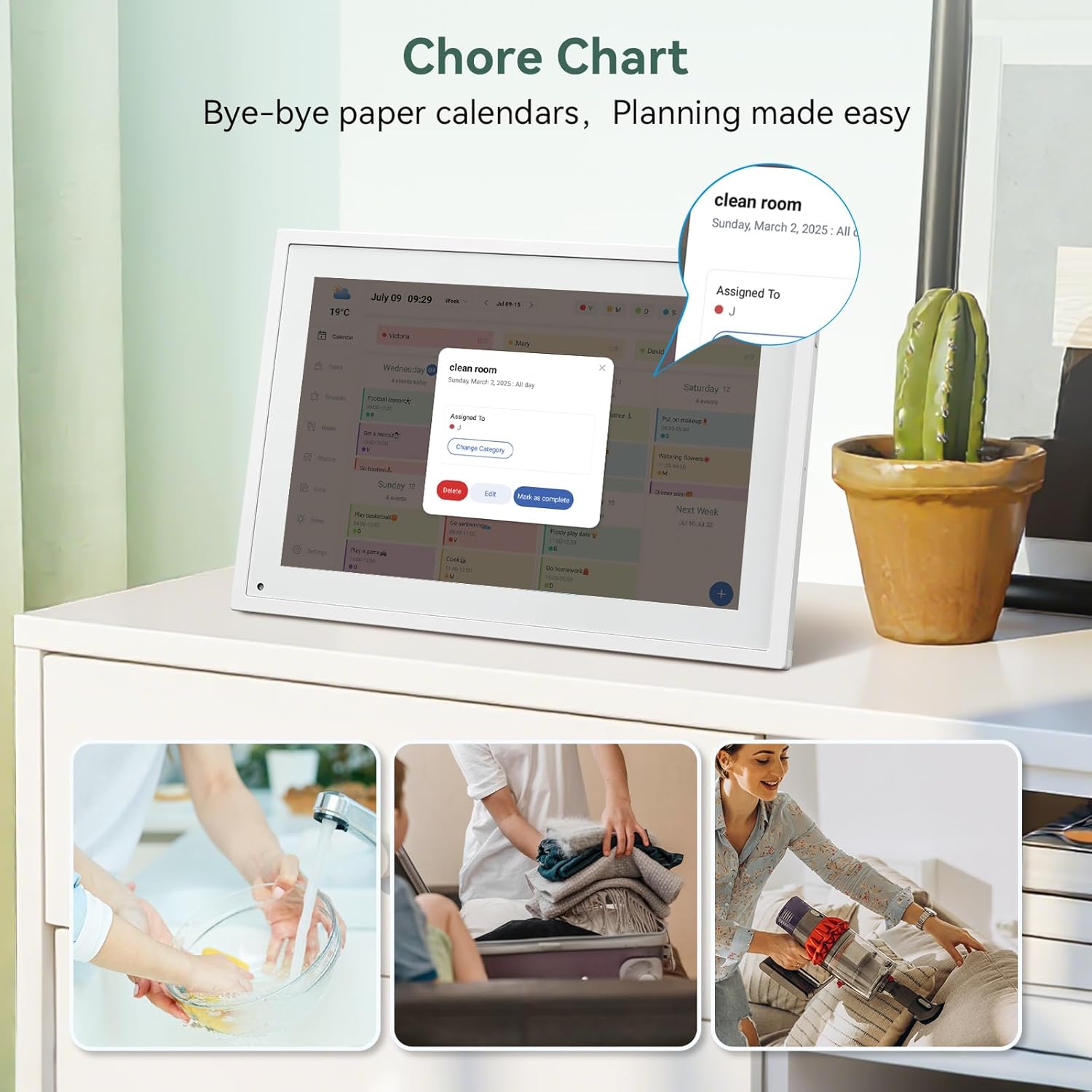
Şəkil 6.2: Managing tasks and chores on the digital calendar interface.
- Creating Tasks: Use the 'Tasks' section on the device or app to create new tasks. Assign them to specific individuals, set due dates, and configure recurring tasks.
- Tracking Progress: Users can mark tasks as complete. The system tracks completion and can be configured to award points.
- Mükafat sistemi: Set up a star-point reward system within the app. Points earned from completed tasks can be redeemed for custom rewards, encouraging participation.

Şəkil 6.3: The task manager and rewards interface, designed for engaging users.
6.4 Meal Planning
Plan your meals directly on the device or through the app.

Şəkil 6.4: Visual meal planning interface on the digital calendar.
- Create Meal Plans: Access the 'Meals' section to plan breakfasts, lunches, dinners, and snacks for the week.
- Custom Recipes: Upload and store your favorite recipes.
- Grocery Lists: Generate grocery lists based on your meal plans.
6.5 Digital Photo Frame Functionality
The device can also function as a digital photo frame.

Şəkil 6.5: The digital calendar switching between calendar and photo frame modes, in both landscape and portrait orientations.
- Kommutasiya rejimləri: Navigate to the 'Photos' section on the device or app to activate the digital photo frame mode.
- Şəkillər yüklənir: Upload your favorite memories directly from your smartphone via the eCalendar app.
- Orientasiya: The device supports both landscape and portrait orientations, automatically adjusting the display.
6.6 Digər Xüsusiyyətlər
The TABWEE Digital Calendar includes additional smart features to enhance usability.
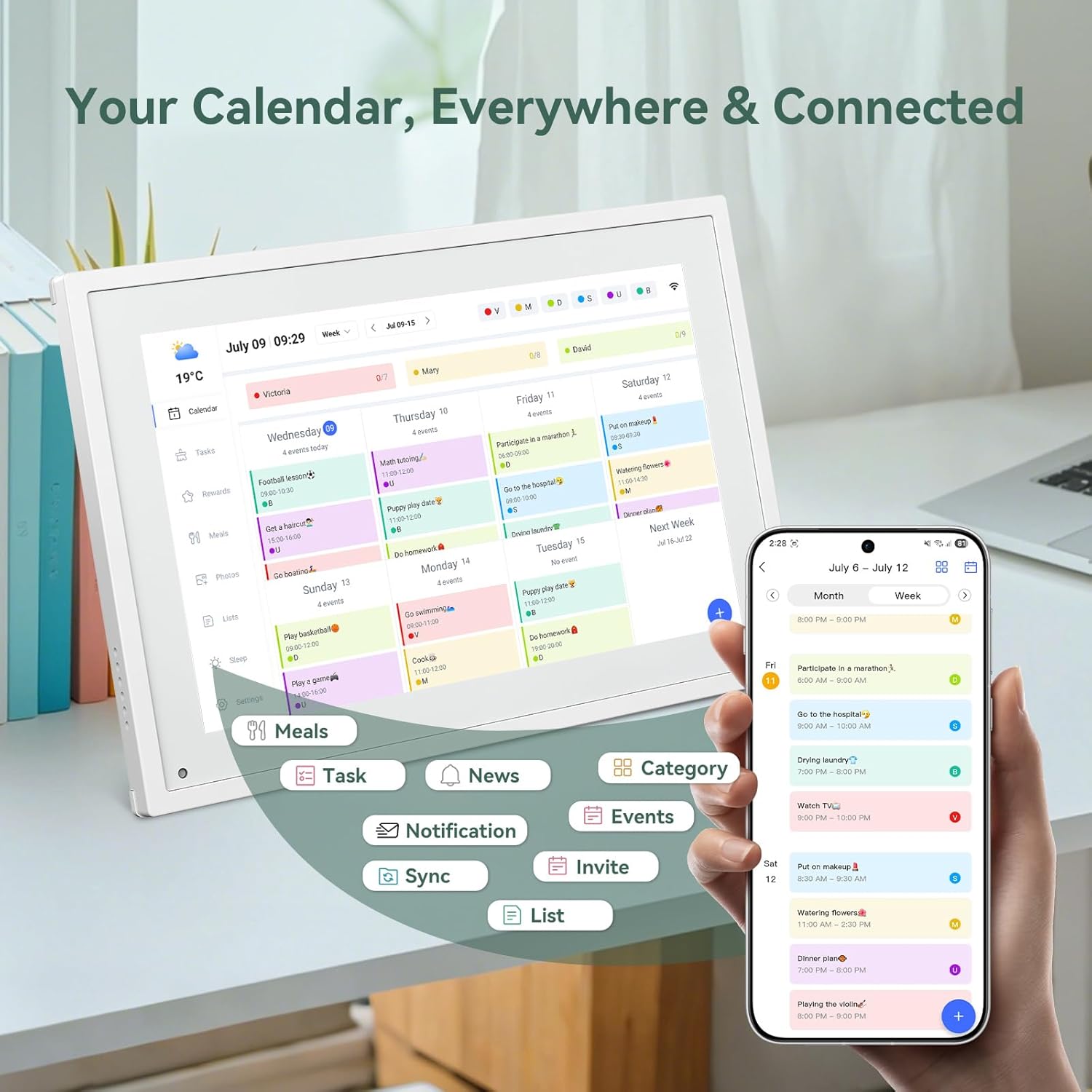
Şəkil 6.6: Bitdiview of smart features and app connectivity.
- Live Weather Forecasts: Cari hava şəraitini və proqnozlarını göstərir.
- Avtomatik Parlaqlıq: The built-in light sensor automatically adjusts screen brightness for optimal viewing.
- Yuxu rejimi: Configure scheduled times for the device to enter a low-power sleep mode.
- Custom Lists: Create and manage various lists (e.g., shopping lists, packing lists).
- Rəng Kodlaşdırması: Assign different colors to events or tasks for easy visual identification.
7. Baxım
7.1 Cihazın təmizlənməsi
- Ekranı yumşaq, tüysüz bir parça ilə yumşaq bir şəkildə silin. İnadkar ləkələr üçün, bir az dampparçanı su və ya ekran təmizləyici məhlulu ilə endir.
- Birbaşa cihazda sərt kimyəvi maddələr, aşındırıcı materiallar və ya aerozol spreylərindən istifadə etməyin.
- Təmizləməzdən əvvəl cihazın söndürüldüyünə və elektrik şəbəkəsindən çıxarıldığına əmin olun.
7.2 Proqram Yeniləmələri
The device may receive periodic software updates to improve performance and add new features. Ensure your device is connected to Wi-Fi to receive these updates. You will typically be notified on-screen when an update is available.
8. Giderme
| Problem | Mümkün Səbəb | Həll |
|---|---|---|
| Cihaz işə düşmür. | Enerji adapteri qoşulmayıb və ya nasazdır. | Enerji adapterinin cihaza və işləyən elektrik rozetkasına etibarlı şəkildə qoşulduğundan əmin olun. |
| Wi-Fi-a qoşulmaq mümkün deyil. | Yanlış parol, əhatə dairəsi xaricində və ya şəbəkə problemi. | Verify Wi-Fi password. Move the device closer to the router. Restart your router. |
| Calendar events are not syncing. | App not linked, external calendar not connected, or internet issue. | Check app-device linking. Ensure external calendars are correctly linked in the eCalendar app. Verify internet connection. |
| Ekran cavab vermir. | Müvəqqəti proqram xətası. | Restart the device by holding the power button until it turns off, then power it back on. |
9. Spesifikasiyalar
| Xüsusiyyət | Detal |
|---|---|
| Model nömrəsi | P10 |
| Ekran Ölçüsü | 10.1 düym |
| Ekran növü | Sensorlu ekran |
| Bağlantı | WiFi |
| Məhsul Ölçüləri | 10.51 x 0.91 x 7.32 düym (26.7 x 2.3 x 18.6 sm) |
| Maddə Çəkisi | 2.58 funt (1.17 kq) |
| Montaj növü | Desk Mount (not wall-mountable) |
| Güc mənbəyi | Plug-in (no internal battery) |
| Rəng | Ağ |
10. Zəmanət və Dəstək
The TABWEE Digital Calendar comes with a standard manufacturer's warranty. For specific warranty terms and conditions, please refer to the warranty card included in your product packaging or visit the official TABWEE websayt.
For technical support, troubleshooting assistance, or any inquiries regarding your product, please contact TABWEE customer service through their official websayt və ya məhsul sənədlərinizdə göstərilən əlaqə məlumatı.


