1. Giriş
This manual provides instructions for the safe and efficient operation of your vretti Bluetooth Thermal Label Printer, model B0FNW9FCS5. Please read this manual thoroughly before using the device and retain it for future reference.
2. Təhlükəsizlik Məlumatı
- Printerin düzgün səs gücünə malik enerji mənbəyinə qoşulduğundan əmin oluntage.
- Printeri suya və ya həddindən artıq rütubətə məruz qoymayın.
- Printeri birbaşa günəş işığına və ya istilik mənbələrinə yaxın yerə qoymayın.
- Printeri özünüz sökməyə və ya təmir etməyə çalışmayın. İxtisaslı xidmət personalı ilə əlaqə saxlayın.
- Uşaqların əli çatmayan yerdə saxlayın.
- Use only vretti approved accessories and power adapters.
3. Paketin məzmunu
Bütün əşyaların paketdə olduğunu yoxlayın:
- vretti Bluetooth Thermal Label Printer (Model B0FNW9FCS5)
- Güc adapteri
- USB kabel
- Tez Başlanğıc Bələdçisi
- Sample Labels (50 premium labels)
4. Quraşdırma
4.1 Fiziki əlaqə
- Connect the power adapter to the printer and then to a power outlet.
- Connect the USB cable from the printer to your computer (if using USB connection).
- Elektrik açarından istifadə edərək printeri yandırın.
4.2 Etiketlərin yüklənməsi
The printer features an integrated paper bin designed for easy label loading.
- Printerin üst qapağını açın.
- Place the roll of thermal labels into the integrated paper bin. Ensure the labels feed from the bottom of the roll and the printable side faces upwards.
- Adjust the guide rails to fit the width of your labels snugly, without creasing them. The printer supports label widths from 0.78 inches (19mm) to 4.6 inches (116mm).
- Feed the first label through the print mechanism until it is positioned correctly.
- Üst qapağı bağlayın.

Şəkil 4.2.1: Label loading into the integrated paper bin. The visualization window allows monitoring label supply. Adjustable guide rails ensure proper label alignment for various sizes like 2"x3", 3"x3", and 4"x6".
4.3 Sürücü və Proqram təminatının quraşdırılması
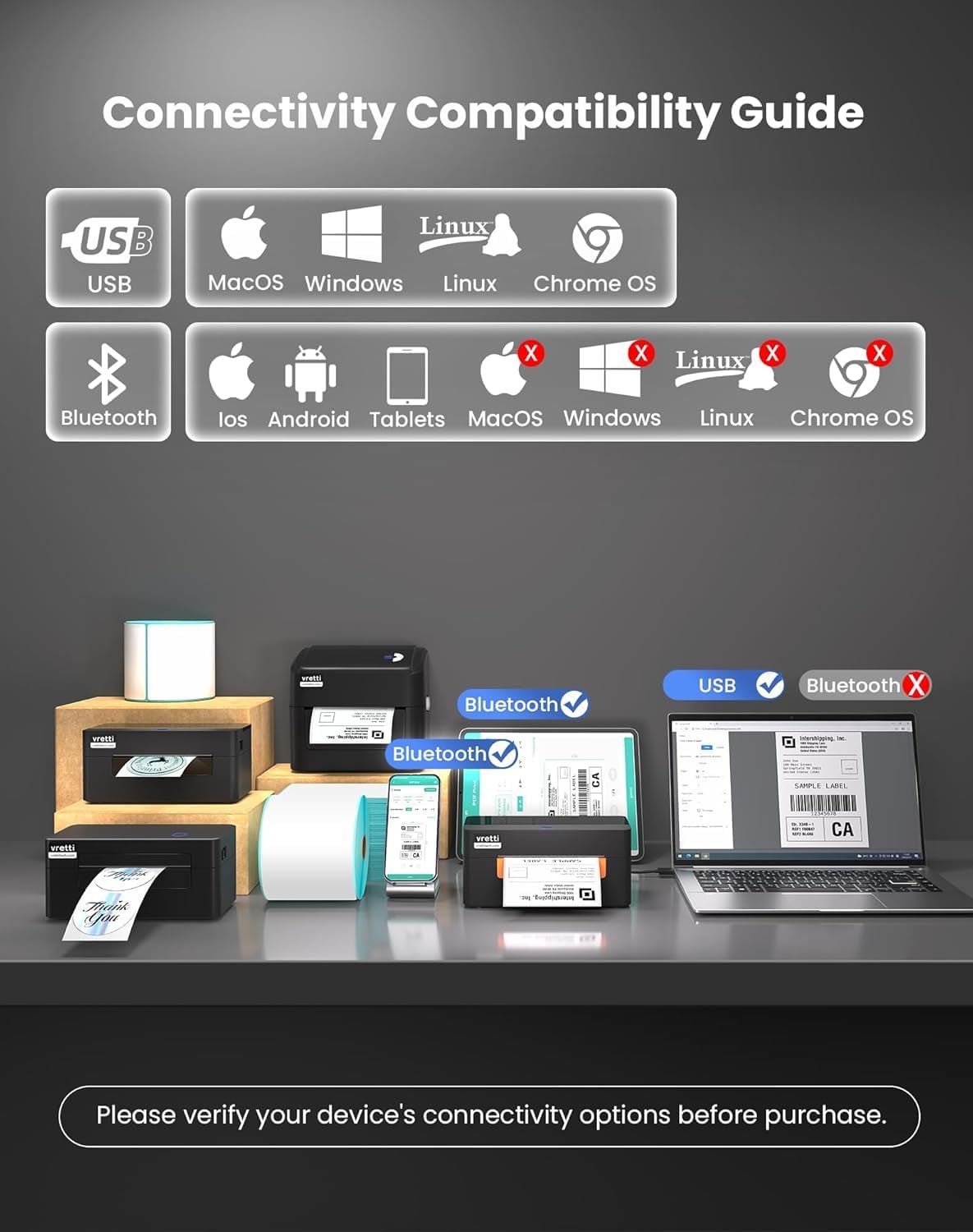
The vretti printer offers dual connectivity options: USB and Bluetooth.

Şəkil 4.3.1: Connectivity Compatibility Guide. USB connection is compatible with MacOS, Windows, Linux, and Chrome OS. Bluetooth connection is compatible with iOS, Android, and Tablets. Bluetooth is not supported for MacOS, Windows, Linux, or Chrome OS.
4.3.1 USB Connection (Windows/Mac/Linux/ChromeOS)
For most operating systems, the printer is designed for "Plug & Play" functionality. Connect the USB cable, and your system should automatically detect and install the necessary drivers within approximately 60 seconds. If drivers do not install automatically, refer to the included Quick Start Guide or the manufacturer's website for manual driver installation instructions.
Şəkil 4.3.2: The vretti label printer is designed for quick deployment, allowing users to master its operation rapidly, often within 2 minutes for basic setup.
4.3.2 Bluetooth Connection (iOS/Android/Tablets)
- Ensure Bluetooth is enabled on your mobile device or tablet.
- Turn on the vretti printer.
- On your device, search for available Bluetooth devices and select the vretti printer (e.g., "vretti Printer" or similar).
- Cütləşdirmə prosesini başa çatdırmaq üçün ekrandakı istənilən göstərişlərə əməl edin.
- Install the vretti printing application from your device's app store (e.g., Apple App Store, Google Play Store) to manage print jobs.
5. Əməliyyat Təlimatları
5.1 Etiketlərin çapı
The vretti thermal label printer uses direct thermal printing technology, eliminating the need for toner or ink. It is optimized for 4x6 inch shipping labels and barcodes.
- Ensure labels are properly loaded (refer to Section 4.2).
- Çap etmək istədiyiniz sənədi və ya proqramı açın.
- Proqramın menyusundan "Çap et" seçin.
- Choose the vretti printer from the list of available printers.
- Adjust print settings as needed, such as label size (e.g., 4x6 inches) and orientation.
- Çap işini başladın.

Şəkil 5.1.1: The printer delivers 203 dpi resolution, ensuring clear and scannable barcodes with a 99.99% recognition rate for labels such as DHL 4x6 shipping labels and QR codes.

Şəkil 5.1.2: The vretti printer offers a print speed of 152 mm/s, capable of producing 72 labels per minute. Its direct thermal technology eliminates ink/toner, leading to significant cost savings and a print head lifespan three times longer than standard printers.
6. Baxım
6.1 Çap başlığının təmizlənməsi
The printer features automatic cleaning functionality. However, if print quality degrades, manual cleaning may be necessary.
- Printeri söndürün və enerji mənbəyindən ayırın.
- Üst qapağı açın.
- Gently wipe the print head with a lint-free cloth lightly dampizopropil spirti ilə tamamlanır.
- Qapağı bağlamadan və printeri işə salmazdan əvvəl çap başlığının tamamilə qurumasına icazə verin.
6.2 Ümumi təmizləmə
Printerin xarici hissəsini yumşaq, quru bir parça ilə silin. Aşındırıcı təmizləyicilərdən və ya həlledicilərdən istifadə etməyin.
7. Giderme
| Problem | Mümkün Səbəb | Həll |
|---|---|---|
| Printer açılmır | No power, faulty power adapter | Elektrik bağlantılarını yoxlayın, fərqli bir çıxışa cəhd edin. |
| Zəif çap keyfiyyəti | Dirty print head, incorrect label type, low-quality labels | Clean the print head (Section 6.1). Ensure you are using thermal labels. Try new labels. |
| Etiketlər düzgün qidalanmır | Labels improperly loaded, guide rails not adjusted | Reload labels, adjust guide rails (Section 4.2). |
| Bluetooth vasitəsilə qoşulmaq mümkün deyil | Bluetooth not enabled, incorrect pairing, device incompatibility | Ensure Bluetooth is on. Re-pair the device. Confirm your device is compatible (iOS/Android/Tablets only). |
| Printer not recognized by computer (USB) | Driver issue, faulty USB cable, incorrect port | Try a different USB port or cable. Reinstall drivers if necessary. |
8. Spesifikasiyalar
| Xüsusiyyət | Detal |
|---|---|
| Brend | vretti |
| Model nömrəsi | B0FNW9FCS5 |
| Çap texnologiyası | Birbaşa istilik |
| Çap Çözünürlüğü | 203 dpi |
| Çap Sürəti | Up to 152 mm/s (72 labels/min) |
| Etiket eni | 0.78" - 4.6" (19mm - 116mm) |
| Bağlantı | USB (Windows/Mac/Linux/ChromeOS), Bluetooth 5.0 (iOS/Android/Tablets) |
| Maksimum Vərəq Tutumu | 500 labels (integrated bin) |
| Ölçülər (U x G x Y) | 29.5 x 20.5 x 18.8 sm (təxminən) |
| Güc mənbəyi | Xarici Güc Adapteri |
9. Zəmanət və Dəstək
vretti products are manufactured to high-quality standards. For warranty information and technical support, please refer to the warranty card included with your product or visit the official vretti website. Please have your model number (B0FNW9FCS5) and purchase date available when contacting support.


