Giriş
This manual provides detailed instructions for the installation, operation, and maintenance of your Imagebon 11.3-inch QLED Android Car Navigation System. Please read this manual thoroughly before using the product to ensure proper function and safety. Keep this manual for future reference.
Əsas Xüsusiyyətlər
- High-Performance 8-Core Android System: Equipped with an 8-core Android processor, 4GB RAM, and 64GB storage for smooth operation and amptətbiqlər və media üçün boş yer.
- Google Play Uyğunluğu: Download and use your favorite apps directly from Google Play. Pre-installed with popular apps like YouTube and Netflix.
- Bölünmüş Ekranla Çoxtapşırıqlılıq: Simultaneously display navigation and entertainment apps for enhanced convenience while driving.
- Dual-Band Wi-Fi & Bluetooth: Supports 2.4GHz/5GHz Wi-Fi for stable streaming and Bluetooth for seamless smartphone connectivity and hands-free calling.
- 1080P Backup Camera: Includes a high-definition backup camera with adjustable guidelines for safe and easy parking.
- 11.3-inch IN-CELL QLED Display: Features a large, vibrant QLED screen for clear visuals and responsive touch control.
- Flexible Navigation Options: Supports CarPlay, Android Auto, and direct installation of navigation apps like Google Maps or Waze, with online and offline map capabilities.
- Səslə Nəzarət: Operate navigation, music, and phone calls hands-free for increased safety and convenience.
- Over-The-Air (OTA) Updates: Easily update software and apps wirelessly to ensure you always have the latest features and improvements.
Quraşdırma
Paketin məzmunu
Quraşdırmaya başlamazdan əvvəl, bütün komponentlərin mövcudluğunu yoxlayın:
- Imagebon 11.3-inch QLED Android Car Navigation System
- 10m Arxa Kamera
- AUX kabeli
- GPS antenası
- Yapışqan Dağı
- Car Charger (Cigarette Lighter Adapter)
- İstifadəçi təlimatı

Image: All components included with the Imagebon car navigation system, including the main unit, rear camera, cables, and mounts.
Quraşdırma addımları
- Cihazın quraşdırılması: Securely attach the main unit to your dashboard using the provided adhesive mount. Ensure the unit is positioned to not obstruct your view və ya avtomobilin idarə edilməsinə müdaxilə edin.
- Enerji bağlantısı: Connect the car charger to your vehicle's cigarette lighter socket and the Type-C port on the navigation unit.
- GPS Antenna Connection: Connect the GPS antenna to the designated port on the unit and place it in a location with a clear view optimal siqnal qəbulu üçün səmanın.
- Arxa Kamera Quraşdırılması (İsteğe bağlı): If using the backup camera, install it at the rear of your vehicle and route the cable to the main unit. Connect the camera cable to the AV-IN port.
- Audio Çıxış: For audio output, you can use the built-in speaker, FM transmission, AUX cable connection, or Bluetooth connection to your car's audio system.
Əməliyyat Təlimatları
İlkin Yandırma və Sistemin Bitməsiview
Upon first power-on, the system will boot into the Android interface. You can customize the home screen, access apps, and adjust settings.
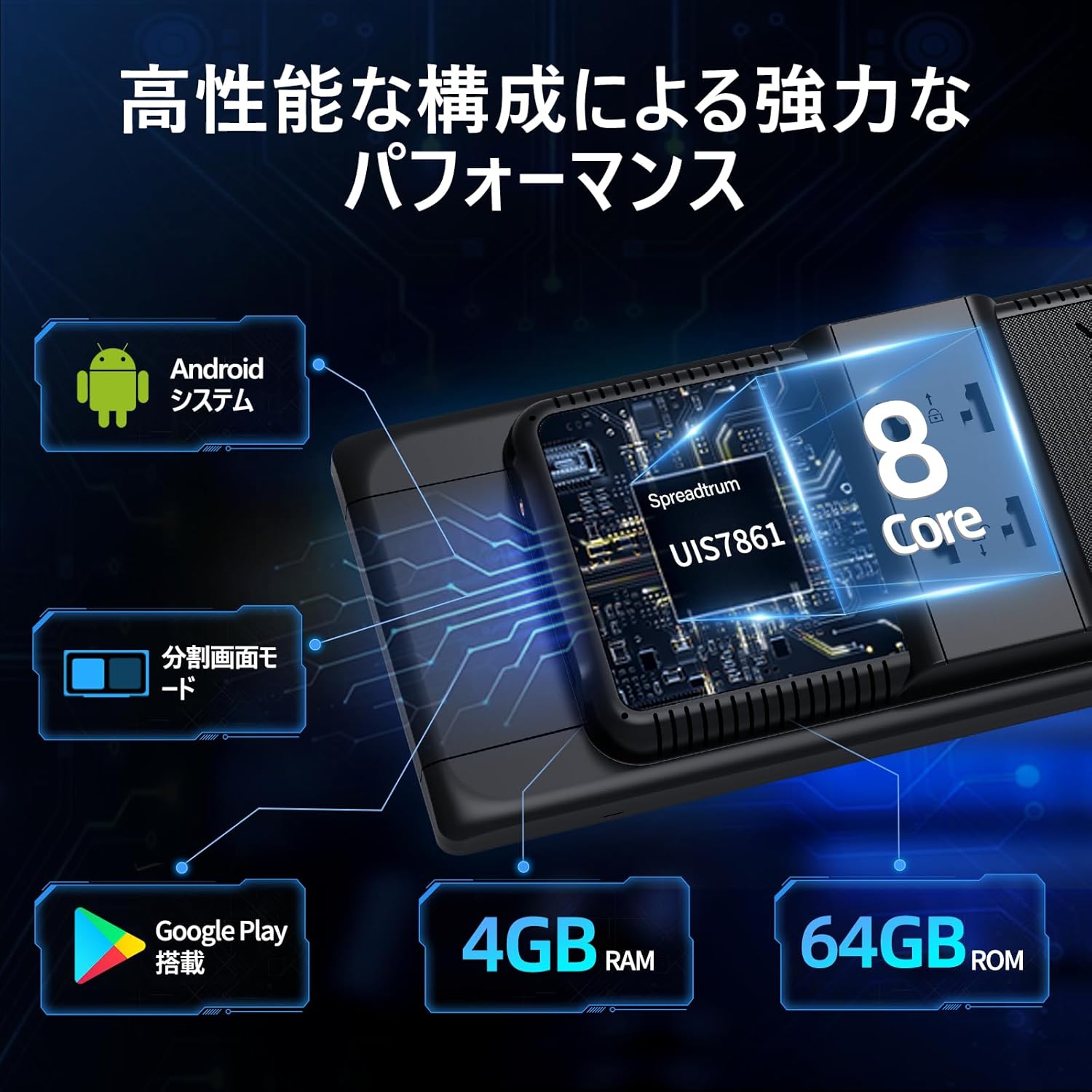
Image: The main interface of the Imagebon car navigation system, showing various app icons and the time display.
Connectivity (Wi-Fi & Bluetooth)
The unit supports dual-band Wi-Fi (2.4GHz/5GHz) and Bluetooth for seamless connectivity.
- Wi-Fi Bağlantısı: Go to Settings > Network & Internet > Wi-Fi. Select your desired network and enter the password.
- Bluetooth Cütləşmə: Go to Settings > Connected devices > Bluetooth. Turn on Bluetooth and search for available devices. Select your smartphone to pair.

Image: The Imagebon car navigation system demonstrating dual-band Wi-Fi and Bluetooth connectivity, showing a phone call and navigation simultaneously.
Google Play və Tətbiq Quraşdırılması
Əlavə tətbiqləri yükləmək və quraşdırmaq üçün Google Play Mağazasına daxil olun.
- Ensure the unit is connected to Wi-Fi.
- Tap the "Google Play Store" icon on the home screen.
- Google hesabınızla daxil olun.
- Browse or search for apps and tap "Install" to download.
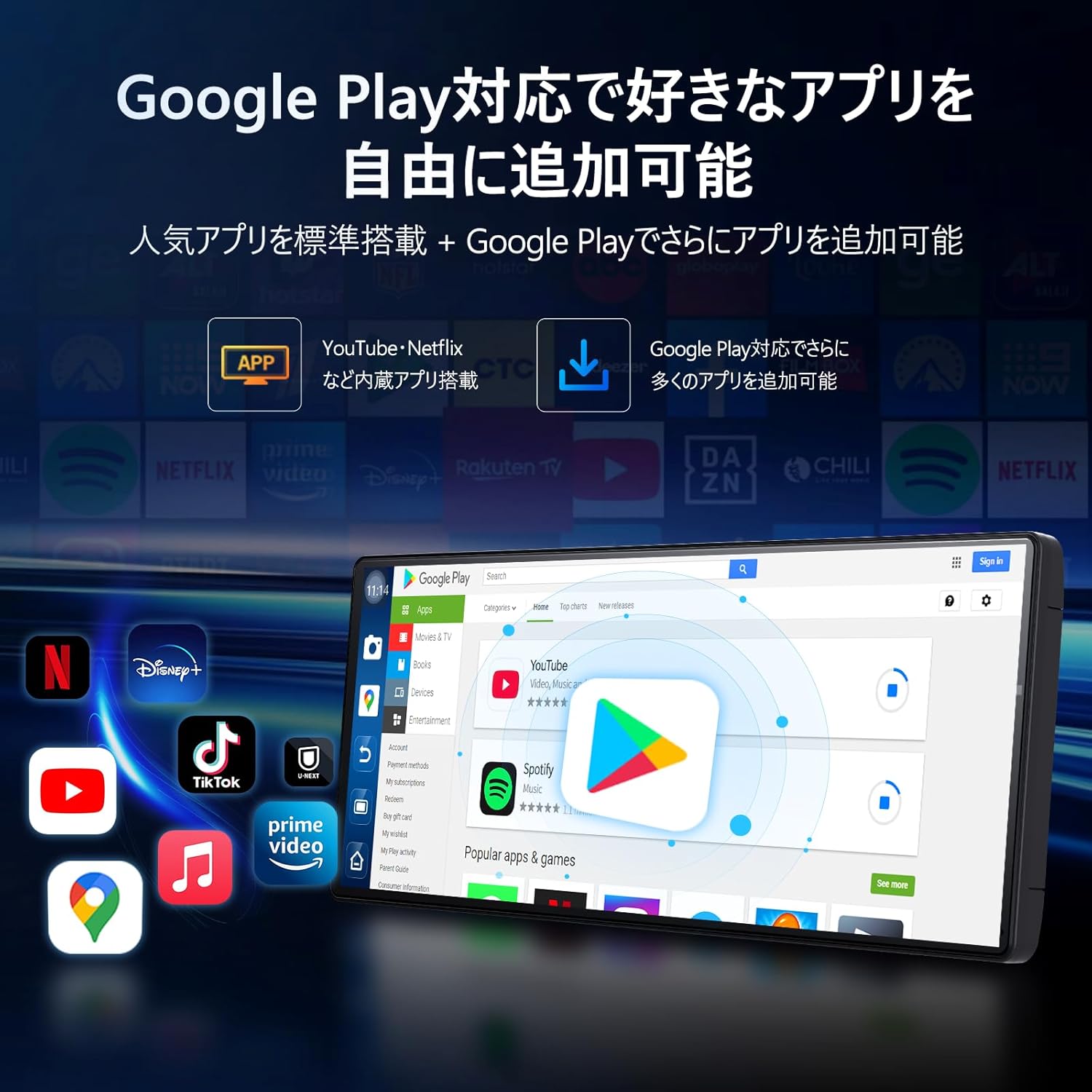
Image: The Imagebon car navigation system displaying the Google Play Store interface, showing various apps available for download.
Navigation (CarPlay / Android Auto / Built-in GPS)
The system offers multiple navigation options.
- CarPlay: Connect your iPhone via Bluetooth. A prompt will appear on your phone to allow CarPlay. Follow the on-screen instructions.
- Android Auto: Connect your Android phone via Bluetooth. A pairing request will appear. Confirm pairing and wait for the screen to cast.
- Quraşdırılmış GPS: Use pre-installed navigation apps or download your preferred ones from Google Play. The system supports both online and offline maps.

Image: The Imagebon car navigation system showing both Google Maps interface and a smartphone connected via CarPlay/Android Auto for navigation.
Bölünmüş Ekran Funksiyası
To use split-screen mode:
- İstifadə etmək istədiyiniz ilk proqramı açın.
- Tap the split-screen button (usually represented by two rectangles) or swipe up to view son proqramlar.
- Drag the second application to the other half of the screen.
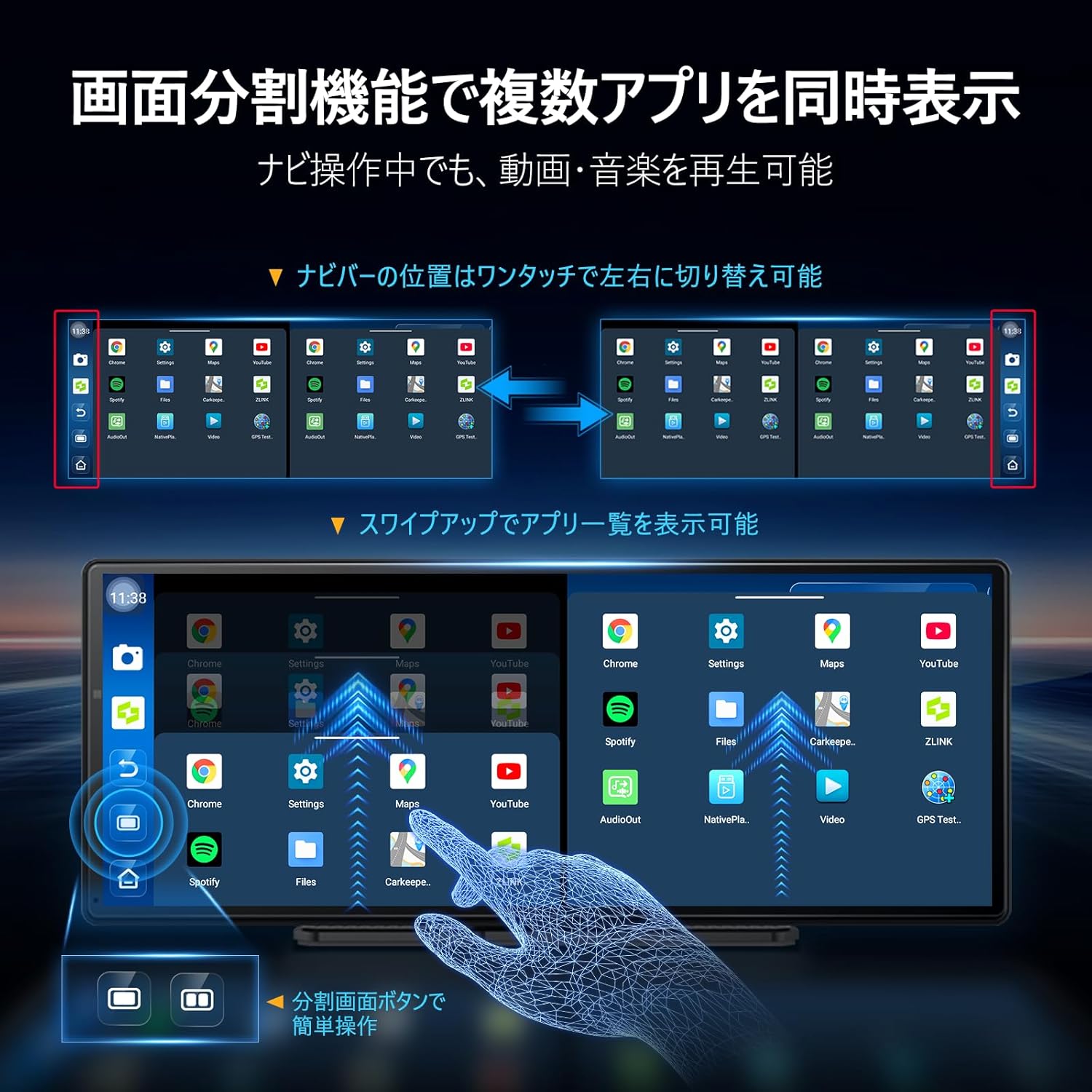
Image: The Imagebon car navigation system demonstrating split-screen functionality, showing two applications running side-by-side.
Səslə Nəzarət
Activate voice control by saying "Hey Siri" (for CarPlay) or "OK Google" (for Android Auto/Android system) or by tapping the microphone icon. You can issue commands such as:
- "[Təyinat yerinə] keçin"
- "Play [song/artist]"
- "[Əlaqə adı]-a zəng edin"
- "Increase/Decrease volume"
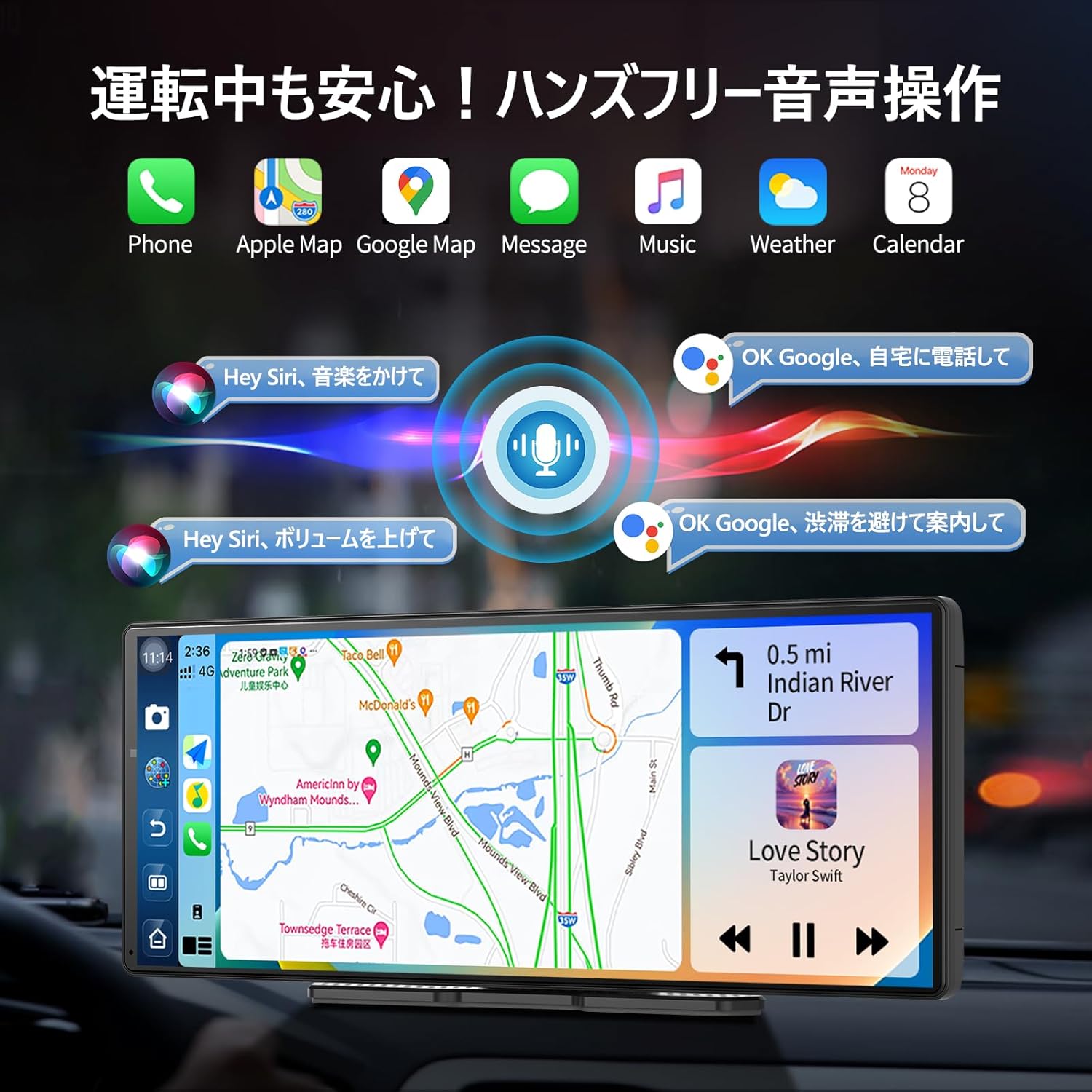
Image: The Imagebon car navigation system illustrating voice control commands for navigation, music, and calls, with a visual representation of sound waves.
Arxa kameranın işləməsi
When the vehicle is shifted into reverse, the display will automatically switch to the rear camera view. Adjustable guidelines assist with parking.

Image: The Imagebon car navigation system displaying the 1080P rear camera view with adjustable parking guidelines, showing a car reversing into a parking spot.
OTA Yeniləmələri
The system supports Over-The-Air (OTA) updates to keep your software and maps current.
- Ensure the unit is connected to Wi-Fi.
- Go to "App List" > "Settings".
- Select "Updater" from the "Device Information" menu.
- Follow the on-screen prompts to download and install updates. The unit will restart automatically after the update is complete.
Baxım
- Təmizləmə: Ekranı və xarici hissəni təmizləmək üçün yumşaq, quru bir parça istifadə edin. Aşındırıcı təmizləyicilərdən və ya həlledicilərdən istifadə etməyin.
- Proqram təminatı yeniləmələri: Regularly check for and install OTA updates to ensure optimal performance and access to new features.
- Temperatur: Cihazı həddindən artıq temperaturlara məruz qoymaqdan çəkinin.
- Kabel İdarəetmə: Ensure all cables are securely connected and not interfering with vehicle operation.
Problemlərin aradan qaldırılması
| Problem | Mümkün Səbəb | Həll |
|---|---|---|
| Cihaz işə düşmür | Power cable not connected or faulty; vehicle's power outlet issue. | Check power cable connection. Ensure vehicle's cigarette lighter socket is functional. |
| GPS siqnalı yoxdur | GPS antenna not properly connected or obstructed view göydən. | Ensure GPS antenna is securely connected and placed in an unobstructed location. |
| Wi-Fi/Bluetooth bağlantısı problemləri | Incorrect password; device out of range; interference. | Verify password. Ensure devices are within range. Restart unit and connecting device. |
| Yedək kamera göstərilmir | Camera cable loose or faulty; vehicle not in reverse. | Check camera cable connection. Ensure vehicle is in reverse gear. |
| Toxunma ekranı cavab vermir | Müvəqqəti proqram xətası. | Restart the unit. If problem persists, perform a factory reset (data will be lost). |
Spesifikasiyalar
| Xüsusiyyət | Detal |
|---|---|
| Ekran Ölçüsü | 11.3 düym |
| Ekran növü | QLED |
| Prosessor | 8-Core Android |
| RAM | 4 GB |
| Saxlama | 64 GB |
| Bağlantı | Bluetooth, USB, Wi-Fi (2.4GHz/5GHz) |
| Nəzarət metodu | Toxun, Səs |
| Xüsusi Xüsusiyyətlər | Android Auto, Apple CarPlay, Built-in Bluetooth, Hands-free calling, 1080P Backup Camera |
| Səs Çıxış Modu | Stereo |
| Maddə Çəkisi | 0.95 kq |
| Ölçülər (Paket) | 31.1 x 14.7 x 11.2 sm |
| Model nömrəsi | W60N-JP |
Zəmanət və Dəstək
This product comes with a standard manufacturer's warranty. For specific warranty details, please refer to the warranty card included in your package or contact Imagebon customer support.
For technical support, troubleshooting assistance, or any questions regarding your Imagebon car navigation system, please contact our customer service team. Contact information can be found on our official websaytda və ya məhsulun qablaşdırmasında.
Məhsul Videoları
Məhsul Bitdiview
Video: General bitdiview of the Imagebon 11.3-inch QLED Android Car Navigation System, highlighting its main features and design. (Duration: 1:15)
Split-Screen Demonstration
Video: A demonstration of the split-screen functionality, showing how to run two applications simultaneously on the display. (Duration: 0:44)
CarPlay and Android Auto Connectivity
Video: This video illustrates the process of connecting and using Apple CarPlay and Android Auto with the navigation system. (Duration: 2:07)
Səslə İdarəetmə Xüsusiyyətləri
Video: A short demonstration of the voice control capabilities, showing how to issue commands for navigation and media playback. (Duration: 0:23)
Backup Camera Functionality
Video: This video showcases the 1080P backup camera in action, including the adjustable guidelines for safe parking. (Duration: 2:00)


