Giriş
Thank you for choosing the vretti PB821 Portable Thermal Printer. This compact and versatile device is designed for convenient, inkless printing from various devices, including smartphones, tablets, and laptops. Its portability makes it ideal for business, office, home, and travel use. This manual provides essential information on setting up, operating, maintaining, and troubleshooting your printer to ensure optimal performance.
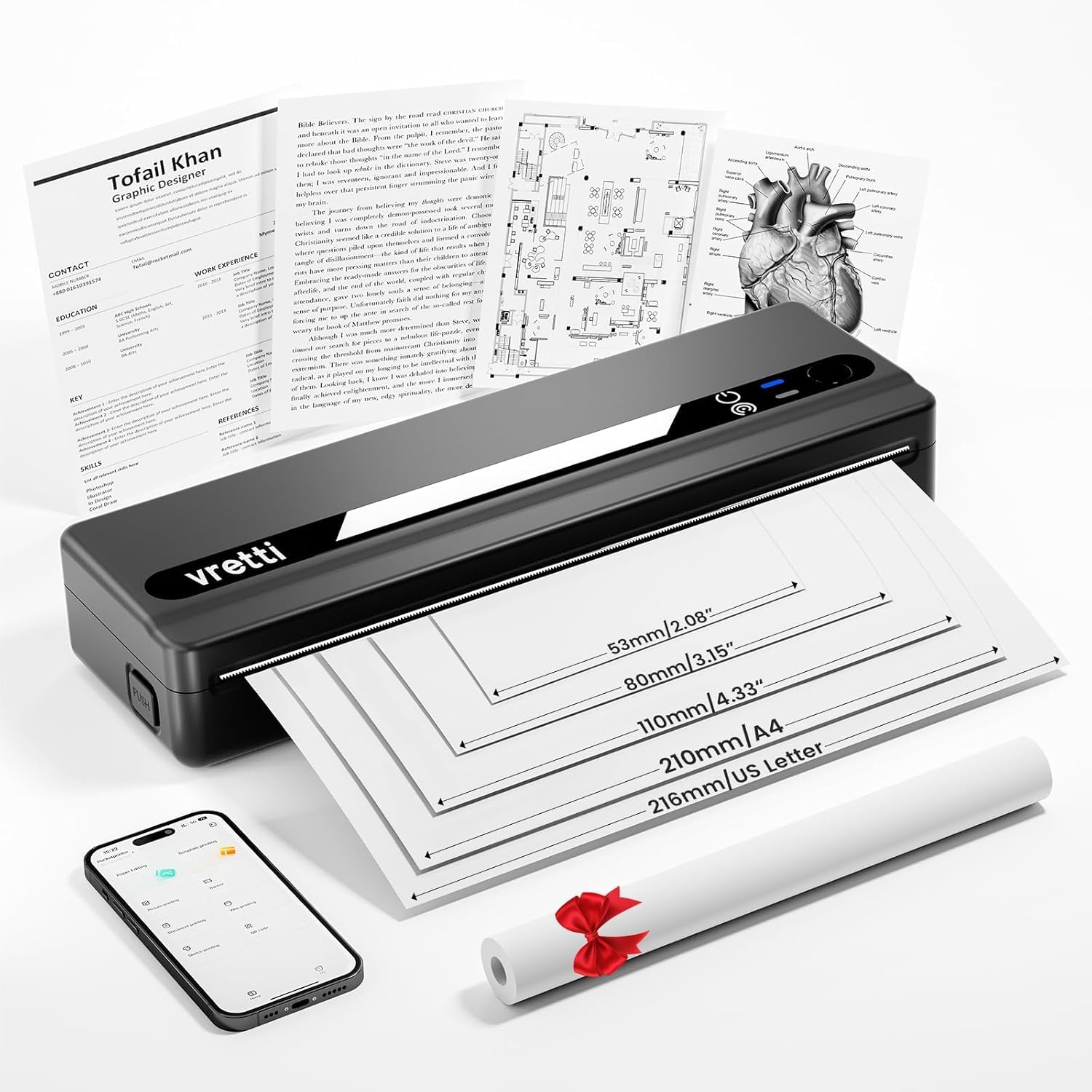
Image: The vretti PB821 Portable Thermal Printer, a sleek black device, ready for use.
Paketin məzmunu
Lütfən, bütün əşyaların mövcud olduğundan əmin olmaq üçün qutudan çıxararkən paketin məzmununu yoxlayın:
- vretti PB821 Portable Thermal Printer
- 1 Roll of Thermal Paper
- USB-C şarj kabeli
- İstifadəçi təlimatı
Məhsul Bitdiview
Əsas Xüsusiyyətlər
- Simsiz Bluetooth Çapı: Connects wirelessly to phones and tablets via the "XLifePro" app.
- Portativ və yığcam: Small and lightweight design for easy transport.
- Cost-effective Inkless Printing: Utilizes advanced thermal printing technology, eliminating the need for ink, toner, or ribbons.
- High-quality Printing: Delivers clear prints with a 203 DPI resolution.
- Uzunömürlü Batareya: Built-in 1500mAh rechargeable battery supports printing up to 223 A4 sheets on a full charge.
- Multi-size Paper Support: Compatible with A5, A4, Letter, and 2-4 inch labels.
Qoşulma Seçimləri

Image: The vretti PB821 printer supports both Bluetooth and USB connections for versatile use with Android, iOS, iPad, Windows, Mac OS, Linux, and Chromebook devices.
The vretti PB821 printer offers flexible connectivity, allowing you to print wirelessly via Bluetooth from mobile devices or directly via USB from computers. This ensures compatibility across various operating systems and devices.
Portativ Dizayn

Image: A visual comparison highlighting the compact and portable design of the vretti PB821 printer against a larger, traditional printer, emphasizing its convenience.
The PB821 is designed for maximum portability, making it easy to carry in a backpack or bag. Its compact form factor does not compromise on functionality, offering easy setup and smooth, inkless printing.
Quraşdırma
1. İlkin Doldurma
Before first use, fully charge the printer using the provided USB-C cable. Connect the cable to the printer's USB-C port and a compatible power adapter (not included) or computer USB port. The charging indicator light will show the charging status.

Image: Visual representation of the printer's 1500mAh battery capacity, USB-C charging, and its ability to print up to 223 A4 sheets on a single charge.
2. Termal Kağızın Yüklənməsi
The vretti PB821 supports various thermal paper types. To load paper:
- Open the printer's paper cover.
- Insert the thermal paper with the printable side facing up. Ensure the paper is aligned correctly within the guides.
- Kağız qapağını etibarlı şəkildə bağlayın.

Image: The vretti PB821 printer showcasing its compatibility with different thermal paper types, including folding thermal paper and roll paper, along with various paper sizes.
3. Connecting via Bluetooth (Mobile Devices)
To print wirelessly from your smartphone or tablet:
- Download the "XLifePro" app from the App Store (iOS) or Google Play Store (Android).
- Turn on the vretti PB821 printer. The Bluetooth indicator light will blink.
- Open the XLifePro app, navigate to the device connection settings, and select the PB821 printer from the list of available Bluetooth devices.
- Qoşulduqdan sonra Bluetooth göstərici işığı möhkəm olacaq.

Image: Step-by-step guide on connecting the vretti PB821 printer via Bluetooth, including downloading the XLifePro app and pairing the device.
4. Connecting via USB (Computers)
To print from your Windows, Mac OS, or Linux computer:
- Download the appropriate printer driver from the official vretti websayt: vrettitech.com/pages/p83-support.
- Install the driver on your computer following the on-screen instructions.
- Connect the vretti PB821 printer to your computer using the provided USB-C cable.
- The computer should recognize the printer, and you can now select it as your printing device.

Image: Instructions for USB connection, detailing driver download from the vretti website and connecting the PB821 printer to a laptop.
Əməliyyat Təlimatları
Printing from Mobile Devices
Bluetooth vasitəsilə qoşulduqdan sonra:
- Open the document, image, or file you wish to print within the XLifePro app. The app supports various formats including TXT, PDF, Excel, and Word documents.
- Tətbiq daxilində çap seçimini seçin.
- Confirm print settings such as paper size and quantity.
- Initiate printing.
Printing from Computers
USB vasitəsilə qoşulduqdan və drayverlər quraşdırıldıqdan sonra:
- Sənədi açın və ya file you wish to print on your computer.
- Tətbiqinizdən çap seçimini seçin (məsələn, File > Çap).
- Choose "vretti PB821" from the list of available printers.
- Adjust print settings as needed (e.g., paper size, orientation).
- "Çap et" düyməsini basın.
Supported Paper Types and Sizes
The PB821 printer is compatible with various thermal paper types and sizes, including:
- A4 (210 mm)
- Letter (8.5" x 11" / 216mm)
- A5 (148 mm)
- B5 (175mm)
- 2-inch (53mm) labels
- 3-inch (80mm) labels
- 4-inch (110mm) labels

Image: The vretti PB821 printer demonstrating its support for multiple paper sizes, including standard document sizes and various label sizes.
Using the XLifePro App
The XLifePro app provides additional functionalities beyond basic printing, including:
- Access to multiple templates for creative printing.
- Options for document printing, picture printing, and more.
- Customization features for various printing needs.

Image: Screenshots of the XLifePro app interface, illustrating its diverse range of templates and printing options.
Baxım
Printerin Təmizlənməsi
To maintain print quality and prolong the printer's lifespan:
- Ensure the printer is turned off and disconnected from power before cleaning.
- Bir az yumşaq, tüysüz parça istifadə edin dampened with water or isopropyl alcohol to gently wipe the print head and paper path.
- Aşındırıcı təmizləyicilərdən və ya həlledicilərdən istifadə etməyin.
- Allow the printer to dry completely before turning it on.
Batareyaya qulluq
Batareyanın ömrünü optimallaşdırmaq üçün:
- Tez-tez batareyanı tam boşaltmaqdan çəkinin.
- Printeri uzun müddət istifadə etmədikdə sərin və quru yerdə saxlayın.
- Charge the printer regularly, even if not in frequent use, to prevent deep discharge.
Problemlərin aradan qaldırılması
| Məsələ | Mümkün Səbəb | Həll |
|---|---|---|
| Printer açılmır | Aşağı batareya; Güc düyməsi düzgün basılmayıb | Charge the printer; Press and hold the power button for a few seconds |
| Bluetooth vasitəsilə qoşulmaq mümkün deyil | Bluetooth off on device; Printer not in pairing mode; App issue | Ensure Bluetooth is enabled; Restart printer; Reinstall XLifePro app |
| Zəif çap keyfiyyəti | Low battery; Dirty print head; Incorrect paper type | Charge printer; Clean print head; Use recommended thermal paper |
| Kağız sıxması | Improper paper loading; Damaged paper | Turn off printer, carefully remove jammed paper, reload correctly; Use undamaged paper |
| Printer kompüter tərəfindən tanınmır | Missing/incorrect drivers; Faulty USB cable/port | Install/reinstall drivers from vretti website; Try a different USB cable/port |
Spesifikasiyalar
| Xüsusiyyət | Detal |
|---|---|
| Model | PB821 |
| Brend | vretti |
| Çap texnologiyası | Termal |
| Bağlantı texnologiyası | Bluetooth, USB |
| Maksimum Çap Çözünürlüğü | 203 DPI (Black and White) |
| Çap mediası | Thermal Paper (plain) |
| Dəstəklənən Vərəq Ölçüləri | 2'', 3'', 4'', A4, 8.5''x 11'' US Letter |
| Maksimum Giriş Vərəqi Tutumu | 30 vərəq |
| Batareya Tutumu | 1500 mAh (litium-ion) |
| Məhsul Ölçüləri | 25.7 x 7 x 4.7 sm |
| Maddə Çəkisi | 900 q |
| İkitərəfli Çap | yox |
| Mürəkkəb Rəngi | Qara |
Zəmanət və Dəstək
The vretti PB821 Portable Thermal Printer comes with a standard manufacturer's warranty. For specific warranty details, technical support, or service inquiries, please refer to the warranty card included in your package or visit the official vretti websayt. Satınalma qəbzinizi zəmanət iddiaları üçün satınalmanın sübutu kimi saxlayın.
Məhsul Videosu
Video: An official product video demonstrating the features and usage of the vretti PB821 Portable Thermal Printer, including its compact design, wireless connectivity, and printing capabilities.


