1. Giriş
The Brother DCP-L2640DW is a compact, high-performance monochrome laser all-in-one printer designed for home offices and small workgroups. This manual provides essential information for setting up, operating, maintaining, and troubleshooting your printer to ensure optimal performance.
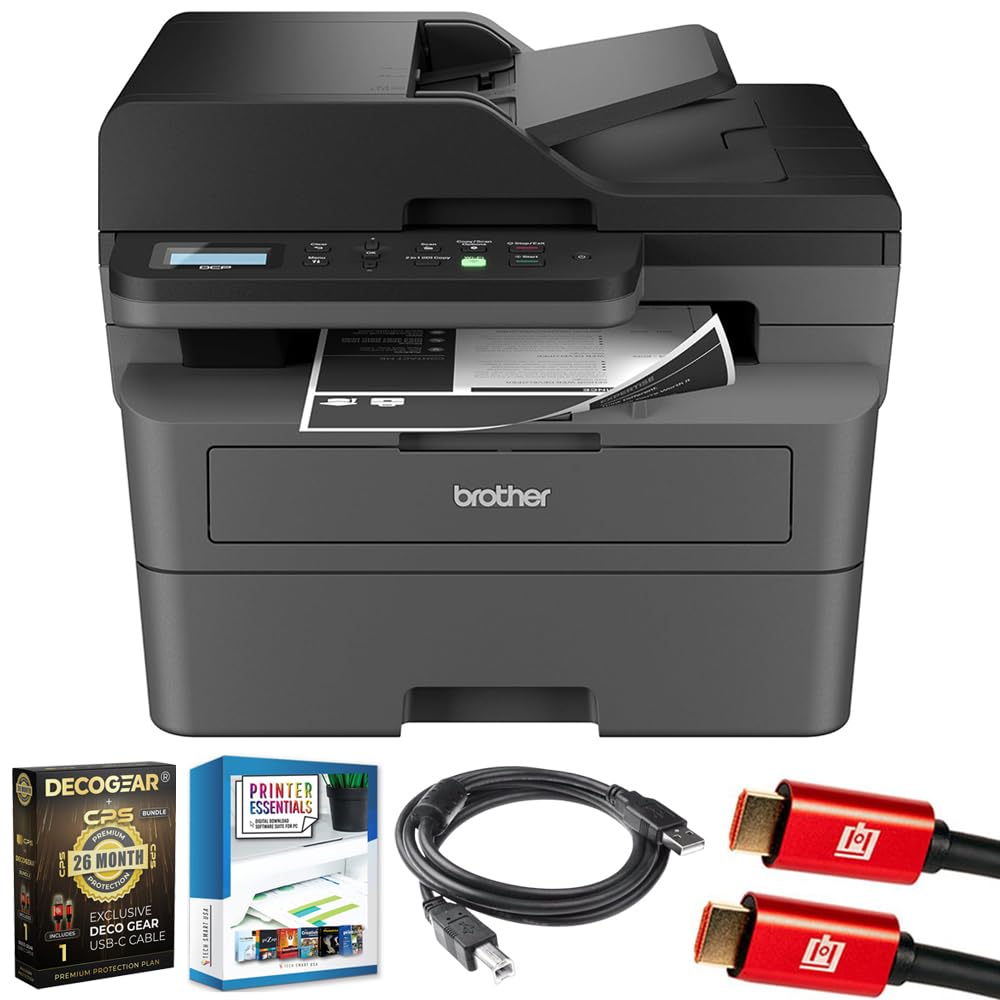
Image 1.1: Brother DCP-L2640DW Compact Monochrome Laser Printer
2. Əsas Xüsusiyyətlər
- 3-ü 1-də Funksionallıq: Print, copy, and scan capabilities in a compact design.
- Sürətli Çap Sürətləri: Delivers up to 36 pages per minute for efficient task completion.
- Avtomatik Dupleks Çap: Built-in two-sided printing to save time and paper.
- 50-Sheet Automatic Document Feeder (ADF): Səmərəli çoxsəhifəli skanlama və kopyalama üçün.
- High-Capacity Paper Handling: 250-sheet paper tray plus a manual feed slot for diverse media types.
- Çevik Bağlantı Seçimləri: Dual-band Wi-Fi, Ethernet, USB, and mobile printing via Brother Mobile Connect, AirPrint, Mopria, and Wi-Fi Direct.
- Advanced Network Security: Features like TLS/SSL, SNMP v3, and IP filtering for secure operation.

Şəkil 2.1: Bitdiview of the Brother DCP-L2640DW's key features including print speed, connectivity, and compact design.
3. Qutuda nə var
- Brother DCP-L2640DW Monochrome Laser Printer
- Starter Black Toner Cartridge (approx. 700 pages)
- Brother DR830 Drum Unit (approx. 15,000 pages)
- AC elektrik kabeli
- Documentation (Quick Setup Guide, Product Safety and Protection Information)
4. Quraşdırma
4.1. Qablaşdırma
- Printeri qablaşdırmadan ehtiyatla çıxarın.
- Printerin xarici və daxili hissəsindən bütün qoruyucu lentləri və qablaşdırma materiallarını çıxarın.
4.2. Toner Cartridge and Drum Unit Installation
- Printerin ön qapağını açın.
- Remove the toner cartridge and drum unit assembly from the printer.
- Unpack the new toner cartridge and drum unit.
- Insert the toner cartridge firmly into the drum unit until it locks into place.
- Slide the green tab on the drum unit from left to right several times to clean the corona wire. Return the tab to the home position.
- Reinstall the toner cartridge and drum unit assembly into the printer.
- Ön qapağı bağlayın.
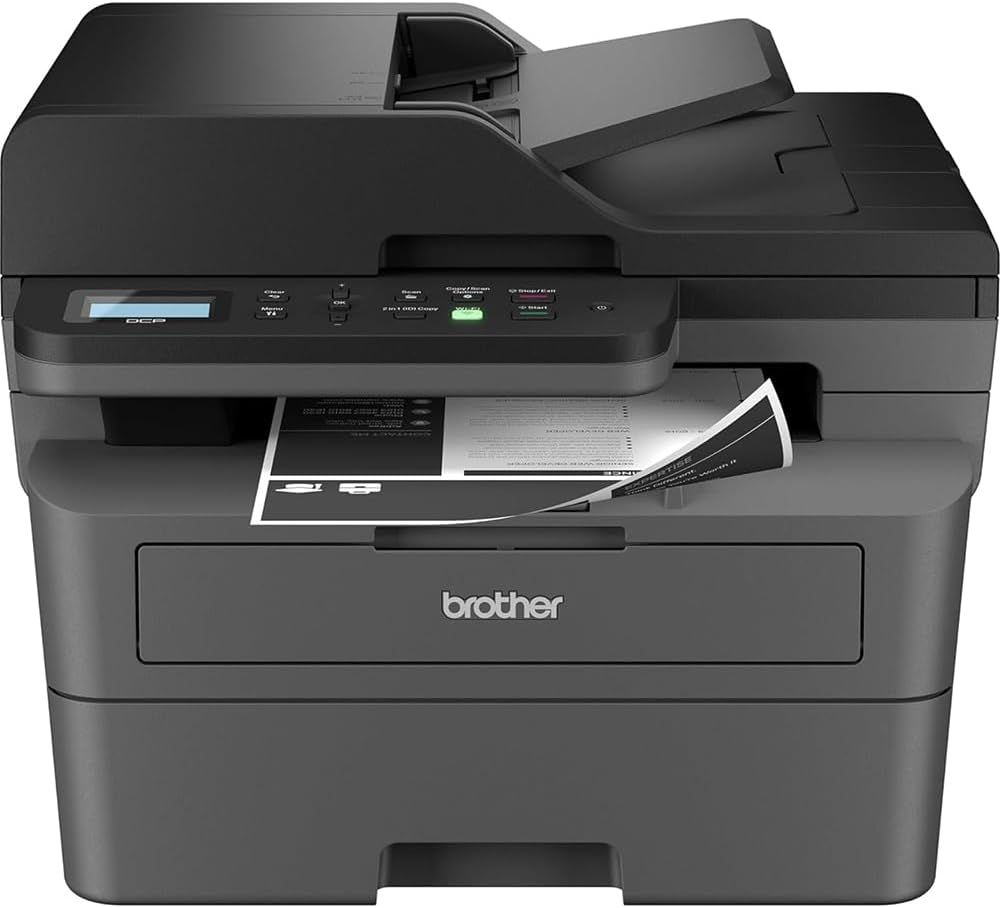
Image 4.1: The Brother DCP-L2640DW printer with the front cover open, showing the toner cartridge and drum unit assembly.
4.3. Güc Bağlantısı
- Connect the AC power cord to the printer's power input.
- Elektrik kabelinin digər ucunu torpaqlanmış elektrik rozetkasına qoşun.
- Printeri yandırmaq üçün güc düyməsini basın.
4.4. Initial Setup & Connectivity
Follow the on-screen instructions on the printer's LCD display to complete the initial setup, including language selection and date/time settings.
- Simsiz Quraşdırma: Navigate to the network settings on the printer's control panel, select your Wi-Fi network, and enter the password.
- Ethernet Bağlantısı: Routerinizdən və ya şəbəkə mərkəzinizdən Ethernet kabelini printerin Ethernet portuna qoşun.
- USB Bağlantısı: Kompüterinizdən USB kabeli printerin USB portuna qoşun.
- Sürücünün quraşdırılması: Install the printer drivers from the included CD-ROM or download them from the official Brother support websayt.
Video 4.1: Məhsul bitdiview video demonstrating the Brother DCP-L2640DW printer's features and ease of use.
5. Əməliyyat Təlimatları
5.1. Sənədlərin çapı
- Load paper into the 250-sheet paper tray or the manual feed slot.
- From your computer or mobile device, open the document you wish to print.
- Proqramın menyusundan "Çap et" seçin.
- Choose your Brother DCP-L2640DW printer.
- Adjust print settings (e.g., number of copies, duplex printing) as needed.
- "Çap et" düyməsini basın.
5.2. Sənədlərin Kopyalanması
- Place your document face down on the scanner glass or face up in the Automatic Document Feeder (ADF).
- On the printer's control panel, press the 'Copy' button.
- Use the arrow keys to select the number of copies or adjust other settings.
- Kopyalamaya başlamaq üçün "Başlat" düyməsini basın.

Image 5.1: The Brother DCP-L2640DW highlighting its Automatic Document Feeder for multi-page tasks.
5.3. Sənədlərin Skanlanması
- Place your document face down on the scanner glass or face up in the ADF.
- On the printer's control panel, press the 'Scan' button.
- Select your desired scan destination (e.g., PC, email, cloud).
- Adjust scan settings (e.g., resolution, color mode) as needed.
- Skan etməyə başlamaq üçün "Başlat" düyməsini basın.
5.4. Səyyar çap
The Brother DCP-L2640DW supports various mobile printing solutions:
- Brother Mobile Connect App: Download the app to manage your printer, print, and scan from your smartphone or tablet.
- Apple AirPrint: Print directly from your Apple iOS device without installing drivers.
- Mopria Çap Xidməti: Print from Mopria-certified Android devices.
- Wi-Fi Birbaşa: Print directly from your mobile device to the printer without needing a router.

Image 5.2: The Brother Mobile Connect App interface, showing options for document print, photo print, scan, copy, and toner monitoring.
6. Baxım
6.1. Tonerin dəyişdirilməsi
When the toner is low or empty, the printer's display will indicate that the toner cartridge needs to be replaced. Always use genuine Brother toner cartridges for optimal performance and print quality.
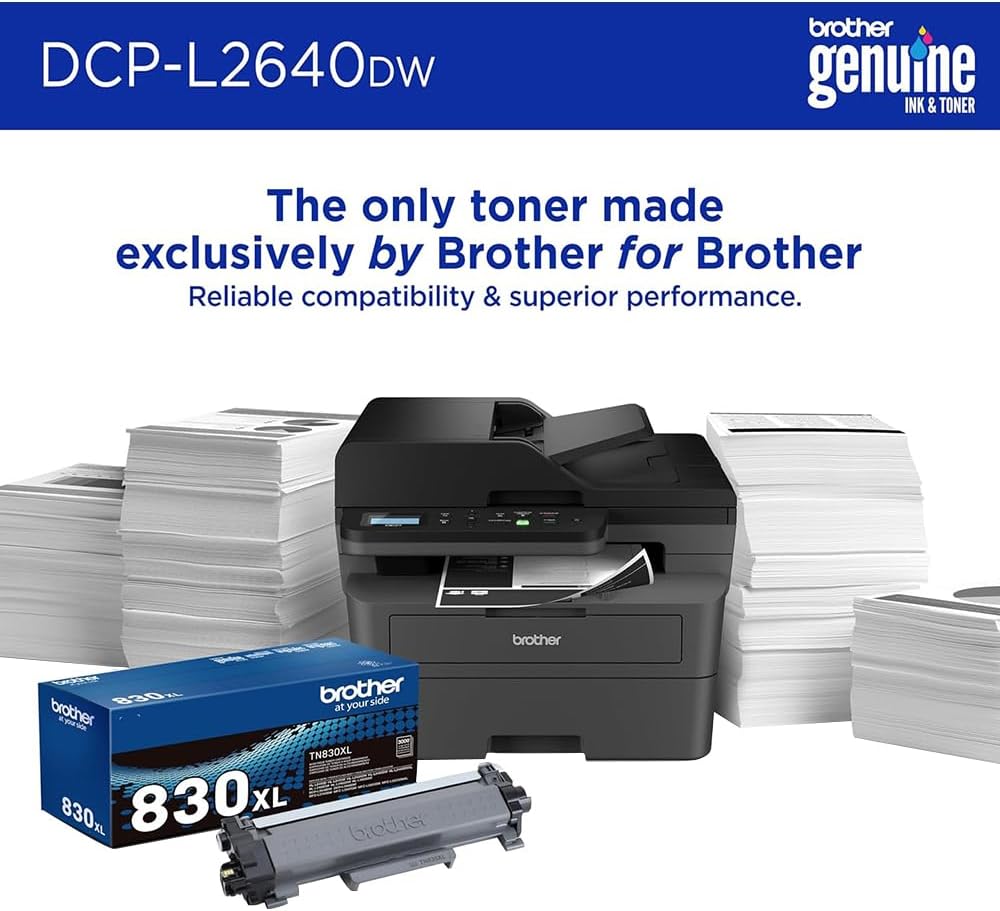
Image 6.1: Brother Genuine Ink & Toner packaging, emphasizing reliable compatibility and superior performance.
6.2. Drum Unit Replacement
The drum unit is a separate consumable that needs to be replaced periodically, typically after approximately 15,000 pages. The printer will notify you when it's time to replace the drum unit.
6.3. Təmizləmə
- Xarici: Printerin xarici hissəsini yumşaq, tüksüz bir parça ilə silin.
- Skaner Şüşəsi: Skaner şüşəsini şüşə təmizləyicisi ilə isladılmış yumşaq, tüksüz parça ilə təmizləyin.
- Corona Wire: Regularly clean the corona wire inside the drum unit by sliding the green tab.
7. Giderme
- Kağız Tıxacları: Follow the on-screen instructions or refer to the printer's documentation to clear paper jams from various access points.
- Bağlantı Problemləri: Ensure the printer is connected to the correct network (Wi-Fi or Ethernet) or directly to the computer via USB. Restarting the printer and router can often resolve temporary connection problems.
- Zəif çap keyfiyyəti: Check toner levels, clean the corona wire, and ensure you are using appropriate paper for your print job.
- Səhv Mesajları: Refer to the printer's LCD display for specific error codes and consult the online manual or Brother support for solutions.
8. Spesifikasiyalar
| Xüsusiyyət | Detal |
|---|---|
| Model nömrəsi | DCP-L2640DW |
| Çap texnologiyası | Lazer |
| Printer Çıxışı | Monoxrom |
| Maksimum Çap Sürəti Monoxrom | 36 ppm |
| Maksimum Qara və Ağ Çap Çözünürlüğü | 1200 x 1200 Nöqtə Hər Düym |
| Avtomatik Dupleks Çap | Bəli |
| Skaner növü | Yataq |
| Maksimum Giriş Vərəqi Tutumu | 250 vərəq |
| Avtomatik Sənəd Ötürücü (ADF) Tutumu | 50 vərəq |
| Bağlantı texnologiyası | USB, Ethernet, Dual-band Wi-Fi |
| Uyğun kartric | TN830, TN830XL |
| Məhsul Ölçüləri | 15.7"D x 16.1"W x 12.5"H |
| Çəki | Not specified in provided data, typically around 20-30 lbs for similar models. |
9. Zəmanət və Dəstək
The Brother DCP-L2640DW Monochrome Laser Printer comes with a Limited Warranty. For specific warranty terms and conditions, please refer to the documentation included with your product or visit the official Brother support websayt.
Texniki dəstək, drayver yükləmələri və əlavə resurslar üçün zəhmət olmasa, ziyarət edin Qardaş Dəstək Websayt.


